

Every installed plugin has its own page in the console, with the actions to control it and tabs for its documentation, its logs, a shell and its settings. Open it from Plugins > My Plugins > Installed and click the plugin card.
When to use it
- To stop a plugin you do not use, or restart one after changing its configuration.
- To upgrade a plugin to a newer version.
- To find out why a plugin does not work, from its logs or a shell.
- To publish the web interface of a plugin outside the console.
Control a plugin
The buttons at the top of the plugin page act on the plugin. Each one is only enabled when it applies to the current state.
| Button | What it does |
|---|---|
| Install | Installs the plugin. See Install a plugin. |
| Upgrade | Installs another version over the current one. The dialog asks for the Plugin Version. Stop the plugin first. |
| Start | Starts a stopped plugin. |
| Stop | Stops a running plugin. |
| Kill | Stops a running plugin at once, without waiting for it to finish. Use it when Stop does not work. |
| Restart | Stops and starts a running plugin. |
| Pause | Pauses a running plugin. |
| Resume | Resumes a paused plugin. |
| Remove | Removes the plugin from your account, after a confirmation. Stop the plugin first. |
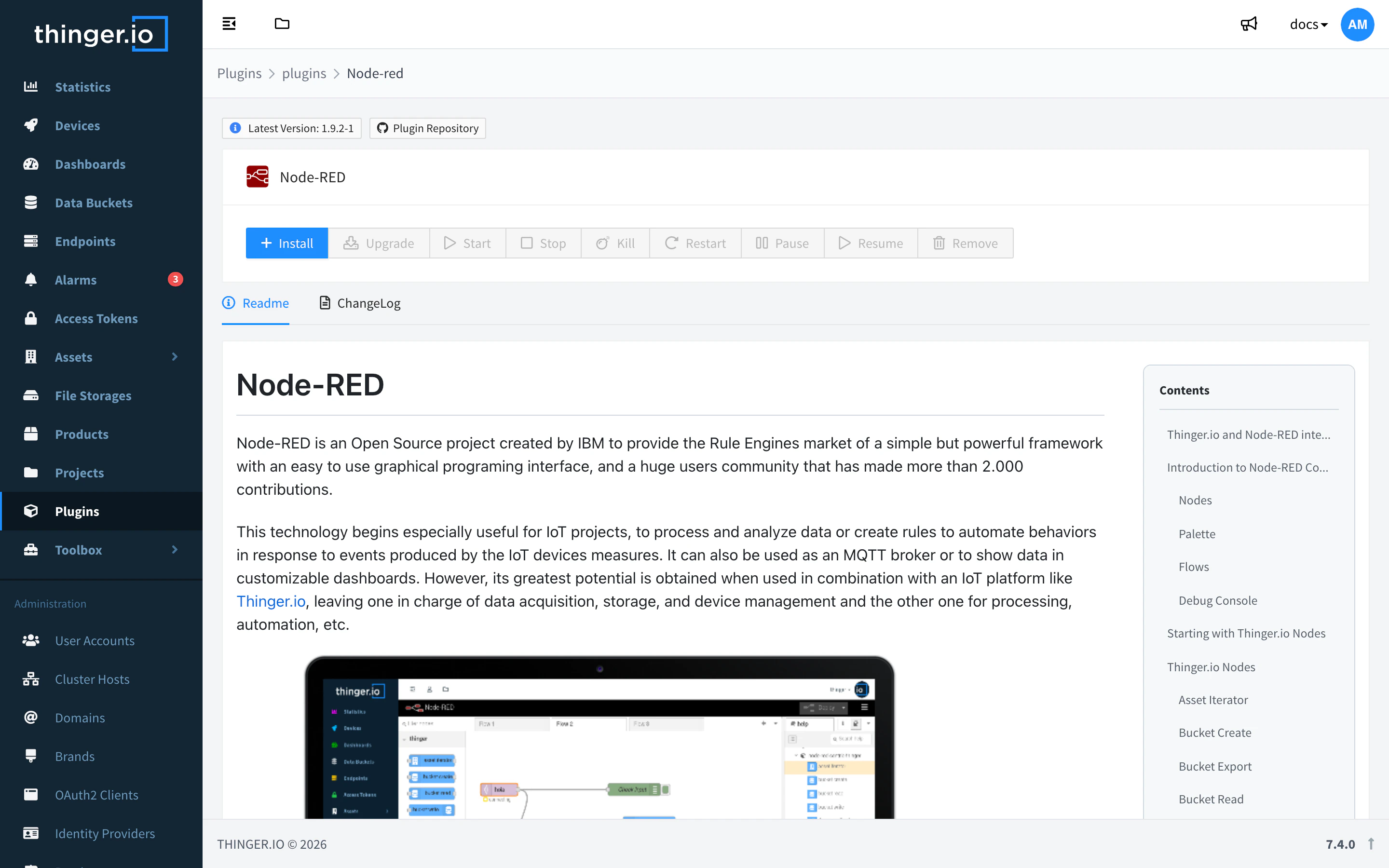
The tags above the buttons show the Latest Version and the Installed Version. When the installed version is older, its tag shows a red warning icon: use Upgrade to update it. Plugins > My Plugins > Updates lists every plugin with a newer version.
To change the state of a plugin from the REST API, see Manage plugin state in the API reference.
Read the logs
Open the Logs tab. It shows the output of the plugin, so you can check that it started and see its errors.
Run commands in a shell
Open the Shell tab to get a terminal inside the running plugin. Use it to inspect its files or run its own commands.
Set public access
Some plugins publish a web interface. By default it is only available to you from the console.
- Open the Settings tab.
- Under Plugin Access, turn on Public Access.
- Copy the URL shown below. Anyone with this URL can reach the plugin interface, so turn it on only for plugins that have their own login or that are meant to be public.