

Every device that connects to Thinger.io has a record in Devices: its ID, its device type, its credentials and its connection status. From the device page you call its device resources, store properties, add labels to find it later and watch its activity live.
This page covers the device record. To connect a device over IOTMP, MQTT or HTTP, see Connect a device.
When to use it
- To register a device before it connects for the first time.
- To check whether a device is online, and since when.
- To keep configuration and state for a device in properties.
- To label devices by site, customer or batch and filter the list by those labels.
Device types
| Device type | type | Use it for |
|---|---|---|
| IOTMP | Generic | Devices that use the Thinger.io libraries (Arduino, ESP-IDF, Zephyr, Linux). |
| MQTT | MQTT | Devices that publish and subscribe on the MQTT broker. |
| HTTP | HTTP | Devices and services that send data with HTTP requests. |
| Virtual | Virtual | Devices without hardware, implemented on the platform. See Virtual devices. |
| Subdevice | Subdevice | Devices that reach the platform through another device. See Subdevices. |
IOTMP and MQTT devices authenticate with device credentials. Keep them when you create the device: they cannot be read back later, only replaced. Subdevices are created from the API or the CLI.
Create a device
YOUR_SERVER is iot.thinger.io on the free Cloud account, or the domain of your private instance.
Console
Open Devices
Go to Devices and click Add Device (or Create a Device if you have none yet).
Fill in the form
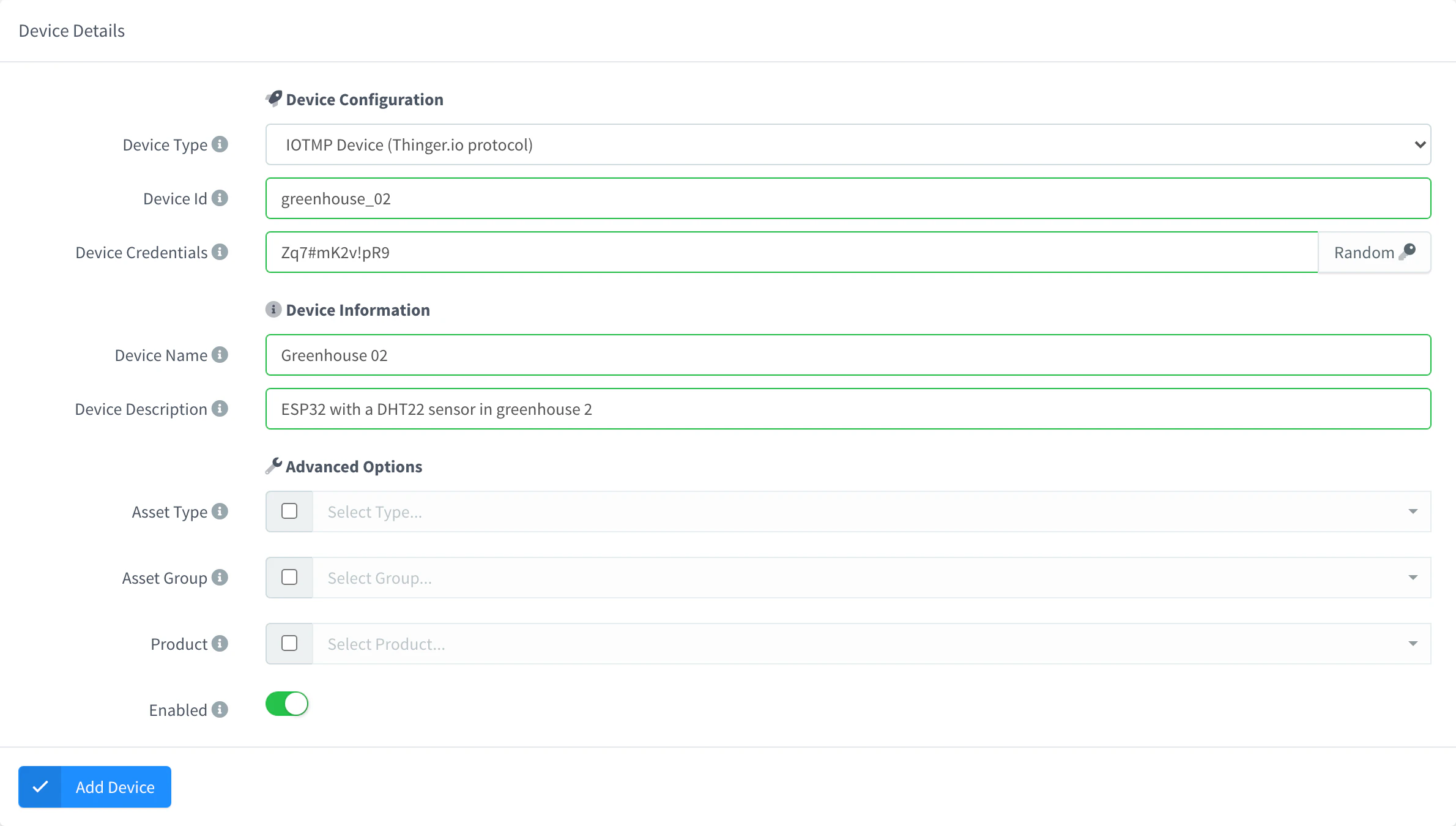
Choose the Device Type (IOTMP Device, HTTP Device, MQTT Device or Virtual Device) and set the Device Id. For IOTMP and MQTT devices, type the Device Credentials or click Random. Optionally, set a Device Name and a Device Description; under Advanced Options you can assign an asset type, an asset group and a product.
Add a device Save the device
Click Add Device. Copy the credentials now: the console cannot show them again.
API
curl -X POST "https://YOUR_SERVER/v1/users/YOUR_USER/devices" \
  -H "Authorization: Bearer YOUR_TOKEN" \
  -H "Content-Type: application/json" \
  -d '{
    "device": "YOUR_DEVICE",
    "type": "Generic",
    "name": "Greenhouse 01",
    "credentials": "YOUR_DEVICE_CREDENTIALS",
    "enabled": true
  }'
Here YOUR_TOKEN is an access token with permission to create devices, and YOUR_DEVICE_CREDENTIALS the secret the device will use to connect.
CLI
thinger device create YOUR_DEVICE --type Generic --name "Greenhouse 01"Without --credentials, the CLI prints generated credentials once. See the CLI reference.
AI
Create an IOTMP device called YOUR_DEVICE named Greenhouse 01 and give me its credentials.
The agent uses thinger_resource_create with the device type. See MCP tools.
Check the status
The device page shows whether the device is connected, when it last connected or disconnected, its address and the data it has sent and received. The list of Devices shows the same status for every device.
Console
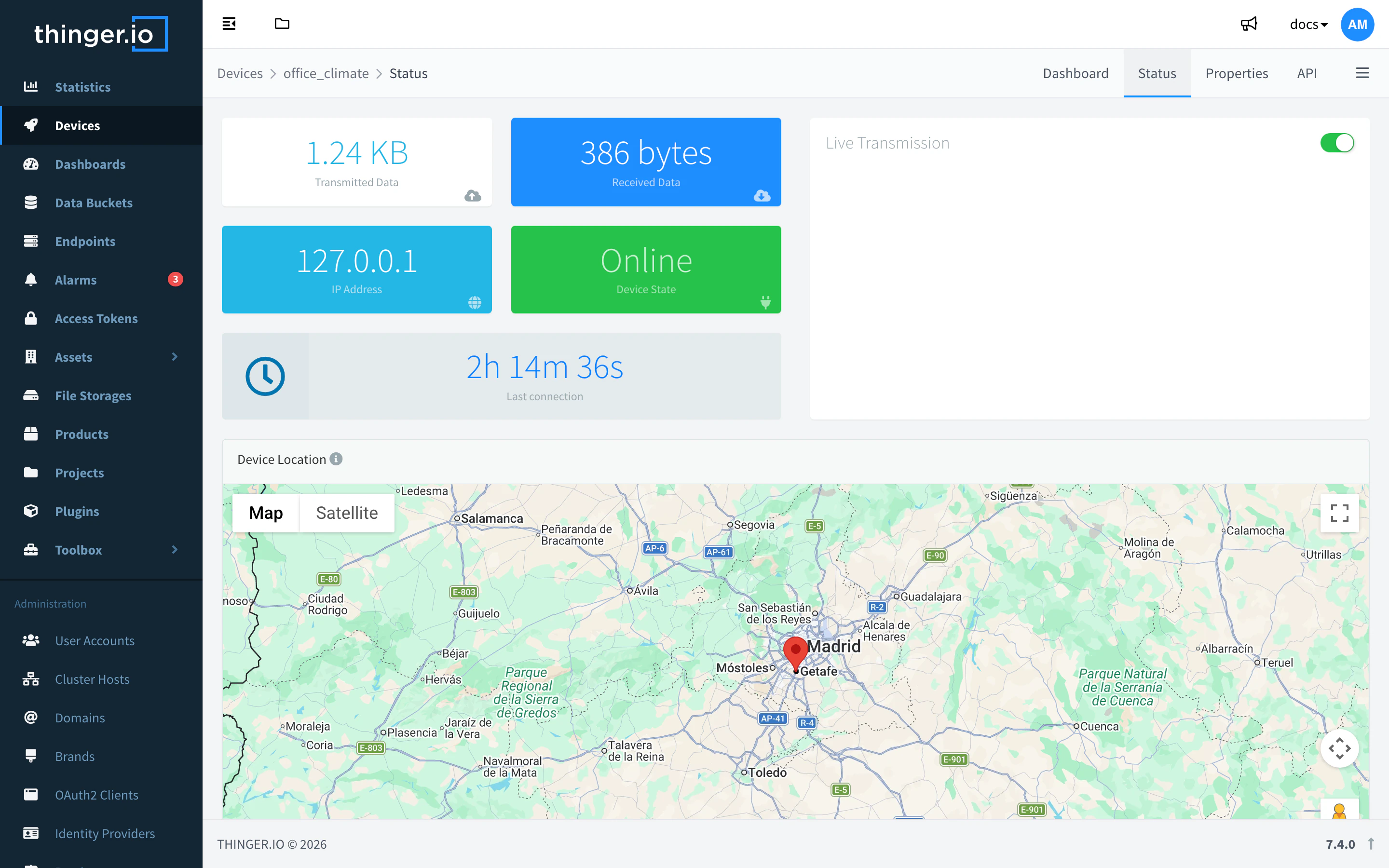
Go to Devices and click the device. The Status tab shows the Device State, the Last connection, the IP Address, the Transmitted Data and Received Data, and a Live Transmission chart. Below them:
- Device Location: an approximate location on a map. Add a
locationproperty withlatandlonfields to set the exact one. - Daily Data Transmission: the data sent and received each day.
- Report for last 30 days: the Total Data, Total Connections, Total Sent and Total Received of the last 30 days, counting only the payload the device exchanged.
API
curl "https://YOUR_SERVER/v1/users/YOUR_USER/devices/YOUR_DEVICE" \
  -H "Authorization: Bearer YOUR_TOKEN"
connection.active is true while the device is connected, and connection.ts is the time of the last change.
The daily usage of the last 30 days, the data of Daily Data Transmission, has its own call:
curl "https://YOUR_SERVER/v3/users/YOUR_USER/devices/YOUR_DEVICE/stats" \
  -H "Authorization: Bearer YOUR_TOKEN"
CLI
thinger device info YOUR_DEVICEthinger device list shows every device with online or offline.
AI
Is YOUR_DEVICE online? Tell me when it last connected.
The agent uses thinger_device_overview, and thinger_resource_call with the stats action of the device type for the daily usage.
Call device resources
Device resources are the inputs and outputs that the firmware of an IOTMP device declares, such as a sensor reading or a relay. While the device is connected, you call them through the REST API: a GET reads an output, and a POST sends an input and returns the output.
Console
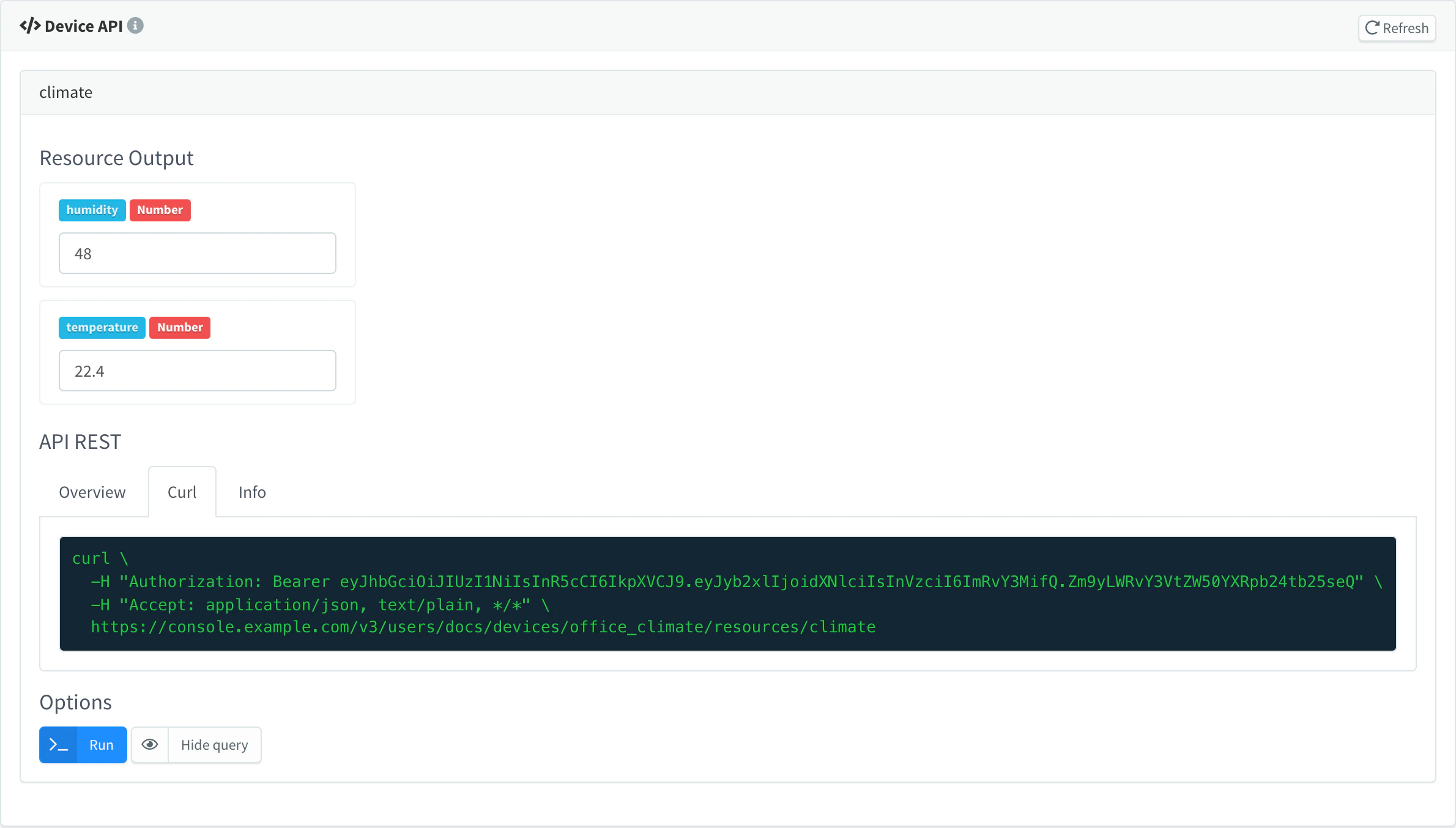
Open the device and go to the API tab. It lists the device resources with their inputs. Fill in the inputs and click Run to call a resource.
Click Show query to see the REST call behind it:
| Tab | Shows |
|---|---|
| Overview | The Method and URL, the Authorization header, and the Request Body and Response Body of the last run. |
| Curl | The same call as a curl command to copy. |
| Info | A reminder that the Authorization header shown is temporary. |
The header shown is the token of your console session: it lasts a few hours and has access to your whole account. To call the device from a script or an app, use a device token or an access token instead.
API
curl "https://YOUR_SERVER/v3/users/YOUR_USER/devices/YOUR_DEVICE/resources/temperature" \
-H "Authorization: Bearer YOUR_TOKEN"curl -X POST "https://YOUR_SERVER/v3/users/YOUR_USER/devices/YOUR_DEVICE/resources/setpoint" \
-H "Authorization: Bearer YOUR_TOKEN" \
-H "Content-Type: application/json" \
-d '{ "interval": 120, "limit": 27.5 }'The body is the input the device resource expects: an object with its fields, or the value alone, such as true, for a resource with a single value. GET /v3/users/{user}/devices/{device}/resources lists the device resources with their inputs and outputs.
CLI
thinger device resource YOUR_DEVICE temperature
thinger device resource YOUR_DEVICE setpoint -i interval=120 -i limit=27.5
Without a resource name, thinger device resource YOUR_DEVICE lists them. See the CLI reference.
AI
Read the temperature resource of YOUR_DEVICE, then set its setpoint resource to an interval of 120 and a limit of 27.5.
The agent uses thinger_device_resource_list and thinger_device_resource_call.
Share a device with a device token
A device token gives access to one device and nothing else: use it in a dashboard, an app or a third-party service that calls the device resources, instead of a session or an account-wide token. You can limit it to some device resources and make it expire.
| Setting | What it sets |
|---|---|
| Token Name | A name that tells you who uses it, such as Display panel. |
| Token Access | All the device resources, or only the ones you list. |
| Token Expiration | Never, or a date after which the token stops working and is deleted. |
Send the token in the Authorization: Bearer header of each call, or in an authorization URL parameter. A token limited to some device resources also reaches their subpaths, such as temperature/celsius for temperature.
A device token without a list of device resources reaches all the resources of its device and reads its connection status. No device token can modify or delete the device, nor manage its tokens and properties: use an access token for that. Device tokens are deleted together with their device.
Console
Open the tokens of the device
Open the device, go to the Tokens tab and click Add.
Set the token
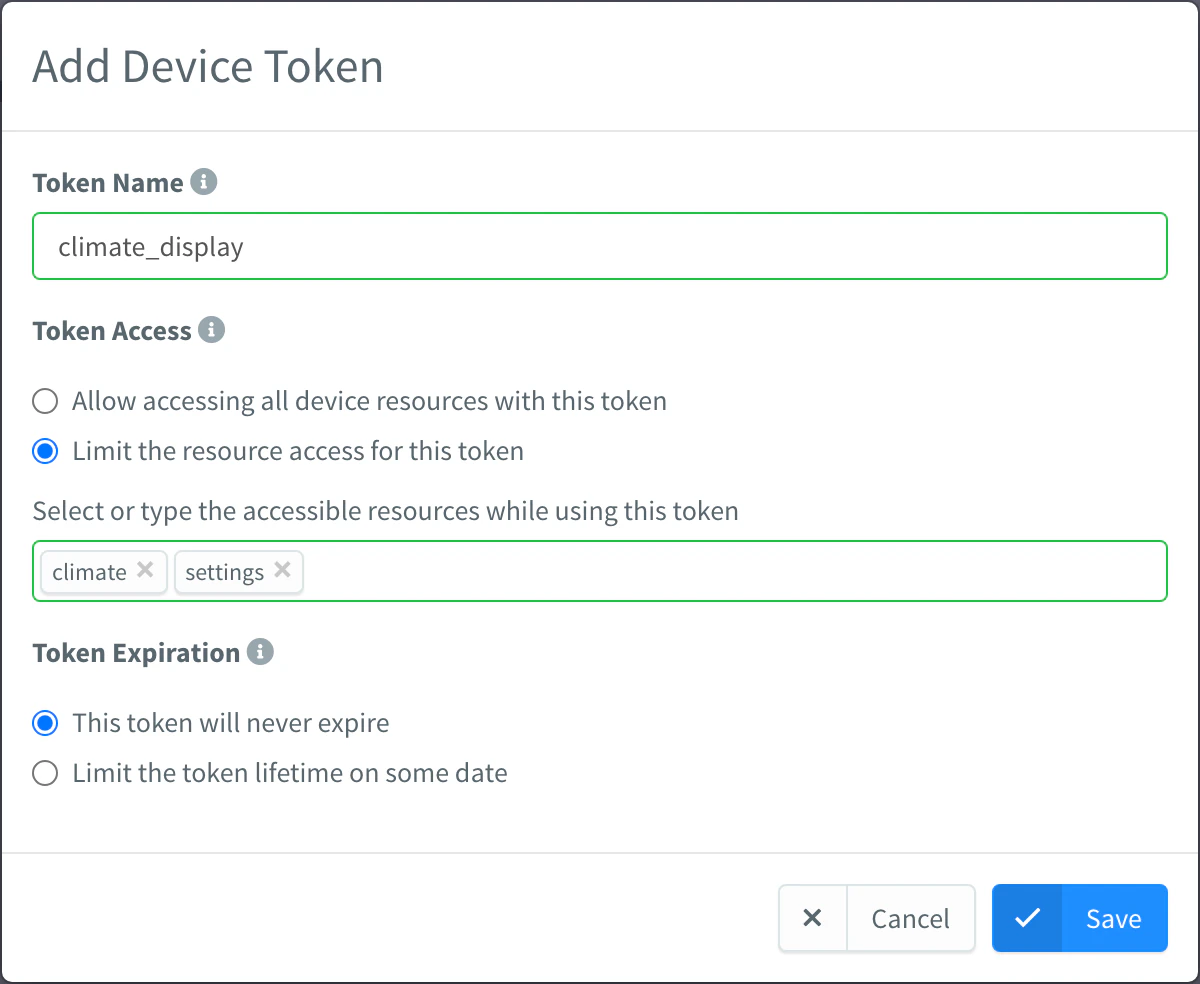
Set the Token Name. In Token Access, keep all the device resources or choose Limit the resource access for this token and pick them. In Token Expiration, keep This token will never expire or choose a date. Save it.
Copy the token
The dialog shows the Device Token: copy it. Show QR Code shows it as a QR code, to pass it to a phone or another device. The token stays in the list of the Tokens tab, where you can open it again or delete it.
Device token limited to two resources
API
curl -X POST "https://YOUR_SERVER/v1/users/YOUR_USER/devices/YOUR_DEVICE/tokens" \
  -H "Authorization: Bearer YOUR_TOKEN" \
  -H "Content-Type: application/json" \
  -d '{
    "token_name": "Display panel",
    "token_resources": ["temperature", "humidity"],
    "token_expiration": 1798761600000
  }'
token_resources is optional: without it, the token reaches all the device resources. token_expiration is a unix timestamp in milliseconds; without it, the token does not expire. The response holds the token value. GET /v1/users/{user}/devices/{device}/tokens lists the tokens with their values, and DELETE /v1/users/{user}/devices/{device}/tokens/{token} revokes one by its id.
Then call the device with the token:
curl "https://YOUR_SERVER/v3/users/YOUR_USER/devices/YOUR_DEVICE/resources/temperature?authorization=YOUR_TOKEN"AI
Create a device token for YOUR_DEVICE called Display panel that can only read the temperature and humidity resources, and give me its value.
The agent uses thinger_resource_create with the device_token type.
Change the settings or credentials
The Settings tab of a device edits its record:
| Setting | What it does |
|---|---|
| Device Credentials | New credentials for IOTMP and MQTT devices. Leave it empty to keep the current ones. |
| Device Name, Device Description | The name and description shown in the console. |
| Asset Type, Asset Group, Product | Under Advanced Options: the asset type, asset group and product of the device. |
| Enabled | Turn it off to close the connection of the device and refuse new ones. |
| Sleep Timeout | Seconds without activity after which the device counts as asleep. Empty disables the asleep state. |
| Disconnect Timeout | Seconds without activity after which the device counts as disconnected; at least 60. Empty uses the default (600 seconds for HTTP devices). |
The sleep timeout must be shorter than the disconnect timeout. Timeouts apply at once, also to a device that is connected. New credentials do not close the current connection: the device keeps working until it reconnects, and then it needs the new credentials, so update the firmware first.
Console
Open the device and go to Settings. Change the fields and click Update Device.
API
curl -X PUT "https://YOUR_SERVER/v1/users/YOUR_USER/devices/YOUR_DEVICE" \
  -H "Authorization: Bearer YOUR_TOKEN" \
  -H "Content-Type: application/json" \
  -d '{
    "credentials": "YOUR_DEVICE_CREDENTIALS",
    "connection": { "timeouts": { "sleep": 300, "disconnect": 900 } }
  }'
Send only the fields you change. {"enabled": false} disables the device.
CLI
The CLI cannot edit devices other than their product (thinger device set-product). Use the console, the API or an agent.
AI
Set the disconnect timeout of YOUR_DEVICE to 15 minutes and the sleep timeout to 5 minutes.
The agent uses thinger_resource_update with the device type.
Store properties
A property is a named JSON value stored on the device: a configuration the device reads when it starts, a threshold, a location. Properties stay on the platform when the device is offline. See Properties for how properties work across devices, products and assets.
Console
Open the device, go to the Properties tab and click Add. Set the property ID and its JSON value, and save.
API
curl -X POST "https://YOUR_SERVER/v3/users/YOUR_USER/devices/YOUR_DEVICE/properties" \
  -H "Authorization: Bearer YOUR_TOKEN" \
  -H "Content-Type: application/json" \
  -d '{ "property": "location", "value": { "lat": 40.4, "lon": -3.7 } }'
CLI
thinger device property-set YOUR_DEVICE location '{"lat": 40.4, "lon": -3.7}'thinger device property YOUR_DEVICE location reads it back.
AI
Set the location property of YOUR_DEVICE to latitude 40.4 and longitude -3.7.
Label devices
Labels are free key-value pairs on the device record, such as site: madrid or batch: 2026-10. Use them to find and group devices without creating asset types or groups. A label can have an empty value when only its key matters.
Filter the device list by labels:
| Query | Returns |
|---|---|
?labels=site | Devices that have the site label, with any value. |
?labels=site&labels=batch | Devices that have both labels. |
?labels.site=madrid | Devices whose site label is madrid. |
?labels.site=madrid&labels.site=paris | Devices whose site label is either value. |
Label keys start with a letter, a digit or _, and contain only letters, digits, _ and -.
Console
The console does not show or edit labels yet. Set them and filter by them with the API or an agent.
API
curl -X PUT "https://YOUR_SERVER/v1/users/YOUR_USER/devices/YOUR_DEVICE" \
  -H "Authorization: Bearer YOUR_TOKEN" \
  -H "Content-Type: application/json" \
  -d '{ "labels": { "site": "madrid", "batch": "2026-10" } }'
The update replaces all the labels of the device. Then filter the list:
curl "https://YOUR_SERVER/v1/users/YOUR_USER/devices?labels.site=madrid" \
  -H "Authorization: Bearer YOUR_TOKEN"
CLI
The CLI cannot set labels or filter by them: thinger device list filters only by a pattern on the ID and the name. Use the API or an agent.
AI
Add the label site with value madrid to YOUR_DEVICE, then list all my devices that have the site label.
The agent uses thinger_resource_update, and thinger_resource_list with a labels filter.
Watch a device live
The tabs of the device page follow the device as it works and give access to everything it holds. Some tabs show only for the device types they apply to:
| Tab | Shows |
|---|---|
| Status | Connection state, live traffic, location and the daily data transmission of the device. |
| Inspector | The activity of the device as it happens. |
| API | The device resources of a connected IOTMP device, which you can call from the console. |
| Terminal, Explorer | A shell and a file browser on IOTMP devices that support them. See Remote tools. |
| Dashboard | The dashboard of the device, when the device or its product has one. |
| Buckets | The Data Buckets that store data of the device. |
| Tokens | The device tokens of the device. |
| Properties | The properties of the device. |
| Callback | The request and response settings of an HTTP device, for the HTTP callback, which is deprecated: new integrations use a product. |
| Geofences | The geofences the device is checked against. |
| Settings | The settings and credentials of the device. |
To follow device activity from your own code, subscribe to events such as device_state_change and device_resource_stream.
Limits
- The device ID cannot be changed after the device is created.
- Deleting a device cannot be undone: its properties and credentials are deleted with it.
- Labels are replaced as a whole on each update: send every label you want to keep.
- Device tokens cannot be edited: to change the device resources or the expiration of a token, create a new one and delete the old one.
- The number of devices depends on your plan: see Plans and limits.