

A claim is a list of your resources, such as devices and dashboards, with a code that another account can redeem. When someone claims it, the resources are added to a project you share with that account, so they can use them with the permissions of the project. The resources stay in your account: a claim shares them, it does not transfer them.
When to use it
- You make devices for customers: you provision them first and print a QR code on each box, so every customer claims their own device.
- You hand a kit of resources, such as a device and its dashboard, to a new user in one step.
- You want claimed devices to be added at the same time to a project of your own, to supervise them.
To compare claims with adding devices by hand or with Auto Provision, see Provisioning.
How a claim works
You create the claim
You choose the resources it shares and how many times it can be claimed. The claim gets a Claim Code, a Claim URL and a Claim QR.
The other account opens it
They open the URL, scan the QR code or type the code in the console. If they are not signed in, the console asks them to log in or, where public sign-up is enabled, to create an account.
They review and claim
The console shows the resources of the claim and asks for a Target Project: one of the projects you share with their account. When they confirm, the resources join that project.
They configure the devices
If the product of a device defines property forms, the last screen offers to configure each device. See Products > Properties.
The target project must already exist and be one you own and share with the claiming account. On instances with public sign-up for project members, the sign-up creates that project for each new user: see Brands.
Create a claim
YOUR_SERVER is iot.thinger.io on the free Cloud account, or the domain of your private instance.
Console
Open Claims
Go to Toolbox > Claims and click Add Claim.
Fill in the form
Set the Claim Identifier, which is also the claim code, the Name and an optional Description. In Configuration, leave Enabled on and set Max Claims (
1for a single use,0or empty for no limit).Add the resources
In Claim Resources, click Add, choose the Resource Type and the Resources, and click Ok. Repeat for each type.
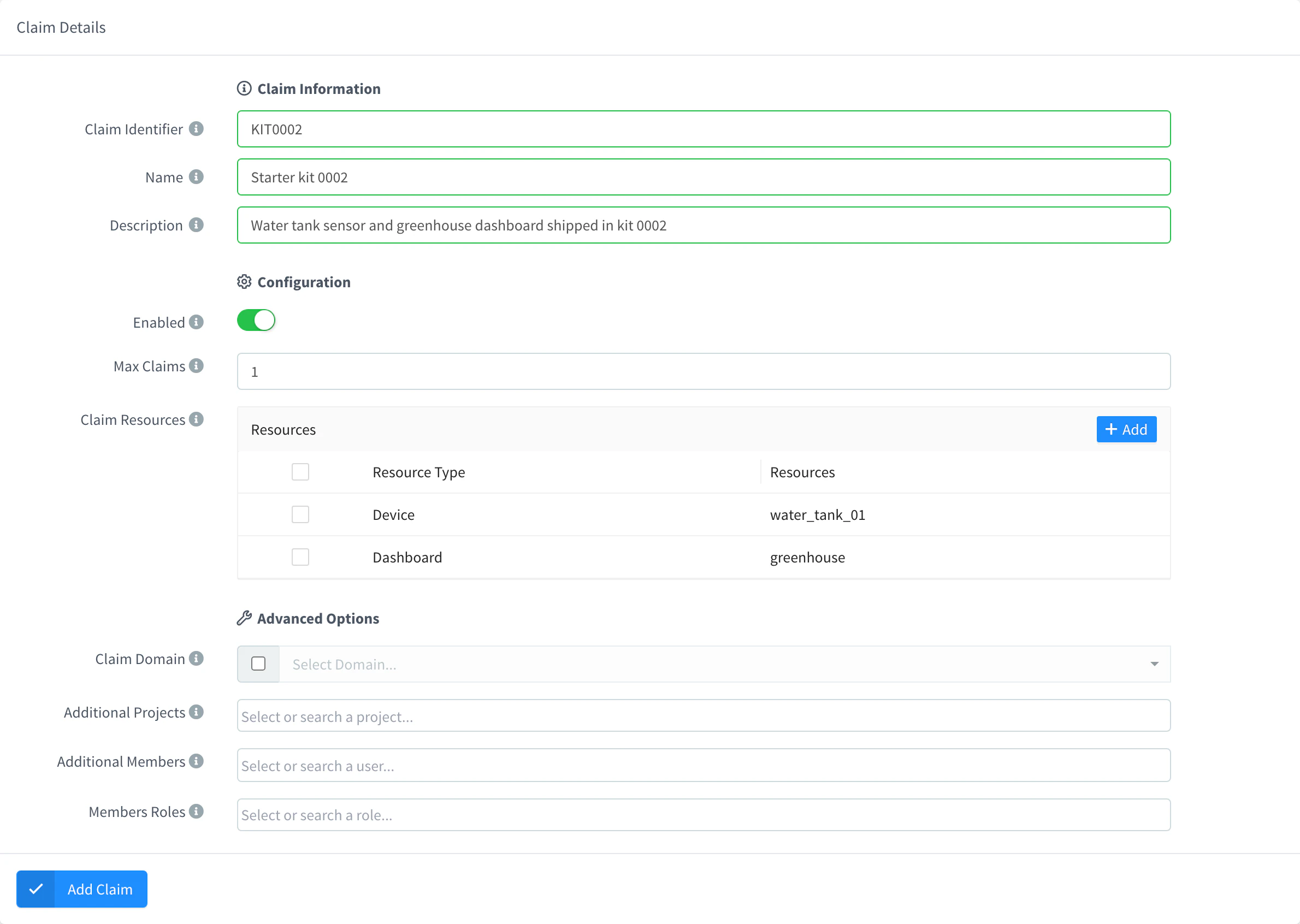
Add a claim Set the advanced options
Optionally, in Advanced Options, choose the Claim Domain used in the claim URL, Additional Projects that also receive the resources, and Additional Members with their Members Roles, who join the target project to supervise it.
Save it
Click Add Claim. Open the claim again to copy its Claim Code, Claim URL and Claim QR from Claim Details.
API
curl -X POST "https://YOUR_SERVER/v1/users/YOUR_USER/claims" \
  -H "Authorization: Bearer YOUR_TOKEN" \
  -H "Content-Type: application/json" \
  -d '{
    "claim": "KIT0001",
    "name": "Starter kit 0001",
    "enabled": true,
    "config": {
      "max_claims": 1,
      "resources": [
        {"type": "device", "identifiers": ["YOUR_DEVICE"]}
      ]
    }
  }'
The claim ID is the claim code, and it must be unique on the whole instance. The claim URL is https://YOUR_SERVER/console/claim/KIT0001, or the same path on the domain set in config.domain. Optional fields add projects, members and members_roles. YOUR_TOKEN is an access token with permission to create claims.
CLI
The CLI has no commands for claims. Use the console, the API or an agent.
AI
Create a single-use claim called KIT0001 that shares the device YOUR_DEVICE, and give me its claim URL.
The agent uses thinger_resource_create with the claim type. See MCP tools.
Claim resources
This is what the other account does. It needs to be signed in, and the target project must be a project the claim owner shares with it.
Console
Open the claim URL, or click Request Claim in the header of the console, which appears inside a project. Type the Claim Code, click Next, check the resources, choose the Target Project and confirm. The last step shows Claim process completed! and, for devices with property forms, a link to configure them.
API
Check what a claim contains before claiming it:
curl "https://YOUR_SERVER/v1/claims/KIT0001" \
  -H "Authorization: Bearer YOUR_TOKEN"
Then claim it into a project:
curl -X POST "https://YOUR_SERVER/v1/claims" \
  -H "Authorization: Bearer YOUR_TOKEN" \
  -H "Content-Type: application/json" \
  -d '{"code": "KIT0001", "project": "jane_workspace"}'
Here YOUR_TOKEN is a token of the account that claims, and jane_workspace the ID of the target project.
CLI
The CLI cannot claim resources. Use the console or the API.
AI
The MCP tools manage the claims of your own account, but do not redeem a claim of another account. Use the console or the API.
Each claim is recorded in the claim, with the user, the date and the project: the claim list shows Total Claims and Last Claim. Every completed claim emits the claim_completed event, which you can follow in the Inspector tab of the claim.
Limits
- A claim fails when it is disabled, when it has reached Max Claims, when the claiming account is the owner, when the target project is not one the owner shares with that account, or when one of its resources no longer exists.
- Claims do not expire. Disable or delete the claim to stop it.
- There is no unclaim. To take the resources back, remove the project from each resource, or remove the member from the project: see Projects.
- The number of claims depends on your plan: see Plans and limits.