

The API Resources card of a product profile adds device resources to every device of the product. Each API resource has a request, which does something when it is called, and a response, which sets what the call returns. Dashboards, the REST API and agents call them like the device resources of an IOTMP device.
When to use it
- To send commands to MQTT devices: the request publishes to a topic, and the response waits for the reply.
- To give HTTP or virtual devices device resources, computed by the product script.
- To set a device property from a dashboard button or an external system.
- To receive data from an external system that does not know the device, through one URL for the whole product.
Request and response
The Request tab chooses the target of a call: Device Resource, Device Stream, Device Topic, Device Property, Product Function, Endpoint Call, Plugin Endpoint, Product Stream or None (see Flows for what each one does). With Device Property, the call writes the property you choose. None does nothing on request: use it for a resource that only returns a value, such as a property or the result of a function.
The Response tab chooses what the call returns: Request Response (what the request target returned), Device Resource, Device Property, Device Topic (the next message on a topic, from the same device or, with Publish Source, from any publisher), Product Function, Endpoint Call or None. Both tabs build their payload as described in Sources, targets and payloads.
Commands over MQTT
An MQTT device answers a command on another topic. Set the request to Device Topic on the command topic, such as devices/{{device}}/cmd, and the response to Device Topic on the reply topic, such as devices/{{device}}/reply. The call publishes the command and returns the first message that the device publishes on the reply topic, or fails after 15 seconds without one. With a Device Topic request, Request Response returns the message that was published, not an answer from the device.
Default input
The API tab of the device and dashboard widgets show the input of a resource. They cannot guess its type from {{payload}} alone, so give it a default value in the request payload:
{{payload:toOnOff=false}}Here toOnOff is a function of the product script that converts the input before it is sent. The default after = is a JSON value (false, 0, {}) or the path of a current value, such as property.relay. It sets the input that the API tab and widgets show. With several inputs, name each one; a call that leaves out one of them gets its default:
{"threshold": {{payload.threshold=30}}, "enabled": {{payload.enabled=false}}}Add an API resource
YOUR_SERVER is iot.thinger.io on the free Cloud account, or the domain of your private instance. YOUR_PRODUCT is the product ID. This resource writes the settings property of the device and returns what it wrote.
Console
Open the API Resources card
Open the product on its Profile tab and click Add in the API Resources card. Set the Resource Identifier.
Set the request
On Request, choose Device Property, the property
settings, and Source Payload.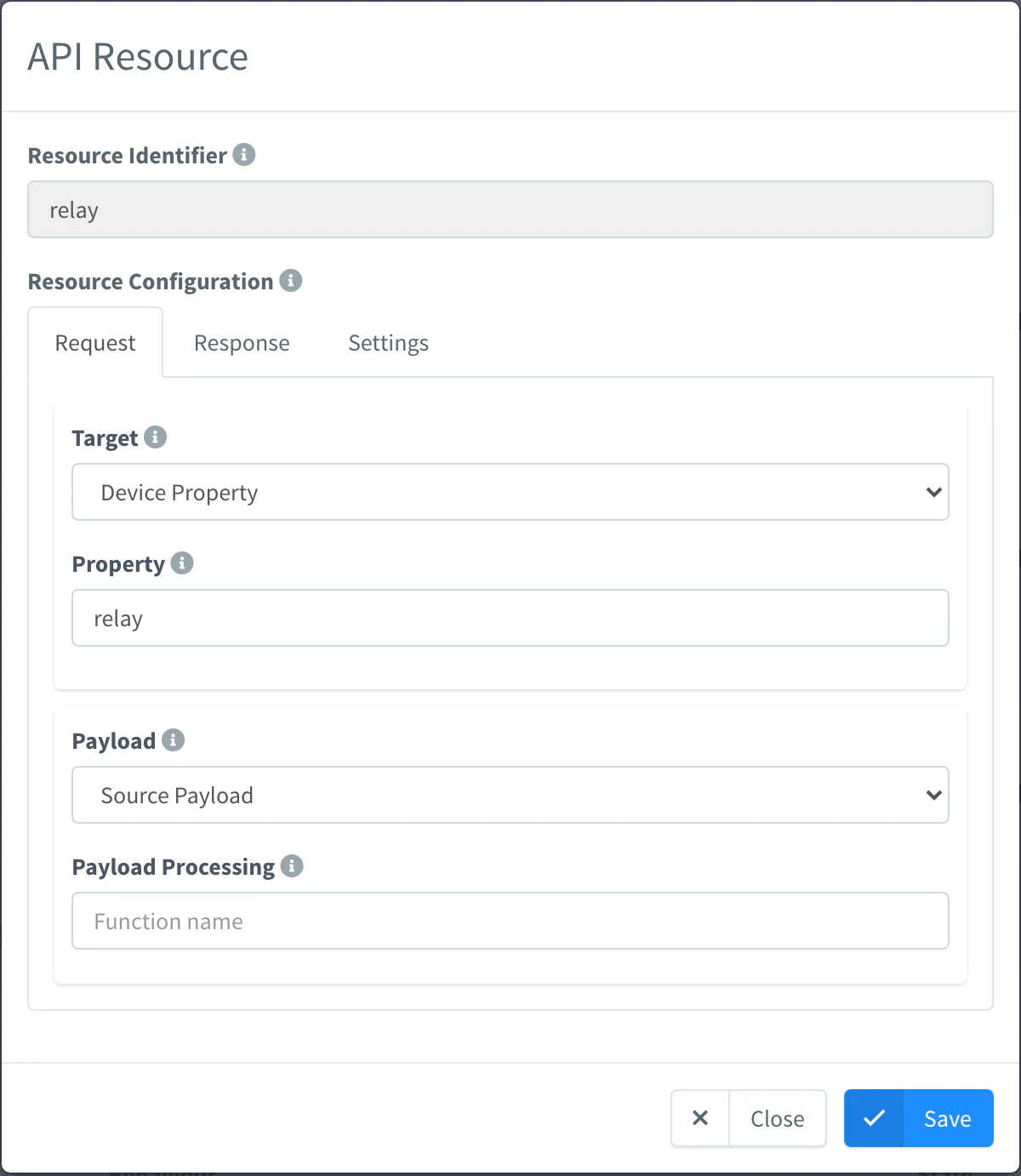
API resource with a Device Property target Set the response
On Response, choose Request Response. On Settings, set the API Description, leave Enabled on and click Save.
API
curl -X PUT "https://YOUR_SERVER/v1/users/YOUR_USER/products/YOUR_PRODUCT/profile/api/configure" \
  -H "Authorization: Bearer YOUR_TOKEN" \
  -H "Content-Type: application/json" \
  -d '{
    "enabled": true,
    "request": { "data": { "target": "property", "property": "settings", "payload_type": "source_payload" } },
    "response": { "data": { "source": "request_response", "payload_type": "source_payload" } }
  }'
CLI
The CLI cannot edit profile entries. Include them in the profile.api of the document you pass to thinger product create YOUR_PRODUCT --from product.json.
AI
Add an API resource called configure to the product YOUR_PRODUCT that saves what it receives in the settings property of the device.
The agent uses thinger_resource_create with the product_profile_api type. See MCP tools.
Call an API resource
Every device of the product now has the device resource. Call it for one device:
Console
Open the device on its API tab, choose the resource, fill in the input and run it. Dashboard widgets can also call it.
API
curl -X POST "https://YOUR_SERVER/v3/users/YOUR_USER/devices/YOUR_DEVICE/resources/configure" \
  -H "Authorization: Bearer YOUR_TOKEN" \
  -H "Content-Type: application/json" \
  -d '{"threshold": 30}'
CLI
thinger device resource YOUR_DEVICE configure -i threshold=30Each -i key=value adds a field to the input. See the CLI reference.
AI
Call the configure resource of YOUR_DEVICE with a threshold of 30.
The agent uses thinger_device_resource_call.
Call it for the whole product
An external system that sends data for many devices, without knowing which device is which, can call the resource on the product. Set a Device Identifier Resolver in Settings: a function of the product script that returns the device ID from the payload. The console then shows the URL of the product call, which needs an access token with the AccessProductResources permission.
curl -X POST "https://YOUR_SERVER/v1/users/YOUR_USER/products/YOUR_PRODUCT/resources/configure" \
  -H "Authorization: Bearer YOUR_TOKEN" \
  -H "Content-Type: application/json" \
  -d '{"serial": "001", "threshold": 30}'
An array calls the resource once per element. Agents use thinger_product_resource_call; the CLI has no command for it.
Limits
- An API resource runs only while it and the product are enabled.
- Without a Device Identifier Resolver, the product call does not reach any device.
- The Device Resource target and response work only with IOTMP devices, which must be connected.
- A Device Topic response waits up to 15 seconds for the message.
- A call to a device that does not exist, with an ID that matches an Auto Provision pattern of the product, creates the device: see Auto Provision.