

A dashboard is a screen of widgets that shows device data in real time and lets you act on your devices: charts of a Data Bucket, gauges of a device resource, maps of your assets, buttons that change a property. You design it in the console, without code. For a dashboard written as a web app, see Dashboard apps.
When to use it
- To monitor devices in real time or over a time range.
- To control devices from the console: switches, sliders and property buttons.
- To share a read-only view of your data with people who have no account.
Widgets
Each widget has a type, a data source and display settings. The types are grouped in the Widget Settings dialog:
| Group | Widgets |
|---|---|
| Display | Time Series Chart, Apex Charts, Donut Chart, Progressbar, Gauge, Tachometer, Text/Value, Led Indicator, Clock, Google Map, Assets Map, Assets Table, Image/MJPEG, HTML Widget, HTML Time Series, Group Widget |
| Device Control | On/Off State, Slider, Property Button, Property Table |
| Dashboard Control | Source Switcher |
A widget reads its data from one of these sources: From Device Resource (live data of a connected device), From Data Bucket (stored data, the latest value or a time range), From Device Bucket (the data a product bucket keeps for one device), From Device Property, or Manual (fixed values, to try a widget). Time series widgets can aggregate and transform the data, and any source can pass its values through a function of the dashboard before the widget shows them.
Every widget and its options are in Widgets; the source types, refresh modes, timeframes, aggregations and transformations are in Widget data sources. The HTML Widget and the HTML Time Series widget show your own HTML, CSS and JavaScript, from a snippet or from a file of a File Storage: see HTML Widget. To use one dashboard for many devices, add a Source Switcher.
Create a dashboard
YOUR_SERVER is iot.thinger.io on the free Cloud account, or the domain of your private instance.
Console
Open Dashboards
Go to Dashboards and click Add Dashboard (or Create a Dashboard if you have none yet).
Fill in the form
Set the Dashboard id, the Dashboard name and an optional Dashboard description, and click Add Dashboard. The empty dashboard opens.
Add widgets
Turn on the edit mode in the dashboard toolbar and click Add Widget. Choose the Type, the data source and the display options, and save. Drag the widgets to place and resize them, and click Add Tab to split the dashboard into tabs.
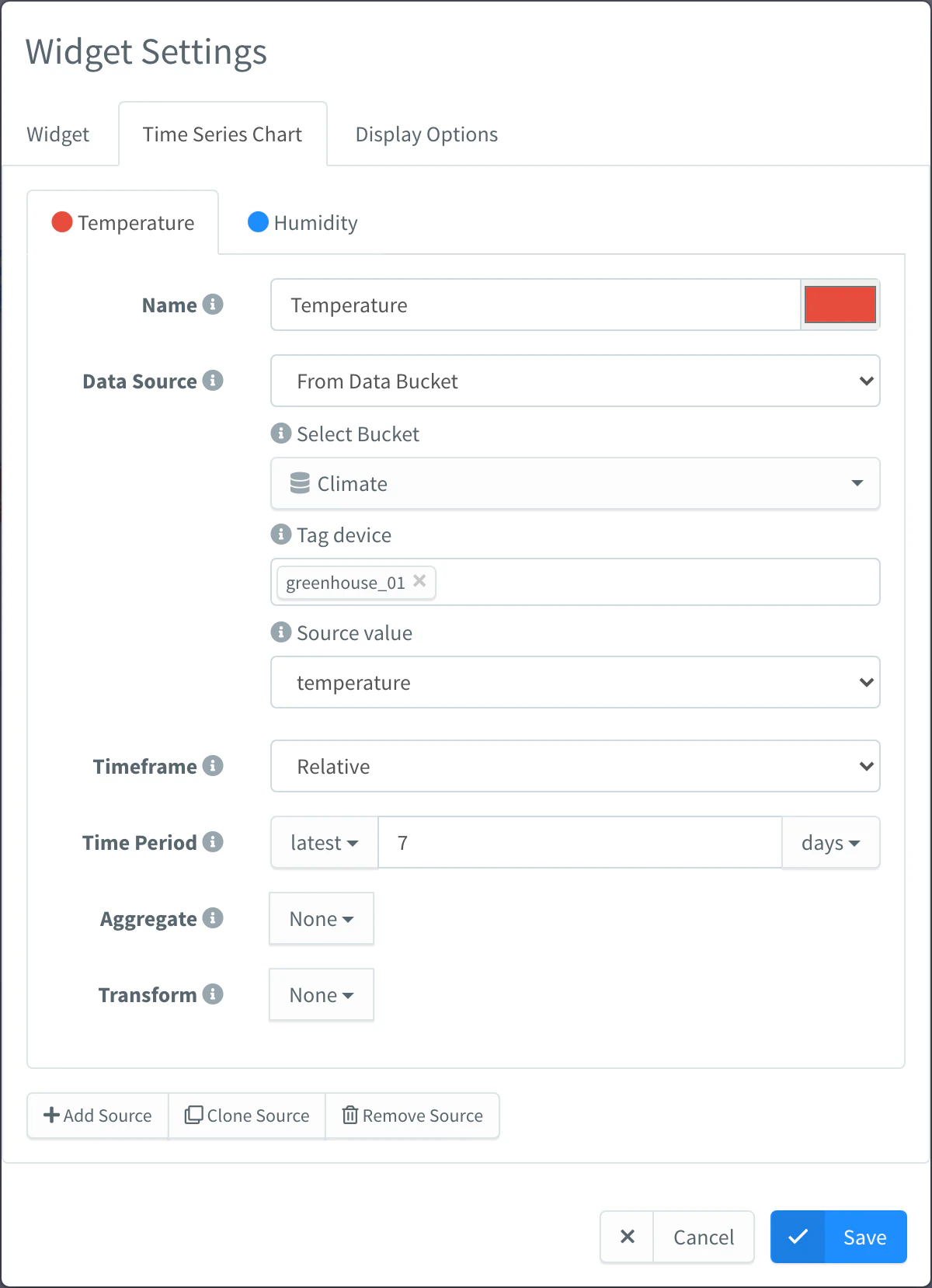
Widget Settings of a Time Series Chart
API
curl -X POST "https://YOUR_SERVER/v1/users/YOUR_USER/dashboards" \
  -H "Authorization: Bearer YOUR_TOKEN" \
  -H "Content-Type: application/json" \
  -d '{
    "dashboard": "greenhouse",
    "name": "Greenhouse",
    "description": "Climate of the greenhouse",
    "tabs": [ { "name": "Main", "icon": "fas fa-tachometer-alt", "widgets": [] } ]
  }'
YOUR_TOKEN is an access token with permission to create dashboards. The API creates the dashboard; design its widgets in the console editor, which stores them in the same object.
CLI
The CLI does not create widget dashboards. thinger dashboard builds and publishes dashboard apps.
AI
Create a dashboard for my greenhouse that shows the temperature and humidity of the greenhouse_climate bucket over the last 24 hours.
Agents build dashboards as dashboard apps with thinger_dashboard_publish, rather than widget layouts. See Build dashboards with AI.
Organize a dashboard in tabs
Tabs split a dashboard into pages. Each tab has its own widgets and sources; the settings of Layout (columns, row height, background, border radius) apply to every tab. A tab loads its widgets the first time you open it and keeps receiving live data while you look at another tab.
Turn on the edit mode and click Add Tab. The new tab is named New Tab. While in edit mode, every tab shows its controls:
- Type in the name field to rename the tab.
- Click the icon to choose another one from the icon menu.
- Click × to delete the tab and its widgets.
- Drag a tab to change the order.
A dashboard has up to 10 tabs. With a single tab, the tab bar is hidden.
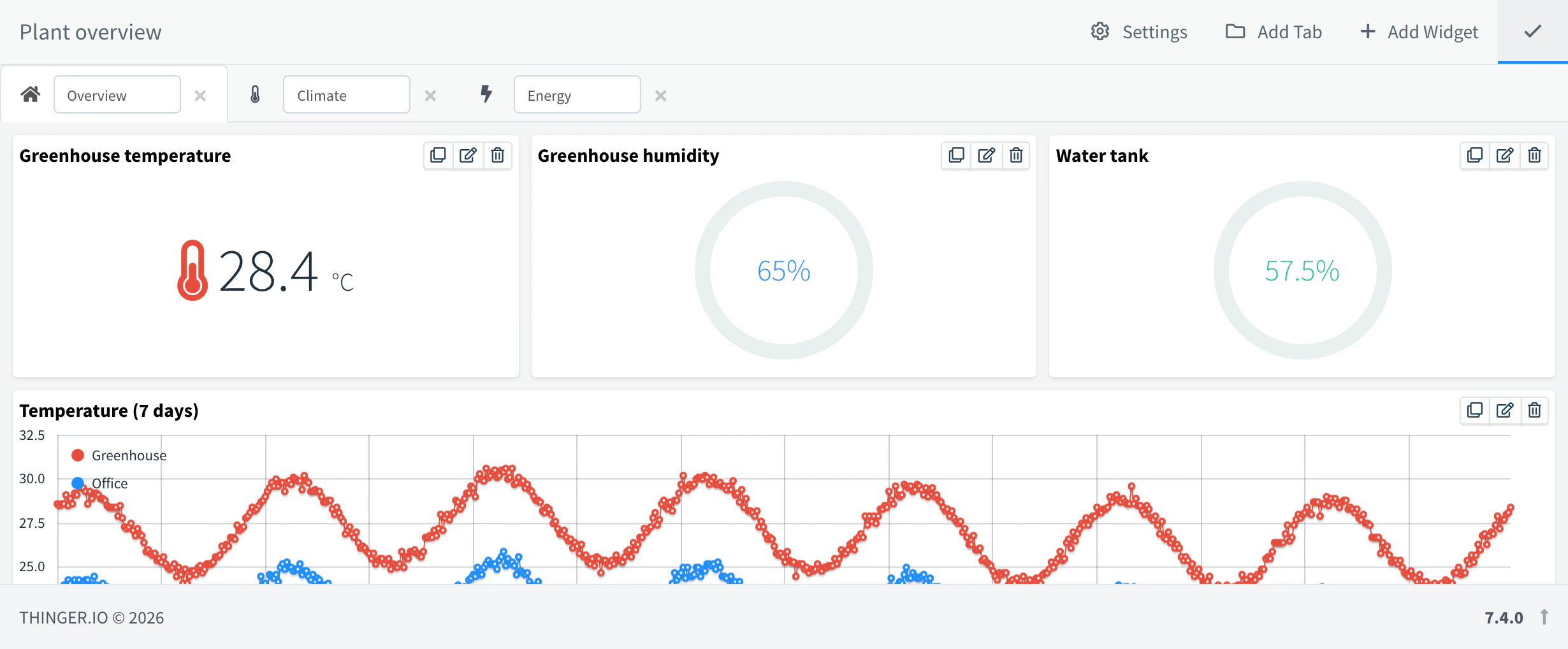
Configure a dashboard
Turn on the edit mode and click Settings in the dashboard toolbar to open Dashboard Settings:
| Tab | What it sets |
|---|---|
| Layout | Name, description, columns, row height, background, border radius and whether to hide the header. |
| Share | The public link of the dashboard (see Share a dashboard). |
| Developer | The dashboard as JSON, to copy it or edit it by hand. |
| Placeholders | Values you write as {{name}} in the dashboard and its widgets (see Placeholders). |
| Functions | JavaScript functions that process the values of widget sources (see Functions). |
| Controls | The aggregation, time range selector and hours controls shown to viewers. |
Placeholders
A placeholder is a named value of the dashboard. Write it between double braces in the dashboard name, in widget titles and subtitles, in Manual values and in the code of an HTML Widget, and read it in functions. Click Add Source in Placeholders and set:
| Field | What it does |
|---|---|
| Name | The name you write between the braces. |
| Data Source | From Device Property: the value of a property of a device, all of it or the fields you pick in Select Fields. Manual: a fixed number. |
For example, a device has a property location with the value "My house". Add a placeholder named location from that property, and set the Manual value of a Text/Value widget to {{location}}: the widget shows My house. With a Source Switcher, the placeholders read the properties of the device it selects.
In text, a placeholder shows a text or a number. When its value is an object, such as a placeholder site from a property with several fields, read the fields in a function (shared.placeholders.site.city) or in an HTML Widget (placeholders.site.city).
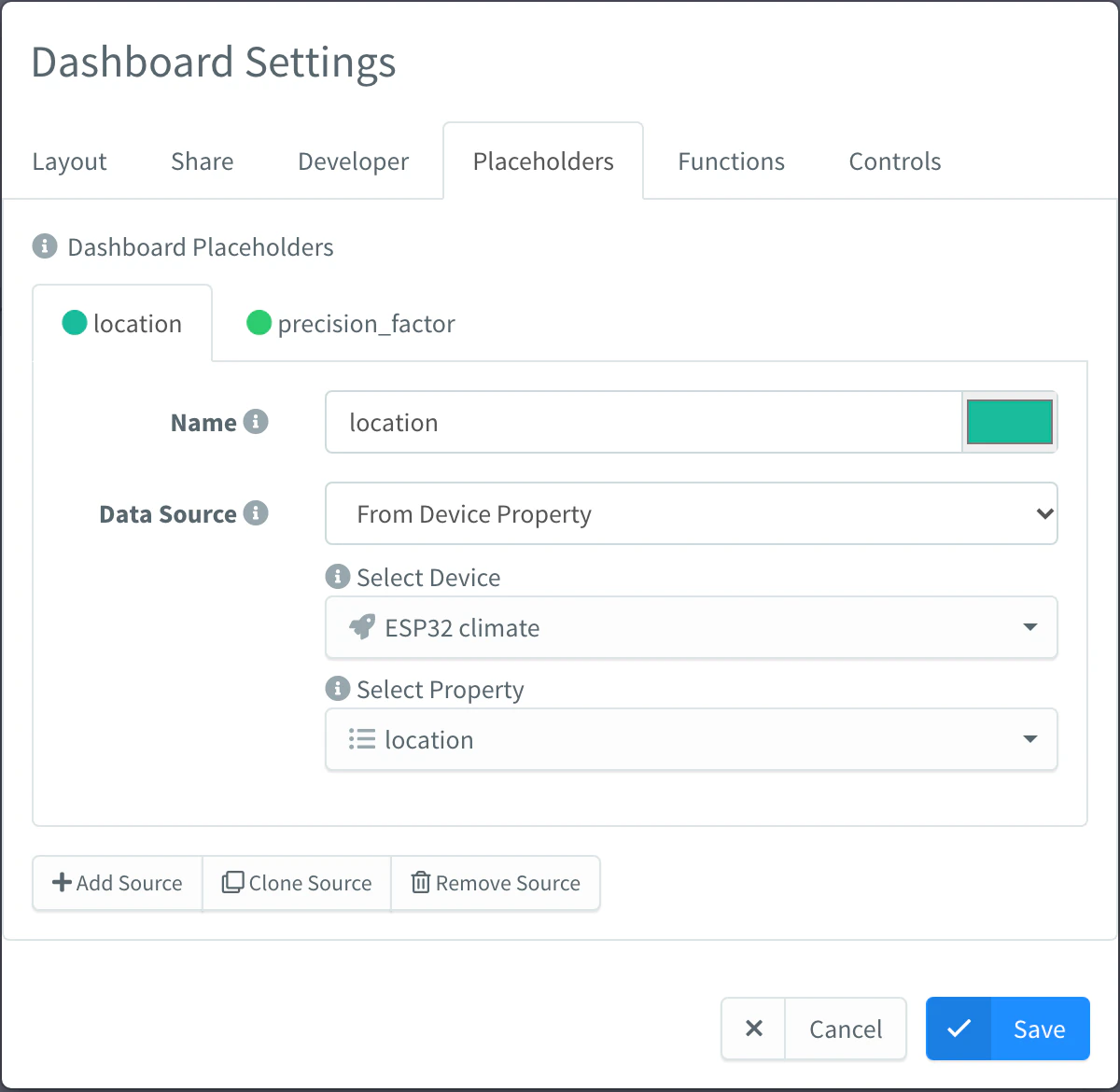
Functions
Functions process the values of a widget source before the widget shows them: round a number, convert units, turn a code into a text. Write them in JavaScript in Functions; Add Function inserts an empty one. Then choose the function in the Processing field of the source in the widget settings (Processing).
Each function receives one value and returns the value the widget shows:
function convertFunction(value, ts, series) {
    // multiply by the factor stored in the precision_factor property
    return value * shared.placeholders.precision_factor.multiplier;
}

function toFahrenheit(value, ts, series) {
    // one decimal
    return Math.round((value * 9 / 5 + 32) * 10) / 10;
}| Parameter | Content |
|---|---|
value | The value of the source, after Select Fields: a number, a text or an object. |
ts | Its timestamp, in milliseconds. |
series | The configuration of the source, such as its name. |
shared is an object that every function of the dashboard can read and write. shared.placeholders holds the placeholders by name. In the example, the device property precision_factor holds {"multiplier": 6}, and a placeholder named precision_factor reads it, so convertFunction multiplies each value by 6.
Info
A function runs once per value, not over the whole series: a chart of 100 points calls it 100 times, and a chart of several fields calls it for each field. It cannot compute a total or an average over the series; use Aggregate for that.
Rules of the editor:
- Declare each function as
function name(value, ts, series) { ... }. Each name appears in Processing; code outside the functions is ignored. - Do not use the
functionkeyword inside a function. Write helpers as arrow functions (const round = x => Math.round(x)), or keep them insharedto use them from several functions. - If a function throws an error, the widget shows the value without processing, and the error appears in the browser console.
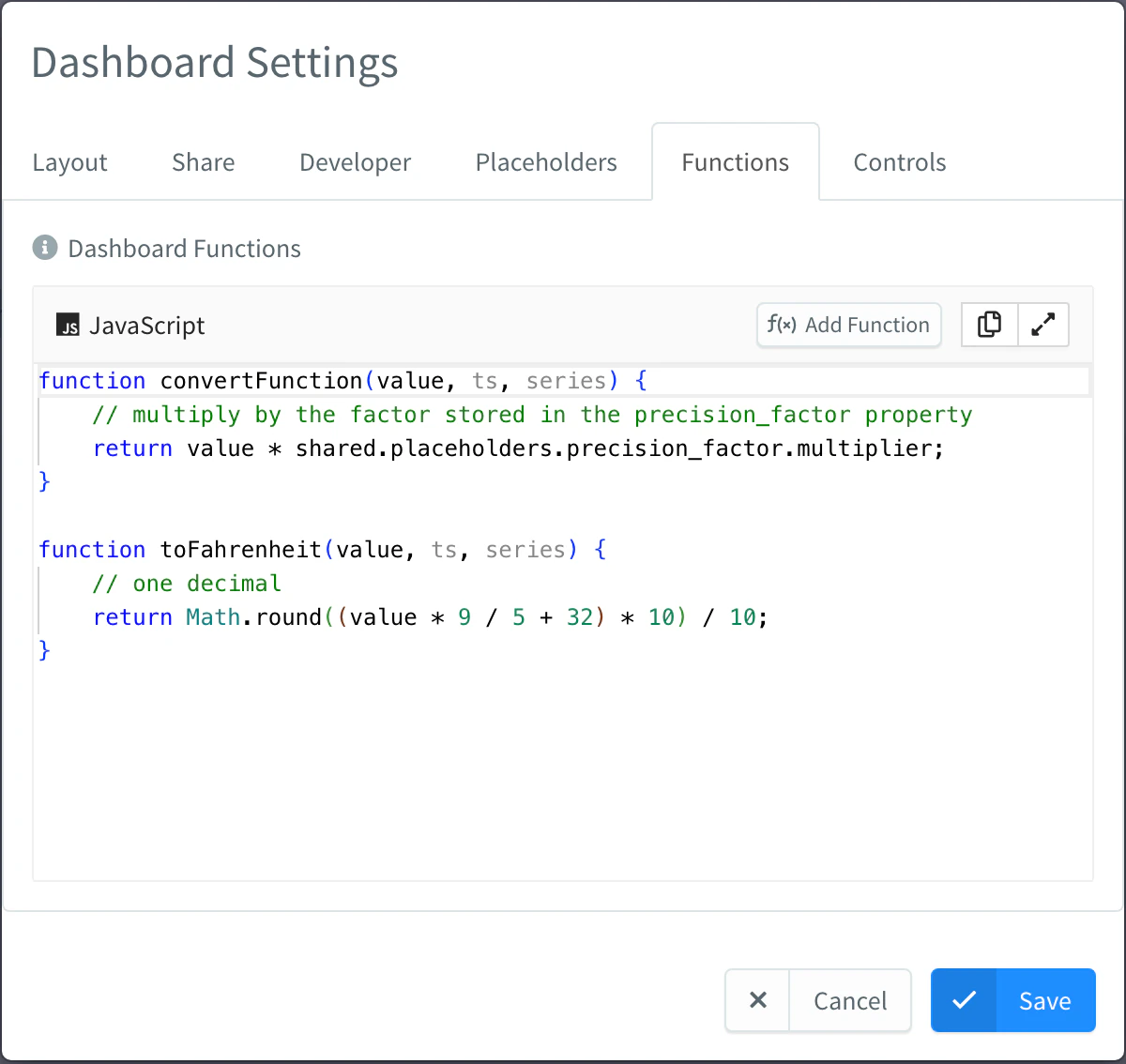
Share a dashboard
Sharing gives a dashboard a public link that works without signing in.
Console
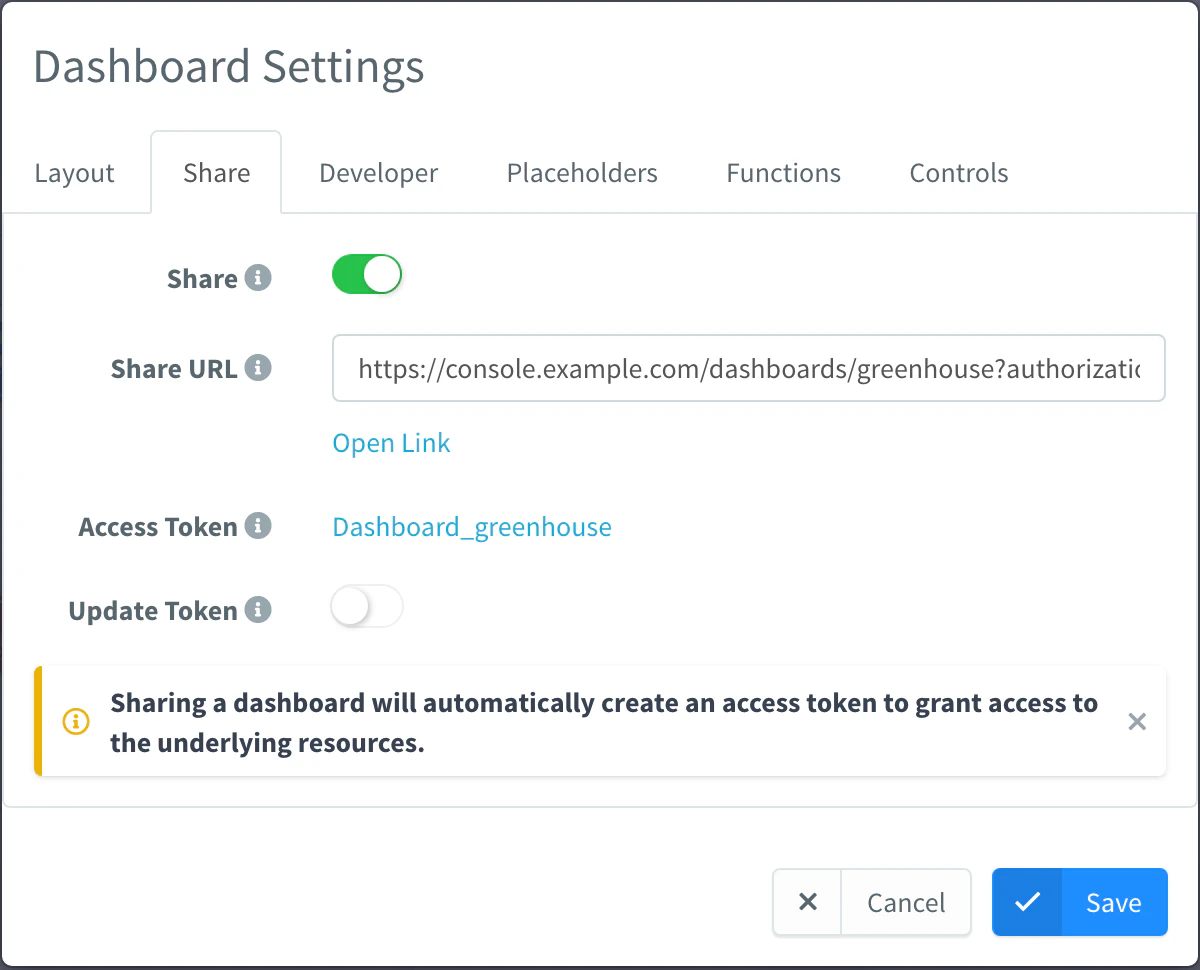
Open the dashboard, turn on the edit mode, click Settings and go to Share. Turn on Share, click Save, and copy the Share URL or click Open Link.
Warning
Sharing a dashboard creates an access token (named Dashboard_ followed by the dashboard ID) that grants read access to the resources its widgets use. Anyone with the link can see them. Turn off Share or delete the token to revoke the link.
The token gets the permissions the widgets need when you turn on Share. To keep them up to date, turn on Update Token, shown while the dashboard is shared: each time you save the dashboard, the token gets the permissions of its current widgets. Without it, widgets you add later with other devices, buckets or File Storages show no data on the shared link until you turn Share off and on again.
API
The API has no share call. Create an access token with read permissions on the resources the dashboard uses, and open https://YOUR_SERVER/dashboards/{dashboard}?authorization=<access token>.
CLI
The CLI does not share widget dashboards.
AI
Create a read-only access token for the devices and buckets of my greenhouse dashboard so I can share it.
Show a dashboard on a device, product or asset
A device, a product, an asset type, an asset group or a project can have its own dashboard, shown in a Dashboard tab of its page. Store the dashboard object (with its widgets, or as a dashboard app) in a property named dashboard of that resource. A product dashboard serves every device of the product.
Combine it with a Source Switcher and placeholders to build one dashboard that works for every device of the same kind.
Limits
- Widgets show only what the viewer may read: on a shared dashboard, the permissions of its access token.
- Device resources update live only while the device is connected; buckets and properties work when it is offline.
- Plan limits apply: see Plans and limits.