

The Buckets card of a product profile stores the data of every device of the product without creating a Data Bucket per device by hand. Each entry takes its data from a source, such as a device resource read every minute, and writes it to a bucket that the platform creates on the first write.
When to use it
- To keep the history of a fleet: telemetry read at an interval, or every message on a topic.
- To let users and project members read the data of their own devices without access to the whole bucket.
- To feed dashboards with the From Device Bucket source, which shows the data of the device being viewed.
One bucket or one per device
The bucket ID decides how the data is split:
| Bucket ID | Result |
|---|---|
A fixed ID, such as meter_telemetry | One bucket for the whole product. Each record is tagged with its device (and its group), so you can read the data of one device. |
An ID with {{device}}, such as {{device}}_readings or {{product}}_{{device}} | One bucket per device. Its records do not get the device and group tags. |
An ID with other fields of the event, such as {{asset_group}}_telemetry | One bucket per value, for example one per customer when each customer has its own asset group. Records keep the device and group tags. |
The ID can use any field of the event that carries the data: {{device}}, {{user}}, {{product}}, {{asset_type}} and {{asset_group}} (see Payloads).
Tags and fields from the topic
With a Device Topic source, {{device}} or the wildcard + in the topic receive the messages of every device: my_product/{{device}}/temperature or my_product/+/temperature. Each {{name}} of the topic, such as {{line}} in plant/{{line}}/{{device}}, becomes a tag of the record.
{{field=a|b}} is different: it matches one of the listed levels and stores each one as a field of the same record. With the topic plant/{{device}}/{{field=temperature|humidity}}, a device that publishes 21.5 on plant/sensor_01/temperature and 40 on plant/sensor_01/humidity writes one record with both values. Messages with the same tags that arrive within one second go to the same record.
Payload Processing receives the merged fields. With the topic shellies/{{device}}/relay/0/{{field=energy|power}}, the function gets:
{"energy": 1386640, "power": 6.55}Add a bucket to the profile
YOUR_SERVER is iot.thinger.io on the free Cloud account, or the domain of your private instance. YOUR_PRODUCT is the product ID.
Console
Open the Buckets card
Open the product on its Profile tab and click Add in the Buckets card.
Set the source
Set the Bucket Identifier. On Bucket Source, choose the source, such as Device Resource with the Resource Name and a Sampling Interval, and the Payload.
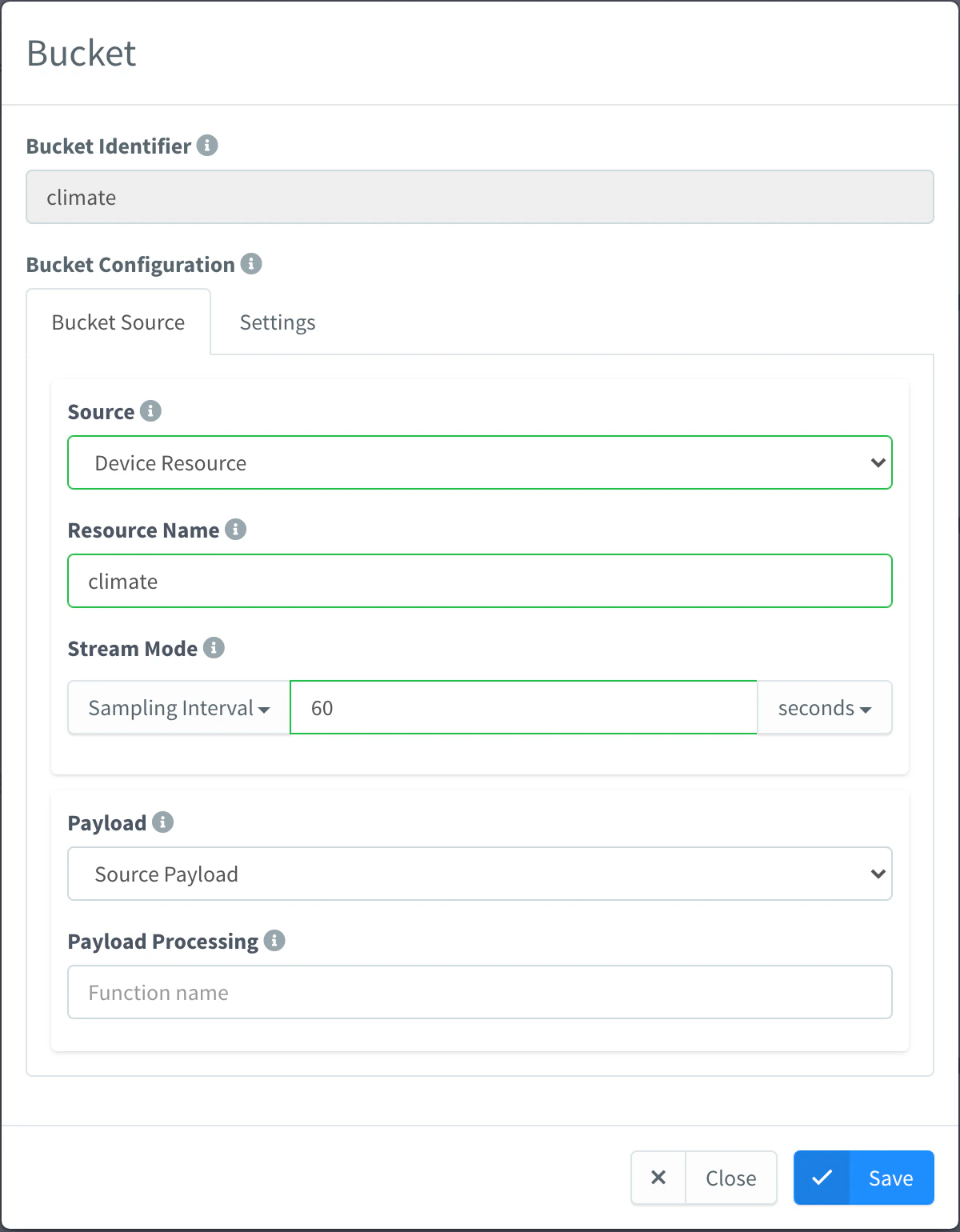
Product bucket fed by a device resource Set the bucket options
On Settings, set the Bucket Name, the Bucket Description, the Data Tags (record fields stored as tags, besides
deviceandgroup) and the Backend. Leave Enabled on and click Save.
API
curl -X PUT "https://YOUR_SERVER/v1/users/YOUR_USER/products/YOUR_PRODUCT/profile/buckets/meter_telemetry" \
  -H "Authorization: Bearer YOUR_TOKEN" \
  -H "Content-Type: application/json" \
  -d '{
    "name": "Telemetry",
    "enabled": true,
    "data": {
      "source": "resource",
      "resource": "telemetry",
      "update": "interval",
      "interval": 60,
      "magnitude": "second",
      "payload_type": "source_payload"
    },
    "retention": { "period": 6, "unit": "months" }
  }'
backend and retention apply when the bucket is created. A bucket ID with {{device}} cannot go in the path: send it in the body of PUT .../profile/buckets, which replaces every entry.
CLI
The CLI cannot edit profile entries. Include them in the profile.buckets of the document you pass to thinger product create YOUR_PRODUCT --from product.json, and read the data with thinger bucket read meter_telemetry.
AI
Add a bucket to the product YOUR_PRODUCT that stores the telemetry resource of each device every minute, and keeps six months of data.
The agent uses thinger_resource_create with the product_profile_bucket type. See MCP tools.
Read the data of one device
The Buckets entry of a device of the product lists its product buckets and shows only its own data. From the API, GET /v3/users/{user}/devices/{device}/buckets lists them and GET /v3/users/{user}/devices/{device}/buckets/{bucket}/data reads the data, with the same parameters as a Data Bucket (see the REST API reference); agents use thinger_bucket_data_read with device. Users with access to the device read its data without access to the whole bucket.
Limits
- The bucket is created on the first write, outside any project. Add it to a project yourself if its members need the whole bucket.
- Do not create the bucket by hand. The product creates it with the tags it needs (
device,group, the Data Tags and the topic tags); a bucket you create with the same ID receives the data without those tags, so filtering its data by device does not work (for example, Limit Bucket Data in a project). If you remove the bucket, the next write creates it again. - The tags, the backend and the retention apply only when the bucket is created. After changing the Data Tags or the placeholders of the topic, remove the bucket so the product creates it again with the new tags.
- Removing the entry stops new writes; the bucket and its data stay.