

A data bucket stores time series: every record has a timestamp and a JSON value with your fields, such as temperature and humidity. Dashboards, alarms, the REST API and agents read the stored data with time ranges, aggregations and filters.
When to use it
- To keep the history of what your devices report, for charts and reports.
- To collect data written by an MQTT topic, an HTTP client or a third-party service.
- To feed alarms that check aggregated values, such as the mean temperature of the last five minutes.
- To export data to a CSV, ARFF or JSON file for analysis outside Thinger.io.
Data sources
The data source sets how records reach the bucket. You choose it when you create the bucket.
| Source | config.source | How records arrive |
|---|---|---|
| From Device Resource | device | The platform reads an output resource of a device every Sampling Interval ("update": "interval"), or stores each value the device streams (Stream by Device, "update": "events"). |
| From Device Write Call | write | Devices write records themselves, for example with write_bucket in the Arduino library. |
| From API Request | api | Any HTTP client writes records with the REST API and an access token. |
| From MQTT Topic | mqtt | Every message published on a topic of the MQTT broker is stored. |
A bucket can also keep tags: fields that identify each record, such as device or site, so that one bucket holds the series of many devices and you can read them one by one.
Stream from the device
With From Device Resource and the Stream by Device refresh mode, the device decides when a record is stored: the bucket keeps each value the device sends with thing.stream(). Use it to store readings only when something changes, instead of at a fixed interval. This sketch stores the temperature and humidity of a DHT22 sensor when the temperature changes by half a degree:
#include <ThingerESP32.h>
#include <DHT.h>

#define DHT_PIN 4

ThingerESP32 thing("YOUR_USER", "YOUR_DEVICE", "YOUR_TOKEN");
DHT dht(DHT_PIN, DHT22);

float lastTemperature = 0;

void setup() {
  thing.add_wifi("wifi-network", "wifi-password");
  dht.begin();

  thing["TempHum"] >> [](pson& out) {
    out["temperature"] = dht.readTemperature();
    out["humidity"] = dht.readHumidity();
  };
}

void loop() {
  thing.handle();

  // store a record only when the temperature changes by 0.5 °C or more
  float temperature = dht.readTemperature();
  if (!isnan(temperature) && fabs(temperature - lastTemperature) >= 0.5) {
    lastTemperature = temperature;
    thing.stream("TempHum");
  }
}
Create the bucket with From Device Resource, choose the device in Select Device, TempHum in Select Resource and Stream by Device in Refresh Mode. The same stream also updates any open dashboard of the device. Stream when the data changes, not in every loop: see Call the platform at a safe rate.
Create a Data Bucket
YOUR_SERVER is iot.thinger.io on the free Cloud account, or the domain of your private instance.
Console
Open Data Buckets
Go to Data Buckets and click Add Bucket (or Create a Data Bucket if you have none yet).
Fill in the form
Set the Bucket Id, a Bucket Name and an optional Bucket Description, and choose the Data Source. For From Device Resource, choose the device in Select Device, the resource in Select Resource and the Refresh Mode: Sampling Interval or Stream by Device. For From MQTT Topic, set the MQTT Topic. Under Database Options, the instance may let you choose the Backend and a Retention period.
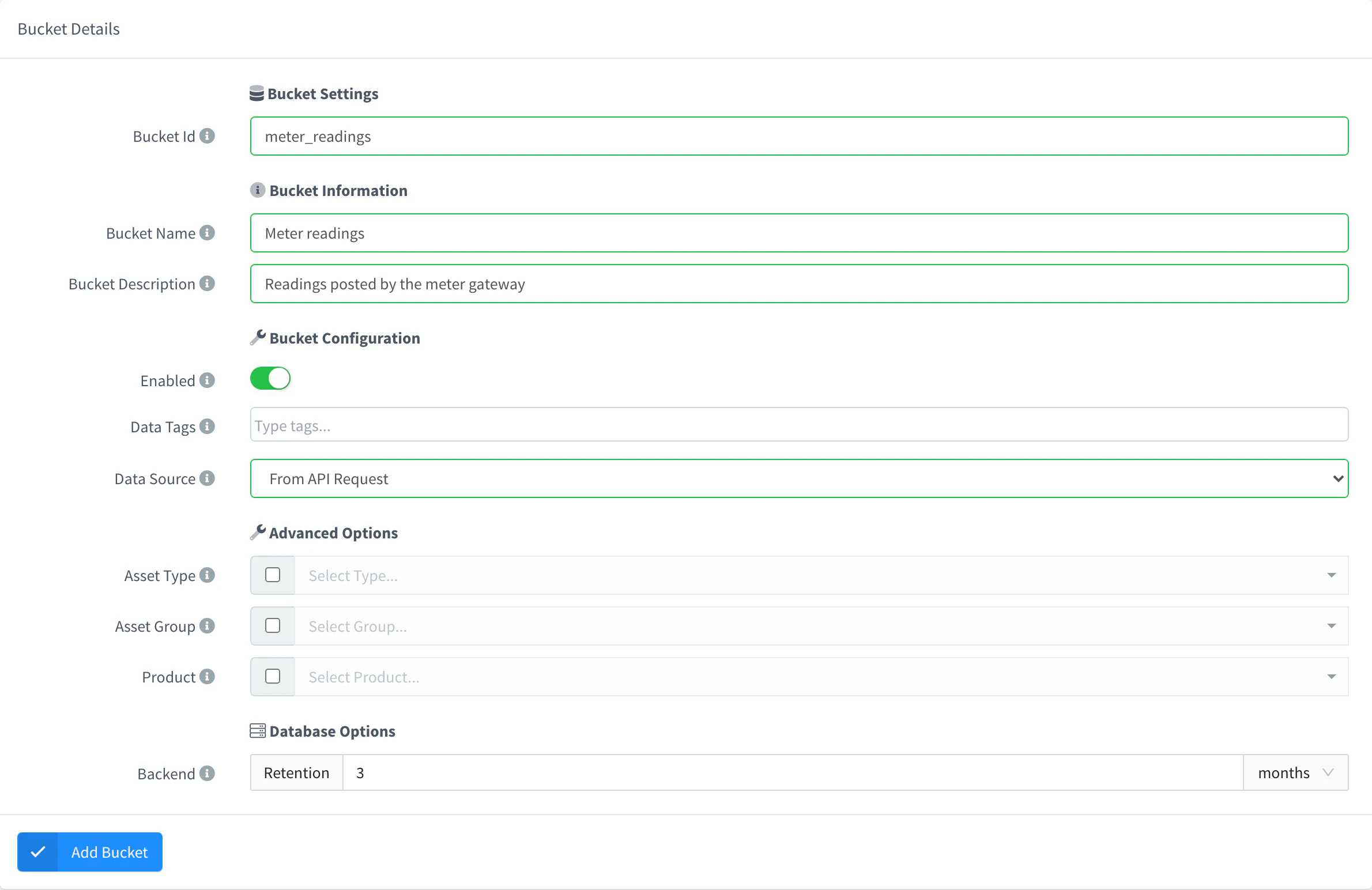
Add a Data Bucket Save the bucket
Click Add Bucket. The bucket opens on its Data tab, still empty.
API
curl -X POST "https://YOUR_SERVER/v1/users/YOUR_USER/buckets" \
  -H "Authorization: Bearer YOUR_TOKEN" \
  -H "Content-Type: application/json" \
  -d '{
    "bucket": "climate",
    "name": "Climate",
    "description": "Temperature and humidity",
    "enabled": true,
    "config": { "source": "api" }
  }'
YOUR_TOKEN is an access token with permission to create buckets. Other sources need more fields in config: device, resource, update and interval for a device resource, or topic for MQTT. Optional fields set the storage backend and the retention period; see the REST API reference for the full body.
CLI
The CLI cannot create buckets: thinger bucket only lists and reads them. Use the console, the API or an agent.
AI
Create a data bucket called climate that stores the records I send through the API, and describe the fields it accepts.
The agent uses thinger_resource_create with the bucket type. See MCP tools.
Write data
Buckets with the From API Request source accept records over HTTP. Each record is a JSON object, or an array of objects to write several at once. The server sets the timestamp when it receives the record; to set your own, add ?ts=<unix ms> to the call or a numeric ts field to the record.
Console
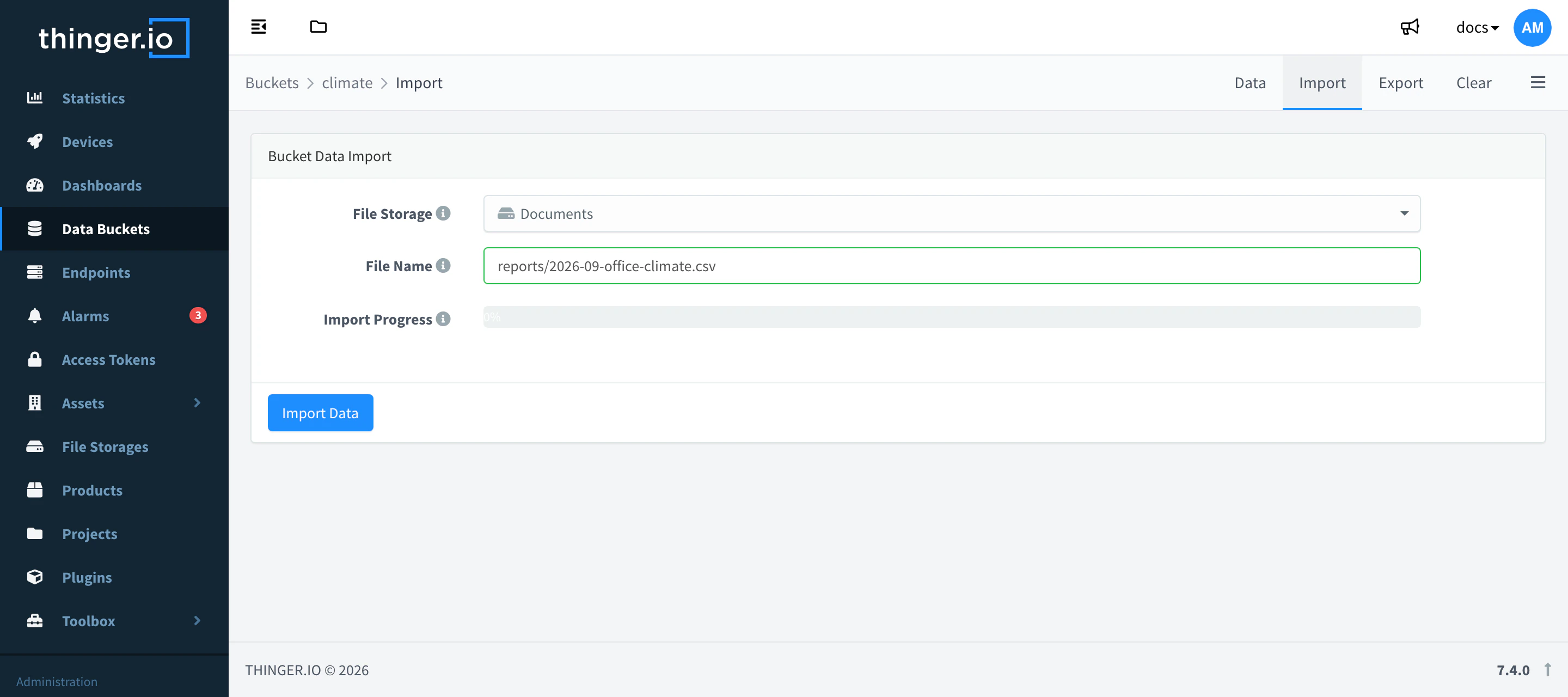
The console does not write single records. To load existing data, upload a CSV file to a File Storage, open the bucket, go to the Import tab, choose the File Storage and the File Name, and click Import Data.
API
curl -X POST "https://YOUR_SERVER/v1/users/YOUR_USER/buckets/climate/data" \
  -H "Authorization: Bearer YOUR_TOKEN" \
  -H "Content-Type: application/json" \
  -d '{ "temperature": 21.5, "humidity": 40 }'
CLI
The CLI cannot write bucket records. Use the API or an agent.
AI
Write a record with temperature 21.5 and humidity 40 to my climate bucket.
The agent uses thinger_bucket_data_write.
Import a CSV file
An import loads the records of a CSV file into a bucket, whatever its data source: the way to load a long history at once. The file must be in a File Storage first.
The file follows these rules:
| Part | Rule |
|---|---|
| Extension | .csv. Other files are refused with invalid import file, only csv is supported. |
| First line | The header, with the name of each column. Up to 99 columns. |
| Separator | ; if the header contains one, otherwise ,. Values can be quoted with ". |
| Timestamp | A column named ts, date or timestamp (in any case), with an ISO 8601 date in UTC, such as 2026-10-01T08:00:00.000Z, or a unix timestamp in milliseconds. Without one, every record gets the time of the import. |
| Values | Numbers are stored as numbers, any other text as a string. Empty cells and null are left out of the record. |
| Rows | A row with more values than the header stops the import. |
ts;temperature;humidity;status
2026-10-01T08:00:00.000Z;21.5;40;ok
2026-10-01T08:05:00.000Z;21.7;41;
1790842200000;22.1;39;"fan on"
This file creates three records; the second one has no status field. A CSV file exported from a bucket imports as it is when you export it with the ISO or milliseconds timestamp format: a timestamp in seconds would be read as milliseconds.
Console
Upload the file to a File Storage. Open the bucket, go to the Import tab, choose the File Storage and the File Name, and click Import Data. Import Progress shows the percentage of the file imported.
API
curl -X POST "https://YOUR_SERVER/v1/users/YOUR_USER/buckets/climate/imports" \
  -H "Authorization: Bearer YOUR_TOKEN" \
  -H "Content-Type: application/json" \
  -d '{ "source": "storage", "storage": "imports", "file": "climate.csv" }'
The response arrives line by line while the import runs, one JSON object per block of records with the percentage of the file read: {"progress":42}, and {"progress":100} at the end. A file that cannot be read fails at once with an error. An import that fails halfway ends without {"progress":100}, and the records imported before stay in the bucket. While an import runs, the bucket refuses exports, clearing and deletion.
AI
Import the file climate.csv from my imports file storage into the climate bucket.
The agent uses thinger_resource_call with the import action of the bucket type.
Read data
Reads return the most recent records first. Narrow them with these query parameters:
| Parameter | Effect |
|---|---|
items | Number of records, between 1 and 1000. |
min_ts, max_ts | Time range, as unix timestamps in milliseconds. |
sort | desc (newest first, the default) or asc. |
agg, agg_type | Aggregate the records in windows (5m, 1h, 1d…) with a reducer such as mean, min, max, sum or count. |
fields | Comma-separated list of the fields to return. |
group_by | Group the results by a tag, such as device. |
tz | Time zone of the aggregation windows. |
A parameter with an invalid value, such as items=0 or sort=up, is refused with 400 Bad Request and a message that names it; the read never falls back to the whole bucket.
Console
Open the bucket
Go to Data Buckets and click the bucket. The Data tab shows the latest records.
Change the time range
Choose a date range above the table to see older data, and use Tags Filtering to show the records of one tag value, such as one device.
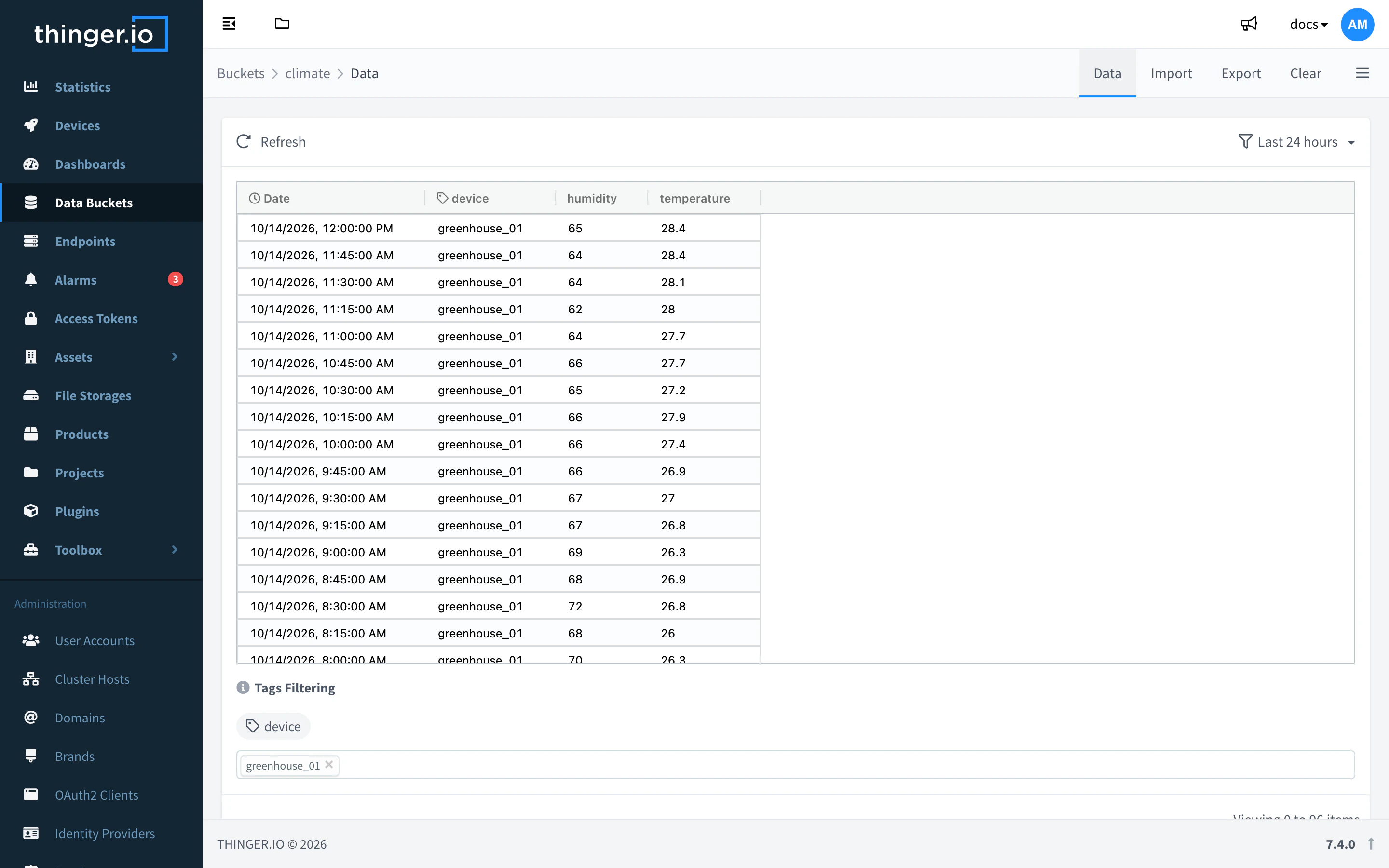
Records of a Data Bucket
API
curl "https://YOUR_SERVER/v1/users/YOUR_USER/buckets/climate/data?items=10&sort=desc" \
-H "Authorization: Bearer YOUR_TOKEN"[
{ "ts": 1792253184387, "val": { "humidity": 41, "temperature": 22.1 } },
{ "ts": 1792253184214, "val": { "humidity": 40, "temperature": 21.5 } }
]With agg=1h&agg_type=mean, each item holds the window start in ts and the mean of each field.
CLI
thinger bucket read climate --items 10Aggregate with --agg and --agg-type, for example thinger bucket read climate --minutes 360 --agg 1h --agg-type mean. The CLI selects time with --minutes (the last N minutes) instead of min_ts and max_ts. See the CLI reference.
AI
Show me the hourly mean temperature of my climate bucket over the last 24 hours.
The agent uses thinger_bucket_data_read, which accepts the same parameters as the API.
Export data
An export writes the records of a time range to a file that you download later. The export runs in the background; you can be notified by email or by calling an endpoint when it finishes.
Console
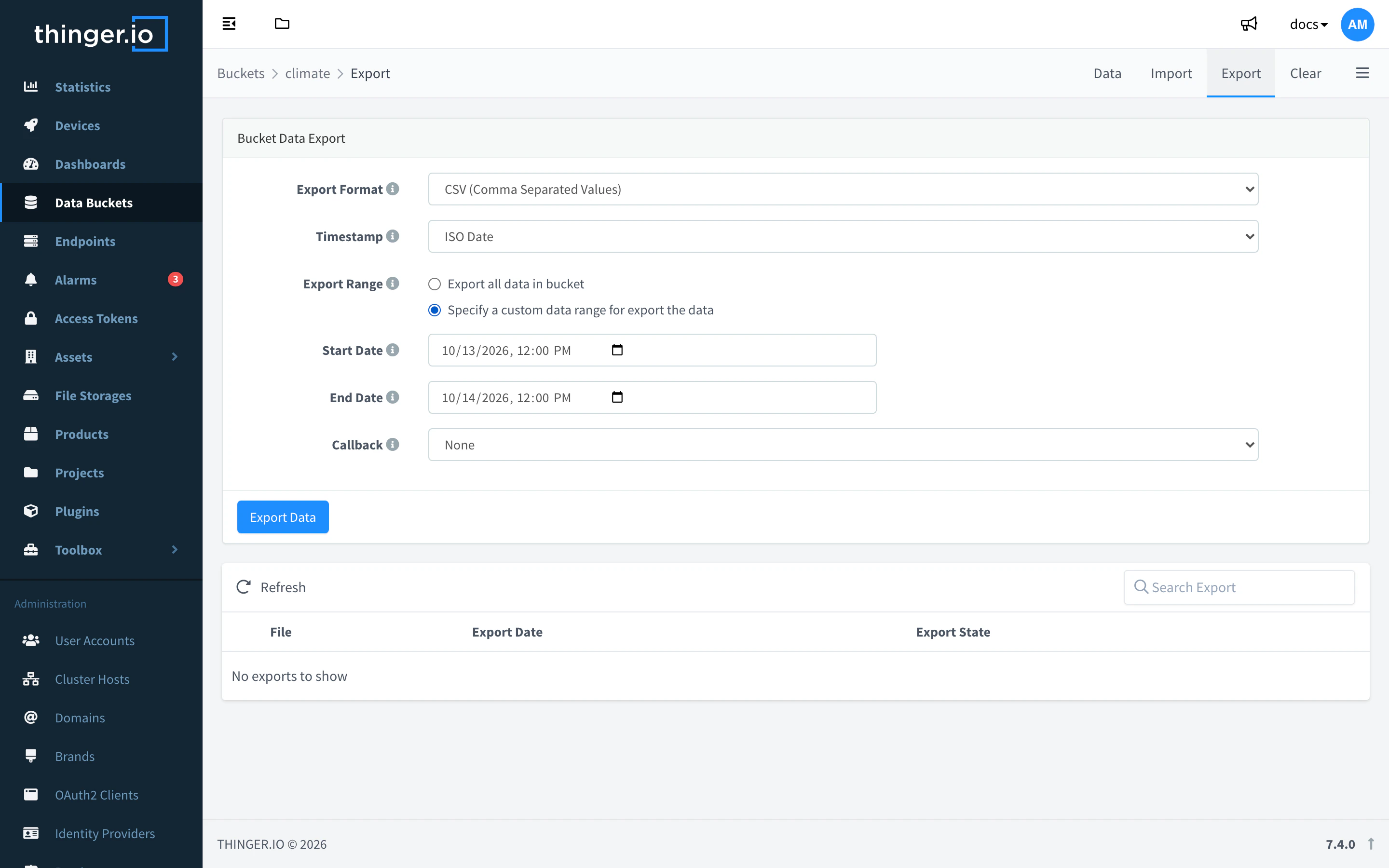
Open the bucket and go to the Export tab. Choose the Export Format (CSV, ARFF or JSON), the Timestamp format and the Export Range, optionally an endpoint to call in Callback, and click Export Data. When the file is ready, download it from the same tab.
API
curl -X POST "https://YOUR_SERVER/v1/users/YOUR_USER/buckets/climate/exports" \
  -H "Authorization: Bearer YOUR_TOKEN" \
  -H "Content-Type: application/json" \
  -d '{ "data_type": "csv", "timestamp_format": "iso" }'
data_type is csv, arff or json. Without min_ts and max_ts the export includes all the data. GET /v1/users/{user}/buckets/{bucket}/exports lists the files with their download URL.
CLI
The CLI cannot export buckets. Use the console, the API or an agent.
AI
Export last month's data of my climate bucket as a CSV file and give me the download link when it is ready.
Limits
- Reserved fields: on buckets stored in MongoDB (the default backend), a record with a field named
tagsor_idis refused with400 Bad Request. In an array write, one such record refuses the whole array. Rename the field before writing. - Invalid read parameters return
400 Bad Requestinstead of data. - Clearing data (the Clear tab, for all the data or a range) or deleting the bucket removes the stored data, and it cannot be undone.
- In a project with
limit_bucket_access, members read only the data of the devices of the project. - Storage and retention depend on your plan: see Plans and limits.