

This guide shows how to write the firmware of a device that uses the Thinger.io Arduino library: expose device resources, send data to a Data Bucket, read and write properties, call endpoints and keep the connection healthy. The examples use an ESP32, but the code is the same for every supported board; only the include and the class change.
Before you start
- A sketch that already connects, as in Arduino.
- The device ID, the device credentials and your username.
YOUR_SERVERisiot.thinger.ioon the free Cloud account, or your own domain on a private instance.
For the full list of functions, see the Arduino library reference.
Structure of a sketch
Every sketch has the same shape: create the thing object with your credentials, declare the device resources in setup(), and call thing.handle() in loop().
#define THINGER_SERIAL_DEBUG

#include <ThingerESP32.h>

ThingerESP32 thing("YOUR_USER", "YOUR_DEVICE", "YOUR_TOKEN");

void setup() {
  Serial.begin(115200);
  thing.add_wifi("wifi-network", "wifi-password");

  // declare device resources here
}

void loop() {
  thing.handle();
}
thing.handle() keeps the connection alive and answers the requests of the platform. Call it as often as possible: avoid delay() and long loops in loop(), or the device stops answering and the platform marks it as disconnected. Use millis() to run code at intervals, as in Send data to a Data Bucket.
The examples of the library (File > Examples > thinger.io) take the username, device ID and device credentials from a second file, arduino_secrets.h, instead of writing them in the sketch. Fill in that file when you start from an example: see Start from a library example.
Define device resources
A device resource is a function of the device that the platform can call: from the console, the REST API, a dashboard or another device. Declare each one in setup() with a name and an operator that sets its direction.
| Syntax | Kind | Use it for |
|---|---|---|
thing["name"] << [](pson& in){ … }; | Input resource | Receive data: switch a relay, change a setting. |
thing["name"] >> [](pson& out){ … }; | Output resource | Send data: a sensor reading. |
thing["name"] = [](pson& in, pson& out){ … }; | Input and output | Receive data and return a result. |
thing["name"] = [](){ … }; | No data | Run an action: reboot, start a measurement. |
pson holds any JSON-like value: a number, a boolean, a string or an object with named fields.
Do not capture local variables by reference
The library keeps the functions of resources, of the state listener and of OTA, and runs them later, when setup() has already returned. A function that captures with [&] a local variable of setup(), or of a function called from it, reads memory that is no longer valid, and the device fails at random. Use global variables, or capture by value with [=].
Input resources
An input resource receives a value from the platform. Read it from in:
bool fan = false;

void setup() {
  // ...
  thing["fan"] << [](pson& in) {
    if (in.is_empty()) {
      in = fan;        // report the current state
    } else {
      fan = in;        // apply the new state
    }
  };
}
When the console opens a device resource, it first reads its current value with an empty in. Filling in when it is empty, as above, shows the current state instead of a default value.
To receive several values, use named fields:
float targetTemperature = 21.0;
int targetHumidity = 50;

void setup() {
  // ...
  thing["setpoint"] << [](pson& in) {
    if (in.is_empty()) {
      in["temperature"] = targetTemperature;
      in["humidity"] = targetHumidity;
    } else {
      targetTemperature = in["temperature"];
      targetHumidity = in["humidity"];
    }
  };
}
Output resources
An output resource sends a value each time the platform reads it. Fill out with a single value or with named fields:
void setup() {
  // ...
  thing["uptime"] >> [](pson& out) {
    out = millis() / 1000;
  };

  thing["status"] >> [](pson& out) {
    out["rssi"] = WiFi.RSSI();
    out["heap"] = ESP.getFreeHeap();
  };
}
Input and output resources
A resource can take an input and return a result in the same call:
void setup() {
  // ...
  thing["sum"] = [](pson& in, pson& out) {
    out["result"] = (int) in["a"] + (int) in["b"];
  };
}
Resources without data
A resource without in or out runs an action when it is called:
void setup() {
  // ...
  thing["restart"] = []() {
    ESP.restart();
  };
}
Resources in the console
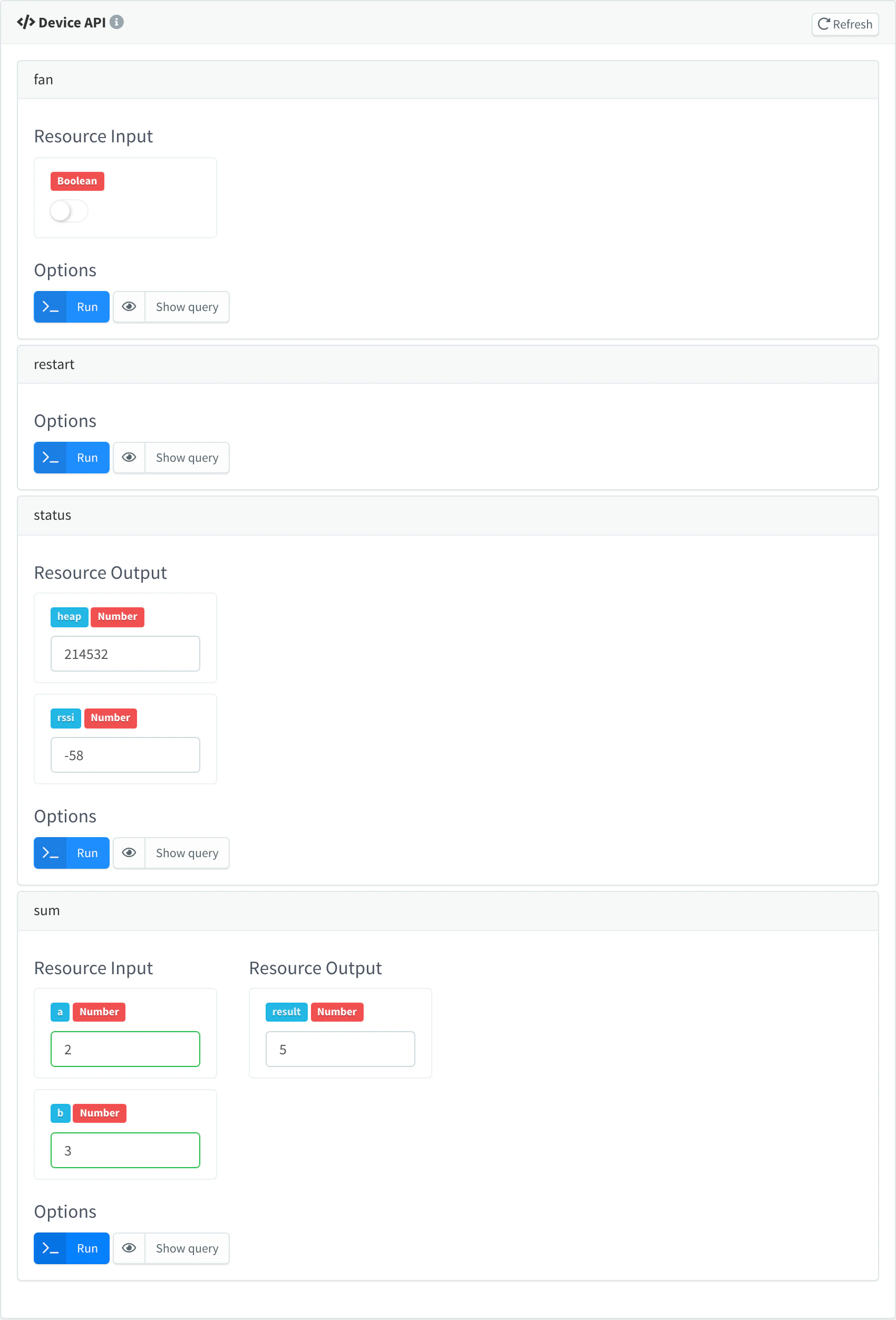
The API tab of the device lists its device resources once it is connected. An input shows a field to send, an output shows the value it returns, a resource with both shows each side, and a resource without data shows only Run:
Control pins and variables
The library has shortcuts for the most common resources:
| Shortcut | Kind | What it does |
|---|---|---|
digitalPin(pin) | Input | Sets a digital output pin on or off, and reports its state. |
invertedDigitalPin(pin) | Input | The same with the logic inverted: on sets the pin LOW. For relay modules that switch on with a low level. Only on AVR boards (such as the Arduino UNO) and ESP8266. |
analogPin(pin) | Input | Writes an analog (PWM) value to a pin. Not available on ESP32. |
outputValue(value) | Output | Sends the value of an expression or variable. |
outputString(value) | Output | The same, for a text. |
inputValue(variable) | Input | Stores the value received in a variable, and reports it. |
inputValue(variable, code) | Input | The same, and runs code after each change. |
servo(object) | Input | Moves a servo of the Arduino Servo library to the angle received, and reports its angle. |
#define RELAY_PIN 26

int interval = 60;

void setup() {
  // ...
  pinMode(RELAY_PIN, OUTPUT);

  thing["relay"] << digitalPin(RELAY_PIN);
  thing["light"] >> outputValue(analogRead(34));
  thing["interval"] << inputValue(interval, {
    Serial.println("Interval changed");
  });
}
The pin passed to digitalPin must be a number or a #define, not a variable. Configure the pin as an output with pinMode before you use it.
On AVR boards and ESP8266, digitalPin reads the pin to report its state. On the other boards (ESP32, SAMD, Mbed and Renesas boards) it reports the last value set from the platform, which starts as off.
Many relay modules switch on when their input is LOW. On AVR boards and ESP8266, invertedDigitalPin keeps the resource "on" when the relay is on:
#include <ThingerESP8266.h>

#define RELAY_PIN 5  // D1 on NodeMCU boards

ThingerESP8266 thing("YOUR_USER", "YOUR_DEVICE", "YOUR_TOKEN");

void setup() {
  pinMode(RELAY_PIN, OUTPUT);
  digitalWrite(RELAY_PIN, HIGH);  // relay off at start

  thing.add_wifi("wifi-network", "wifi-password");

  thing["relay"] << invertedDigitalPin(RELAY_PIN);
}

void loop() {
  thing.handle();
}
On the other boards, write an input resource that inverts the value:
bool relayOn = false;

void setup() {
  // ...
  pinMode(RELAY_PIN, OUTPUT);
  digitalWrite(RELAY_PIN, HIGH);  // relay off at start

  thing["relay"] << [](pson& in) {
    if (in.is_empty()) {
      in = relayOn;
    } else {
      relayOn = in;
      digitalWrite(RELAY_PIN, relayOn ? LOW : HIGH);
    }
  };
}
Send data to a Data Bucket
A Data Bucket stores the readings of a device as a time series. Create the bucket in Data Buckets first. Its Data Source sets who decides when a reading is stored:
| Data Source | Refresh Mode | Who decides | What the sketch needs |
|---|---|---|---|
| From Device Resource | Sampling Interval | The platform reads the output resource at a fixed interval. | Only the output resource. |
| From Device Resource | Stream by Device | The device, when it calls thing.stream(). | The output resource and a thing.stream() call. |
| From Device Write Call | — | The device, when it calls thing.write_bucket(). | A thing.write_bucket() call with the bucket ID. |
Write to a bucket
With From Device Write Call, call thing.write_bucket() with the bucket ID and a device resource whose output is the data to store:
unsigned long lastWrite = 0;

void setup() {
  // ...
  thing["environment"] >> [](pson& out) {
    out["temperature"] = temperatureRead();
    out["uptime"] = millis() / 1000;
  };
}

void loop() {
  thing.handle();

  // store a reading every 5 minutes
  if (millis() - lastWrite >= 5 * 60 * 1000UL) {
    lastWrite = millis();
    thing.write_bucket("environment_data", "environment");
  }
}
You can also write a pson value directly with thing.write_bucket("environment_data", data). A third argument true waits for the platform to confirm the write, and the call returns false if it failed. See Data Buckets.
Warning
Do not write in every iteration of loop(). The platform limits how often a device can write (see Plans and limits), and it disables a device whose calls keep failing: see Call the platform at a safe rate.
Store a value when the device decides
With From Device Resource and the Stream by Device refresh mode, the bucket listens to an output resource and stores a reading each time the sketch calls thing.stream(). The device decides when to store, without knowing the bucket ID. For example, store the position only while the vehicle moves:
#include <ThingerESP32.h>

ThingerESP32 thing("YOUR_USER", "YOUR_DEVICE", "YOUR_TOKEN");

float latitude = 0, longitude = 0;
bool requiresRecording = false;  // set it from your GPS code
unsigned long lastRecord = 0;

void setup() {
  thing.add_wifi("wifi-network", "wifi-password");

  thing["location"] >> [](pson& out) {
    out["lat"] = latitude;
    out["lon"] = longitude;
  };
}

void loop() {
  thing.handle();

  // update latitude, longitude and requiresRecording from the GPS here

  // store the position at most every 10 seconds while it changes
  if (requiresRecording && millis() - lastRecord >= 10000UL) {
    lastRecord = millis();
    thing.stream("location");
  }
}
In the bucket, choose the device in Select Device, location in Select Resource and Stream by Device in Refresh Mode.
Read and write device properties
Properties are named JSON values stored on the device in the platform. They keep configuration and state across restarts, and you can edit them in the console. Read a property with thing.get_property() and write it with thing.set_property():
int reportInterval = 60;

void loadConfig() {
  pson config;
  if (thing.get_property("config", config)) {
    reportInterval = config["interval"];
  }
}

void saveConfig() {
  pson config;
  config["interval"] = reportInterval;
  thing.set_property("config", config, true);  // true: wait for confirmation
}
Both calls need the device to be connected and return false when they fail. See Properties.
Call an endpoint
An endpoint is an integration configured in the platform: an HTTP request, an email, a Telegram message. Create it in Endpoints and call it by its ID:
void sendAlert(float temperature) {
  pson data;
  data["temperature"] = temperature;
  thing.call_endpoint("high_temperature", data);
}| Call | Data sent to the endpoint |
|---|---|
thing.call_endpoint("id") | None. |
thing.call_endpoint("id", data) | A pson value. |
thing.call_endpoint("id", thing["resource"]) | The output of a device resource. |
thing.call_endpoint("id", "resource") | The same, by the name of the device resource. |
A last argument true waits for the platform to confirm the call. See Endpoints.
Send an email once per event
Call an endpoint when something happens, not while it lasts. This sketch calls an email endpoint once when the level of a tank crosses a limit, and only again after the level drops below a lower one:
#include <ThingerESP32.h>

#define LEVEL_PIN 34
#define HIGH_LEVEL 3000   // reading that sends the email
#define REARM_LEVEL 2800  // reading that allows a new email

ThingerESP32 thing("YOUR_USER", "YOUR_DEVICE", "YOUR_TOKEN");

bool alertSent = false;

void setup() {
  thing.add_wifi("wifi-network", "wifi-password");

  thing["tank"] >> [](pson& out) {
    out["level"] = analogRead(LEVEL_PIN);
  };
}

void loop() {
  thing.handle();

  int level = analogRead(LEVEL_PIN);
  if (!alertSent && level > HIGH_LEVEL) {
    thing.call_endpoint("tank_alert", thing["tank"]);
    alertSent = true;
  } else if (alertSent && level < REARM_LEVEL) {
    alertSent = false;
  }
}
The email endpoint tank_alert uses the fields of the data in its subject and body, with double braces: {{level}} is the level field of the tank output.
Subject: Tank level alert
Body:    The tank level is {{level}}, above the limit.
Call another device
How a device calls a device resource of another device depends on the account of the other device:
| The other device is in | Call |
|---|---|
| The same account | thing.call_device(), directly. |
| Another account | thing.call_endpoint(), to an endpoint that calls the device of the other account. |
The other device must be connected. Call it on an event or at an interval, as in Call the platform at a safe rate.
Devices of the same account
The device that receives the call, YOUR_DEVICE, declares the device resources. The caller uses the same names and, to send data, the same field names:
int interval = 60;
float limit = 25.0;

void setup() {
  // ...
  // called without data
  thing["blink"] = []() {
    Serial.println("Someone is calling me");
  };

  // called with data: read the fields the caller sends
  thing["setpoint"] << [](pson& in) {
    if (in.is_empty()) {
      in["interval"] = interval;
      in["limit"] = limit;
    } else {
      interval = in["interval"];
      limit = in["limit"];
    }
  };
}void setup() {
// ...
thing["config"] >> [](pson& out) {
out["interval"] = 30;
out["limit"] = 22.5;
};
}
void callOtherDevice() {
// without data
thing.call_device("YOUR_DEVICE", "blink");
// with a pson value
pson data;
data["interval"] = 120;
data["limit"] = 27.5;
thing.call_device("YOUR_DEVICE", "setpoint", data);
// with the output of a device resource of this device
thing.call_device("YOUR_DEVICE", "setpoint", thing["config"]);
}A last argument true waits for the platform to confirm the call, and the call returns false if it failed, for example because the other device is not connected.
Devices of different accounts
In the account of the calling device, create an endpoint that calls the device resource in the other account. You need an access token of the other account that allows calling that device resource.
- On the free Cloud server: use the Thinger.io Device Call endpoint type, and fill in Device Owner Username, Device Identifier, Resource Name and Device Access Token with the values of the other account.
- On any server: use an HTTP Request endpoint with the
POSTmethod, the URLhttps://YOUR_SERVER/v3/users/{user}/devices/{device}/resources/{resource}with the username, device ID and resource of the other account, a headerAuthorizationwith the valueBearerfollowed by the access token, and a JSON body.
The device calls the endpoint as any other, with or without data:
pson data;
data["on"] = true;
thing.call_endpoint("neighbor_lamp", data);
Call the platform at a safe rate
write_bucket, call_endpoint, call_device, set_property and stream each send a message. Too many calls use the data of a cellular plan, fill an inbox with emails or use up the quota of a third-party service. Call them when something changes, or at an interval measured with millis(); never in every iteration of loop().
The platform disables devices whose calls keep failing
If 100 Data Bucket writes or endpoint calls of a device fail within about a minute, the platform disables the device, closes its connection and sends a Device Disabled email to the account. A call fails when, for example, the bucket or the endpoint does not exist or is disabled, or the device goes over the limits of the account. The device cannot connect again until you fix the sketch and enable the device: see Troubleshooting.
Stream a resource in real time
thing.stream() pushes the current value of an output resource to whatever listens to it: an open dashboard or console page, or a Data Bucket in Stream by Device mode, which stores each value (see Store a value when the device decides). When nothing listens, it sends nothing and returns false.
Call it with the name of the device resource, thing.stream("level"), or with the resource, thing.stream(thing["level"]). Stream when the value changes enough to matter:
#include <ThingerESP32.h>

#define LEVEL_PIN 34

ThingerESP32 thing("YOUR_USER", "YOUR_DEVICE", "YOUR_TOKEN");

int lastSent = 0;

void setup() {
  thing.add_wifi("wifi-network", "wifi-password");

  thing["level"] >> [](pson& out) {
    out = analogRead(LEVEL_PIN);
  };
}

void loop() {
  thing.handle();

  // stream only when the reading changes by more than 50
  int level = analogRead(LEVEL_PIN);
  if (abs(level - lastSent) > 50) {
    lastSent = level;
    thing.stream(thing["level"]);
  }
}
Manage the connection
The library connects to the network and to the platform from thing.handle(), and reconnects on its own when the connection drops. While the device is offline, thing.handle() does not hold loop(), so the sketch keeps running: it can read its sensors, or show the connection state on a display with thing.get_state().
Wi-Fi. Most Wi-Fi boards join the network step by step, one step on each
thing.handle(), with the stateNETWORK_CONNECTINGin the meantime. They give up after 30 seconds without joining the network, and after 30 more without an IP address. With several networks, the board scans them for a few seconds insidething.handle().Other networks. On Ethernet, on cellular modems and with WebConfig, ESP-Touch, the CC3000 module, the ESP8266 as Wi-Fi modem and the LinkIt ONE,
thing.handle()waits while the board joins the network.Server. Opening the TLS connection and authenticating take a few seconds on every attempt, inside
thing.handle().Retries. Between two attempts,
thing.handle()returns at once. After a network failure it tries again in 5 seconds. After a failure with the server (socket, TLS or authentication), it waits 5 seconds and doubles the wait on every new failure, up to 30 seconds, with a random margin of up to 25 %, so many devices do not reconnect at the same time after a server restart. The wait starts again from 5 seconds once the device connects.RECONNECTION_TIMEOUTandTHINGER_RECONNECTION_MAX_TIMEOUTchange these times: see Reconnection.thing.add_wifi(ssid, password)adds a Wi-Fi network. Some boards accept several, as in Connect to several Wi-Fi networks. To let end users set the network without recompiling, see WebConfig.thing.is_connected()returnstruewhile the device is connected.thing.get_state()returns the last connection state, one of the table below:ThingerClient::THINGER_AUTHENTICATEDmeans the device is online, andThingerClient::SOCKET_DISCONNECTEDthat it is offline.thing.get_error()returns why the network connection failed: see Why the network connection failed.#define THINGER_SERVER "YOUR_SERVER", before the include, connects to a private instance. Without it, the device connects to the free Cloud account. If the certificate of your instance comes from its own authority, define its root certificate too, as in Server and TLS.
To react to connection changes, register a state listener:
void setup() {
  // ...
  thing.set_state_listener([](ThingerClient::THINGER_STATE state) {
    switch (state) {
      case ThingerClient::THINGER_AUTHENTICATED:
        Serial.println("Connected to Thinger.io");
        break;
      case ThingerClient::THINGER_AUTH_FAILED:
        Serial.println("Check the device credentials");
        break;
      case ThingerClient::SOCKET_DISCONNECTED:
        Serial.println("Disconnected");
        break;
      default:
        break;
    }
  });
}| State | Meaning |
|---|---|
NETWORK_CONNECTING, NETWORK_CONNECTED, NETWORK_CONNECT_ERROR | Joining the network (Wi-Fi, Ethernet or cellular). |
SOCKET_CONNECTING, SOCKET_CONNECTED, SOCKET_CONNECTION_ERROR | Opening the connection to the server. |
SOCKET_DISCONNECTED, SOCKET_TIMEOUT, SOCKET_ERROR | The connection to the server is lost. |
THINGER_AUTHENTICATING, THINGER_AUTHENTICATED, THINGER_AUTH_FAILED | Checking the device credentials. |
THINGER_STOP_REQUEST | The sketch closed the connection. |
Why the network connection failed
After a NETWORK_CONNECT_ERROR state, thing.get_error() tells the reason. Read it in the state listener or at any time; once the network is connected, it returns ThingerClient::ERROR_NONE.
void setup() {
  // ...
  thing.set_state_listener([](ThingerClient::THINGER_STATE state) {
    if (state == ThingerClient::NETWORK_CONNECT_ERROR) {
      switch (thing.get_error()) {
        case ThingerClient::NETWORK_AUTH_ERROR:
          Serial.println("Wrong Wi-Fi password");
          break;
        case ThingerClient::NETWORK_NOT_REGISTERED:
          Serial.println("No cellular coverage");
          break;
        default:
          break;
      }
    }
  });
}| Error | Meaning | Boards |
|---|---|---|
ERROR_NONE | The network is connected. | All |
ERROR_UNKNOWN | The board does not report the reason. | All |
NETWORK_NOT_CONFIGURED | No Wi-Fi network or APN is set. With WebConfig, the configuration page closed without a Wi-Fi network. | Wi-Fi and cellular |
NETWORK_NOT_FOUND | The Wi-Fi network is not available. | Wi-Fi |
NETWORK_AUTH_ERROR | The Wi-Fi network rejected the connection, usually for a wrong password. | Wi-Fi |
NETWORK_NO_IP | The board joined the Wi-Fi network but got no IP address. | Wi-Fi |
MODEM_NOT_RESPONDING | The modem does not answer. | ThingerTinyGSM |
MODEM_SIM_ERROR | The SIM card cannot be used, for example for a wrong PIN. | ThingerTinyGSM |
NETWORK_NOT_REGISTERED | The modem cannot register in the network, for example for lack of coverage. | ThingerTinyGSM, ThingerNBCore, ThingerBC66 |
NETWORK_REGISTRATION_DENIED | The operator rejected the registration, for example because the SIM card is disabled. | ThingerNBCore, ThingerBC66 |
NETWORK_APN_ERROR | The modem is registered, but the data connection does not open: check the APN. | ThingerTinyGSM, ThingerMKRNB, ThingerMKRGSM |
Connect to several Wi-Fi networks
On the ESP32, the ESP8266 and the Raspberry Pi Pico W and Pico 2 W, call thing.add_wifi() once per network. With two or more networks, the board scans and joins the strongest one it knows, also when it reconnects:
void setup() {
  thing.add_wifi("home-network", "home-password");
  thing.add_wifi("office-network", "office-password");

  // ...
}- With a single network, the board joins it without scanning. A hidden network, one that does not broadcast its name, only works this way: as the only network of the sketch.
- On the other boards, the library keeps one network: each call replaces the previous one, and the board joins the last one added.
- With debug output on, the serial monitor shows
Connecting to the strongest known networkwith the number of networks, and then the name of the network it joined.
Connect to a WPA2-Enterprise network
On the ESP32, thing.add_wifi_enterprise(ssid, username, password, identity, ca_pem) adds a WPA2-Enterprise network that uses PEAP with EAP-MSCHAPv2, such as eduroam. It needs version 3 of the esp32 board package: with version 2, the function does not exist.
identityis the outer identity, the name the network sees before the credentials are checked. Leave it out and the board uses the username. Many networks accept an anonymous one; on eduroam it is usuallyanonymous@followed by the domain of your institution.ca_pemis the certificate, in PEM format, of the authority that signs the network's authentication server. Your organization provides it; on eduroam, each institution publishes its own. With it, the board checks the server before it sends the username and password.
const char EDUROAM_CA[] = R"(-----BEGIN CERTIFICATE-----
...
-----END CERTIFICATE-----)";

void setup() {
  thing.add_wifi_enterprise("eduroam", "user@example.com", "password", "anonymous@example.com", EDUROAM_CA);

  // ...
}
You can add it next to other networks with add_wifi(). A network with a certificate is joined first, on its own; if the board cannot join it in 30 seconds, it tries the other networks and joins the strongest of them. Only one network can carry a certificate: a second network added with one is joined without checking its server.
Without a certificate, the board does not verify the authentication server
If you leave out ca_pem, a rogue access point with the same network name could capture the username and password. Pass the certificate of your network, and use an account for the device, not a personal one.
Debug output
Add #define THINGER_SERIAL_DEBUG as the first line of the sketch, and open the serial monitor at 115200 baud. The library prints each connection step:
[NETWORK] Starting connection...
[NETWORK] Connecting to network wifi-network
[NETWORK] Connected to WiFi!
[NETWORK] Getting IP Address...
[NETWORK] Got IP Address: 192.168.1.40
[NETWORK] Connected!
[_SOCKET] Connecting to iot.thinger.io:25202...
[_SOCKET] Using secure TLS/SSL connection: yes
[_SOCKET] Connected!
[THINGER] Authenticating. User: YOUR_USER Device: YOUR_DEVICE
[THINGER] Authenticated
After a failed attempt, the monitor shows how long the library waits before the next one, in milliseconds:
[THINGER] Retrying connection in (ms): 10641If the device does not reach Authenticated, see Troubleshooting.
Result
The device exposes its device resources, stores data in a Data Bucket, keeps its configuration in properties and calls endpoints when something happens. In Devices, open the device and its API tab to call each device resource.