

The Arduino Portenta H7, the Arduino Opta and the Arduino GIGA R1 WiFi share the same microcontroller, the dual-core STM32H747 (an Arm Cortex-M7 at 480 MHz and a Cortex-M4 at 240 MHz). The Thinger.io Arduino library connects them on two Arduino cores, always with TLS:
- Arduino Zephyr core, the recommended one:
ThingerZephyrconnects the three boards over Wi-Fi and validates the server certificate. OTA updates are not available on the Zephyr core yet. - Arduino Mbed OS core:
ThingerMbedconnects the Portenta H7 and the Opta over Wi-Fi andThingerMbedEthover Ethernet, with OTA updates (ThingerPortentaOTA) and the connection in its own thread. Arduino ended the maintenance of this core in July 2026; use it when you need Ethernet or OTA updates.
| Board | Core | Network | Include | Class | Example | OTA |
|---|---|---|---|---|---|---|
| Portenta H7, GIGA R1 WiFi | Zephyr | Wi-Fi | ThingerZephyr.h | ThingerZephyr | ArduinoZephyr | — |
| Opta WiFi | Zephyr | Wi-Fi | ThingerZephyr.h | ThingerZephyr | ArduinoOptaZephyr | — |
| Portenta H7 | Mbed OS | Wi-Fi | ThingerMbed.h | ThingerMbed | ArduinoPortentaH7 | ThingerPortentaOTA |
| Portenta H7 (with an Ethernet carrier or shield) | Mbed OS | Ethernet | ThingerMbedEth.h | ThingerMbedEth | ArduinoPortentaH7Ethernet | ThingerPortentaOTA |
| Opta WiFi | Mbed OS | Wi-Fi | ThingerMbed.h | ThingerMbed | ArduinoOptaWiFi | ThingerPortentaOTA |
| Opta (all models) | Mbed OS | Ethernet | ThingerMbedEth.h | ThingerMbedEth | ArduinoOptaEthernet | ThingerPortentaOTA |
Set up the board
Install the board package
In the Arduino IDE, open Tools > Board > Boards Manager and install the core you chose: Arduino Zephyr Boards for the Zephyr core, or Arduino Mbed OS Portenta Boards (Portenta H7) or Arduino Mbed OS Opta Boards (Opta) for the Mbed OS core. The Wi-Fi and Ethernet libraries come with the package.
Install the library
Install thinger.io from the Library Manager.
Create the credentials file
The sketches read the credentials from
arduino_secrets.h, in the sketch folder:arduino_secrets.hcpp#define USERNAME "YOUR_USER" #define DEVICE_ID "YOUR_DEVICE" #define DEVICE_CREDENTIAL "YOUR_TOKEN" #define SSID "wifi-network" #define SSID_PASSWORD "wifi-password"DEVICE_CREDENTIALholds the device credentials. The Ethernet sketches do not useSSIDandSSID_PASSWORD.Prepare the board
On the Zephyr core, install the Zephyr loader once, as in Install the Zephyr loader. On the Mbed OS core, update the bootloader, format the flash and update the Wi-Fi firmware once, as in Prepare the board; without these steps, the TLS connection or the OTA updates can fail.
Each example is in File > Examples > thinger.io > Arduino.
Portenta H7 and GIGA R1 WiFi
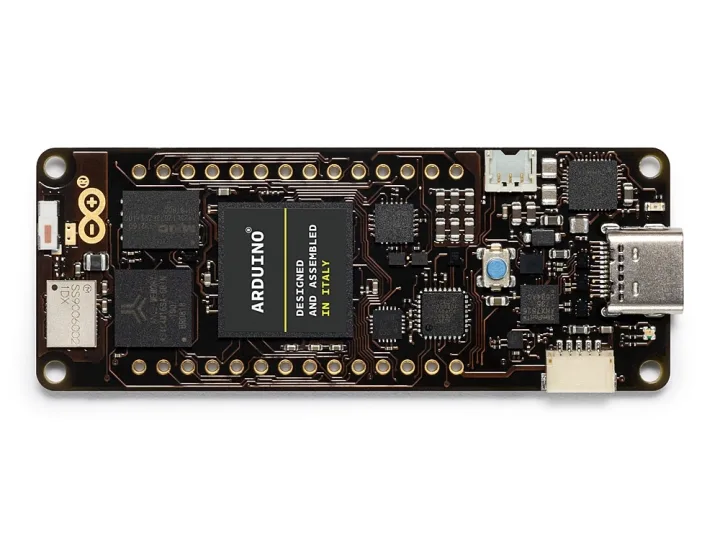
Portenta H7 and GIGA R1 WiFi on the Zephyr core
Example ArduinoZephyr. It runs on every Wi-Fi board of the Zephyr core in this page, the Opta WiFi included:
#define THINGER_SERIAL_DEBUG

// install the Zephyr loader once with Tools > Burn Bootloader
#include <ThingerZephyr.h>
#include "arduino_secrets.h"

ThingerZephyr thing(USERNAME, DEVICE_ID, DEVICE_CREDENTIAL);

void setup() {
  // open serial for debugging
  Serial.begin(115200);

  pinMode(LED_BUILTIN, OUTPUT);

  // configure wifi network
  thing.add_wifi(SSID, SSID_PASSWORD);

  // pin control example (i.e. turning on/off a light, a relay, etc)
  thing["led"] << digitalPin(LED_BUILTIN);

  // resource output example (i.e. reading a sensor value, a variable, etc)
  thing["millis"] >> outputValue(millis());
}

void loop() {
  thing.handle();
}
On the Zephyr core, call thing.handle() in loop(), as on most boards: the connection does not run in its own thread. While the board joins the Wi-Fi network, thing.handle() returns at once, so loop() keeps running.
Portenta H7 over Wi-Fi
Mbed OS core. Example ArduinoPortentaH7, with OTA updates:
#define THINGER_SERIAL_DEBUG

#include <ThingerMbed.h>
#include <ThingerPortentaOTA.h>
#include "arduino_secrets.h"

ThingerMbed thing(USERNAME, DEVICE_ID, DEVICE_CREDENTIAL);
ThingerPortentaOTA ota(thing);

void setup() {
  // configure LED_BUILTIN for output
  pinMode(LED_BUILTIN, OUTPUT);

  // open serial for debugging
  Serial.begin(115200);

  // configure wifi network
  thing.add_wifi(SSID, SSID_PASSWORD);

  // pin control example (i.e. turning on/off a light, a relay, etc)
  thing["led"] << digitalPin(LED_BUILTIN);

  // resource output example (i.e. reading a sensor value, a variable, etc)
  thing["millis"] >> outputValue(millis());

  // start the connection in its own thread
  thing.start();
}

void loop() {
  // your code here: no thing.handle() needed
  // wrap variables shared with device resources in thing.lock() and thing.unlock()
  delay(1000);
}
Portenta H7 over Ethernet
Mbed OS core. Example ArduinoPortentaH7Ethernet, with OTA updates. The Portenta H7 has no Ethernet connector of its own: it needs a carrier or shield with one, such as the Portenta Vision Shield Ethernet or the Portenta Breakout. The board gets its address over DHCP.
#define THINGER_SERIAL_DEBUG

#include <ThingerMbedEth.h>
#include <ThingerPortentaOTA.h>
#include "arduino_secrets.h"

ThingerMbedEth thing(USERNAME, DEVICE_ID, DEVICE_CREDENTIAL);
ThingerPortentaOTA ota(thing);

void setup() {
  // configure LED_BUILTIN for output
  pinMode(LED_BUILTIN, OUTPUT);

  // open serial for debugging
  Serial.begin(115200);

  // pin control example (i.e. turning on/off a light, a relay, etc)
  thing["led"] << digitalPin(LED_BUILTIN);

  // resource output example (i.e. reading a sensor value, a variable, etc)
  thing["millis"] >> outputValue(millis());

  // start the connection in its own thread
  thing.start();
}

void loop() {
  // your code here: no thing.handle() needed
  // wrap variables shared with device resources in thing.lock() and thing.unlock()
  delay(1000);
}
Opta
The Arduino Opta is a micro PLC made with Finder for industrial automation: four relay outputs, inputs that read 0-10 V or digital signals, Ethernet and, in the Opta WiFi, Wi-Fi and Bluetooth. Each relay has a status LED.
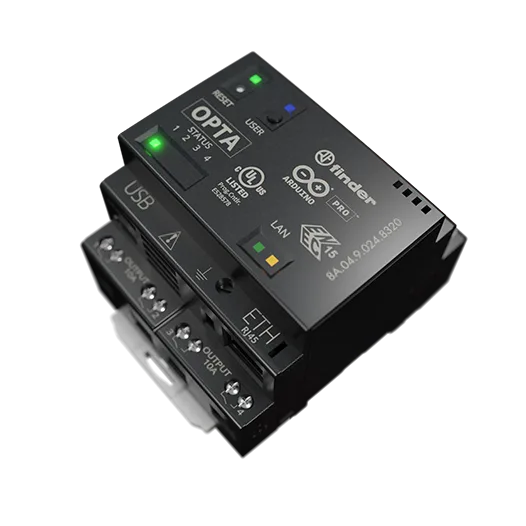
The pins have different names on each core:
| Function | Zephyr core | Mbed OS core |
|---|---|---|
| Relays 1 to 4 | D0 to D3 | D0 to D3 |
| Status LEDs of the relays | D4 to D7 | LED_D0 to LED_D3 |
| USER button | D11 | BTN_USER |
| Inputs I1 to I8 | A0 to A7 | A0 to A7 |
Opta WiFi on the Zephyr core
Example ArduinoOptaZephyr. One input resource per relay switches the relay and its status LED and, when you read it, returns the state of the relay. led controls the USER LED (LED_BUILTIN), button tells whether the USER button is pressed, and inputs returns the voltage of the eight inputs, from 0 to 10 V.
#define THINGER_SERIAL_DEBUG

// install the Zephyr loader once with Tools > Burn Bootloader
#include <ThingerZephyr.h>
#include "arduino_secrets.h"

// pins of the Opta on the Zephyr core: relays, their status leds and user button
#define RELAY_D0 D0
#define RELAY_D1 D1
#define RELAY_D2 D2
#define RELAY_D3 D3
#define LED_D0 D4
#define LED_D1 D5
#define LED_D2 D6
#define LED_D3 D7
#define BUTTON_USER D11

ThingerZephyr thing(USERNAME, DEVICE_ID, DEVICE_CREDENTIAL);

// voltage of an input (0-10V), from its 12-bit reading and the voltage divider of the Opta
float input_voltage(int pin) {
  return analogRead(pin) * (3.249 / 4095.0) / 0.3034;
}

void setup() {
  // open serial for debugging
  Serial.begin(115200);

  // configure relays and their status leds for output
  pinMode(RELAY_D0, OUTPUT);
  pinMode(RELAY_D1, OUTPUT);
  pinMode(RELAY_D2, OUTPUT);
  pinMode(RELAY_D3, OUTPUT);
  pinMode(LED_D0, OUTPUT);
  pinMode(LED_D1, OUTPUT);
  pinMode(LED_D2, OUTPUT);
  pinMode(LED_D3, OUTPUT);
  pinMode(LED_BUILTIN, OUTPUT);
  pinMode(BUTTON_USER, INPUT);

  // read the inputs with 12 bits
  analogReadResolution(12);

  // configure wifi network
  thing.add_wifi(SSID, SSID_PASSWORD);

  // control each relay and its status led; reading the resource returns the relay state
  thing["relay_d0"] << [](pson& in){
    if(in.is_empty()){
      in = (bool) digitalRead(RELAY_D0);
    }else{
      digitalWrite(RELAY_D0, in ? HIGH : LOW);
      digitalWrite(LED_D0, in ? HIGH : LOW);
    }
  };

  thing["relay_d1"] << [](pson& in){
    if(in.is_empty()){
      in = (bool) digitalRead(RELAY_D1);
    }else{
      digitalWrite(RELAY_D1, in ? HIGH : LOW);
      digitalWrite(LED_D1, in ? HIGH : LOW);
    }
  };

  thing["relay_d2"] << [](pson& in){
    if(in.is_empty()){
      in = (bool) digitalRead(RELAY_D2);
    }else{
      digitalWrite(RELAY_D2, in ? HIGH : LOW);
      digitalWrite(LED_D2, in ? HIGH : LOW);
    }
  };

  thing["relay_d3"] << [](pson& in){
    if(in.is_empty()){
      in = (bool) digitalRead(RELAY_D3);
    }else{
      digitalWrite(RELAY_D3, in ? HIGH : LOW);
      digitalWrite(LED_D3, in ? HIGH : LOW);
    }
  };

  // control the USER led
  thing["led"] << digitalPin(LED_BUILTIN);

  // USER button (pressed when low)
  thing["button"] >> outputValue(digitalRead(BUTTON_USER) == LOW);

  // voltage of the inputs I1 to I8
  thing["inputs"] >> [](pson& out){
    out["I1"] = input_voltage(A0);
    out["I2"] = input_voltage(A1);
    out["I3"] = input_voltage(A2);
    out["I4"] = input_voltage(A3);
    out["I5"] = input_voltage(A4);
    out["I6"] = input_voltage(A5);
    out["I7"] = input_voltage(A6);
    out["I8"] = input_voltage(A7);
  };
}

void loop() {
  thing.handle();
}
Send true or false to relay_d0 to close or open the first relay; read it to get its state. inputs returns an object with the voltage of each input, such as {"I1": 0.02, "I2": 9.87} for the first two.
Opta over Ethernet
Mbed OS core, on every Opta model. Example ArduinoOptaEthernet, with OTA updates. One input resource per relay: it switches the relay and its status LED and, when you read it, returns the state of the relay. Two more input resources control the USER LED (LED_BUILTIN) and the red status LED (LEDR).
// enable debug output over serial
#define THINGER_SERIAL_DEBUG

// #define THINGER_SERVER "YOUR_SERVER"  // only on a private instance

#include <ThingerMbedEth.h>
#include <ThingerPortentaOTA.h>
#include "arduino_secrets.h"

ThingerMbedEth thing(USERNAME, DEVICE_ID, DEVICE_CREDENTIAL);
ThingerPortentaOTA ota(thing);

void setup() {
  // open serial for debugging
  Serial.begin(115200);

  // configure leds for output
  pinMode(LED_D0, OUTPUT);
  pinMode(LED_D1, OUTPUT);
  pinMode(LED_D2, OUTPUT);
  pinMode(LED_D3, OUTPUT);
  pinMode(LEDR, OUTPUT);
  pinMode(LED_BUILTIN, OUTPUT);

  // configure relays for output
  pinMode(D0, OUTPUT);
  pinMode(D1, OUTPUT);
  pinMode(D2, OUTPUT);
  pinMode(D3, OUTPUT);

  // control each relay and its status led; reading the resource returns the relay state
  thing["relay_d0"] << [](pson& in){
    if(in.is_empty()){
      in = (bool) digitalRead(D0);
    }else{
      digitalWrite(D0, in ? HIGH : LOW);
      digitalWrite(LED_D0, in ? HIGH : LOW);
    }
  };

  thing["relay_d1"] << [](pson& in){
    if(in.is_empty()){
      in = (bool) digitalRead(D1);
    }else{
      digitalWrite(D1, in ? HIGH : LOW);
      digitalWrite(LED_D1, in ? HIGH : LOW);
    }
  };

  thing["relay_d2"] << [](pson& in){
    if(in.is_empty()){
      in = (bool) digitalRead(D2);
    }else{
      digitalWrite(D2, in ? HIGH : LOW);
      digitalWrite(LED_D2, in ? HIGH : LOW);
    }
  };

  thing["relay_d3"] << [](pson& in){
    if(in.is_empty()){
      in = (bool) digitalRead(D3);
    }else{
      digitalWrite(D3, in ? HIGH : LOW);
      digitalWrite(LED_D3, in ? HIGH : LOW);
    }
  };

  // control the USER led and the red status led
  thing["led"] << digitalPin(LED_BUILTIN);
  thing["led_r"] << digitalPin(LEDR);

  // resource output example (i.e. reading a sensor value, a variable, etc)
  thing["millis"] >> outputValue(millis());

  // start the connection in its own thread
  thing.start();
}

void loop() {
  // your code here: no thing.handle() needed
  // wrap variables shared with device resources in thing.lock() and thing.unlock()
  delay(1000);
}
Send true or false to relay_d0 to close or open the first relay; read it to get its state.
Opta WiFi over Wi-Fi
Mbed OS core. Example ArduinoOptaWiFi, with OTA updates. The same device resources as the Ethernet sketch; only the include, the class and add_wifi() change.
#define THINGER_SERIAL_DEBUG

#include <ThingerMbed.h>
#include <ThingerPortentaOTA.h>
#include "arduino_secrets.h"

ThingerMbed thing(USERNAME, DEVICE_ID, DEVICE_CREDENTIAL);
ThingerPortentaOTA ota(thing);

void setup() {
  // open serial for debugging
  Serial.begin(115200);

  // configure wifi network
  thing.add_wifi(SSID, SSID_PASSWORD);

  // configure leds for output
  pinMode(LED_D0, OUTPUT);
  pinMode(LED_D1, OUTPUT);
  pinMode(LED_D2, OUTPUT);
  pinMode(LED_D3, OUTPUT);
  pinMode(LEDR, OUTPUT);
  pinMode(LED_BUILTIN, OUTPUT);

  // configure relays for output
  pinMode(D0, OUTPUT);
  pinMode(D1, OUTPUT);
  pinMode(D2, OUTPUT);
  pinMode(D3, OUTPUT);

  // control each relay and its status led; reading the resource returns the relay state
  thing["relay_d0"] << [](pson& in){
    if(in.is_empty()){
      in = (bool) digitalRead(D0);
    }else{
      digitalWrite(D0, in ? HIGH : LOW);
      digitalWrite(LED_D0, in ? HIGH : LOW);
    }
  };

  thing["relay_d1"] << [](pson& in){
    if(in.is_empty()){
      in = (bool) digitalRead(D1);
    }else{
      digitalWrite(D1, in ? HIGH : LOW);
      digitalWrite(LED_D1, in ? HIGH : LOW);
    }
  };

  thing["relay_d2"] << [](pson& in){
    if(in.is_empty()){
      in = (bool) digitalRead(D2);
    }else{
      digitalWrite(D2, in ? HIGH : LOW);
      digitalWrite(LED_D2, in ? HIGH : LOW);
    }
  };

  thing["relay_d3"] << [](pson& in){
    if(in.is_empty()){
      in = (bool) digitalRead(D3);
    }else{
      digitalWrite(D3, in ? HIGH : LOW);
      digitalWrite(LED_D3, in ? HIGH : LOW);
    }
  };

  // control the USER led and the red status led
  thing["led"] << digitalPin(LED_BUILTIN);
  thing["led_r"] << digitalPin(LEDR);

  // resource output example (i.e. reading a sensor value, a variable, etc)
  thing["millis"] >> outputValue(millis());

  // start the connection in its own thread
  thing.start();
}

void loop() {
  // your code here: no thing.handle() needed
  // wrap variables shared with device resources in thing.lock() and thing.unlock()
  delay(1000);
}
Zephyr core
Install the Zephyr loader
The sketches of the Zephyr core run on top of a Zephyr firmware, the loader, that the board needs once:
- Connect the board over USB and select it in Tools > Board > Arduino Zephyr Boards.
- Double-click the reset button of the board to enter bootloader mode.
- Click Tools > Burn Bootloader. If the Arduino IDE asks for a programmer, select any one in Tools > Programmer.
- Double-click the reset button again and upload your sketch.
The next sketches upload as usual.
Install the Wi-Fi firmware
The Wi-Fi module reads its firmware from the flash of the board. If the Wi-Fi does not start, the serial monitor shows Communication with WiFi module failed, or WiFi.status() returns WL_NO_SHIELD. Install the firmware:
- Open File > Examples > Storage > FlashFormat, an example of the Zephyr core, and upload it.
- Open the serial monitor and answer the questions of the sketch:
Yto format the partitions, to restore the TLS certificates and to restore the Wi-Fi firmware. Formatting erases the data your sketches stored in the flash. - Upload your sketch again.
The FAQ of the Zephyr core describes the same fix.
TLS on the Zephyr core
ThingerZephyr validates the server with the root certificate of the library. On a private instance, THINGER_ROOT_CA and thing.set_root_ca() set the root certificate of your server, and #define THINGER_INSECURE_SSL skips the check, as in Server and TLS.
Mbed OS core
The examples of the Mbed OS core are in Portenta H7 over Wi-Fi, Portenta H7 over Ethernet, Opta over Ethernet and Opta WiFi over Wi-Fi. They receive OTA updates with ThingerPortentaOTA and run the connection in its own thread.
The connection thread
thing.start() starts the connection in its own thread and returns at once; setup() goes on and loop() runs your code. thing.stop() ends the thread and thing.is_running() tells whether it runs.
Device resources run in the connection thread, while loop() runs in the main one. When you change a variable in loop() that a device resource also reads or writes, do it between thing.lock() and thing.unlock(), as the comment in the examples says.
Prepare the board
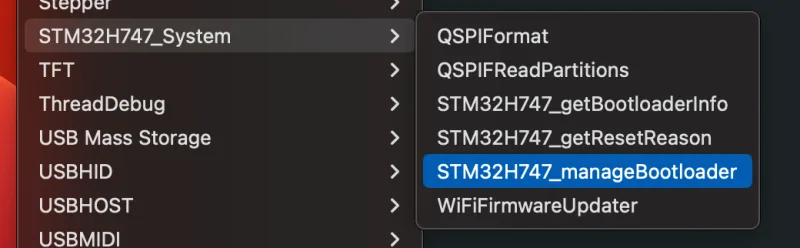
On the Mbed OS core, the Portenta H7 and the Opta need a recent bootloader for OTA updates, a formatted flash to store the new firmware, and an up-to-date Wi-Fi firmware with its certificates for TLS. Run these example sketches of the board package once, in this order, from File > Examples > STM32H747_System. Each one runs from the serial monitor: open it after the upload and follow the prompts.
| Order | Example | What it does |
|---|---|---|
| 1 | STM32H747_manageBootloader | Updates the bootloader. OTA updates need bootloader version 22 or later; with an older one, an update fails with OTA is not supported by the current bootloader. STM32H747_getBootloaderInfo shows the current version. |
| 2 | QSPIFormat | Formats the QSPI flash and creates its partitions. The OTA update stores the new firmware there before installing it. Formatting erases the flash. |
| 3 | WiFiFirmwareUpdater | Writes the Wi-Fi firmware and the root certificates to the flash. Run it also when the TLS connection fails, over Wi-Fi or over Ethernet. |
After the three sketches, upload your own sketch again.
See also
- Supported boards: every board, its class and its OTA support.
- OTA updates: send new firmware over the Internet.
- Coding guide: device resources, Data Buckets, properties and endpoints.