

The Thinger.io Arduino library also runs on boards outside the Arduino and Espressif families: the Raspberry Pi Pico W and Pico 2 W, the Texas Instruments CC3200 LaunchPad, programmed with the Energia IDE, and the SeeedStudio LinkIt ONE. The Pico boards connect over TLS; the CC3200 and the LinkIt ONE connect to the server port without TLS. For the boards made by Thinger.io, see Thinger.io hardware.
| Board | Network | Include | Class | Example | OTA |
|---|---|---|---|---|---|
| Raspberry Pi Pico W and Pico 2 W | Wi-Fi | ThingerPicoW.h | ThingerPicoW | PicoW | Yes, ThingerPicoOTA |
| TI CC3200 LaunchPad | Wi-Fi | ThingerWifi.h | ThingerWifi | EnergiaCC3200 | — |
| LinkIt ONE | Wi-Fi | ThingerLinkItOneWifi.h | ThingerLinkItOneWifi | LinkItOneWifi | — |
| LinkIt ONE | GPRS | ThingerLinkItOneGPRS.h | ThingerLinkItOneGPRS | LinkItOneGPRS | — |
| Thinger32 NB-IoT and M2 IoT Modem | NB-IoT | ThingerNBCore.h | ThingerNBCore | NBCore | Yes, ThingerESP32OTA |
Raspberry Pi Pico W and Pico 2 W
The Raspberry Pi Pico W has an RP2040 microcontroller (dual-core Arm Cortex-M0+, 264 KB of SRAM, 2 MB of flash), and the Pico 2 W an RP2350 (dual-core Arm Cortex-M33, 520 KB of SRAM, 4 MB of flash). Both have an Infineon CYW43439 chip for 2.4 GHz Wi-Fi. ThingerPicoW runs on the Arduino-Pico core by Earle Philhower, and also on other RP2040 and RP2350 boards with a CYW43 Wi-Fi chip.
Install the board package
In the Arduino IDE, open File > Preferences and add this URL to Additional boards manager URLs:
texthttps://github.com/earlephilhower/arduino-pico/releases/download/global/package_rp2040_index.jsonThen open Tools > Board > Boards Manager, search for
picoand install Raspberry Pi Pico/RP2040/RP2350 by Earle F. Philhower, III. Select Raspberry Pi Pico W or Raspberry Pi Pico 2W in Tools > Board.Select a flash layout with a file system
OTA updates store the new firmware in the file system of the board, so it must be large enough for the firmware. In Tools > Flash Size, select 2MB (Sketch: 1MB, FS: 1MB) on the Pico W or 4MB (Sketch: 2MB, FS: 2MB) on the Pico 2 W. Without OTA updates, any option works.
Install the library and create the credentials file
Install thinger.io from the Library Manager. The sketch reads the credentials from the
arduino_secrets.hfile of the Wi-Fi boards (see Supported boards).
Example PicoW, in File > Examples > thinger.io > RaspberryPi, with OTA updates:
#define THINGER_SERIAL_DEBUG

#include <ThingerPicoW.h>
#include <ThingerPicoOTA.h>
#include "arduino_secrets.h"

ThingerPicoW thing(USERNAME, DEVICE_ID, DEVICE_CREDENTIAL);

// receives firmware updates from the Thinger.io extension for Visual Studio Code
ThingerPicoOTA ota(thing);

void setup() {
  // open serial for debugging
  Serial.begin(115200);

  // set builtin led as output
  pinMode(LED_BUILTIN, OUTPUT);

  // configure wifi network
  thing.add_wifi(SSID, SSID_PASSWORD);
  // add more networks calling add_wifi again: it connects to the strongest one
  // thing.add_wifi("other-network", "other-password");

  // digital pin control example (i.e. turning on/off a light, a relay, configuring a parameter, etc)
  thing["led"] << digitalPin(LED_BUILTIN);

  // resource output example (i.e. reading a sensor value)
  thing["millis"] >> outputValue(millis());
}

void loop() {
  thing.handle();
}- The connection uses TLS and validates the server certificate. The board sets its clock over NTP before it connects, because the certificate check needs the current time; it waits up to 30 seconds for
pool.ntp.org(change them withTHINGER_NTP_TIMEOUT, in milliseconds, andTHINGER_NTP_SERVER). For a private instance whose certificate comes from its own authority, define its root certificate withTHINGER_ROOT_CAbefore the include, as in Server and TLS.#define THINGER_INSECURE_SSLskips the check, for a private instance with a self-signed certificate. - With several calls to
add_wifi(), the board joins the strongest of those networks; see Connect to several Wi-Fi networks. - An OTA update writes the new firmware to the file system, and the board installs it when it restarts. If the file system is missing or too small, the board rejects the update.
- The firmware is sent uncompressed.
#define THINGER_OTA_COMPRESSION 1before the includes makes the board receive it compressed with gzip, which takes less space in the file system; it needs a recent version of the Visual Studio Code extension. - OTA updates are sent from a PlatformIO project (see OTA updates). Set the size of the file system there with
board_build.filesystem_size.
TI CC3200 LaunchPad
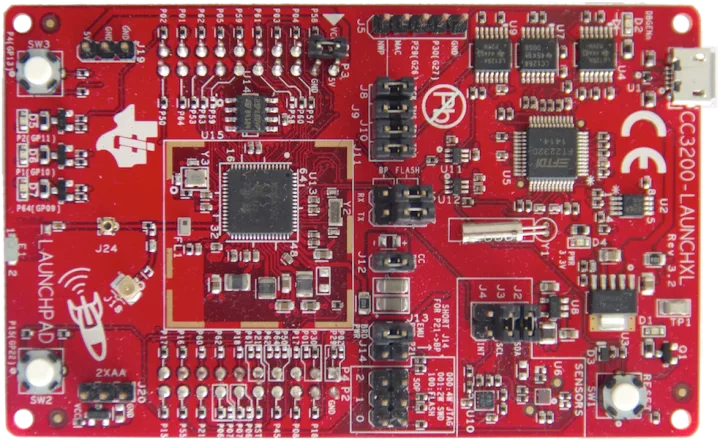
The CC3200 is a Texas Instruments chip with Wi-Fi and a programmable Arm Cortex-M4 microcontroller, the successor of the CC3000 module. The CC3200 LaunchPad adds sensors, LEDs and a USB-to-serial converter to program it over USB.
To program it:
- Install the Energia IDE, the Arduino-based IDE for Texas Instruments boards, and its CC3200 board package.
- Download the Thinger.io Arduino library as a ZIP file and add it in Energia with Sketch > Include Library > Add .ZIP Library.
- To upload, set the SOP2 jumper of the LaunchPad as the Energia guide for the CC3200 describes; remove it to run the sketch.
Example EnergiaCC3200, with one input resource per LED of the board. It uses the arduino_secrets.h file of the Wi-Fi boards (see Supported boards):
// the CC3200 connects without TLS
#define _DISABLE_TLS_

#include <WiFi.h>
#include <ThingerWifi.h>
#include "arduino_secrets.h"

ThingerWifi thing(USERNAME, DEVICE_ID, DEVICE_CREDENTIAL);

void setup() {
  // set the boards led to output
  pinMode(RED_LED, OUTPUT);
  pinMode(GREEN_LED, OUTPUT);
  pinMode(YELLOW_LED, OUTPUT);

  // configure wifi network
  thing.add_wifi(SSID, SSID_PASSWORD);

  // pin control example (i.e. turning on/off a light, a relay, etc)
  thing["led"]["green"] << digitalPin(GREEN_LED);
  thing["led"]["yellow"] << digitalPin(YELLOW_LED);
  thing["led"]["red"] << digitalPin(RED_LED);

  // resource output example (i.e. reading a sensor value, a variable, etc)
  thing["millis"] >> outputValue(millis());
}

void loop() {
  thing.handle();
}
thing["led"]["green"] creates nested device resources: green, yellow and red inside led.
LinkIt ONE
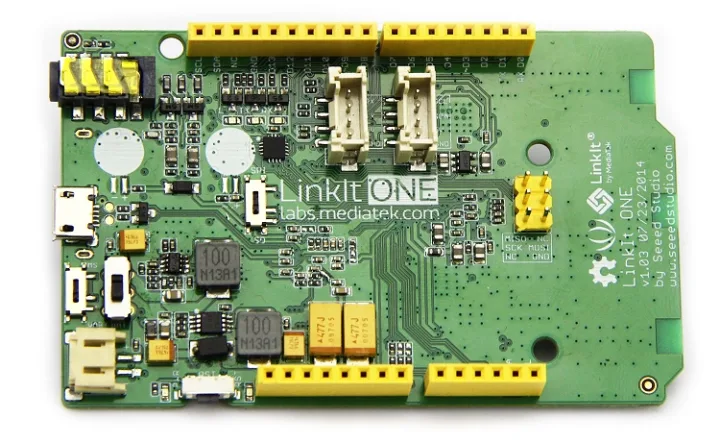
The SeeedStudio LinkIt ONE has a MediaTek ARM7 processor with GSM/GPRS, Wi-Fi, Bluetooth and GPS. Install its board package, published by Seeed Studio, from the Boards Manager. The Wi-Fi and GPRS libraries come with the package.
LinkIt ONE over Wi-Fi
Example LinkItOneWifi. The board joins WPA networks. Replace the placeholders and the Wi-Fi network:
#include <ThingerLinkItOneWifi.h>

ThingerLinkItOneWifi thing("YOUR_USER", "YOUR_DEVICE", "YOUR_TOKEN");

void setup() {
  thing.add_wifi("wifi-network", "wifi-password");

  pinMode(2, OUTPUT);

  // pin control example (i.e. turning on/off a light, a relay, etc)
  thing["led"] << digitalPin(2);

  // resource output example (i.e. reading a sensor value, a variable, etc)
  thing["millis"] >> outputValue(millis());
}

void loop() {
  thing.handle();
}
YOUR_TOKEN is the device credentials.
LinkIt ONE over GPRS
Example LinkItOneGPRS:
#include <ThingerLinkItOneGPRS.h>

#define USERNAME "YOUR_USER"
#define DEVICE_ID "YOUR_DEVICE"
#define DEVICE_CREDENTIAL "YOUR_TOKEN"

ThingerLinkItOneGPRS thing(USERNAME, DEVICE_ID, DEVICE_CREDENTIAL);

void setup() {
  // the LinkIt ONE cannot unlock a SIM with a PIN: remove the PIN from the SIM before use

  // set the APN of your operator if the SIM does not provide it
  // thing.set_apn("internet.example", "user", "password");

  pinMode(2, OUTPUT);

  // pin control example (i.e. turning on/off a light, a relay, etc)
  thing["led"] << digitalPin(2);

  // resource output example (i.e. reading a sensor value, a variable, etc)
  thing["millis"] >> outputValue(millis());
}

void loop() {
  thing.handle();
}- The LinkIt ONE does not support SIM cards with a PIN: remove the PIN with a phone before you insert the SIM.
set_pin()has no effect on this board. - Call
set_apn(apn, user, password)only if the SIM does not set the APN on its own.
See also
- Supported boards: every board, its class and its OTA support.
- Thinger.io hardware: boards made by Thinger.io.
- Coding guide: device resources, Data Buckets, properties and endpoints.