

This guide connects a device or program that already speaks MQTT to the broker built into every Thinger.io instance. You create an MQTT device, connect with its credentials, publish a message and store it in a Data Bucket.
In MQTT, clients do not talk to each other: they connect to a broker, publish messages on named topics, such as sensors/dev1/telemetry, and subscribe to the topics they want to receive. The broker delivers each message to every subscriber of its topic. In Thinger.io, the subscribers can also be Data Buckets, products and devices that use the Thinger.io libraries.
Before you start
- A Thinger.io account. Your server is
YOUR_SERVER:iot.thinger.ioon the free Cloud account, or your own domain on a private instance. - An MQTT 3.1 or 3.1.1 client. The examples use
mosquitto_pubandmosquitto_subfrom Mosquitto and Python with paho-mqtt 2.x. MQTT 5 is not supported.
Connection settings
| Setting | Value |
|---|---|
| Host | YOUR_SERVER |
| Port | 8883 with TLS, or 1883 without TLS |
| WebSocket | wss://YOUR_SERVER/mqtt, subprotocol mqtt (for browser clients) |
| Username | YOUR_USER, your Thinger.io username (not your email) |
| Client ID | YOUR_DEVICE, the device ID |
| Password | The device credentials |
| Protocol | MQTT 3.1 or 3.1.1 |
Use port 8883: the connection is encrypted with the server certificate, so clients that check certificates work with their default settings. Use 1883 only on networks you trust or to rule out a TLS problem.
The device must exist before it connects, and only one connection per device ID is kept: if a second client connects with the same client ID, the first one is disconnected.
Steps
Create the MQTT device
Console
Go to Devices and click Add Device. Choose MQTT Device as Device Type, set the Device Id to
YOUR_DEVICE, click Random in Device Credentials and copy the credentials. Click Add Device.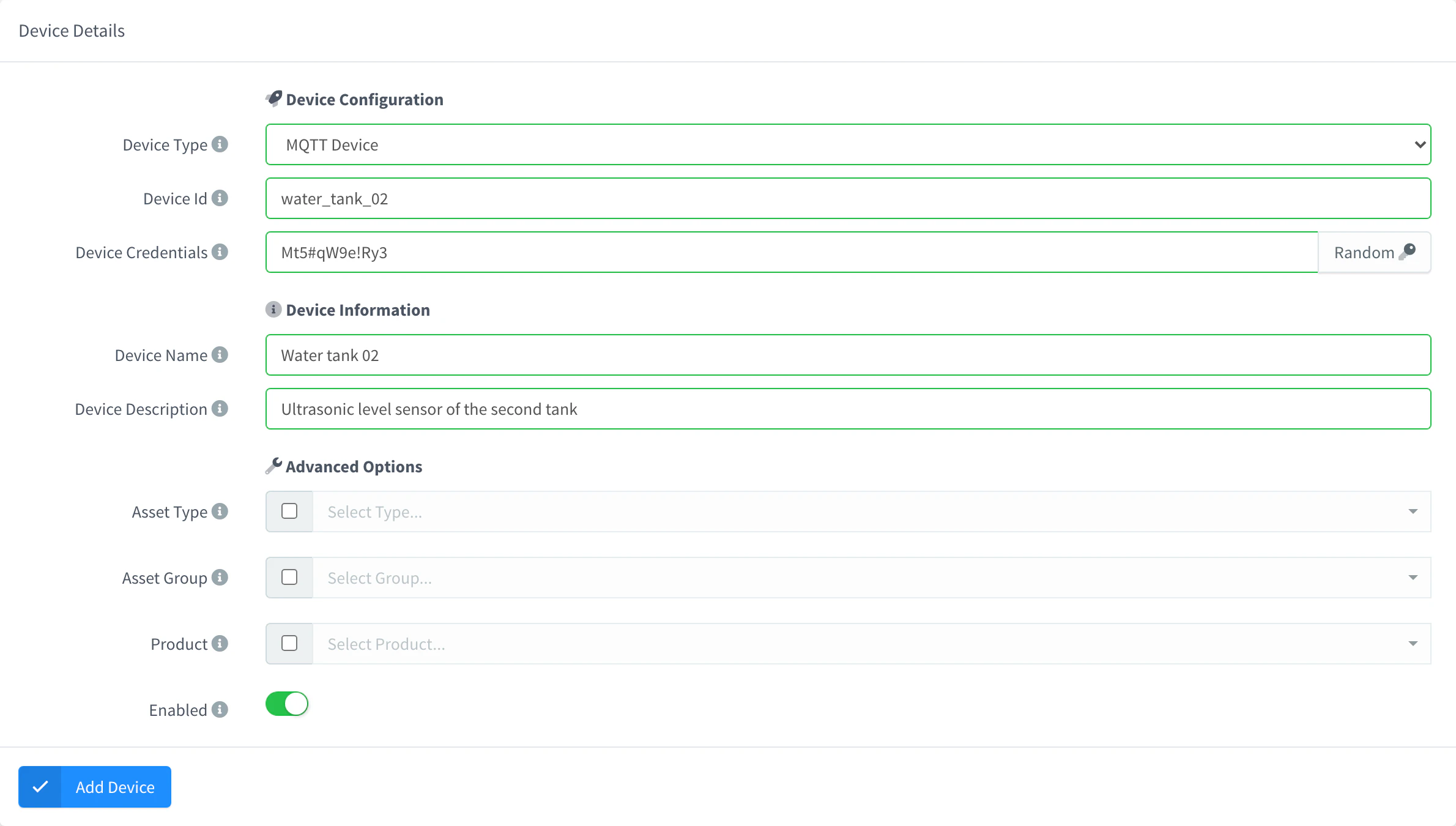
Add an MQTT device API
bashcurl -X POST "https://YOUR_SERVER/v1/users/YOUR_USER/devices" \ -H "Authorization: Bearer YOUR_TOKEN" \ -H "Content-Type: application/json" \ -d '{"device": "YOUR_DEVICE", "type": "MQTT", "credentials": "a-long-random-secret"}'YOUR_TOKENis an access token of your account. The credentials need at least six characters.CLI
bashthinger device create YOUR_DEVICE -t MQTTWithout
-c, the CLI generates random credentials and prints them once.AI
Ask your AI agentCreate an MQTT device called YOUR_DEVICE in my Thinger.io account with random credentials and show them to me.
Create a Data Bucket for the topic
Go to Data Buckets and create a Data Bucket. Set an ID, choose From MQTT Topic as Data Source and enter
sensors/YOUR_DEVICE/telemetryin MQTT Topic. Every message published to that topic is stored as one record. Topic filters with+and#work here too.Payloads stored in a Data Bucket must be JSON.
Publish a message
mosquitto
bashmosquitto_pub -h YOUR_SERVER -p 8883 --capath /etc/ssl/certs \ -u YOUR_USER -i YOUR_DEVICE -P 'YOUR_TOKEN' \ -t "sensors/YOUR_DEVICE/telemetry" -m '{"temperature": 21.5}'Here
YOUR_TOKENis the device credentials. On macOS, replace--capath /etc/ssl/certswith--cafileand the path of a CA bundle, such as/etc/ssl/cert.pem.Python
publish.pypythonimport json import ssl import paho.mqtt.client as mqtt client = mqtt.Client(mqtt.CallbackAPIVersion.VERSION2, client_id="YOUR_DEVICE", protocol=mqtt.MQTTv311) client.username_pw_set("YOUR_USER", "YOUR_TOKEN") # YOUR_TOKEN: device credentials client.tls_set_context(ssl.create_default_context()) client.connect("YOUR_SERVER", 8883) client.loop_start() info = client.publish("sensors/YOUR_DEVICE/telemetry", json.dumps({"temperature": 21.5}), qos=1) info.wait_for_publish() client.loop_stop() client.disconnect()
Result
The device shows as connected in Devices while the client is connected, and the message appears in the Data Bucket with the time it was received. Read it from the CLI:
thinger bucket read YOUR_BUCKET[
{
"temperature": 21.5,
"ts": 1792254092403
}
]YOUR_BUCKET is the ID you gave the Data Bucket.
Topics
The broker accepts any topic name: there are no reserved topics or required prefixes. Each account has its own topic space, so your topics never mix with those of other accounts.
- Subscribe: a client receives the messages that any device of your account publishes on the topics it subscribes to, with
+and#wildcards. - QoS: publish and subscribe with QoS 0, 1 or 2. A message is delivered with the lower of the publish and the subscription QoS.
- Retained messages: a retained message is kept per topic and sent to new subscribers of that exact topic. Publish an empty retained message to clear it.
- Sessions: subscriptions last as long as the connection. There are no persistent sessions or queues for offline clients.
- Payloads: JSON payloads are parsed and can feed Data Buckets, properties and products. Other payloads are passed on unchanged to subscribers.
- Keep alive: the device is marked as disconnected when nothing arrives for one and a half times the keep-alive interval.
Listen to a topic with mosquitto_sub:
mosquitto_sub -h YOUR_SERVER -p 8883 --capath /etc/ssl/certs \
  -u YOUR_USER -i YOUR_DEVICE -P 'YOUR_TOKEN' -t "sensors/#" -v
Devices that use the Thinger.io device libraries can also publish to and subscribe to topics of your account, so IOTMP and MQTT devices can talk to each other.
Send commands to an MQTT device
An MQTT device has no device resources of its own. To send it a command from the console, a dashboard, the API or an agent, assign the device to a product and add an API resource that publishes to a topic, such as sensors//commands. The device subscribes to that topic, and you call the resource like any device resource:
curl -X POST "https://YOUR_SERVER/v3/users/YOUR_USER/devices/YOUR_DEVICE/resources/command" \
  -H "Authorization: Bearer YOUR_TOKEN" \
  -H "Content-Type: application/json" \
  -d '{"relay": true}'
YOUR_TOKEN is an access token of your account. The same product can turn incoming topics into properties, Data Bucket records and device resources: see API resources. For the full list of device operations, see the REST API reference.
Troubleshooting
| Symptom | Cause | Fix |
|---|---|---|
Connection Refused: not authorised (CONNACK 5) | The username, client ID or credentials do not match, or the device or the account is disabled. | Check that the client ID is the device ID, the username is your username (not your email) and the password is the device credentials. Check that the device is enabled. |
Connection Refused: identifier rejected (CONNACK 2) | The client ID is not a valid device ID. | Use only letters, numbers, - and _, up to 32 characters. |
Connection Refused: unacceptable protocol version (CONNACK 1) | The client uses MQTT 5. | Set the client to MQTT 3.1.1. |
| The connection closes without an answer | Empty username or password, or a TLS client on port 1883. | Set both fields, and use TLS only on port 8883. |
| The client keeps reconnecting | Another client uses the same client ID. | Give each client its own device. |
| The Data Bucket stays empty | The payload is not JSON, or the topic does not match. | Publish JSON to exactly the topic of the Data Bucket. |
More cases in Troubleshooting.