

A product is the template of a fleet of devices of the same model. You configure its profile once, and every device assigned to it gets the same properties, Data Buckets, flows, device resources, dashboard and services, whether it connects over IOTMP, MQTT or HTTP.
When to use it
- To manage many devices of the same model without configuring each one.
- To turn the MQTT topics or HTTP requests of a device into properties, stored data and device resources.
- To compute values on the platform with JavaScript, for example for virtual devices.
- To create devices automatically when they first connect.
Create a product
YOUR_SERVER is iot.thinger.io on the free Cloud account, or the domain of your private instance.
Console
Open Products
Go to Products and click Add Product (or Create a new Product if you have none yet).
Fill in the form
Set the Product ID, the Product Name and an optional Product Description, and leave Enabled on.
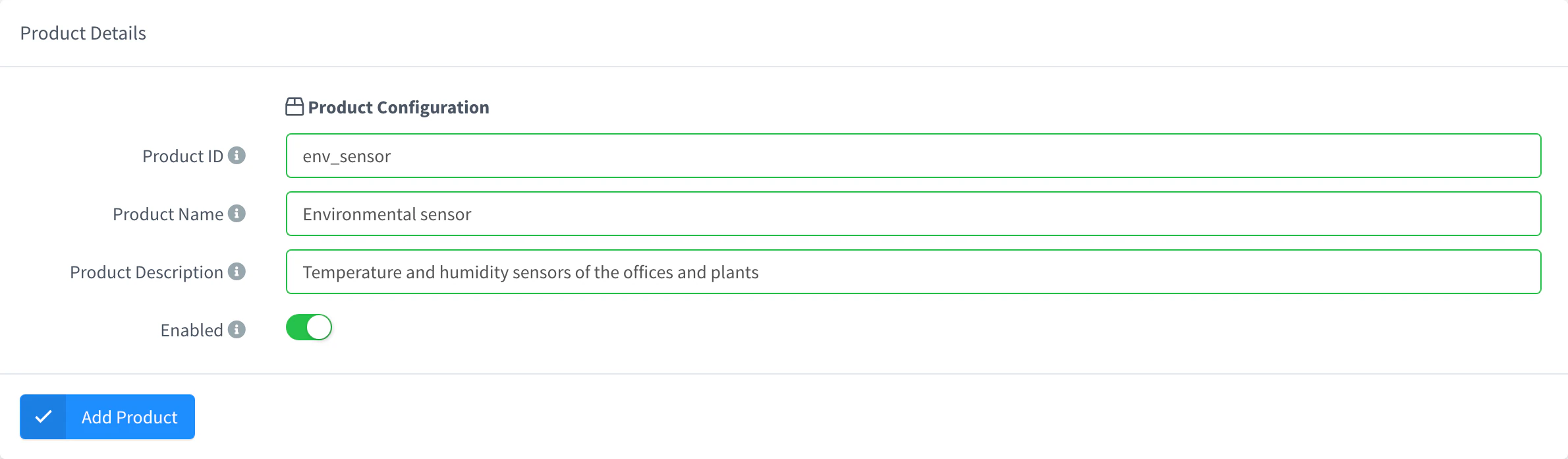
Add a product Save it
Click Add Product. The product opens on its Profile tab, where you configure what it does.
API
curl -X POST "https://YOUR_SERVER/v1/users/YOUR_USER/products" \
  -H "Authorization: Bearer YOUR_TOKEN" \
  -H "Content-Type: application/json" \
  -d '{"product": "meter", "name": "Meter", "description": "Energy meters", "enabled": true}'
YOUR_TOKEN is an access token with permission to create products. The body can also carry the whole profile.
CLI
thinger product create meter -n "Meter" -d "Energy meters"Add --from product.json to create it from a JSON document with its config and profile. See the CLI reference.
AI
Create a product called meter for my energy meters.
The agent uses thinger_resource_create with the product type. See MCP tools.
Assign devices to a product
A device follows the profile of its product as soon as you assign it. Each device can belong to one product.
Console
Open the device, go to Settings, and under Advanced Options choose the Product. Click Update Device. You can also choose the product when you add the device.
API
curl -X PUT "https://YOUR_SERVER/v1/users/YOUR_USER/devices/YOUR_DEVICE" \
  -H "Authorization: Bearer YOUR_TOKEN" \
  -H "Content-Type: application/json" \
  -d '{"product": "meter"}'
CLI
thinger device set-product YOUR_DEVICE meterPass "" as the product to unassign the device, or use -p meter in thinger device create.
AI
Assign the devices meter_001 to meter_010 to the product meter.
The product profile
The Profile tab holds what the product does for each of its devices, in one card per part. Each entry of a card can be enabled or disabled on its own, and only runs while the product is enabled.
The product also has its own tabs for what its devices show and expose:
The Properties tab holds the properties of the product itself, which every device inherits (see Product properties). The menu of the product also has Inspector (the live events of the product), Profile Graph (a graph of what feeds each entry and where its data goes), Plugin Exporter (package the product as a plugin) and Settings, where Product Icon and Product Fields set how its devices look on asset maps and tables.
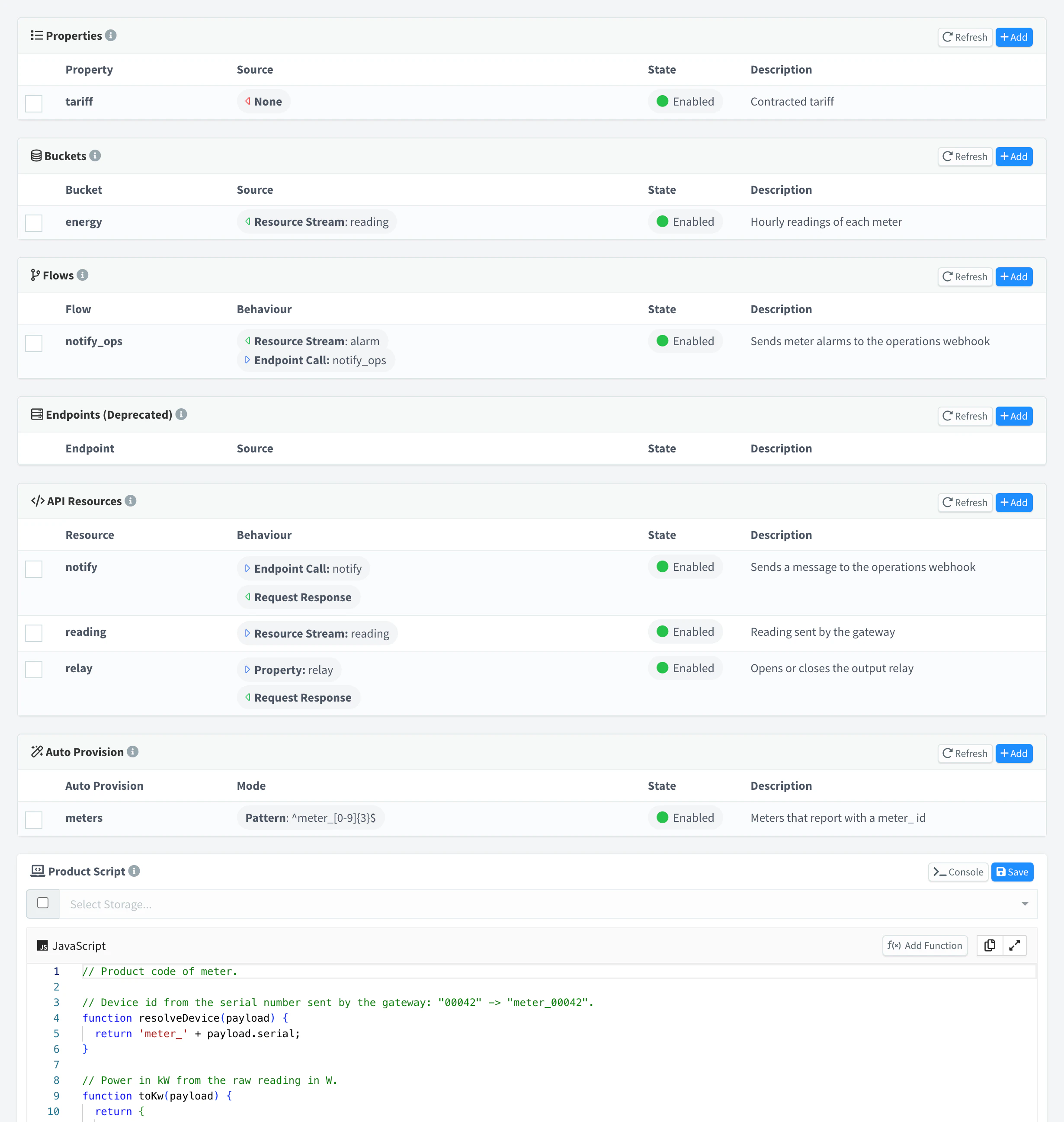
Sources, targets and payloads
Properties, buckets and flows take their data from a source; flows and API resources send data to a target. The console offers the same choices in every card:
| Source | source | Data |
|---|---|---|
| Device Resource | resource | The platform reads a device resource every Sampling Interval, or the device streams it (Stream by Device). |
| Device Stream | resource_stream | A device resource that the device streams on its own. |
| Device Topic | topic | Messages on an MQTT topic, such as devices/{{device}}/telemetry. See Topics. |
| Device Event | event | A platform event of the device, such as device_state_change. |
| Product Stream | product_stream | A stream published by a flow or API resource of a product. See Flows. |
Topics
A Device Topic source or target uses the topics of the devices of the product. In a topic, {{device}} and any other {{name}} match one level, and the MQTT wildcards work too: + matches one level and # the rest of the topic. Both of these receive the temperature of every device, as long as each device publishes under its own ID:
my_product/{{device}}/temperature
my_product/+/temperature
{{name=a|b}} matches only the listed values: product buckets use it to store several topics in one record (see Tags and fields from the topic).
Payloads
Each source or target builds a Payload: Source Payload (the data as received), Source Event (the whole event), Template Payload (a JSON template) or None. Payload Processing passes it through a function of the product script.
With Source Event, the payload is the event that carried the data. A message on a topic arrives as a device_topic_publish event:
{
  "event": "device_topic_publish",
  "user": "YOUR_USER",
  "device": "plug_01",
  "product": "shelly_plug_s",
  "asset_type": "",
  "asset_group": "",
  "topic": "shellies/plug_01/relay/0/power",
  "payload": 6.55,
  "qos": 0,
  "dup": 0,
  "retain": 0,
  "ts": 1760702400000
}
A device resource arrives as a device_resource_stream event, with resource instead of topic, qos, dup and retain. ts is the time in milliseconds.
Templates use these placeholders:
| Placeholder | Value |
|---|---|
{{payload}}, {{payload.<field>}} | The incoming data, or one of its fields. |
{{device}}, {{user}}, {{product}} | The device ID, the account and the product ID. |
{{<field>}} | Any other field of the event, such as {{topic}}, {{asset_type}}, {{asset_group}} or {{ts}}. In the request of an API resource, {{resource}} is the name of the API resource. |
{{property.<id>}}, {{property.<id>.<field>}} | A property of the device, inherited ones included, or one of its fields. |
{{api.<resource>}}, {{api.<resource>.<field>}} | The result of another API resource of the product. |
{{meta.<field>}} | A field of the device record, such as name. |
{{<placeholder>:<function>}} | The placeholder passed through a function of the product script. |
A placeholder writes its value as is: a number or a JSON object as JSON, a text without quotes. Put quotes around the placeholders that hold text. This template stores two fields of the payload under new names:
{"update": {{payload.new_fw}}, "ip": "{{payload.ip}}"}If the result is not valid JSON, the target receives it as plain text. In the request of an API resource, {{payload=<default>}} and {{payload.<field>=<default>}} also set the input of the resource: see Default input. Anywhere else, the text after = is ignored.
Examples
Three products, step by step, with real devices:
Limits
- The Product ID uses letters, numbers and underscores, and cannot change after you create the product.
- A disabled product, or a disabled entry of its profile, does nothing for its devices.
- Removing a product keeps its devices, without a product. The Data Buckets it created stay too.
- Saving the profile from the API replaces a whole card (
PUT .../profile/{category}) or one entry (PUT .../profile/{category}/{resource}): see the REST API reference. - The number of products depends on your plan: see Plans and limits.