

A geofence is an area on a map: a polygon, a rectangle or a circle. When the location of a device changes, the platform checks it against the geofences of the device and emits an event for each area it enters or leaves, or stays inside or outside. Each event can also call an endpoint.
When to use it
- To get an email or a Telegram message when a vehicle leaves its depot or reaches a customer.
- To record in a Data Bucket when each asset enters and leaves each site.
- To keep the current zone of every device of a fleet as a property.
How geofences work
Geofences are stored in the geofences property, as a GeoJSON FeatureCollection. You can define them on a device, an asset type, an asset group or a product. A device uses the first collection it finds, in this order: its own, its asset type, its asset group, its product. Collections are not merged: a device with its own geofences ignores those of its type, group and product.
The check runs whenever the location of the device changes:
- when its
locationproperty is written, from the console, the API, the device, a product property or a flow; - when an HTTP device sends a location to its callback, which is deprecated. With a product, store the location in the
locationproperty: see Store the location.
The new position is compared with the previous one. In one update, the platform emits exits before entries, so a device that moves from one zone to another leaves the first one before it enters the second.
Each event, device_geofence_event, carries the device, its latitude and longitude, the zone (geofence with its name, geofence_id, and geofence_properties with your own fields of the zone), the geofence_event (onEnter, onExit, whileInside or whileOutside), the endpoint called, if any, and the product, asset_type and asset_group of the device. See Events.
Draw geofences
YOUR_SERVER is iot.thinger.io on the free Cloud account, or the domain of your private instance.
Console
Open the Geofences tab
Open a device, an asset type or an asset group (Assets > Types or Assets > Groups) and go to its Geofences tab. Products have no tab: write their
geofencesproperty with the API.Draw the areas
Turn on the switch of the Geofences panel to edit. The drawing buttons appear at the top of the map: pan, polygon, rectangle and circle. Draw the areas, and drag their points to adjust them. If the device inherits its geofences from a type, group or product, the console asks before it creates a copy on the device.
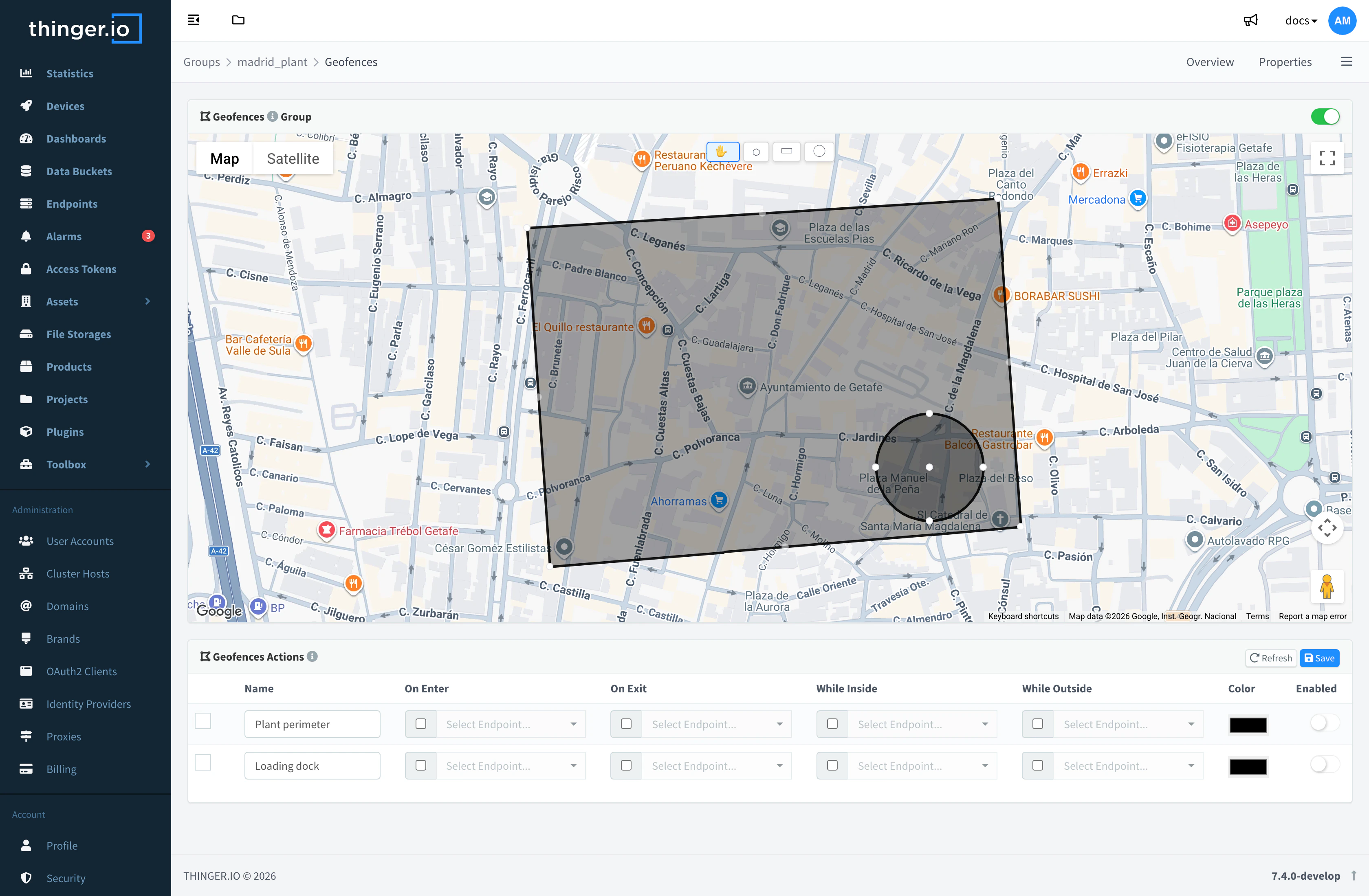
Geofences of an asset group in edit mode Set the actions
In Geofences Actions, give each area a Name, choose the endpoint to call On Enter, On Exit, While Inside and While Outside, pick its Color and turn it on or off with Enabled. Click Save.
API
Write the geofences property. Coordinates are [longitude, latitude], as in GeoJSON. A circle is a Point with a radius in meters.
curl -X POST "https://YOUR_SERVER/v3/users/YOUR_USER/devices/YOUR_DEVICE/properties" \
  -H "Authorization: Bearer YOUR_TOKEN" \
  -H "Content-Type: application/json" \
  -d '{
    "property": "geofences",
    "value": {
      "type": "FeatureCollection",
      "features": [
        {
          "type": "Feature",
          "id": "warehouse",
          "properties": { "name": "Warehouse", "onEnter": "", "onExit": "notify_exit", "enabled": true, "customer": "acme" },
          "geometry": { "type": "Polygon", "coordinates": [[[-3.71, 40.41], [-3.70, 40.41], [-3.70, 40.42], [-3.71, 40.42], [-3.71, 40.41]]] }
        },
        {
          "type": "Feature",
          "properties": { "name": "Depot", "radius": 300, "onEnter": "", "enabled": true },
          "geometry": { "type": "Point", "coordinates": [-3.60, 40.40] }
        }
      ]
    }
  }'
Asset types, asset groups and products have the same call on their own path (/v1/users/{user}/types/{type}/properties, /groups/{group}/properties, /products/{product}/properties).
CLI
Write the property of a device, with the GeoJSON in a file:
thinger device property-set YOUR_DEVICE geofences "$(cat geofences.json)"For a product, use thinger product property-set. The CLI has no commands for the properties of asset types and groups.
AI
Add a geofence called Depot to YOUR_DEVICE: a circle of 300 meters around latitude 40.40, longitude -3.60, that emits an event when the device enters it.
The agent writes the geofences property with the device_property, asset_type_property, asset_group_property or product_property type.
Choose the events of each zone
The keys onEnter, onExit, whileInside and whileOutside in the properties of a zone decide which events it emits:
| Value of the key | Result |
|---|---|
| An endpoint ID | Emits the event and calls the endpoint with the event data. |
"" (empty) | Emits the event without calling any endpoint. |
| Key missing | No event of that kind for this zone. |
whileInside and whileOutside are emitted on every location update, not only on changes. The zone ID is the id of the feature, or properties.id, or else its name. Any other field you add to the properties of the zone, such as customer, travels in geofence_properties.
Warning
When you save from the console, an action left empty is removed from the zone, so it emits no event of that kind. To get an event without calling an endpoint, set the key to "" in the property.
React to geofence events
- Endpoints: set the endpoint of each action, as above.
- Products: a product flow or bucket whose source is the device event
device_geofence_eventkeeps a history of entries and exits, or writes the current zone to a property. See Products > Flows. - Real-time: the console session can subscribe to
device_geofence_eventover the events WebSocket. Access tokens cannot: see Events.
See geofences on a map
The Overview of a device draws its geofences. The Overview of an asset type or group shows them with Show Geofences, and the map widgets of a dashboard can show them too: see Assets and Dashboards.
Limits
- Polygons use only their outer boundary: holes are ignored. An invalid polygon is skipped.
- Changing or removing a zone emits no events: a device inside a removed zone gets no
onExit. - The location must be a latitude and a longitude (
latandlon,lng, orlatitudeandlongitude).