

Every display widget reads its values from one or more sources, set in the tab named after the widget in Widget Settings. This page lists the source types and the options that choose, group and transform the data before the widget shows it.
Source types
Choose the type in Data Source. Not every widget offers every type: control widgets write to a target instead (see Device control widgets), and the Google Map adds fixed and browser locations.
| Data Source | What it reads | Stored |
|---|---|---|
| From Data Bucket | The records of a Data Bucket. | yes |
| From Device Bucket | The records a product bucket keeps for one device. | yes |
| From Device Resource | The live values of an output resource of a device. | no |
| From Device Property | A property of a device. | yes |
| Manual | A fixed value you type in Fixed Value: a number, or a text in the Text/Value widget. Use it to try a widget. |
After the source, select the value to show in Source value or Select Value. Each source gives one value or series; charts take several sources. The HTML Widget can take several fields of one source with Select Fields, and the Google Map maps a Latitude and a Longitude field.
From Data Bucket
Select the bucket in Select Bucket and the value or fields. If the bucket has tags, a Tag field for each one filters the records, for example to show only some devices of a shared bucket. Single-value widgets show the latest record; charts use the Timeframe.
The widget updates when the bucket receives a record. If the live connection of the dashboard is not available, it reads the bucket again every minute.
From Device Bucket
Select the device in Select Device, then the bucket in Select Bucket. It works as From Data Bucket, on the records of that device only.
From Device Resource
Select the device in Select Device, the resource in Select Resource and the value or fields. The list shows output and input-output resources; the device must be connected, or belong to a product, to list them. If the console cannot read the resources, type the name in Enter Resource Name.
The values are not stored: the widget shows what it receives while the dashboard is open, and starts empty when you reload it. To keep a history, store the resource in a Data Bucket and read the bucket. The widget is marked offline while the device is disconnected.
Choose how the values arrive in Refresh Mode:
| Refresh Mode | What it does |
|---|---|
| Sampling Interval | The platform reads the resource at a fixed interval while the dashboard is open, 5 minutes by default, from seconds to years. When several widgets read the same resource at different intervals, the device is read at their greatest common divisor and each widget takes the readings it needs. |
| Stream by Device | The device sends the value when it decides, with thing.stream(): for example when a door opens. See Stream a resource in real time. |
| None | The dashboard does not request periodic readings. As with Stream by Device, the widget only shows the values the device streams. |
From Device Property
Select the device in Select Device (the list can be filtered by project, product, group, type or device), the property in Select Property, and the value. In a widget that takes several fields, leave Select Fields empty to take every value of the property. The widget updates when the property changes.
Time Period
Charts fed by a device resource or a property keep the values they receive for a Time Period: 30 minutes by default, from seconds to years. Older values leave the chart. As the values are not stored, the chart starts empty when you reload the dashboard.
Timeframe
Charts and maps fed by a bucket show the records of a Timeframe:
| Timeframe | What it shows |
|---|---|
| Latest Value | The latest record, and the new ones as they arrive. |
| Relative | A window that moves with time, set in Time Period: latest N seconds, minutes, hours, days, weeks, months or years (the last 6 hours by default), or previous N units (the same span just before it, from 2N to N ago, to compare two periods). |
| Absolute | A fixed range between a Start Date and an End Date. |
| Configurable | The range the viewer chooses in the date selector of the dashboard header. |
Single-value widgets always show the latest record of the bucket.
Configurable timeframe and aggregation
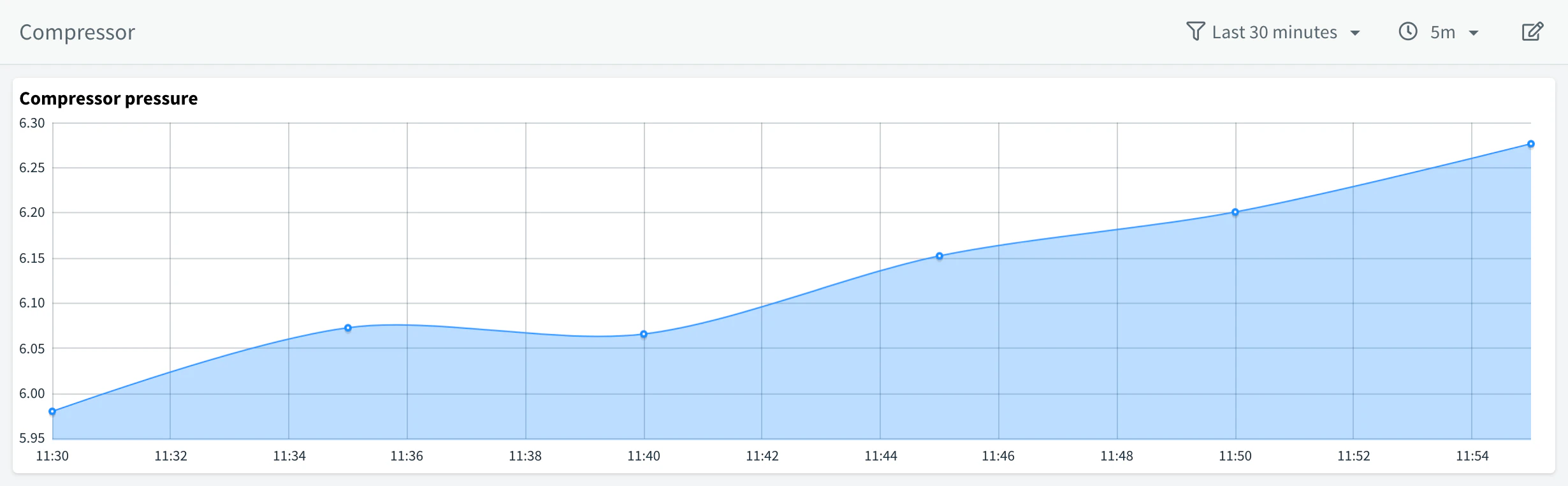
A source with Configurable timeframe makes the dashboard show a date selector in its header, with a relative range (latest or previous N units) or an absolute range, so viewers can explore the data without editing the dashboard. If an aggregation is Configurable too, the selector also offers the aggregation interval. Changing the selection reloads every source with a configurable timeframe.
Until you set them in Dashboard Settings > Controls, the selector starts at the last 30 minutes, aggregated by 1 minute.
Aggregate
Aggregate groups the bucket records in intervals and keeps one value per interval and field. Use it to show long ranges without thousands of points, or to chart statistics such as the hourly maximum. It is available for buckets whose Backend is InfluxDB or MongoDB.
Choose the interval and, next to it, the function (mean by default):
| Interval | Meaning |
|---|---|
| None | No aggregation: every record. |
| 5 min, 15 min, 30 min | Intervals of minutes. |
| 1 hour, 3 hour, 6 hour, 12 hour | Intervals of hours. |
| 1 day, 1 week | Daily and weekly intervals. |
| 1 month, 3 month, 6 month, 1 year | Monthly and yearly intervals. |
| Configurable | The interval the viewer chooses in the dashboard header. Only with a Configurable timeframe. |
| Timeframe | One interval as long as the selected timeframe: a single value for the whole range, such as the total energy of the period. Only with a Configurable timeframe. |
The nine functions:
| Function | What it returns | Typical use |
|---|---|---|
count | Number of records in the interval. | Check that a sensor reports regularly. |
mean | Average of the values. | General trends, such as the average temperature. |
median | Middle value of the sorted values. | Trends without the distortion of outliers. |
mode | Most frequent value. | Recurring states, such as on and off. |
spread | Difference between the maximum and the minimum. | Variability, such as temperature swings. |
stddev | Standard deviation of the values. | Stability of a measure. |
max | Highest value. | Peaks of voltage or pressure. |
min | Lowest value. | Dips, such as the lowest battery level. |
sum | Sum of the values. | Totals, such as the energy used per day. |
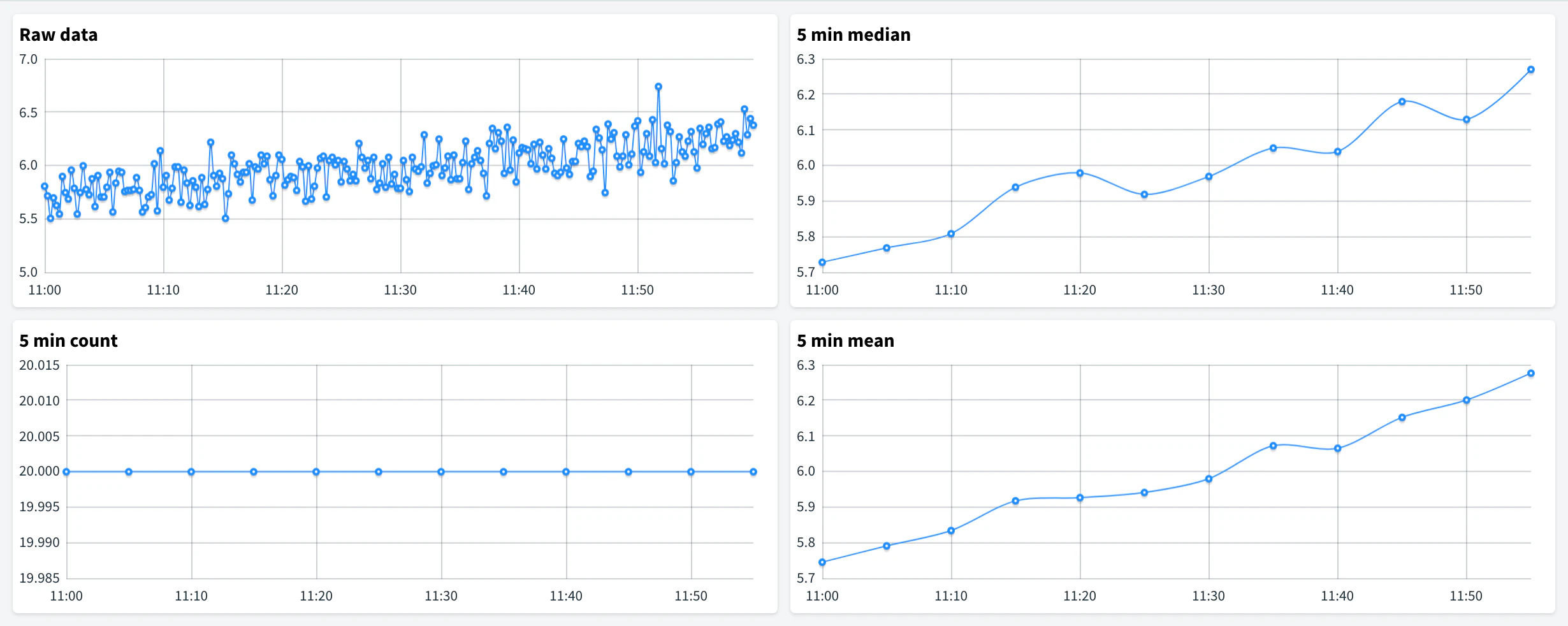
The same data looks very different with each function: a raw signal sampled every few seconds, its median and mean by 5 minutes follow the trend, while count shows how many samples arrived in each interval.
Transform
Transform applies a function to the values after they are read and aggregated, and before the widget draws them. Use it to turn a counter into a rate, round noisy decimals or build a running total, without changing the firmware. It is available for buckets whose Backend is InfluxDB or MongoDB.
| Transform | What it returns | Typical use |
|---|---|---|
| None | The values unchanged. | Raw readings. |
abs | The absolute value. | The magnitude of a current that changes sign. |
ceil | The value rounded up to an integer. | Counts that must never show less than the real amount. |
floor | The value rounded down to an integer. | Whole units completed, such as batches. |
round | The value rounded to the nearest integer. | Clean figures for non-technical viewers. |
difference | The change from the previous record. | The consumption of each interval from a cumulative meter. |
non_negative_difference | As difference, without negative results. | Cumulative meters that reset to zero. |
derivative | The rate of change per second, which can be negative. | Speed from distance, bandwidth from bytes. |
non_negative_derivative | As derivative, without negative results. | Counters that roll over or reset, such as network bytes or water meters. |
cumulative_sum | The running total of the values. | Production totals. |
elapsed | Seconds since the previous record. | Time between machine cycles or messages. |
The transforms that compare a record with the previous one (difference, derivative, their non-negative versions and elapsed) return no value for the first record.
Processing
Processing passes the values of a source through a function of the dashboard, written in JavaScript in Dashboard Settings > Functions. Use it for conversions the other options do not cover: Celsius to Fahrenheit, a code to a text, a value computed from several fields. The selector lists the functions of the dashboard and is shown only when the dashboard has at least one; Disabled turns it off. See Configure a dashboard.