

A file storage is a folder of files on your instance, with its own ID and permissions. You upload and edit its files from the console, the REST API or an agent, and other features read them: HTML widgets, dashboard apps, product code and data imports.
When to use it
- To host a dashboard app or the code of an HTML widget.
- To keep the script of a product, or a whole application with its dashboard and its product code in one place.
- To upload a CSV file and import it into a Data Bucket.
- To publish files, such as images or manuals, at a fixed URL.
- To keep firmware builds by version, so devices download them over HTTP (see Serve files over HTTP).
Create a File Storage
YOUR_SERVER is iot.thinger.io on the free Cloud account, or the domain of your private instance.
Console
Open File Storages
Go to File Storages and click Add Storage (or Create a File Storage if you have none yet).
Fill in the form
Set the Storage ID, the Storage name and an optional Storage description. Turn on Public Read only if anyone may read the files without a token.
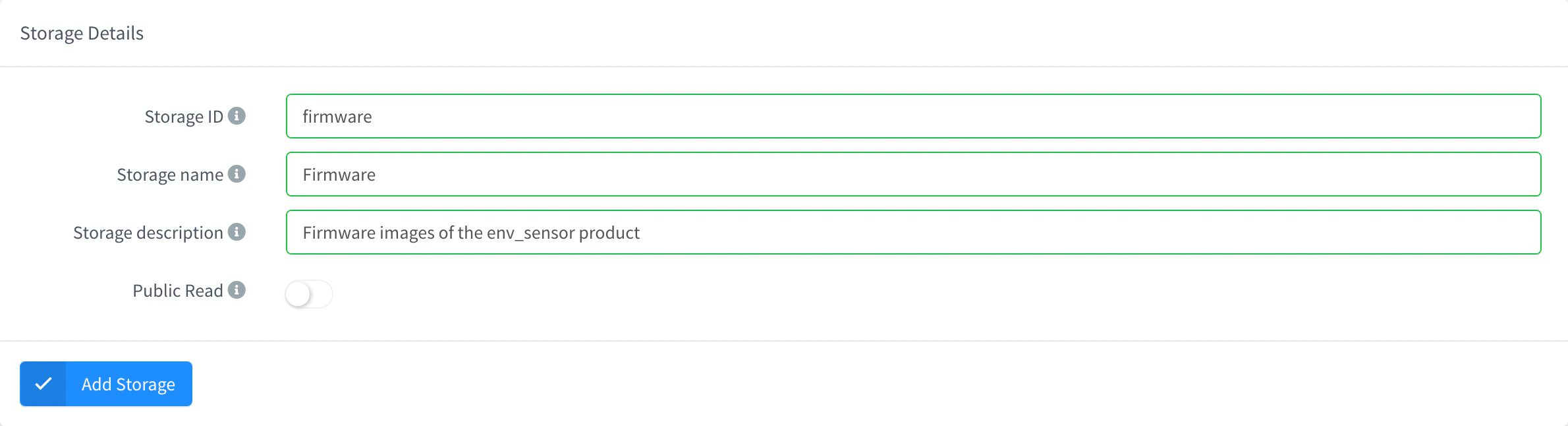
Add a File Storage Save it
Click Add Storage. The storage opens on its Explorer tab, empty.
API
curl -X POST "https://YOUR_SERVER/v1/users/YOUR_USER/storages" \
  -H "Authorization: Bearer YOUR_TOKEN" \
  -H "Content-Type: application/json" \
  -d '{"storage": "documents", "name": "Documents", "public": false}'
YOUR_TOKEN is an access token with permission to create storages. Optional fields set the description, the index file served at the root and the terminal_image.
CLI
The CLI has no command to create a storage on its own. thinger dashboard publish creates a public storage for a dashboard app if it does not exist: see Dashboard apps.
AI
Create a private file storage called documents for the manuals of my devices.
The agent uses thinger_resource_create with the storage type. See MCP tools.
Upload and manage files
Console
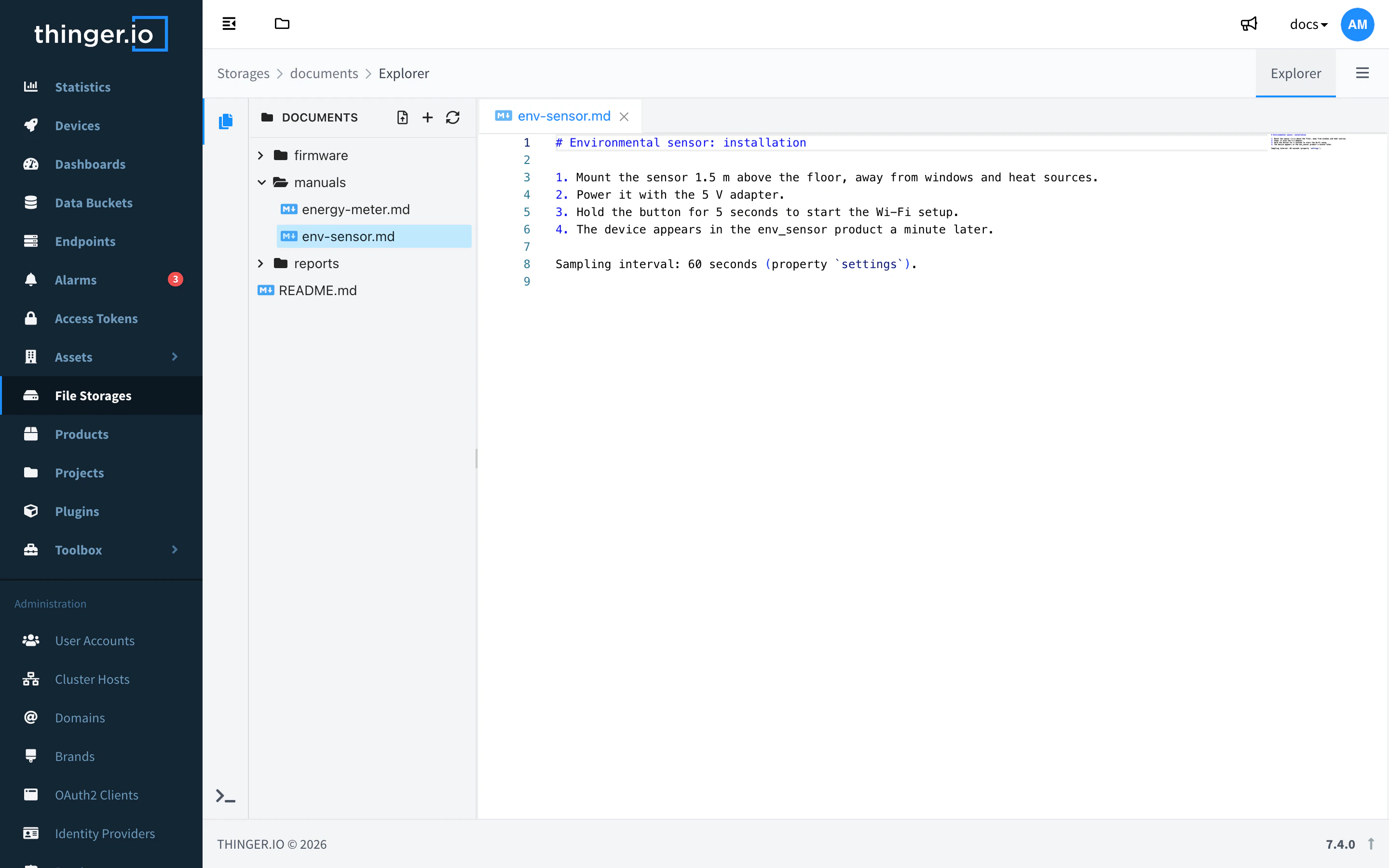
Open the storage on its Explorer tab:
- Upload sends files or a whole folder; drop them on the Files or Folder area and click Upload.
- New creates a New File or a New Folder. Click a text file to edit it in the code editor, with syntax highlighting by file extension, one tab per open file, a mark on tabs with unsaved changes, and search and replace. Save it with Save (Ctrl+S or Cmd+S).
- Images, PDF files, video and audio open in a preview instead of the editor.
- The context menu of a file has Download, Info, Rename and Delete. Drag files in the tree to move them.
API
Upload a file by sending its content as the body. Folders on the path are created; add ?overwrite=false to refuse to replace an existing file.
curl -X PUT "https://YOUR_SERVER/v2/users/YOUR_USER/storages/documents/files/manuals/boiler.pdf" \
  -H "Authorization: Bearer YOUR_TOKEN" \
  -H "Content-Type: application/octet-stream" \
  --data-binary @boiler.pdf
A path that ends in / creates a folder, with the folders above it:
curl -X PUT "https://YOUR_SERVER/v2/users/YOUR_USER/storages/documents/files/manuals/2026/" \
  -H "Authorization: Bearer YOUR_TOKEN"
GET on a folder lists its files, with name, path, type (file or directory) and size. Add ?hidden=true to include the files whose name starts with a dot, and ?recursive=true to include the subfolders:
curl "https://YOUR_SERVER/v2/users/YOUR_USER/storages/documents/files/manuals?recursive=true" \
  -H "Authorization: Bearer YOUR_TOKEN"
GET on a file downloads it. Add ?info=true to get its metadata instead:
curl "https://YOUR_SERVER/v2/users/YOUR_USER/storages/documents/files/manuals/boiler.pdf?info=true" \
-H "Authorization: Bearer YOUR_TOKEN"{
"name": "boiler.pdf",
"path": "/manuals/boiler.pdf",
"type": "file",
"size": 482113,
"mime": "application/octet-stream",
"modified": 1760702400
}modified is the time of the last change, in seconds. To rename or move a file or a folder, send its new path with PATCH; add "overwrite": true to replace a file that already exists there:
curl -X PATCH "https://YOUR_SERVER/v2/users/YOUR_USER/storages/documents/files/manuals/boiler.pdf" \
  -H "Authorization: Bearer YOUR_TOKEN" \
  -H "Content-Type: application/json" \
  -d '{"path": "/manuals/2026/boiler.pdf"}'
Delete a file or a folder with DELETE on its path. See the REST API reference.
CLI
The CLI cannot upload or list the files of a storage, except the build of a dashboard app with thinger dashboard publish. Use the console, the API or an agent.
AI
Upload the folder ./manuals of my computer to the documents storage, and list what it contains afterwards.
The agent uses thinger_storage_file_write, thinger_storage_file_list, thinger_storage_file_read and thinger_storage_file_delete. It asks before it deletes a file.
Serve files over HTTP
Every file has a URL: https://YOUR_SERVER/v1/users/YOUR_USER/storages/YOUR_STORAGE/files/<path>. The Settings tab of the storage shows the base URL in HTTP Path, and the Index File (such as index.html) is what the root of that URL serves.
| Storage | Who can list and read files | Who can write |
|---|---|---|
| Private (Public Read off) | The owner, and access tokens or project members with permission. | Same as read, with write permission. |
| Public (Public Read on) | Anyone, without a token. | Only with a token or a session with permission. |
Files are served with ETag and Last-Modified headers, so browsers and dashboard apps download them again only when they change. Add ?download=true to download a file instead of opening it in the browser.
The access tokens and the project roles that use a private storage need these permissions:
| Permission | Allows |
|---|---|
ListStorageFiles | Listing the files with the v1 API. |
ReadStorageFiles | Listing and downloading files. |
UpdateStorageFiles | Uploading files and creating folders. |
CreateStorageFiles | Uploading files with a form (v1 API). |
RenameStorageFiles | Renaming and moving files. |
DeleteStorageFiles | Deleting files and folders. |
AccessStorageTerminal | Opening the Terminal. Only the owner can use it. |
See Access tokens for how to grant them.
Download firmware by version
A public storage can serve firmware to devices without a token. Keep each build in a folder of its version and a latest.txt file with the current version:
firmware/
  latest.txt        1.4.2
  1.4.1/firmware.bin
  1.4.2/firmware.bin
A device, or the script that updates it, reads the version and downloads its build:
BASE="https://YOUR_SERVER/v2/users/YOUR_USER/storages/YOUR_STORAGE/files/firmware"
VERSION=$(curl -fsS "$BASE/latest.txt")
curl -fsS -o firmware.bin "$BASE/$VERSION/firmware.bin"
For a private storage, add -H "Authorization: Bearer YOUR_TOKEN" with a token that has ReadStorageFiles on the storage. This is a plain HTTP download: to update Arduino devices over their connection, see OTA updates.
Warning
A public storage exposes every file and its list to anyone who knows the URL. Never keep credentials, tokens or private data in one. A dashboard app in a public storage receives the session token of whoever opens it: see Dashboard apps.
Open a terminal or VS Code
The activity bar of the Explorer tab has a Terminal: a shell with the files of the storage in /workspace, where you can run git, npm and other tools. It runs on the Terminal Image set in Settings (alpine:latest by default). Only the owner of the storage can open it.
The VS Code tab opens the storage in VS Code in the browser. It needs the VS Code plugin installed on the instance: see Plugins.
Limits
- The Storage ID uses letters, numbers and underscores, and cannot change after you create the storage.
- Paths cannot point outside the storage (
..is refused), and the root folder cannot be deleted. - The Terminal is for the owner only; project members and access tokens cannot open it.
- The number of storages, the size of each upload and of all your storages depend on your plan and the instance: see Plans and limits.
Cannot be undone
Removing a storage deletes all its files.