

An OTA update sends new firmware to a device over its Thinger.io connection, so you can update devices in the field without a cable. You build and send the firmware from Visual Studio Code with the Thinger.io extension, to one device or to every device of a product.
When to use it
- To fix or improve the firmware of devices that are already installed.
- To roll out the same firmware to every device of a product.
How an update works
The extension builds the firmware with PlatformIO and sends it in blocks through the REST API. The server relays each block to the device over its IOTMP connection, and the device installs the firmware and restarts.
What the extension does for you:
- Builds and uploads in one step, with the active PlatformIO environment, or asks which one if the project has several.
- Skips devices that already run the version you are sending (see Firmware versions).
- Asks for confirmation before installing a firmware built for other hardware, when the firmware declares its compatibility fields (see Check the hardware compatibility).
- Compresses the firmware when the board supports it: zlib on ESP32, LZSS on Portenta H7 and Opta, gzip on ESP8266 if you build with
-D ATOMIC_FS_UPDATE, and gzip on Raspberry Pi Pico W and Pico 2 W if you defineTHINGER_OTA_COMPRESSION 1. The other boards receive it uncompressed. - Verifies an MD5 checksum of the firmware, compressed or not, before the device installs it. The Nano 33 IoT and the MKR WiFi 1010 also read back the firmware stored in their Wi-Fi module and check it before they install it.
- Shows the state of the target in the status bar: whether the device is connected, and the bytes it sends and receives in real time.
- Logs each update in the Thinger.io OTA Log output, with the result of every device.
Requirements
- An IOTMP device with one of the supported boards: ESP32 (also S2, S3, C3, C5, C6 and P4), ESP8266, Raspberry Pi Pico W, Pico 2 W, Arduino Nano 33 IoT, MKR WiFi 1010, Nano RP2040 Connect, MKR NB 1500, UNO R4 WiFi, or Portenta H7 and Opta on the Mbed OS core. Each board's OTA include and class are in Supported boards. OTA updates are not available on the Arduino Zephyr core yet.
- A PlatformIO project with firmware that connects to Thinger.io and has OTA support (see Add OTA to your sketch), flashed once over USB.
- Visual Studio Code with PlatformIO and the Thinger.io extension. Install the extension from the Extensions view of VS Code: search for "Thinger.io".
- An access token with the permissions
ListDevices,ListProducts,AccessDeviceResourcesandReadDeviceStatistics. See Access Tokens.
Add OTA to your sketch
Include the OTA header of your board and create the OTA object after the thing object. The rest of the sketch does not change.
ESP32 / ESP8266
#define THINGER_SERIAL_DEBUG

#include <ThingerESP32.h>
#include <ThingerESP32OTA.h>

ThingerESP32 thing("YOUR_USER", "YOUR_DEVICE", "YOUR_TOKEN");
ThingerESP32OTA ota(thing);

void setup() {
  Serial.begin(115200);
  pinMode(16, OUTPUT);

  thing.add_wifi("wifi-network", "wifi-password");

  // turn GPIO 16 on and off from Thinger.io
  thing["GPIO_16"] << digitalPin(16);

  // read the time since the board started
  thing["millis"] >> outputValue(millis());
}

void loop() {
  thing.handle();
}
On ESP8266, use ThingerESP8266.h and ThingerESP8266OTA.h, with the classes ThingerESP8266 and ThingerESP8266OTA. YOUR_TOKEN is the device credentials.
On ESP32, the board can go back to its previous firmware when a new one does not connect: see Roll back a failed update.
Nano 33 IoT / MKR WiFi 1010
#define THINGER_SERIAL_DEBUG

#include <ThingerWiFiNINA.h>
#include <ThingerWiFiNINAOTA.h>

ThingerWiFiNINA thing("YOUR_USER", "YOUR_DEVICE", "YOUR_TOKEN");
ThingerWiFiNINAOTA ota(thing);

void setup() {
  Serial.begin(115200);
  pinMode(LED_BUILTIN, OUTPUT);

  thing.add_wifi("wifi-network", "wifi-password");

  thing["led"] << digitalPin(LED_BUILTIN);
  thing["millis"] >> outputValue(millis());
}

void loop() {
  thing.handle();
}[env:nano_33_iot]
platform = atmelsam
board = nano_33_iot
framework = arduino
lib_archive = no
lib_deps =
thinger-io/thinger.io
arduino-libraries/WiFiNINA
[env:mkrwifi1010]
platform = atmelsam
board = mkrwifi1010
framework = arduino
lib_archive = no
lib_deps =
thinger-io/thinger.io
arduino-libraries/WiFiNINAWarning
Add lib_archive = no to the environment of these boards in platformio.ini. Without it, PlatformIO leaves out of the firmware the boot code that installs the update, and the board never runs the new firmware. These boards also need the WiFiNINA library in lib_deps.
The new firmware is stored in the Wi-Fi module until the board restarts. Before it restarts, the board reads it back and checks it: if the copy is corrupted, the update fails with The firmware stored in the WiFi module is corrupted, and the board keeps running its current firmware.
Nano RP2040 Connect
#define THINGER_SERIAL_DEBUG

#include <ThingerMbed.h>
#include <ThingerMbedOTA.h>

ThingerMbed thing("YOUR_USER", "YOUR_DEVICE", "YOUR_TOKEN");
ThingerMbedOTA ota(thing);

void setup() {
  Serial.begin(115200);
  pinMode(LED_BUILTIN, OUTPUT);

  thing.add_wifi("wifi-network", "wifi-password");

  thing["led"] << digitalPin(LED_BUILTIN);
  thing["millis"] >> outputValue(millis());

  // run the Thinger.io connection in its own thread
  thing.start();
}

void loop() {
  // your code
}[env:nanorp2040connect]
platform = raspberrypi
board = nanorp2040connect
framework = arduino
lib_deps =
thinger-io/thinger.io
arduino-libraries/WiFiNINAthing.start() keeps the connection in its own thread, so loop() does not call thing.handle(). The Wi-Fi module of this board needs the WiFiNINA library in lib_deps.
Every firmware you send must include ThingerMbedOTA.h, because the board installs updates with it. A firmware without it is rejected with The firmware does not include ThingerMbedOTA.h, so it cannot be applied, and the board keeps running its current firmware.
Portenta H7 / Opta
On the Mbed OS core:
#define THINGER_SERIAL_DEBUG

#include <ThingerMbed.h>
#include <ThingerPortentaOTA.h>

ThingerMbed thing("YOUR_USER", "YOUR_DEVICE", "YOUR_TOKEN");
ThingerPortentaOTA ota(thing);

unsigned long counter = 0;

void setup() {
  Serial.begin(115200);
  pinMode(LED_BUILTIN, OUTPUT);

  thing.add_wifi("wifi-network", "wifi-password");

  thing["led"] << digitalPin(LED_BUILTIN);
  thing["counter"] >> outputValue(counter);

  // run the Thinger.io connection in its own thread
  thing.start();
}

void loop() {
  // lock the connection while you change values that a resource reads
  thing.lock();
  counter++;
  thing.unlock();
  delay(1000);
}
thing.start() keeps the connection in its own thread, and loop() works as in any sketch. Wrap with thing.lock() and thing.unlock() the code that changes variables your resources read. With Ethernet, use ThingerMbedEth.h and ThingerMbedEth instead.
Update the bootloader first
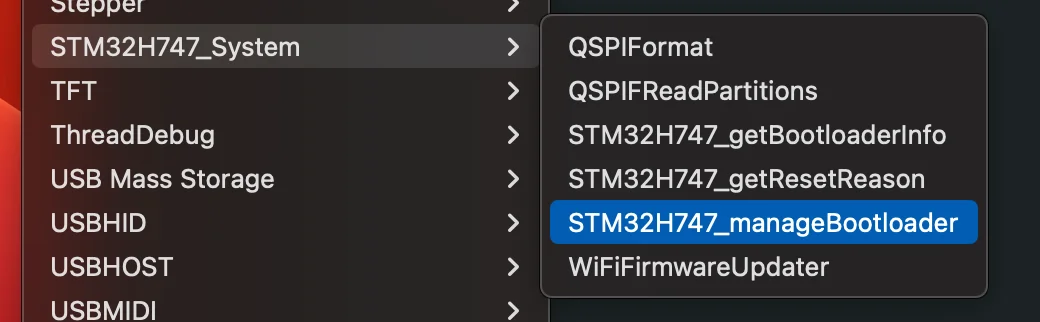
Boards with an old bootloader cannot install updates. In the Arduino IDE, with the board connected over USB, open File > Examples > STM32H747_System and run, in this order: STM32H747_manageBootloader to update the bootloader, QSPIFormat to format the QSPI flash, and WiFiFirmwareUpdater to update the Wi-Fi firmware.
Pico W / Pico 2 W
#define THINGER_SERIAL_DEBUG

#include <ThingerPicoW.h>
#include <ThingerPicoOTA.h>

ThingerPicoW thing("YOUR_USER", "YOUR_DEVICE", "YOUR_TOKEN");
ThingerPicoOTA ota(thing);

void setup() {
  Serial.begin(115200);
  pinMode(LED_BUILTIN, OUTPUT);

  thing.add_wifi("wifi-network", "wifi-password");

  thing["led"] << digitalPin(LED_BUILTIN);
  thing["millis"] >> outputValue(millis());
}

void loop() {
  thing.handle();
}[env:rpipicow]
platform = https://github.com/maxgerhardt/platform-raspberrypi.git
board = rpipicow
framework = arduino
board_build.core = earlephilhower
board_build.filesystem_size = 1m
lib_deps = thinger-io/thinger.io
[env:rpipico2w]
platform = https://github.com/maxgerhardt/platform-raspberrypi.git
board = rpipico2w
framework = arduino
board_build.core = earlephilhower
board_build.filesystem_size = 2m
lib_deps = thinger-io/thinger.ioThese boards use the Arduino-Pico core, which PlatformIO installs from the platform of the example. The update is stored in the file system before the board installs it: board_build.filesystem_size must leave room for the whole firmware, and the first flash over USB must use the same setting. To send the firmware compressed with gzip, add #define THINGER_OTA_COMPRESSION 1 before the includes; it needs a recent version of the extension. See Raspberry Pi Pico W and Pico 2 W.
UNO R4 WiFi
#define THINGER_SERIAL_DEBUG

#include <ThingerR4WiFi.h>
#include <ThingerR4OTA.h>

ThingerR4WiFi thing("YOUR_USER", "YOUR_DEVICE", "YOUR_TOKEN");
ThingerR4OTA ota(thing);

void setup() {
  Serial.begin(115200);
  pinMode(LED_BUILTIN, OUTPUT);

  thing.add_wifi("wifi-network", "wifi-password");

  thing["led"] << digitalPin(LED_BUILTIN);
  thing["millis"] >> outputValue(millis());
}

void loop() {
  thing.handle();
}
Keep the firmware of the Wi-Fi module up to date with Tools > Firmware Updater in the Arduino IDE: with an old firmware, the board cannot connect to the server over TLS or install updates. The module stores the new firmware and programs the board with it when it restarts. See UNO R4 WiFi.
MKR NB 1500
#define THINGER_SERIAL_DEBUG

#include <ThingerMKRNB.h>
#include <ThingerMKRNBOTA.h>

ThingerMKRNB thing("YOUR_USER", "YOUR_DEVICE", "YOUR_TOKEN");
ThingerMKRNBOTA ota(thing);

void setup() {
  Serial.begin(115200);
  pinMode(LED_BUILTIN, OUTPUT);

  // SIM PIN (empty if it has none) and APN of your operator
  thing.set_pin("");
  thing.set_apn("apn-name", "apn-user", "apn-password");

  thing["led"] << digitalPin(LED_BUILTIN);

  // network time of the modem
  thing["time"] >> [](pson& out){
    out = thing.getNB().getTime();
  };
}

void loop() {
  thing.handle();
}[env:mkrnb1500]
platform = atmelsam
board = mkrnb1500
framework = arduino
lib_archive = no
lib_deps =
thinger-io/thinger.io
arduino-libraries/MKRNBAdd lib_archive = no and the MKRNB library to platformio.ini, as with the Nano 33 IoT and MKR WiFi 1010. The MKR NB 1500 may not start the new firmware until you press its reset button after the update.
The OTA object can also reject updates, report progress or change its block size and timeout: see Over-the-air updates in the library reference.
Check the hardware compatibility
Devices with the same board can carry different hardware: another PCB version, other sensors, or a cellular modem instead of Wi-Fi. To keep a device from installing a firmware built for other hardware, declare the compatibility fields of the firmware with THINGER_OTA_CHECK, before the OTA include. Each FIELD is a key and a value, both text:
#define THINGER_SERIAL_DEBUG

// compatibility fields of this firmware
#define THINGER_OTA_CHECK(FIELD) FIELD("PCB_MODEL", "SENSOR_I2C") FIELD("PCB_VERSION", "V2")

#include <ThingerESP32.h>
#include <ThingerESP32OTA.h>

ThingerESP32 thing("YOUR_USER", "YOUR_DEVICE", "YOUR_TOKEN");
ThingerESP32OTA ota(thing);

void setup() {
  thing.add_wifi("wifi-network", "wifi-password");
}

void loop() {
  thing.handle();
}
The fields are stored in the firmware, and the device reports them in its $ota/options device resource. Before each update, the extension compares the fields of the device with those of the new firmware:
| Device | New firmware | What happens |
|---|---|---|
| Same fields | Same fields | The update goes on as usual. |
| Fields | Different fields, or none | The extension shows the fields that changed, were added or were removed, and asks you to confirm. With a product as the target, Continue for All and Skip All apply your answer to the rest of its devices. |
| No fields | Any | The update goes on as usual. |
- The device checks the fields too: it rejects an update with different or missing fields unless you confirmed it in the extension. The extension then reports
Firmware not compatible with this device (OTA check), with the fields of the device. - When the fields do not match, the update is not skipped even if the device runs the same version (see Firmware versions).
- Up to 16 fields, with keys of 1 to 32 characters and values of up to 128 characters. Keys and values are case-sensitive, and keys cannot repeat. A sketch that breaks these limits does not compile.
- It works on every board with OTA updates.
Roll back a failed update (ESP32)
A firmware with a bug, or with a wrong Wi-Fi password or wrong device credentials, can leave a remote device offline. On the ESP32, define THINGER_OTA_ROLLBACK before the OTA include: the new firmware must then connect to Thinger.io within THINGER_OTA_ROLLBACK_TIMEOUT seconds of its first start (300 by default), or the board goes back to the previous firmware. It also goes back if it restarts before it connects, for example after a crash.
#define THINGER_SERIAL_DEBUG

// go back to the previous firmware if this one cannot connect to Thinger.io
#define THINGER_OTA_ROLLBACK
// seconds to connect (300 by default)
#define THINGER_OTA_ROLLBACK_TIMEOUT 300

#include <ThingerESP32.h>
#include <ThingerESP32OTA.h>

ThingerESP32 thing("YOUR_USER", "YOUR_DEVICE", "YOUR_TOKEN");
ThingerESP32OTA ota(thing);

void setup() {
  Serial.begin(115200);
  thing.add_wifi("wifi-network", "wifi-password");
}

void loop() {
  thing.handle();
}- The firmware you send is the one that must define
THINGER_OTA_ROLLBACK: a firmware without it is accepted as soon as it starts. Keep it in every release. - With debug output on, the serial monitor shows
The new firmware connected to Thinger.io, so it is valid, orThe new firmware cannot connect to Thinger.io, rolling back to the previous one...before the board restarts with the previous firmware. - After a rollback, the device connects with the previous firmware and reports its version in
$ota/version. - It works on every ESP32 family (ESP32, S2, S3, C3, C5, C6 and P4). Define it in only one source file of the project, the one that includes the OTA header.
Set up the extension
Open the VS Code settings and search for Thinger.io. The extension starts when you open a PlatformIO project.
| Setting | Default | Description |
|---|---|---|
thinger-io.host | iot.thinger.io | Server of your account. Keep the default on the free Cloud account, or set your own domain, YOUR_SERVER. |
thinger-io.port | 443 | Server port. |
thinger-io.ssl | true | Use a TLS connection. |
thinger-io.secure | true | Verify the TLS certificate. Turn it off only for a private server with a self-signed certificate. |
thinger-io.token | (empty) | Access token of your account. If it is empty, the extension asks for one. |
thinger-io.otaTimeout | 0 | Seconds to wait for each step of the update. 0 uses the timeout the device reports, or 30 seconds. Raise it on slow links such as NB-IoT. |
thinger-io.otaBlockSize | 0 | Bytes per block. 0 uses the block size of the device. Lower it on slow or unreliable links. |
Update a device
Firmware is sent from Visual Studio Code. There is no console screen, REST API call, thinger command or MCP tool that sends firmware. This video shows the whole process:
Choose the target
Click the rocket in the status bar, or run Thinger.io: Switch Target Destination from the command palette (
Ctrl+Shift+P,Cmd+Shift+Pon macOS). Choose Device and search for the device, or Product to update every device of a product.
Target and upload buttons in the status bar The status bar shows the target. A device target turns red while the device is disconnected.
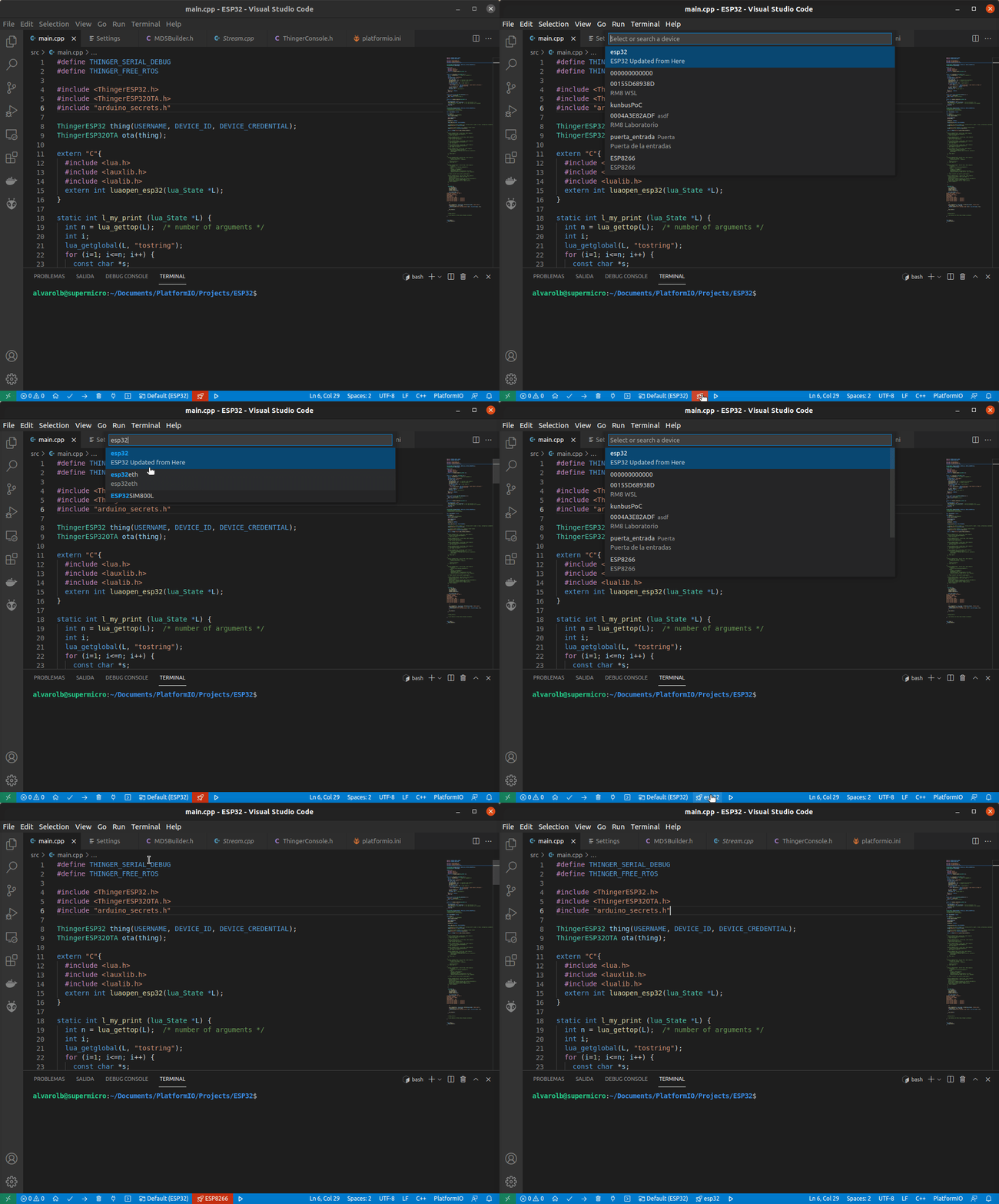
Choosing a device as the target Upload the firmware
Click the play button in the status bar, or run Thinger.io: Upload Firmware. The extension builds the active PlatformIO environment, asks you to confirm and sends the firmware. A notification shows each stage: initializing the update, uploading, ending the update and rebooting the device. You can cancel it from the notification.
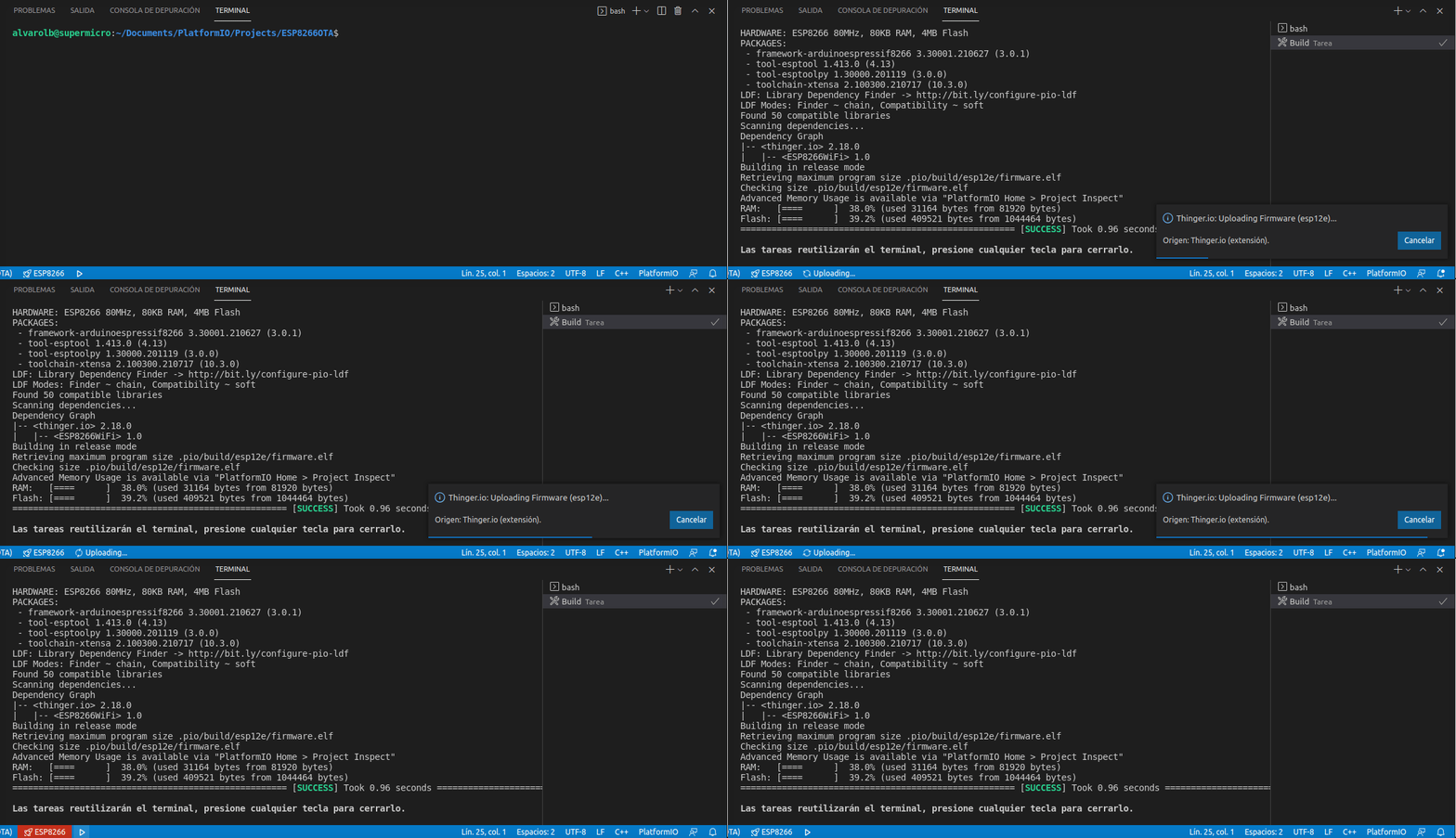
Building and uploading to an ESP8266
To stop sending updates to a target, run Thinger.io: Clear Target Destination.
Firmware versions
Give each firmware a version with the THINGER_OTA_VERSION compile option. We recommend semantic versioning, MAJOR.MINOR.PATCH: increase MAJOR for incompatible changes, MINOR for new features and PATCH for fixes.
The device reports its version, and the extension reads the version of the firmware it has just built. Before uploading, it shows the target, the version and the environment:
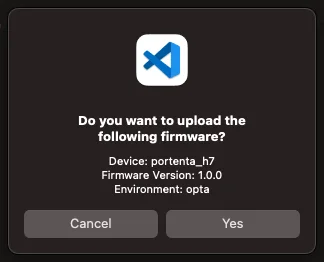
A device that already runs that version is not updated: the extension reports that its firmware is up to date and moves on. Without THINGER_OTA_VERSION, the version is empty and every upload goes through, which is handy while you develop.
Set the version in one of these ways:
In the code
Define it before the first Thinger.io include, and change it by hand for each release:
#define THINGER_OTA_VERSION 1.0.0

#include <ThingerMbed.h>
#include <ThingerPortentaOTA.h>
Write the version without quotes, as in the build flag: quotes become part of the version.
Build flag
Set it in platformio.ini, and change it there for each release:
build_flags =
    -D THINGER_OTA_VERSION=1.0.0
Git tag
Recommended. PlatformIO takes the version from the latest git tag of the project each time it builds, so tagging a release is enough:
build_flags =
    !echo "-D THINGER_OTA_VERSION=$(git describe --tags --always)"
On a tagged commit the version is the tag (v1.2.0); after it, git describe adds the number of commits and the commit (v1.2.0-3-g1a2b3c4). Without tags, --always uses the commit. The ! runs the command in your shell: this line works on macOS and Linux.
Check the update
After the reboot, the device connects again with the new firmware and reports its version in the $ota/version device resource.
Console
Open the device in Devices: it shows as connected, and its connection time starts again from the reboot.
API
Read the connection of the device:
curl "https://YOUR_SERVER/v1/users/YOUR_USER/devices/YOUR_DEVICE" \
  -H "Authorization: Bearer YOUR_TOKEN"
connection.state is connected and connection.ts is the time of the new connection. YOUR_SERVER is iot.thinger.io on the free Cloud account, or your own domain. YOUR_TOKEN is an access token of your account.
Read the firmware version:
curl "https://YOUR_SERVER/v3/users/YOUR_USER/devices/YOUR_DEVICE/resources/\$ota/version" \
-H "Authorization: Bearer YOUR_TOKEN"{"version": "1.0.0"}CLI
thinger device info YOUR_DEVICE
thinger device resource YOUR_DEVICE '$ota/version'
AI
Check whether my device YOUR_DEVICE is connected, tell me when it connected for the last time and read the firmware version from its $ota/version resource.
Firmware on other SDKs
- ESP-IDF and Zephyr: their clients do not receive OTA updates through Thinger.io. Use the update mechanism of each SDK. See ESP-IDF and Zephyr.
- Linux: update the client with the package or build process you used to install it. See Linux.
Limits
- The device must be connected and running firmware with OTA support. The first flash is always over USB.
- A product update goes through the IOTMP devices of the product one after another. Devices that are not connected fail and are listed in the Thinger.io OTA Log; send the update again when they are back.
- A device whose sketch calls
ota.set_enabled(false)rejects updates. - The boards of the Arduino Zephyr core (
ThingerZephyr) do not receive OTA updates yet. - Updates over NB-IoT and GPRS take longer: raise
thinger-io.otaTimeoutor lowerthinger-io.otaBlockSizeif they fail.