

Arduino makes boards with Wi-Fi built in (MKR, Nano, UNO R4, UNO Q, Yún), and older boards connect through a shield or an external module. This page has the sketch of each one. For the Portenta H7, the Opta and the GIGA R1 WiFi, see Portenta H7, Opta and GIGA R1 WiFi.
| Board | Wi-Fi library | Class | TLS | OTA |
|---|---|---|---|---|
| MKR WiFi 1010 | WiFiNINA | ThingerWiFiNINA | Yes | Yes, ThingerWiFiNINAOTA |
| Nano 33 IoT | WiFiNINA | ThingerWiFiNINA | Yes | Yes, ThingerWiFiNINAOTA |
| UNO WiFi Rev2 | WiFiNINA | ThingerWiFiNINA | Yes | — |
| Nano RP2040 Connect | WiFiNINA | ThingerMbed | Yes | Yes, ThingerMbedOTA |
| MKR1000 | WiFi101 | ThingerWifi101 | Yes | — |
| UNO R4 WiFi | WiFiS3 (in the board package) | ThingerR4WiFi | Yes | Yes, ThingerR4OTA |
| UNO Q | Arduino_RouterBridge | ThingerUnoQ | Yes, on the Linux side | — |
| Arduino with WiFi shield | WiFi | ThingerWifi | No | — |
| Arduino with Adafruit CC3000 | Adafruit CC3000 | ThingerCC3000 | No | — |
| Arduino Yún | Bridge | ThingerYun | Yes | — |
Set up the board
Install the board package
In the Arduino IDE, open Tools > Board > Boards Manager and install the package of your board: Arduino SAMD Boards (MKR WiFi 1010, Nano 33 IoT, MKR1000), Arduino megaAVR Boards (UNO WiFi Rev2), Arduino Mbed OS Nano Boards (Nano RP2040 Connect), Arduino UNO R4 Boards (UNO R4 WiFi), Arduino Q Boards (UNO Q) or Arduino AVR Boards (Yún, and UNO or Mega with a shield).
Install the libraries
Install thinger.io and the Wi-Fi library of your board, from the table above, with the Library Manager. The WiFiS3 and WiFi libraries come with their board packages.
Create the credentials file
The sketches read the credentials from
arduino_secrets.h, in the sketch folder:arduino_secrets.hcpp#define USERNAME "YOUR_USER" #define DEVICE_ID "YOUR_DEVICE" #define DEVICE_CREDENTIAL "YOUR_TOKEN" #define SSID "wifi-network" #define SSID_PASSWORD "wifi-password"DEVICE_CREDENTIALholds the device credentials. The UNO Q and Yún sketches only use the first three.Upload the server certificate (WiFiNINA and WiFi101 boards)
The Wi-Fi module of these boards validates the server with the root certificates stored in it. If the board cannot connect, upload the certificate of the server, as in Upload the server certificate.
Each example is in File > Examples > thinger.io > Arduino.
MKR WiFi 1010
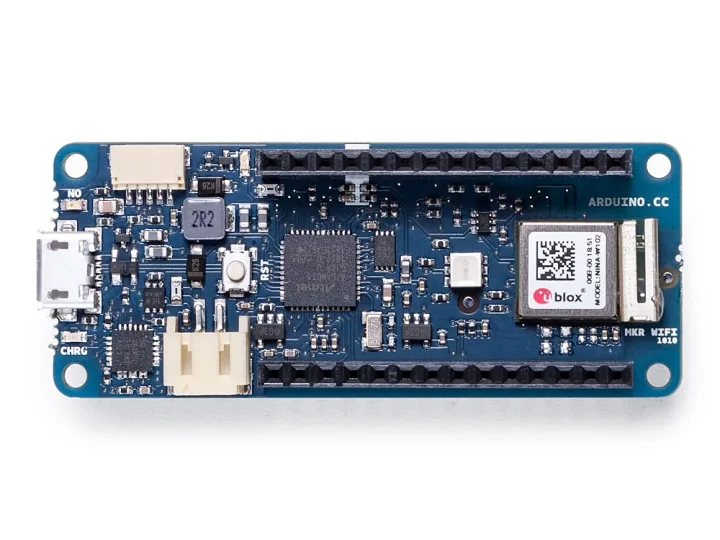
The MKR WiFi 1010 has a SAMD21 microcontroller, a u-blox NINA-W10 Wi-Fi module and a crypto chip. Example ArduinoMKR1010, with OTA updates:
#define THINGER_SERIAL_DEBUG

#include <ThingerWiFiNINA.h>
#include <ThingerWiFiNINAOTA.h>
#include "arduino_secrets.h"

// cannot connect? Update the WiFiNINA firmware and upload the server certificate

ThingerWiFiNINA thing(USERNAME, DEVICE_ID, DEVICE_CREDENTIAL);
ThingerWiFiNINAOTA ota(thing);

void setup() {
  // configure LED_BUILTIN for output
  pinMode(LED_BUILTIN, OUTPUT);

  // open serial for debugging
  Serial.begin(115200);

  // configure wifi network
  thing.add_wifi(SSID, SSID_PASSWORD);

  // pin control example (i.e. turning on/off a light, a relay, etc)
  thing["led"] << digitalPin(LED_BUILTIN);

  // resource output example (i.e. reading a sensor value, a variable, etc)
  thing["millis"] >> outputValue(millis());
}

void loop() {
  thing.handle();
}
Nano 33 IoT
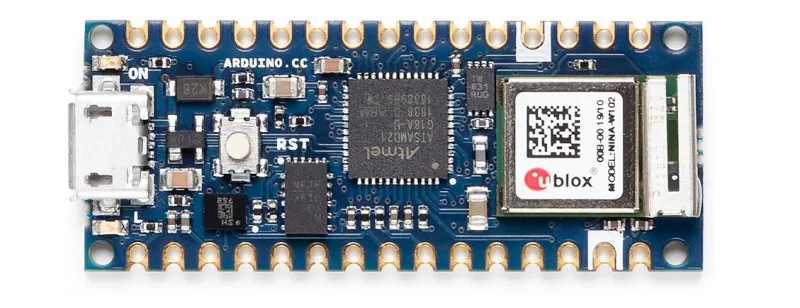
The Nano 33 IoT has a SAMD21 microcontroller, a u-blox NINA-W102 Wi-Fi module, a 6-axis IMU and a crypto chip. Example ArduinoNano33IOT, with OTA updates and an output resource with the gyroscope of the IMU. It needs the Arduino_LSM6DS3 library.
#define THINGER_SERIAL_DEBUG

#include <ThingerWiFiNINA.h>
#include <ThingerWiFiNINAOTA.h>
#include "arduino_secrets.h"

// IMU of the board: requires the Arduino_LSM6DS3 library
#include <Arduino_LSM6DS3.h>

// cannot connect? Update the WiFiNINA firmware and upload the server certificate

ThingerWiFiNINA thing(USERNAME, DEVICE_ID, DEVICE_CREDENTIAL);
ThingerWiFiNINAOTA ota(thing);

void setup() {
  // configure LED_BUILTIN for output
  pinMode(LED_BUILTIN, OUTPUT);

  // open serial for debugging
  Serial.begin(115200);

  // initialize IMU
  if (!IMU.begin()) {
    Serial.println("Failed to initialize IMU!");
    while (1);
  }

  // configure wifi network
  thing.add_wifi(SSID, SSID_PASSWORD);

  // pin control example (i.e. turning on/off a light, a relay, etc)
  thing["led"] << digitalPin(LED_BUILTIN);

  // resource output example (i.e. reading a sensor value, a variable, etc)
  thing["millis"] >> outputValue(millis());

  // gyroscope of the IMU, in degrees per second
  thing["imu"] >> [](pson& out){
    float x, y, z;
    IMU.readGyroscope(x, y, z);
    out["x"] = x;
    out["y"] = y;
    out["z"] = z;
  };
}

void loop() {
  thing.handle();
}
The imu resource returns the rotation on each axis, for example {"x": 0.43, "y": -1.1, "z": 0.06}.
UNO WiFi Rev2
The UNO WiFi Rev2 has an ATmega4809 microcontroller and a u-blox NINA-W102 Wi-Fi module. It uses the same class as the MKR WiFi 1010, without OTA updates. It has 6 KB of RAM: keep the number of device resources and the size of their data small.
#define THINGER_SERIAL_DEBUG

#include <ThingerWiFiNINA.h>
#include "arduino_secrets.h"

// cannot connect? Update the WiFiNINA firmware and upload the server certificate

ThingerWiFiNINA thing(USERNAME, DEVICE_ID, DEVICE_CREDENTIAL);

void setup() {
  // configure LED_BUILTIN for output
  pinMode(LED_BUILTIN, OUTPUT);

  // open serial for debugging
  Serial.begin(115200);

  // configure wifi network
  thing.add_wifi(SSID, SSID_PASSWORD);

  // pin control example (i.e. turning on/off a light, a relay, etc)
  thing["led"] << digitalPin(LED_BUILTIN);

  // resource output example (i.e. reading a sensor value, a variable, etc)
  thing["millis"] >> outputValue(millis());
}

void loop() {
  thing.handle();
}
Nano RP2040 Connect
The Nano RP2040 Connect has a dual-core Arm Cortex-M0+ RP2040 microcontroller at 133 MHz, 264 KB of SRAM, 16 MB of flash and a u-blox NINA-W102 Wi-Fi module. It runs Mbed OS: ThingerMbed runs the connection in its own thread. It needs the WiFiNINA library.
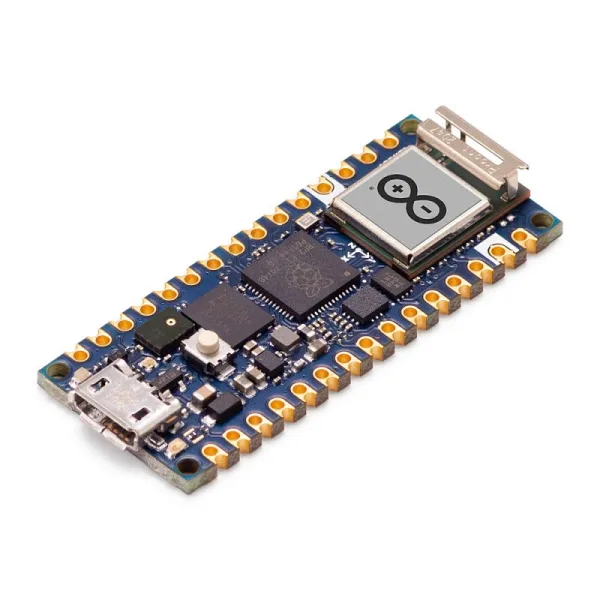
Example ArduinoNanoRP2040, with OTA updates:
#define THINGER_SERIAL_DEBUG

#include <ThingerMbed.h>
#include <ThingerMbedOTA.h>
#include "arduino_secrets.h"

ThingerMbed thing(USERNAME, DEVICE_ID, DEVICE_CREDENTIAL);
ThingerMbedOTA ota(thing);

// cannot connect? Update the WiFiNINA firmware and upload the server certificate

void setup() {
  // configure LED_BUILTIN for output
  pinMode(LED_BUILTIN, OUTPUT);

  // open serial for debugging
  Serial.begin(115200);

  // configure wifi network
  thing.add_wifi(SSID, SSID_PASSWORD);

  // pin control example (i.e. turning on/off a light, a relay, etc)
  thing["led"] << digitalPin(LED_BUILTIN);

  // resource output example (i.e. reading a sensor value, a variable, etc)
  thing["millis"] >> outputValue(millis());

  // start the connection in its own thread
  thing.start();
}

void loop() {
  // your code here: no thing.handle() needed
  // wrap variables shared with device resources in thing.lock() and thing.unlock()
  delay(1000);
}
thing.start() starts the connection thread; thing.stop() ends it and thing.is_running() tells whether it runs. Wrap any variable that loop() and a device resource both use in thing.lock() and thing.unlock().
Every firmware you send over the air must include ThingerMbedOTA.h too, as the board installs updates with it. The board rejects a firmware without it, with The firmware does not include ThingerMbedOTA.h, so it cannot be applied, and keeps running its current firmware.
MKR1000
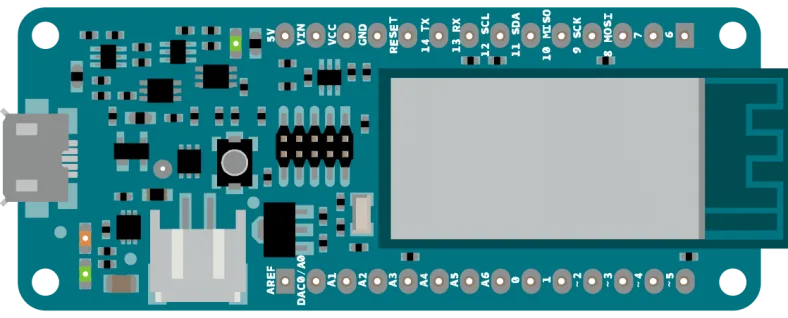
The MKR1000 has an ATSAMW25 module: a SAMD21 microcontroller, a WINC1500 Wi-Fi chip and a crypto chip. It needs the WiFi101 library. Example ArduinoMKR1000:
#define THINGER_SERIAL_DEBUG

#include <ThingerWifi101.h>
#include "arduino_secrets.h"

// cannot connect? Update the WiFi101 firmware and upload the server certificate

ThingerWifi101 thing(USERNAME, DEVICE_ID, DEVICE_CREDENTIAL);

void setup() {
  // open serial for debugging
  Serial.begin(115200);

  // configure wifi network
  thing.add_wifi(SSID, SSID_PASSWORD);

  pinMode(LED_BUILTIN, OUTPUT);

  // pin control example (i.e. turning on/off a light, a relay, etc)
  thing["led"] << digitalPin(LED_BUILTIN);

  // resource output example (i.e. reading a sensor value, a variable, etc)
  thing["millis"] >> outputValue(millis());
}

void loop() {
  thing.handle();
}
UNO R4 WiFi
The UNO R4 WiFi has a Renesas RA4M1 microcontroller and an ESP32-S3 module for Wi-Fi. ThingerR4WiFi uses the WiFiS3 library of its board package. Example ArduinoR4Wifi, with OTA updates:
#define THINGER_SERIAL_DEBUG

#include <ThingerR4WiFi.h>
#include <ThingerR4OTA.h>
#include "arduino_secrets.h"

ThingerR4WiFi thing(USERNAME, DEVICE_ID, DEVICE_CREDENTIAL);

// receives firmware updates from the Thinger.io extension for Visual Studio Code
ThingerR4OTA ota(thing);

void setup() {
  // open serial for debugging
  Serial.begin(115200);

  // configure wifi network
  thing.add_wifi(SSID, SSID_PASSWORD);

  pinMode(LED_BUILTIN, OUTPUT);

  // pin control example (i.e. turning on/off a light, a relay, etc)
  thing["led"] << digitalPin(LED_BUILTIN);

  // resource output example (i.e. reading a sensor value, a variable, etc)
  thing["millis"] >> outputValue(millis());
}

void loop() {
  thing.handle();
}
Remove ThingerR4OTA.h and the ota object if you do not need OTA updates.
- Update the firmware of the Wi-Fi module before you connect the board: with an old firmware, the module cannot open the TLS connection to the server. Connect the board, open Tools > Firmware Updater in the Arduino IDE, select the board, click Check Updates and install the latest firmware. Then upload your sketch again.
- OTA updates also need a recent firmware in the Wi-Fi module: with an older one, the board rejects the update with
Update the UNO R4 WiFi firmware to 0.4.1 or later. - The Wi-Fi module stores the new firmware in its own flash and programs the RA4M1 with it when the board restarts after the update.
- The board validates the server with the root certificate of the library, like the ESP32. For a private instance whose certificate comes from its own authority, define its root certificate with
THINGER_ROOT_CAor set it withthing.set_root_ca(), as in Server and TLS. - The Wi-Fi module always checks the server certificate:
#define THINGER_INSECURE_SSLdoes not skip the check, it makes the module validate the server with its own root certificates instead of the one of the library.
UNO Q
The UNO Q combines an STM32U585 microcontroller, which runs the sketch, with a Qualcomm processor that runs Linux and has the Wi-Fi. The microcontroller has no network of its own: ThingerUnoQ connects through the Linux side with the Arduino_RouterBridge library, and the Linux side opens the TLS connection to the server. Install Arduino_RouterBridge with the Library Manager. Example ArduinoUnoQ:
// the sketch runs on the microcontroller and connects through the Linux side
// set up the network on Linux first (Arduino App Lab or nmcli)
#define THINGER_SERIAL_DEBUG

#include <ThingerUnoQ.h>
#include "arduino_secrets.h"

ThingerUnoQ thing(USERNAME, DEVICE_ID, DEVICE_CREDENTIAL);

void setup() {
  // open the monitor for debugging (Serial is the Monitor of the bridge)
  Serial.begin(115200);

  pinMode(LED_BUILTIN, OUTPUT);

  // digital pin control example (i.e. turning on/off a light, a relay, configuring a parameter, etc)
  thing["led"] << digitalPin(LED_BUILTIN);

  // resource output example (i.e. reading a sensor value)
  thing["millis"] >> outputValue(millis());
}

void loop() {
  thing.handle();
}
Before you upload the sketch, prepare the Linux side:
Network. Connect the board to a Wi-Fi network from Arduino App Lab, or from a shell on the Linux side. For the first setup, open the shell over USB with
adb shell(adb comes with the Android platform tools, and the board package includes a copy); once the board is on the network, you can also use SSH with the password set in App Lab. Then run:bashnmcli dev wifi connect wifi-network password wifi-passwordThe sketch does not set up the network:
SSIDandSSID_PASSWORDinarduino_secrets.hare not used.Clock. The Linux side must have its clock synchronized over NTP before the sketch connects. Linux starts with an old date and synchronizes a few seconds after it joins the network; until then it rejects the server certificate as not yet valid. Check it with
timedatectlon the Linux side:System clock synchronizedmust beyes.Debug output.
Serialwrites to the monitor of the bridge, so the debug messages show in the monitor of Arduino App Lab or the Arduino IDE.
The Linux side can also connect to Thinger.io on its own: run the Linux client there, or install ThinRemote to maintain the board remotely.
Arduino with WiFi shield
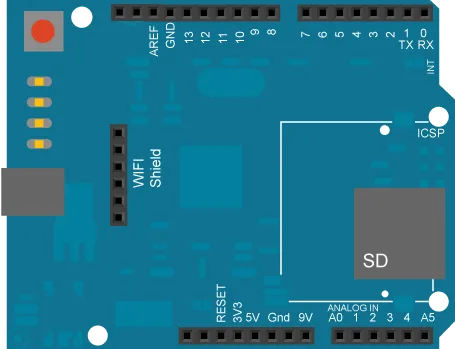
The Arduino WiFi shield adds Wi-Fi to an Arduino. Use it on an Arduino Mega: the library needs more than the 2 KB of RAM of an UNO. The shield does not support TLS: the sketch defines _DISABLE_TLS_, so the board connects to the server port without TLS. Example ArduinoWifi:
#define THINGER_SERIAL_DEBUG

// the WiFi shield does not support TLS
#define _DISABLE_TLS_

#include <WiFi.h>
#include <ThingerWifi.h>
#include "arduino_secrets.h"

ThingerWifi thing(USERNAME, DEVICE_ID, DEVICE_CREDENTIAL);

void setup() {
  // open serial for debugging
  Serial.begin(115200);

  // configure wifi network
  thing.add_wifi(SSID, SSID_PASSWORD);

  pinMode(2, OUTPUT);

  // pin control example (i.e. turning on/off a light, a relay, etc)
  thing["led"] << digitalPin(2);

  // resource output example (i.e. reading a sensor value, a variable, etc)
  thing["millis"] >> outputValue(millis());
}

void loop() {
  thing.handle();
}
Static memory
On boards with little RAM, the library can use a fixed memory block instead of allocating memory as it needs it. Set these options as build flags, so they reach the library code:
| Option | Default | Meaning |
|---|---|---|
THINGER_USE_STATIC_MEMORY | Not defined | Uses a fixed memory block instead of allocating memory as messages arrive. |
THINGER_STATIC_MEMORY_SIZE | 512 | Size of the block, in bytes. |
[env:mega]
platform = atmelavr
board = megaatmega2560
framework = arduino
lib_deps = thinger-io/thinger.io
build_flags = -D THINGER_USE_STATIC_MEMORY -D THINGER_STATIC_MEMORY_SIZE=512arduino-cli compile -b arduino:avr:mega \
--build-property "compiler.cpp.extra_flags=-DTHINGER_USE_STATIC_MEMORY -DTHINGER_STATIC_MEMORY_SIZE=512" \
ArduinoWifiArduino with Adafruit CC3000
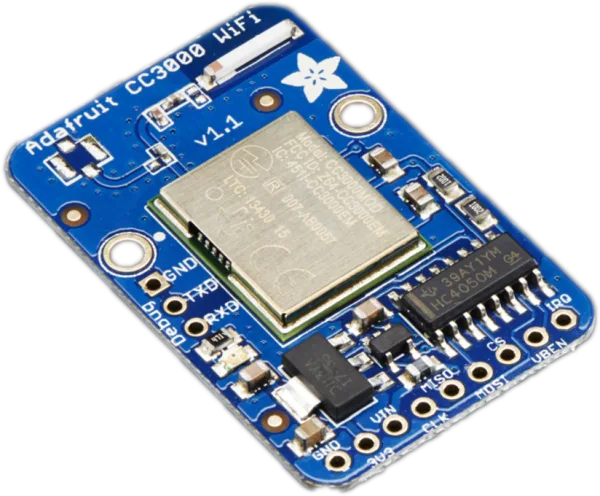
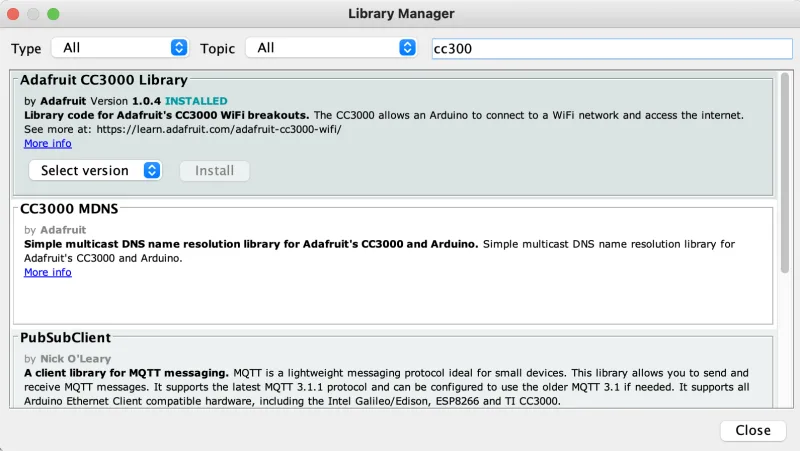
The Texas Instruments CC3000 is a Wi-Fi module for microcontrollers, sold on breakout boards and shields by Adafruit and others. It needs the Adafruit CC3000 Library: open the Library Manager, search for cc3000 and install it. The module does not support TLS with this library: the board connects to the server port without TLS. Use it with an Arduino Mega or another board with more than 2 KB of RAM.
Example ArduinoCC3000:
#define THINGER_SERIAL_DEBUG

#include <ThingerCC3000.h>
#include "arduino_secrets.h"

ThingerCC3000 thing(USERNAME, DEVICE_ID, DEVICE_CREDENTIAL);

void setup() {
  // open serial for debugging
  Serial.begin(115200);

  // configure wifi network
  thing.add_wifi(SSID, SSID_PASSWORD);

  pinMode(2, OUTPUT);

  // pin control example (i.e. turning on/off a light, a relay, etc)
  thing["led"] << digitalPin(2);

  // resource output example (i.e. reading a sensor value, a variable, etc)
  thing["millis"] >> outputValue(millis());
}

void loop() {
  thing.handle();
}- The class uses the default pins of the Adafruit boards: CS on pin 10, IRQ on pin 3 (an interrupt pin) and VBAT on pin 5. For other pins, pass them after the credentials:
ThingerCC3000 thing(USERNAME, DEVICE_ID, DEVICE_CREDENTIAL, cs, irq, vbat);. - The module joins WPA2 networks.
Arduino Yún
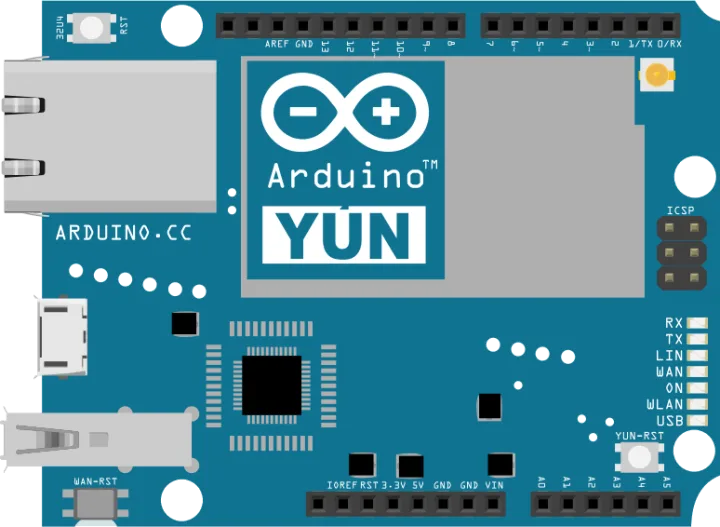
The Yún combines an ATmega32u4 microcontroller with an Atheros AR9331 processor that runs Linux (OpenWrt-Yun). The Linux side handles Wi-Fi and Ethernet, and the sketch reaches the network through the Bridge library. Example ArduinoYun:
#include <ThingerYun.h>
#include "arduino_secrets.h"

ThingerYun thing(USERNAME, DEVICE_ID, DEVICE_CREDENTIAL);

void setup() {
  pinMode(LED_BUILTIN, OUTPUT);

  // initialize bridge
  Bridge.begin();

  // pin control example (i.e. turning on/off a light, a relay, etc)
  thing["led"] << digitalPin(LED_BUILTIN);
}

void loop() {
  thing.handle();
}
Warning
The ATmega32u4 of the Yún has 2.5 KB of RAM, and the current library needs more: the build fails because the sketch does not fit in memory.
- Call
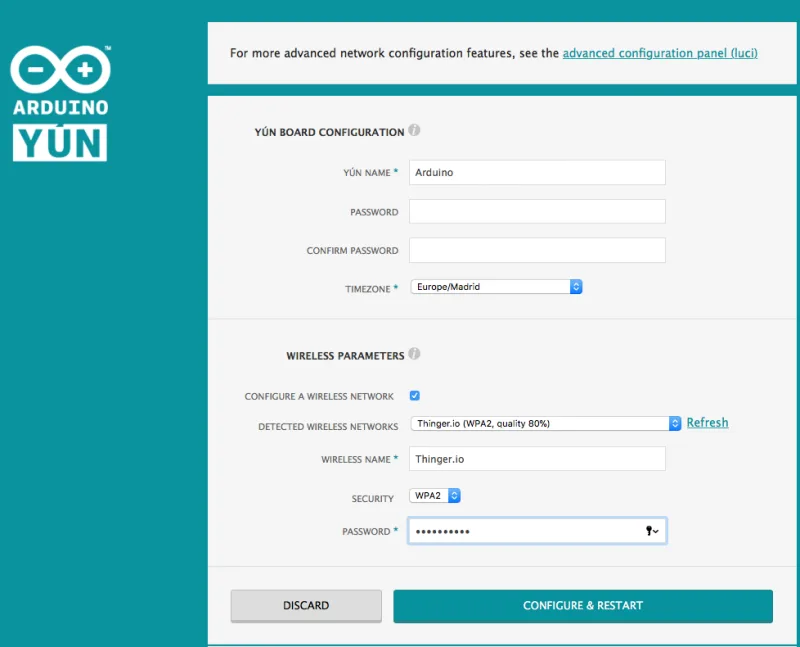
Bridge.begin()insetup(), before any network use. - Set up the network in the web panel of the Yún, not in the sketch: join the Wi-Fi network the Yún opens, go to
http://arduino.localorhttp://192.168.240.1, and set the wireless network and its password, or plug in an Ethernet cable.
Upload the server certificate
Boards with a WiFiNINA or WiFi101 module (MKR WiFi 1010, Nano 33 IoT, UNO WiFi Rev2, Nano RP2040 Connect and MKR1000) validate the server with the root certificates stored in the Wi-Fi module. If the module is old or lacks the root certificate of the server, the TLS connection fails and the serial monitor shows the socket error again and again.
Update the firmware of the Wi-Fi module
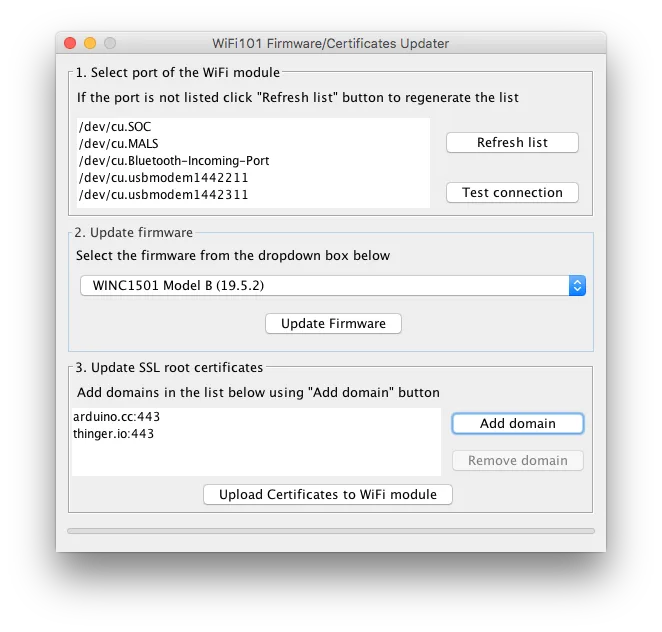
Connect the board, open Tools > Firmware Updater in the Arduino IDE, select the board, click Check Updates and install the latest firmware.
Upload the root certificate of the server
Open Tools > Upload SSL Root Certificates, add the domain of your server and upload:
iot.thinger.ioon the free Cloud account, orYOUR_SERVERon a private instance. The tool reads the certificate from port 443 of that domain. Arduino describes the tool in Upload SSL root certificates.Upload your sketch again
The updater replaces the sketch on the board with its own. Upload your sketch again and check the serial monitor.
In Arduino IDE 1.8, one tool does both steps: Tools > WiFi101 / WiFiNINA Firmware Updater.
See also
- Supported boards: every board, its class and its OTA support.
- Portenta H7, Opta and GIGA R1 WiFi: the Arduino Pro boards.
- Troubleshooting: a device that does not connect.