

This guide helps you find out why a device does not show as connected or its data does not arrive. Start by reading what the device itself reports, then look up the symptom below.
Before you start
- Your server is
YOUR_SERVER:iot.thinger.ioon the free Cloud account, or your own domain on a private instance. - Check the device in Devices: its state (connected, disconnected or disabled) tells you where to look.
Steps
Turn on the debug output
Arduino
Define
THINGER_SERIAL_DEBUGbefore any include, and open the serial monitor at the speed ofSerial.begin():main.cppcpp#define THINGER_SERIAL_DEBUG #include <ThingerESP32.h>A healthy connection ends like this:
text[_SOCKET] Connecting to YOUR_SERVER:25202... [_SOCKET] Using secure TLS/SSL connection: yes [_SOCKET] Connected! [THINGER] Authenticating. User: YOUR_USER Device: YOUR_DEVICE [THINGER] AuthenticatedLinux
Run the client in the foreground with
-v 1:bashthinger_iotmp -u YOUR_USER -d YOUR_DEVICE -p 'YOUR_TOKEN' -h YOUR_SERVER -v 1A healthy connection ends with
Authenticated successfully!. The log at this level shows the device credentials: do not share it as is.MQTT
Most clients print the CONNACK code. With Mosquitto, add
-dtomosquitto_pubormosquitto_sub:received CONNACK (0)means the connection was accepted.HTTP
Add
-itocurlto see the status code and the error message of the response.Find the symptom
Look for what the output shows in the tables below.
The device does not reach the network
| Symptom | Cause | Fix |
|---|---|---|
The output stops before Connecting to | No Wi-Fi, Ethernet or cellular connection. | Check the Wi-Fi name and password, the cable, or the APN, power and antenna of the cellular module. |
| No output at all | The sketch blocks before connecting, or the serial monitor speed is wrong. | Remove long delay() calls and endless loops from setup(), check the sensors it waits for, and match the monitor speed. |
Communication with WiFi module failed on a Portenta H7, Opta or GIGA R1 WiFi with the Zephyr core | The Wi-Fi firmware of the board is missing or corrupted. | Install the Wi-Fi firmware with the FlashFormat example of the core. |
The device cannot connect to the server
| Symptom | Cause | Fix |
|---|---|---|
Connecting to iot.thinger.io when your server is another | The library uses its default server. | Set your server: #define THINGER_SERVER "YOUR_SERVER" before the includes on Arduino, or -h YOUR_SERVER on Linux. |
| The connection times out | The network blocks the port. | The Arduino library uses port 25202 (TLS) or 25200; ESP-IDF, Zephyr and the Linux client use 25206 (TLS) or 25204; MQTT uses 8883 (TLS) or 1883. Open the port, or on Linux use -t ws, which goes through port 443. |
| The TLS handshake fails | The device clock or its certificates are wrong, or TLS is not supported by the board. | Check the time and the certificates: on a private instance whose certificate comes from its own authority, define its root certificate with THINGER_ROOT_CA; on WiFiNINA and WiFi101 boards, upload the server certificate; on the UNO R4 WiFi, update the firmware of the Wi-Fi module; on the Portenta H7 and the Opta, update the Wi-Fi firmware, with FlashFormat on the Zephyr core or WiFiFirmwareUpdater on the Mbed OS core. To rule out TLS, try once without it: #define _DISABLE_TLS_ on Arduino, port 1883 on MQTT. Turn TLS back on afterwards. |
After each failed attempt, the Arduino library shows [THINGER] Retrying connection in (ms): and the wait before the next one. When the server cannot be reached or rejects the device, the wait doubles on every failure up to 30 seconds, plus a random margin, so a device can take more than half a minute to try again after you fix the cause. See Manage the connection.
The device connects but does not authenticate
| Symptom | Cause | Fix |
|---|---|---|
Authenticating and then disconnects (IOTMP), or not authorised (MQTT) | The username, device ID or device credentials do not match the device in the console. | Copy the three values again. The username is not your email. If you lost the credentials, set new ones in the device Settings and flash them. |
| Same as above, and the values are right | The device or the account is disabled, or the device is on another server. | Enable the device, and check YOUR_SERVER. |
| The device connects and disconnects every few seconds | Two devices use the same device ID. | Give each device its own ID. Only the last connection is kept. |
The device is connected but data does not arrive
| Symptom | Cause | Fix |
|---|---|---|
A device resource returns 404 | The device is not connected, or the resource name is wrong. | Check the state in Devices and the names with thinger device resource YOUR_DEVICE. |
| A Data Bucket stays empty | The bucket reads another device or resource, or the data is not JSON. | Check the Data Source of the bucket, and send JSON. |
An HTTP request returns 401, 403 or 404 | Missing token, token without permission, or wrong device ID. | See HTTP. |
| An HTTP or MQTT device shows as disconnected between messages | The timeout is shorter than the reporting interval. | Raise the timeout of the device. |
The device was disabled
| Symptom | Cause | Fix |
|---|---|---|
| The device shows as disabled in Devices, you received a Device Disabled email, and the device no longer authenticates | 100 Data Bucket writes or endpoint calls of the device failed within about a minute: the bucket or the endpoint does not exist or is disabled, or the device went over the limits of the account. The platform disables the device and closes its connection. | Fix the calls in the firmware, then enable the device. |
Call the platform only when something changes or at an interval, as in Call the platform at a safe rate. If you enable the device before you fix the firmware, the same calls fail again and the platform disables it again.
To enable the device:
Console
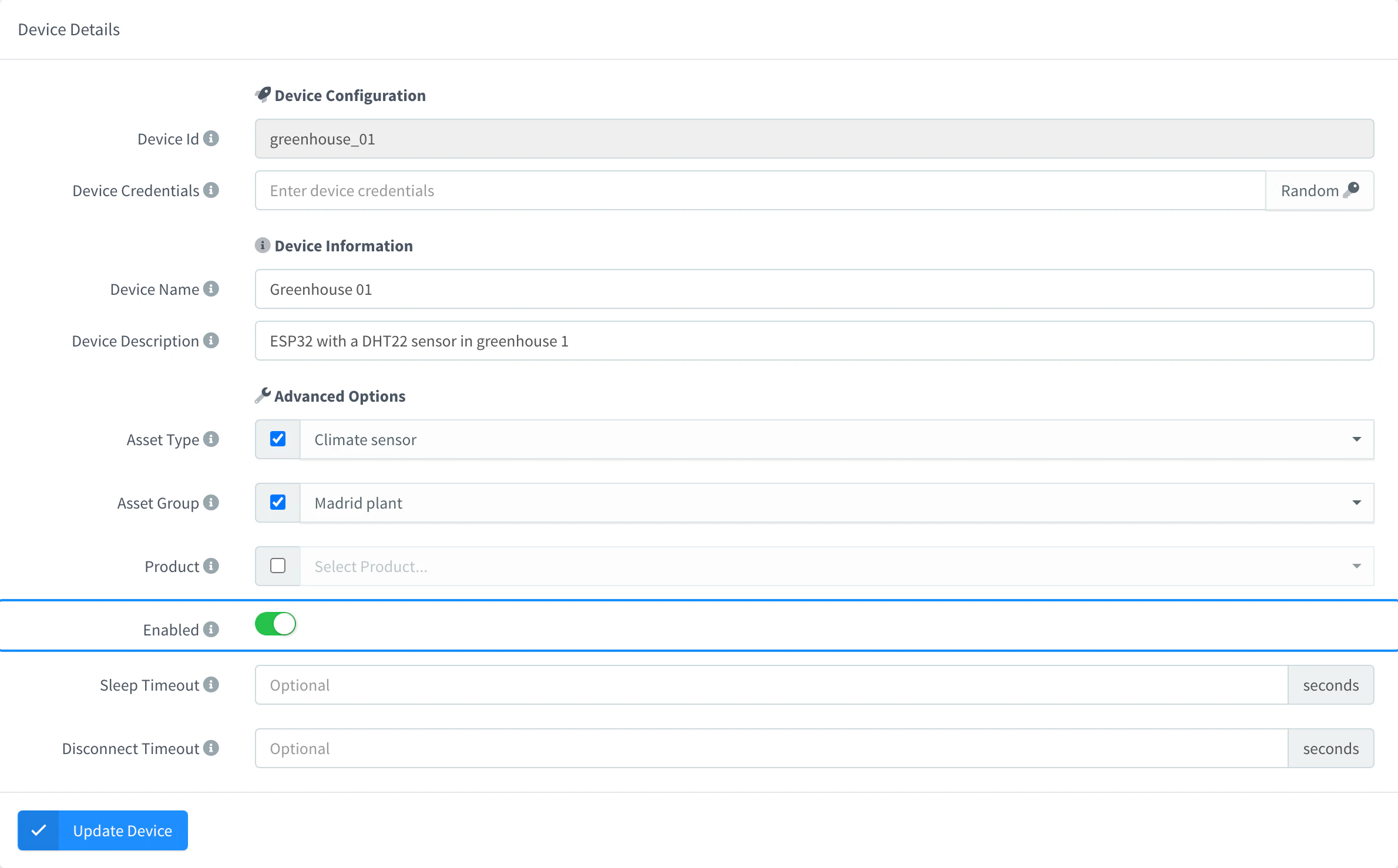
Open the device in Devices and go to Settings. Turn on Enabled and click Update Device.
API
curl -X PUT "https://YOUR_SERVER/v1/users/YOUR_USER/devices/YOUR_DEVICE" \
  -H "Authorization: Bearer YOUR_TOKEN" \
  -H "Content-Type: application/json" \
  -d '{"enabled": true}'
YOUR_TOKEN is an access token with permission to update the device.
AI
Enable my device YOUR_DEVICE in Thinger.io.
An OTA update fails
The Visual Studio Code extension shows the error of each device, and logs it in the Thinger.io OTA Log output. See OTA updates.
| Error or symptom | Cause | Fix |
|---|---|---|
Firmware not compatible with this device (OTA check) | The compatibility fields of the new firmware (THINGER_OTA_CHECK) do not match those of the device. | Check that you are sending the firmware built for that hardware. If it is the right one, upload it again and confirm the update when the extension asks. See Check the hardware compatibility. |
The firmware does not include ThingerMbedOTA.h, so it cannot be applied | Nano RP2040 Connect: the new firmware does not include the OTA header of the board. | Add #include <ThingerMbedOTA.h> and the ota object to the new firmware and send it again. The device keeps running its current firmware. |
The firmware stored in the WiFi module is corrupted | Nano 33 IoT or MKR WiFi 1010: the copy of the firmware stored in the Wi-Fi module does not match the firmware sent. | Send the update again. The device keeps running its current firmware. If it keeps failing, flash the new firmware over USB. |
Update the UNO R4 WiFi firmware to 0.4.1 or later | UNO R4 WiFi: the firmware of the Wi-Fi module is too old for OTA updates. | Update it with Tools > Firmware Updater in the Arduino IDE, over USB. |
OTA is not supported by the current bootloader | Portenta H7 or Opta on the Mbed OS core: the bootloader is too old. | Prepare the board. |
| The ESP32 restarts with its previous firmware a few minutes after the update | The new firmware defines THINGER_OTA_ROLLBACK and could not connect to Thinger.io in time, or restarted before connecting. | Check the Wi-Fi network, the device credentials and the server of the new firmware, and look for crashes in its debug output. See Roll back a failed update. |
Get help
Many questions are already answered in the Community forum: search it first. If you open a new topic:
- Write in English, so that more people can help.
- Choose a title that describes the problem, and the category that fits it best.
- Describe what you want to do and what happens instead.
- Include what others need to reproduce it: the code, the board and the library versions, the compiler output, the debug output of the connection and the Thinger.io settings involved (device type, buckets, endpoints).
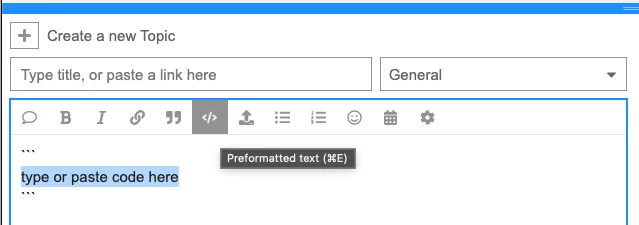
- Paste code and logs as Preformatted text, so they keep their format. Remove credentials and tokens first.
- Be polite: the people who answer are other users who help for free.
Private instances can add a support plan: see thinger.io.