

LoRaWAN is a radio network for battery-powered sensors that send small messages over long distances, encrypted from the sensor to the application. The sensors do not connect to Thinger.io directly: gateways pass their messages to a LoRaWAN network server, and a Thinger.io plugin receives them from it. This page explains how the pieces fit, which plugin to install and the message format they share. For a complete walkthrough, see Connect a LoRaWAN network server.
Before you start
- A Thinger.io private instance: plugins are not available on the free Cloud account.
YOUR_SERVERis the hostname of your instance. - An application with devices on one of the supported network servers.
How it works
- The network server forwards each uplink to the plugin with an HTTP webhook.
- The plugin converts it to one common format, the same for every network server, with the DevEUI, the port, the counter, the raw payload in hexadecimal and the decoded payload if the network server decodes it. Because of this format, a product and its decoder work with any network server: you can change network server without rewriting them.
- The plugin delivers the message to the device whose ID is the Device Id Prefix of the application followed by the DevEUI, such as
my_device_0004A30B001C2D3E. - A product with Auto Provision creates that device on its first uplink, keeps the last uplink in the
uplinkproperty, decodes the payload and stores it in a Data Bucket. Without a matching product, the plugin's Inspector shows the uplinks but no device receives them. - Downlinks go the other way: the
downlinkdevice resource of the product sends them through the plugin to the network server, once the device has sent at least one uplink. See Send a downlink.
All the devices of one network server application should be the same model, because they share the product and its decoder.
Choose the plugin
| Network server | Plugin | Status |
|---|---|---|
| The Things Stack (The Things Network and The Things Industries) | The Things Stack | Maintained |
| ChirpStack | ChirpStack | Maintained |
| LORIOT | LORIOT | Maintained |
The three plugins deliver the same format, so choose the network server that fits your project: a community network such as The Things Network for tests and small deployments, a managed service with support for production (The Things Industries, LORIOT), or ChirpStack if you want to host the network server yourself.
An older plugin for The Things Stack, ttn-stack, is deprecated: it created devices and buckets by itself, without products. Use The Things Stack for new projects.
Steps
Install the plugin
Go to Plugins > Marketplace: the plugins of the network servers are in the Connectivity category. Open the plugin of your network server and click Install. Its page in the plugin catalog lists its settings and versions.
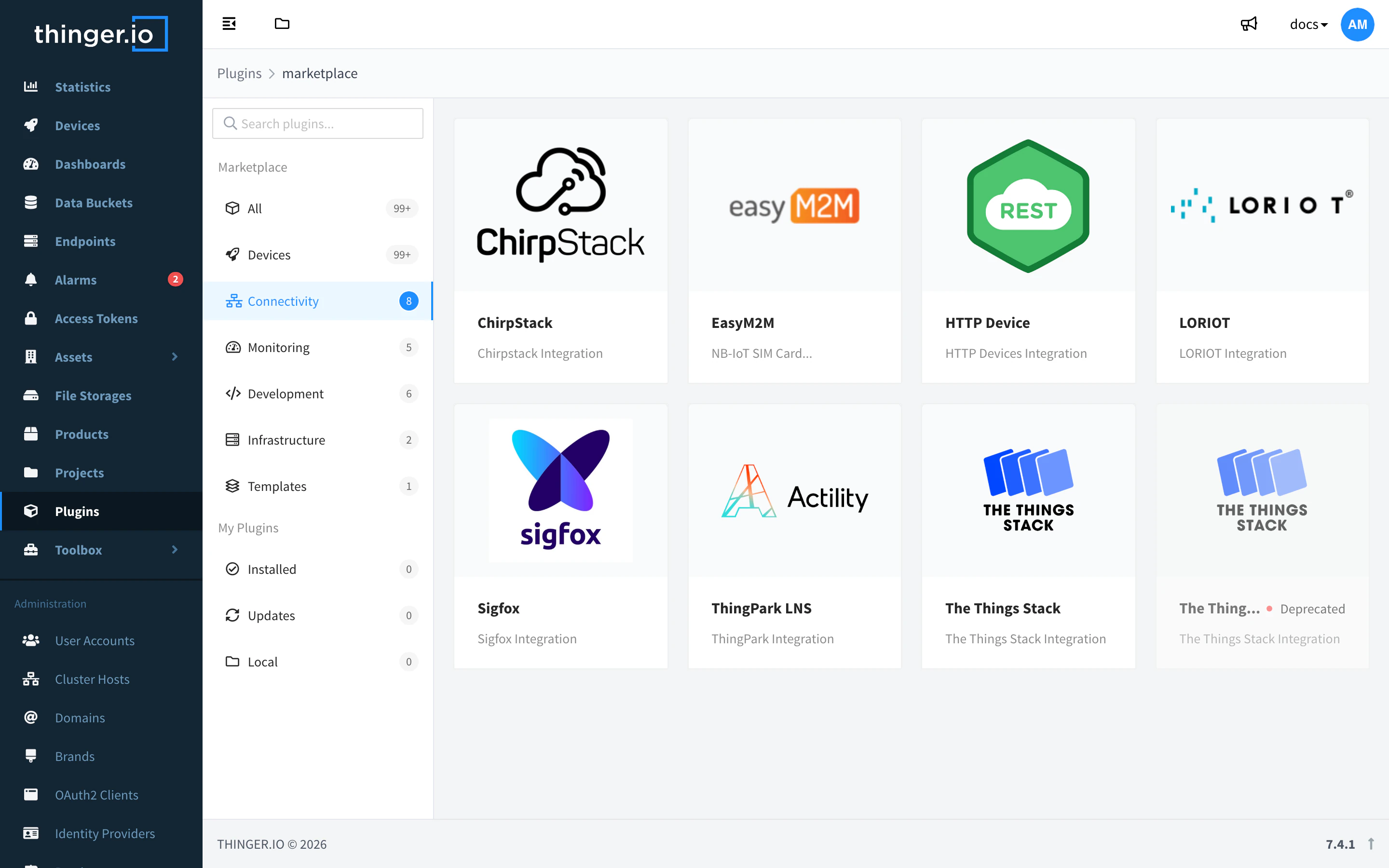
The network server plugins in the Connectivity category 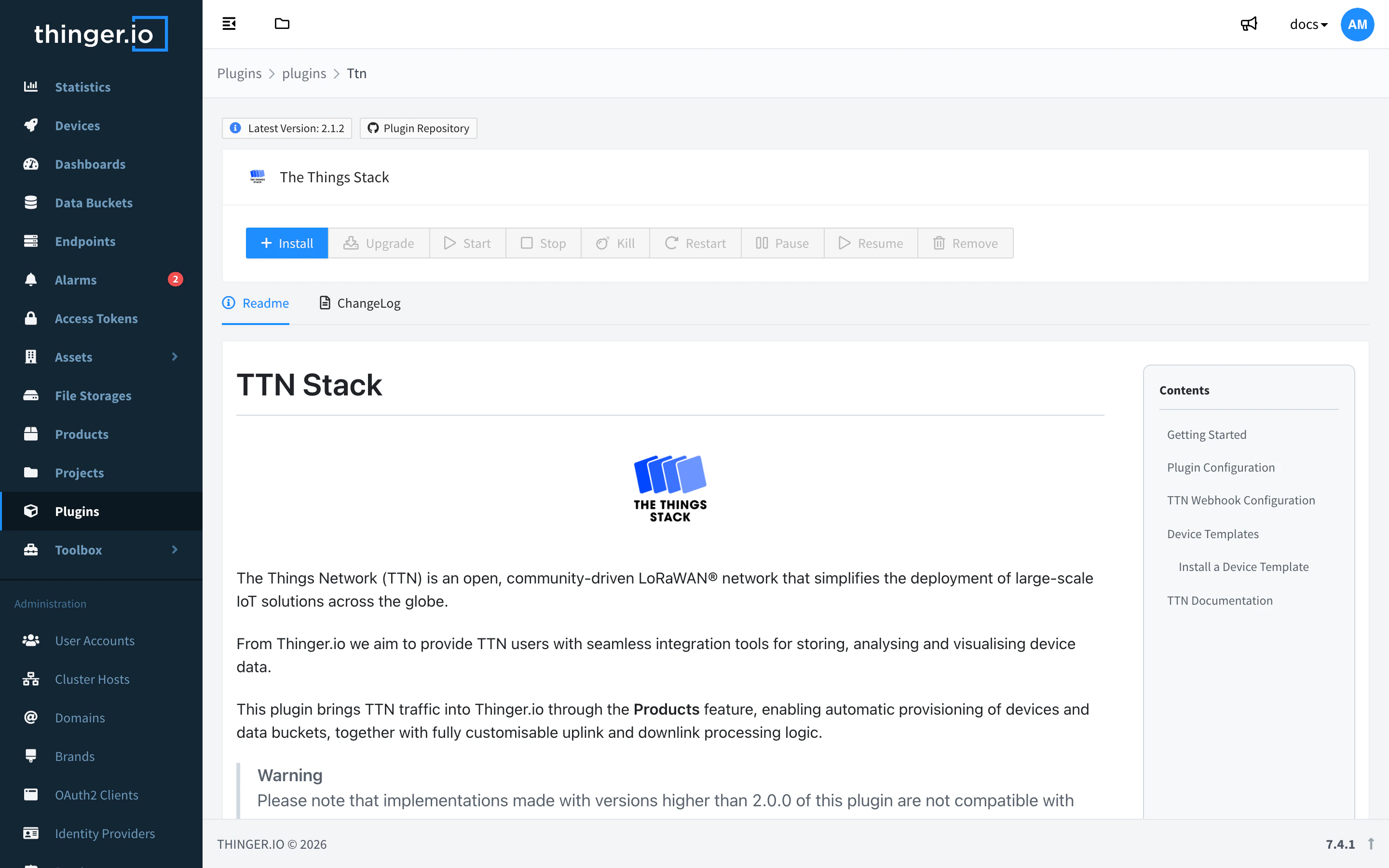
The page of a plugin, before installing it Add the application
Open the plugin, go to Applications and click Add. Enter the Application Name as the network server names it and a Device Id Prefix, such as
my_device_. ChirpStack and LORIOT also ask for an access token of the network server, which the plugin needs to send downlinks.Create the product
Install a device plugin for your sensor model from Plugins > Marketplace, if there is one, or the LoRaWAN Device Template. Both create a product with the uplink and downlink device resources, a Data Bucket and an Auto Provision pattern. Set the pattern to your Device Id Prefix followed by the DevEUI, for example
my_device_[0-9A-F]{16}, and add your payload decoder if the network server does not decode it.Create the webhook
In the plugin, go to Settings and copy the uplink URL and the authorization token. In the network server, create the integration: the Thinger.io webhook template in The Things Stack, the HTTP integration in ChirpStack, or an HTTP Push output in LORIOT. The page of each plugin details the fields.
Result
When a sensor sends its next uplink, the device appears in Devices, assigned to the product, and its decoded data is stored in the product's Data Bucket. The plugin's Inspector shows each message as it arrives.
Message format
Every plugin converts the uplinks of its network server to this format before it calls the uplink device resource. The uplink property, the Data Bucket and your decoder in the product receive exactly this object:
{
  "deviceEui": "70B3D57ED0051A2B",
  "deviceId": "my_device_70B3D57ED0051A2B",
  "source": "ttn",
  "appId": "my-sensors",
  "fPort": 1,
  "fCnt": 42,
  "payload": "0109c41c",
  "decodedPayload": { "temperature": 25, "humidity": 28 },
  "metadata": {
    "ack": null,
    "battery": 87,
    "offline": null,
    "seqNo": null
  }
}| Field | Type | Content |
|---|---|---|
deviceEui | string | DevEUI of the sensor, in hexadecimal. ChirpStack DevEUIs are converted to uppercase. |
deviceId | string | Thinger.io device ID: the Device Id Prefix of the application followed by the DevEUI. Auto Provision uses it. |
source | string | Plugin that received the uplink: ttn, chirpstack or loriot. The downlink device resource uses it to choose the plugin. |
appId | string | Application of the network server, as configured in the plugin. |
fPort | integer or null | LoRaWAN port of the uplink. |
fCnt | integer or null | Uplink frame counter. |
payload | string or null | Raw payload in hexadecimal. The Things Stack and ChirpStack send it in lowercase, LORIOT in uppercase. |
decodedPayload | object or null | Payload decoded by the network server, if it decodes it. null otherwise: decode payload in the product. |
metadata | object | ack, battery, offline and seqNo, each null when the network server does not send it. The Things Stack fills battery with the last battery level it knows, in percent. |
Send a downlink
The downlink device resource of the product sends bytes to the sensor. It takes this input and adds the last uplink of the device from the uplink property, which tells the plugin the network server, the application and the DevEUI. That is why a device can only receive downlinks after its first uplink.
{
  "data": "FF0164",
  "port": 85,
  "priority": 3,
  "confirmed": false,
  "uplink": { "deviceEui": "70B3D57ED0051A2B", "source": "ttn", "appId": "my-sensors" }
}| Field | Type | Content | Default in the template |
|---|---|---|---|
data | string | Bytes to send, in hexadecimal. Required. | none |
port | integer | LoRaWAN port of the downlink. | 85 |
priority | integer | From 0 (lowest) to 6 (highest). The Things Stack maps 0–1 to low, 2–4 to normal and 5–6 to high priority; ChirpStack and LORIOT ignore it. | 3 |
confirmed | boolean | Ask the sensor to confirm that it received the downlink. | false |
uplink | object | Last uplink of the device, filled in from the uplink property. Do not send it yourself. | the uplink property |
The network server queues the downlink and delivers it after the next uplink of the sensor, as LoRaWAN class A sensors only listen right after they send.
Console
Open the device in Devices and go to API. Expand downlink, enter the data in hexadecimal and, if needed, the port, and click Run.
API
YOUR_TOKEN is an access token of your account.
curl -X POST "https://YOUR_SERVER/v3/users/YOUR_USER/devices/YOUR_DEVICE/resources/downlink" \
  -H "Authorization: Bearer YOUR_TOKEN" \
  -H "Content-Type: application/json" \
  -d '{"data": "FF0164", "port": 85}'
CLI
thinger device resource YOUR_DEVICE downlink -i 'data="FF0164"' -i port=85Keep the quotes around the data value: the CLI parses each value as JSON, and a hexadecimal string made only of digits would become a number.
AI
Send the downlink FF0164 on port 85 to my LoRaWAN device YOUR_DEVICE.
The agent uses thinger_device_resource_call. See MCP tools.
The plugin's Inspector shows whether the network server accepted the downlink.