

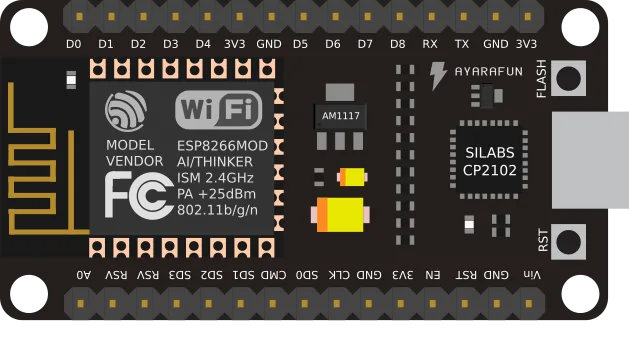
The ESP8266 is a Wi-Fi microcontroller from Espressif. It comes in modules such as the ESP-01, ESP-03, ESP-07 and ESP-12, with 512 KB to 4 MB of flash, and in development boards such as the NodeMCU. The Thinger.io Arduino library runs on the ESP8266 itself with ThingerESP8266, or uses an ESP8266 with the AT firmware as the Wi-Fi modem of another Arduino with ThingerESP8266AT.
Set up the board
Add the board package URL
In the Arduino IDE, open File > Preferences (Arduino IDE > Settings on macOS) and add this URL to Additional boards manager URLs:
texthttps://arduino.esp8266.com/stable/package_esp8266com_index.jsonInstall the board package
Open Tools > Board > Boards Manager, search for
esp8266and install esp8266 by ESP8266 Community. In PlatformIO, useplatform = espressif8266.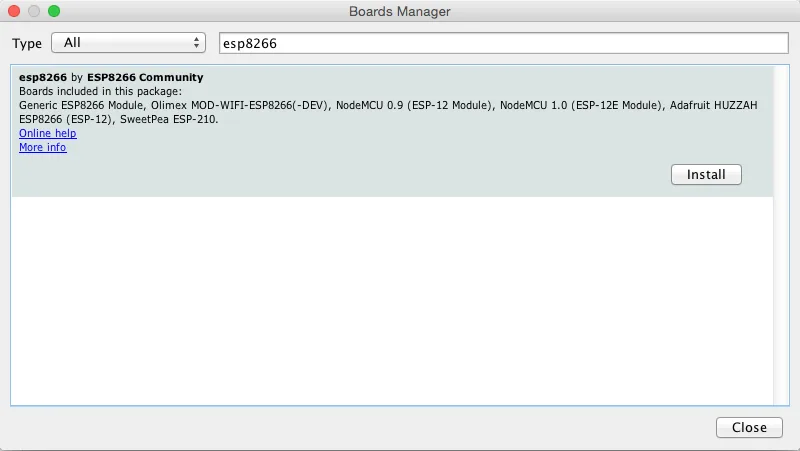
The esp8266 package in the Boards Manager Install the library
Install thinger.io from the Library Manager. See Arduino for PlatformIO.
Create the credentials file
The sketches read the credentials from
arduino_secrets.h, in the sketch folder:arduino_secrets.hcpp#define USERNAME "YOUR_USER" #define DEVICE_ID "YOUR_DEVICE" #define DEVICE_CREDENTIAL "YOUR_TOKEN" #define SSID "wifi-network" #define SSID_PASSWORD "wifi-password"DEVICE_CREDENTIALholds the device credentials. The ESP-Touch sketch does not useSSIDandSSID_PASSWORD.
To upload a sketch:
- Development boards with a USB port, such as the NodeMCU, enter flash mode on their own: select the board and the port and upload.
- Bare modules (ESP-01, ESP-12…) need a 3.3 V USB-to-serial converter. Hold GPIO 0 to ground while the module resets to enter flash mode, then upload. The ESP8266 Arduino core documents the wiring of each module.
Each example is in File > Examples > thinger.io > ESP8266.
ESP8266 over Wi-Fi
Example ESP8266. The board joins the Wi-Fi network set with add_wifi() and exposes an input resource for the built-in LED and an output resource with the milliseconds since it started.
#define THINGER_SERIAL_DEBUG

#include <ThingerESP8266.h>
#include "arduino_secrets.h"

ThingerESP8266 thing(USERNAME, DEVICE_ID, DEVICE_CREDENTIAL);

void setup() {
  // open serial for monitoring
  Serial.begin(115200);

  // set builtin led as output
  pinMode(LED_BUILTIN, OUTPUT);

  // add WiFi credentials
  thing.add_wifi(SSID, SSID_PASSWORD);
  // add more networks calling add_wifi again: it connects to the strongest one
  // thing.add_wifi("other-network", "other-password");

  // digital pin control example (i.e. turning on/off a light, a relay, configuring a parameter, etc)
  thing["led"] << digitalPin(LED_BUILTIN);

  // resource output example (i.e. reading a sensor value)
  thing["millis"] >> outputValue(millis());
}

void loop() {
  thing.handle();
}
Without add_wifi(), the board joins the last network stored in its flash. With several calls to add_wifi(), it joins the strongest of those networks; see Connect to several Wi-Fi networks.
ESP8266 with OTA updates
Example ESP8266OTA. The same sketch with the OTA object, so you can send new firmware from the Visual Studio Code extension. Upload it once over USB; the next updates go over the Internet.
#define THINGER_SERIAL_DEBUG

#include <ThingerESP8266.h>
#include <ThingerESP8266OTA.h>
#include "arduino_secrets.h"

ThingerESP8266 thing(USERNAME, DEVICE_ID, DEVICE_CREDENTIAL);

// receives firmware updates from the Thinger.io extension for Visual Studio Code
ThingerESP8266OTA ota(thing);

void setup() {
  // open serial for monitoring
  Serial.begin(115200);

  // set builtin led as output
  pinMode(LED_BUILTIN, OUTPUT);

  // add WiFi credentials
  thing.add_wifi(SSID, SSID_PASSWORD);

  // digital pin control example (i.e. turning on/off a light, a relay, configuring a parameter, etc)
  thing["led"] << digitalPin(LED_BUILTIN);

  // resource output example (i.e. reading a sensor value)
  thing["millis"] >> outputValue(millis());
}

void loop() {
  thing.handle();
}
ESP8266 set up with ESP-Touch
Example ESP8266SmartConfig. ThingerSmartConfig takes the Wi-Fi network from a phone, so the sketch has no Wi-Fi name or password. The phone runs Espressif's ESP-Touch app (SmartConfig): you type the password of the network the phone is on, and the app sends it to the board.
#define THINGER_SERIAL_DEBUG

#include <ThingerSmartConfig.h>
#include "arduino_secrets.h"

ThingerSmartConfig thing(USERNAME, DEVICE_ID, DEVICE_CREDENTIAL);

void setup() {
  // open serial for debugging
  Serial.begin(115200);

  pinMode(LED_BUILTIN, OUTPUT);

  // digital pin control example (i.e. turning on/off a light, a relay, configuring a parameter, etc)
  thing["led"] << digitalPin(LED_BUILTIN);

  // resource output example (i.e. reading a sensor value)
  thing["millis"] >> outputValue(millis());
}

void loop() {
  thing.handle();
}
How the board connects:
- It tries the last network it joined, for up to 15 seconds.
- If that fails, it waits up to 60 seconds for the ESP-Touch app, blinking the built-in LED. Send the network from the app in that time; otherwise the board tries again.
- When it joins the network, the LED blinks quickly ten times and the board connects to Thinger.io.
Pass false as the fourth argument to leave the LED alone: ThingerSmartConfig thing(USERNAME, DEVICE_ID, DEVICE_CREDENTIAL, false);.
To set up the board from a phone with its own setup page instead, use ThingerESP8266WebConfig (example ESP8266WebConfig). See WebConfig.
ESP8266 as the Wi-Fi modem of an Arduino
Example ESP8266AT. An Arduino without Wi-Fi, such as an UNO or a Mega, uses an ESP8266 that runs the Espressif AT firmware as its Wi-Fi modem, over a serial port. Install the TinyGSM library, which ThingerESP8266AT uses to talk to the modem.
#define THINGER_SERIAL_DEBUG

#include <ThingerESP8266AT.h>
#include "arduino_secrets.h"

// emulate Serial1 on pins 10 (RX) and 11 (TX) if the board has no second serial port
#ifndef HAVE_HWSERIAL1
#include "SoftwareSerial.h"
SoftwareSerial Serial1(10, 11); // RX, TX
#endif

ThingerESP8266AT thing(USERNAME, DEVICE_ID, DEVICE_CREDENTIAL, Serial1);

void setup() {
  // open serial for debugging
  Serial.begin(115200);

  // serial port of the ESP8266, at its baud rate
  Serial1.begin(9600);

  thing.add_wifi(SSID, SSID_PASSWORD);

  // digital pin control example (i.e. turning on/off a light, a relay, configuring a parameter, etc)
  pinMode(LED_BUILTIN, OUTPUT);
  thing["led"] << digitalPin(LED_BUILTIN);

  // resource output example (i.e. reading a sensor value)
  thing["millis"] >> outputValue(millis());
}

void loop() {
  thing.handle();
}- The fourth argument of the class is the serial port wired to the ESP8266.
- Open the port at the baud rate of the ESP8266. To change it, send the AT command
AT+UART_DEF=9600,8,1,0,0to the module. Use the highest rate that works with your wiring: software serial ports are not reliable at high rates. - This connection does not use TLS: it goes to the server port without TLS.
Warning
ThingerESP8266AT does not compile with the current releases of the TinyGSM library (0.10 and later).
Notes
Deep sleep
ESP.deepSleep() turns off most of the chip; the board wakes up with a reset from GPIO 16. Wire GPIO 16 (pin D0 on most development boards) to RST, or the board never wakes up.
Some boards also wire an LED to D0. On those boards, ThingerSmartConfig makes the board reset in a loop, because it drives the LED pin: create it with false as the fourth argument.
ThingerSmartConfig thing(USERNAME, DEVICE_ID, DEVICE_CREDENTIAL, false); // required for deep sleepTLS
ThingerESP8266, ThingerSmartConfig and ThingerESP8266WebConfig connect over TLS and validate the server certificate. For a private instance whose certificate comes from its own authority, define its root certificate with THINGER_ROOT_CA before the include, as in Server and TLS. #define THINGER_INSECURE_SSL skips the check, for a private instance with a self-signed certificate.
See also
- Supported boards: every board, its class and its OTA support.
- Coding guide: device resources, Data Buckets, properties and endpoints.
- WebConfig: set up the Wi-Fi network and the credentials from a phone.