

The remote tools reach a device through its own Thinger.io connection, so they work behind NAT and firewalls without opening any port on the device. Terminal opens a shell or a serial-like console, and Explorer lets you manage its files.
When to use it
- To diagnose a Linux gateway in the field without SSH access.
- To read the log of an Arduino device or send it text commands.
- To copy configuration files or logs to and from a device.
Which devices support them
| Tool | What it does | Device side |
|---|---|---|
| Terminal | Interactive shell on a Linux device, or a serial-like console on a microcontroller. | The Linux client (shell), or the ThingerConsole class of the Arduino library on ESP32 and ESP8266 (see Console on Arduino devices). |
| Explorer | Lists, uploads, downloads, renames and deletes files, with a terminal next to them. | The Linux client, inside the folder set with --fs-path. |
Both need an IOTMP device that is connected. MQTT, HTTP, virtual devices and subdevices do not offer them.
The device opens the connection to the server, and the server relays the Terminal and Explorer traffic over it. Nothing connects to the device from outside:
Open a terminal
Console
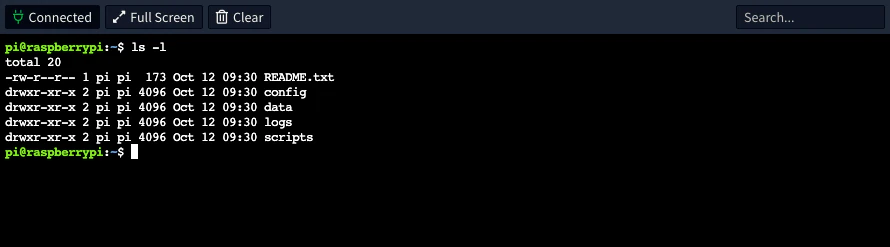
Open the device in Devices and choose Terminal in its menu. On a Linux device you get a shell with the permissions of the user that runs the client; on an Arduino device you see what the sketch writes to ThingerConsole and can type commands to it.
API
The terminal is interactive and needs the console. To run a single command on a Linux device from the API, call its cmd device resource:
curl -X POST "https://YOUR_SERVER/v3/users/YOUR_USER/devices/YOUR_DEVICE/resources/cmd" \
  -H "Authorization: Bearer YOUR_TOKEN" \
  -H "Content-Type: application/json" \
  -d '{"cmd": "df -h /"}'
YOUR_SERVER is iot.thinger.io on the free Cloud account, or your own domain. YOUR_TOKEN is an access token of your account.
CLI
The CLI has no interactive terminal. Run a single command on a Linux device through its cmd device resource:
thinger device resource YOUR_DEVICE cmd -i cmd='"df -h /"'AI
Run df -h / on my Linux device YOUR_DEVICE and tell me how much disk space is left.
Browse files
Console
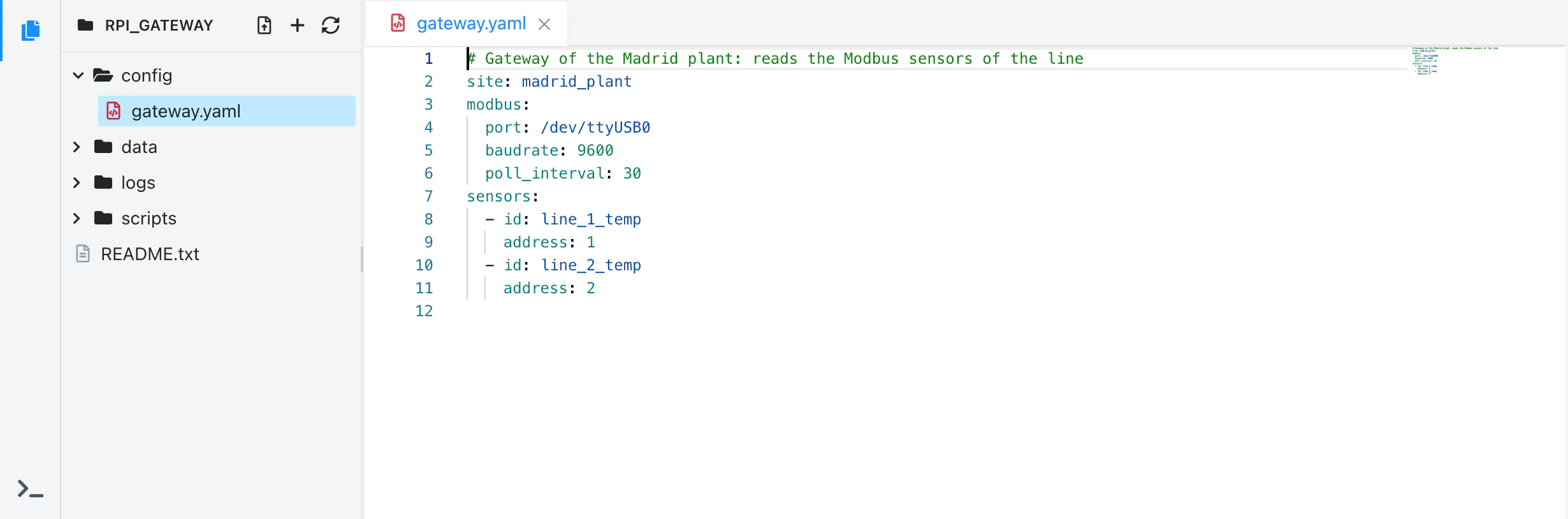
Open the device and choose Explorer in its menu. Navigate the folders, and upload, download, rename or delete files.
API
List a folder of the device:
curl "https://YOUR_SERVER/v3/users/YOUR_USER/devices/YOUR_DEVICE/files/" \
  -H "Authorization: Bearer YOUR_TOKEN"
The answer lists each entry with name, type, size, mode and modified. The same path with PUT, PATCH and DELETE uploads, renames and deletes files: see the REST API reference.
The CLI and the MCP tools do not browse device files.
Console on Arduino devices
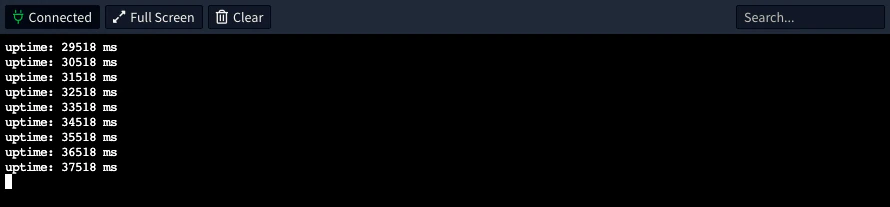
With the ThingerConsole class of the Arduino library, the Terminal of a device works like the serial monitor of the Arduino IDE, over the Internet: the sketch writes logs to it and reads what you type. Create the console after the thing object:
#define THINGER_SERIAL_DEBUG

#include <ThingerESP32.h>
#include <ThingerConsole.h>

ThingerESP32 thing("YOUR_USER", "YOUR_DEVICE", "YOUR_TOKEN");
ThingerConsole console(thing);

unsigned long last_log = 0;

void setup() {
  Serial.begin(115200);
  thing.add_wifi("wifi-network", "wifi-password");
}

void loop() {
  thing.handle();

  // write a line every second
  unsigned long now = millis();
  if (now - last_log >= 1000) {
    last_log = now;
    console.printf("uptime: %lu ms\r\n", now);
  }
}
YOUR_TOKEN is the device credentials. Open the device and choose Terminal to see the lines.
Boards
ThingerConsole is meant for ESP32 and ESP8266 boards. It is not available on AVR boards, such as the UNO and the Mega. On other boards the sketch compiles, but printf is not available and the console's own messages (prompt, help, errors) do not reach the Terminal.
Write to the console
console has the same functions as Serial: print, println, printf and write. Text is sent at the end of each line, or every 128 bytes; call console.flush() to send text that does not end in a new line, such as a question. End lines with \r\n in printf.
The device sends nothing while no Terminal is open: whatever the sketch writes is discarded. Check if (console) to skip work that only feeds the log, such as reading a sensor:
void loop() {
  thing.handle();

  // only when a Terminal is open
  if (console) {
    unsigned long now = millis();
    if (now - last_log >= 1000) {
      last_log = now;
      console.printf("uptime: %lu ms\r\n", now);
    }
  }
}
Read from the console
What you type appears in the Terminal and reaches the sketch when you press Enter. The line ends with a carriage return ('\r'). Read it as you would read Serial:
void loop() {
  thing.handle();

  if (console.available()) {
    String input = console.readStringUntil('\r');
    console.print("> I received: ");
    console.println(input);
  }
}
A line holds up to 128 characters, and Backspace deletes the last one.
Add commands to the console
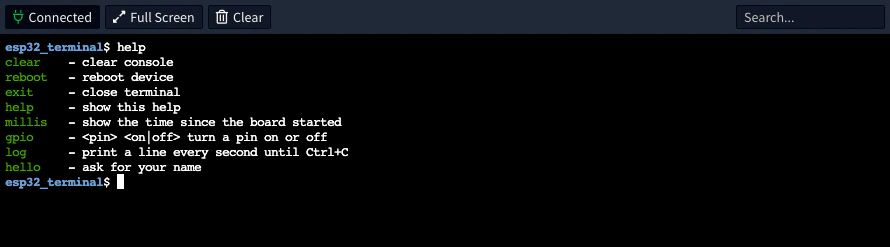
Register commands to turn the Terminal into an interactive shell: it shows a prompt, runs the command you type and lists them all with help. Register each command in setup() with a name, the function to run and an optional description that help shows:
void setup() {
  // ...

  console.command("millis", [](int argc, char* argv[]) {
    console.println(millis());
  }, "show the time since the board started");
}
The function receives the arguments as in the main function of a C program: argc is how many there are and argv holds them, with the command name in argv[0]. It can be a lambda, as above, or any function void name(int argc, char* argv[]). A name that is not registered answers command not found.
Once a command is registered, the line you type goes to the command interpreter, not to console.available(). While a command runs, what you type goes to the command.
Arguments
Arguments are separated by spaces. Quotes keep spaces inside one argument (print "hello world"), and a backslash (\) takes the next character as is. A line that ends in \, or with a quote still open, continues on the next one, after a > prompt. A command receives up to 10 arguments, its name included.
This command turns a pin on or off, and uses console.error() to print a message in red:
void setup() {
  // ...

  console.command("gpio", [](int argc, char* argv[]) {
    if (argc < 3) {
      console.error("usage: gpio <pin> <on|off>");
      return;
    }
    int pin = atoi(argv[1]);
    pinMode(pin, OUTPUT);
    digitalWrite(pin, strcmp(argv[2], "on") == 0 ? HIGH : LOW);
    console.printf("pin %d turned %s\r\n", pin, argv[2]);
  }, "<pin> <on|off> turn a pin on or off");
}
Long-running commands
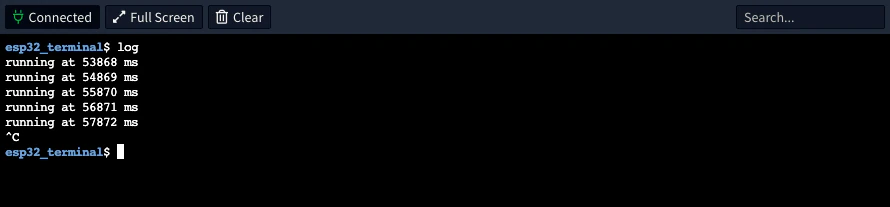
A command can run until you stop it, for example to follow a log. Loop while console.command_running() is true: it turns false when you press Ctrl+C or close the Terminal. The loop does not need to call thing.handle(), because command_running() keeps the connection alive:
void setup() {
  // ...

  console.command("log", [](int argc, char* argv[]) {
    while (console.command_running()) {
      console.printf("running at %lu ms\r\n", millis());
      delay(1000);
    }
  }, "print a line every second until Ctrl+C");
}
Ctrl+C with no command running clears the line you are typing.
Ask for input
A command can ask a question and wait for the answer. Send the question with flush(), since it does not end in a new line, and wait for console.available(), which also keeps the connection alive:
void setup() {
  // ...

  console.command("hello", [](int argc, char* argv[]) {
    console.print("Please enter your name: ");
    console.flush();
    while (console.command_running() && !console.available());
    if (!console.command_running()) return;
    String name = console.readStringUntil('\r');
    console.printf("Hello %s\r\n", name.c_str());
  }, "ask for your name");
}
Prompt
The prompt is the device ID followed by $. Change it in setup() with a text that lasts for the whole program, such as a literal:
void setup() {
  // ...

  console.set_prompt("Arduino");
}
Built-in commands
Once you register a command, these come with it:
| Command | What it does |
|---|---|
help | Lists the commands with their descriptions. |
clear | Clears the Terminal. |
reboot | Prints device will reboot now... and restarts the device. |
exit | Listed by help as "close terminal", but it does nothing: close the Terminal from the console. |
ThingerConsole functions
ThingerConsole is an Arduino Stream, so it also has read(), peek(), readString(), parseInt(), setTimeout() and the rest of the Stream functions.
| Function | Description |
|---|---|
ThingerConsole(ThingerClient& client) | Creates the console on the thing object. |
operator bool() | true while a Terminal is open on the device. |
size_t write(uint8_t value) | Writes one byte. print, println and printf write through it. |
void flush() | Sends the pending text without waiting for the end of the line. |
int available() | Bytes of the lines received and not read yet. |
int read() | Reads one byte, or -1 if there is none. |
int peek() | Returns the next byte without reading it, or -1. |
void command(const char* cmd, std::function<void(int argc, char* argv[])> callback, const char* desc = "") | Registers a command, with an optional description for help. |
bool command_running() | true while a command runs and has not been cancelled with Ctrl+C or by closing the Terminal. |
bool is_running() | true while a Terminal is open. |
void error(const char* message) | Prints a message in red, followed by a new line. |
void set_prompt(const char* prompt) | Replaces the prompt; the text must last for the whole program. |
Permissions
The remote tools act with the permissions of whoever opens them. Anyone with access to the device resources of a device can open its Terminal and Explorer, so give access tokens, project members and agents only the devices they need: see Access Tokens.
Limits
- The device must be connected. Otherwise the console reports that it is not connected.
- On Linux, the shell and the files have the permissions of the user that runs the client.
- Explorer cannot reach files outside the folder the client shares.
- On Arduino devices, the console handles lines of up to 128 characters and commands of up to 10 arguments. Arrow keys and the command history are not supported.