

This guide connects anything that can send an HTTP request, such as a device without a Thinger.io library, a script or another cloud, as an HTTP device of a product. The product decides what each request does: the Data Buckets and properties that store it, the script that transforms it and what the response carries back. You create the product and the device, and send data with curl.
An HTTP device sends data when it wants; the platform cannot call it. If the device can keep a connection open, use the device libraries or MQTT to send it commands at any time.
HTTP devices used to be configured one by one with their Callback settings. The callback still works, but it is deprecated: see HTTP callback (deprecated).
Before you start
- A Thinger.io account. Your server is
YOUR_SERVER:iot.thinger.ioon the free Cloud account, or your own domain on a private instance. curl, or any HTTP client.
Steps
Create the product
The product
http_sensorturns each request into data with these entries of its profile:Entry What it does API resource dataThe resource the device posts to. Its request sends the body to the device stream readings, and its response returns thedownlinkproperty of the device. Handle Device Connectivity shows the device as connected while it sends requests.Data Bucket http_sensor_readingsStores every reading of the readingsstream, tagged with the device ID.Property last_readingKeeps the last reading of each device. Auto Provision rule sensorsCreates the device on its first request when its ID matches ^sensor_[0-9]+$. Optional.The product property
downlinkgives every device the same default answer,{"interval": 60}.Console
Go to Products, click Add Product, set the Product ID to
http_sensorand a Product Name, and click Add Product. On the Profile tab of the product, click Add in each card:- API Resources: set the Resource Identifier to
data. On Request, choose Device Stream, set the Resource Name toreadingsand the Payload to Source Payload. On Response, choose Device Property, the propertydownlinkand Source Payload. On Settings, keep Handle Device Connectivity on and click Save. - Buckets: set the Bucket Identifier to
http_sensor_readings. On Bucket Source, choose Device Stream, the Resource Namereadingsand Source Payload, and click Save. - Properties: set the Property Identifier to
last_reading. On Property Source, choose Device Stream, the Resource Namereadingsand Source Payload, and click Save. - Auto Provision: set the Provision Identifier to
sensorsand the Device Pattern to^sensor_[0-9]+$, and click Save.
Then open the Properties tab of the product and add the property
downlinkwith the value{"interval": 60}.![Profile tab of the http_sensor product with the last_reading property and the http_sensor_readings bucket fed by the readings stream, the data API resource that sends to readings and answers with the downlink property, and the sensors Auto Provision rule with the pattern ^sensor_[0-9]+$](/screenshots/http-product-profile.webp)
Profile of the http_sensor product API
Save the product with its profile in
http_sensor.json:http_sensor.jsonjson{ "product": "http_sensor", "name": "HTTP sensor", "enabled": true, "profile": { "api": { "data": { "enabled": true, "handle_connectivity": true, "request": { "data": { "target": "resource_stream", "resource_stream": "readings", "payload_type": "source_payload" } }, "response": { "data": { "source": "property", "property": "downlink", "payload_type": "source_payload" } } } }, "buckets": { "http_sensor_readings": { "enabled": true, "data": { "source": "resource_stream", "resource_stream": "readings", "payload_type": "source_payload" } } }, "properties": { "last_reading": { "enabled": true, "data": { "source": "resource_stream", "resource_stream": "readings", "payload_type": "source_payload" } } }, "autoprovisions": { "sensors": { "enabled": true, "config": { "mode": "pattern", "pattern": "^sensor_[0-9]+$" } } } } }Create the product, then the product property:
bashcurl -X POST "https://YOUR_SERVER/v1/users/YOUR_USER/products" \ -H "Authorization: Bearer YOUR_TOKEN" \ -H "Content-Type: application/json" \ -d @http_sensor.jsonbashcurl -X POST "https://YOUR_SERVER/v1/users/YOUR_USER/products/http_sensor/properties" \ -H "Authorization: Bearer YOUR_TOKEN" \ -H "Content-Type: application/json" \ -d '{"property": "downlink", "value": {"interval": 60}}'YOUR_TOKENis an access token of your account that can create products.CLI
Save the product document of the API tab as
http_sensor.json, and create the product and its property:bashthinger product create http_sensor --from http_sensor.json thinger product property-set http_sensor downlink '{"interval": 60}'AI
Ask your AI agentCreate a product called http_sensor for HTTP devices. Add an API resource called data that sends what it receives to the device stream readings and answers with the downlink property of the device, with device connectivity handled. Store the readings stream in a bucket called http_sensor_readings and in a property called last_reading. Add an Auto Provision rule called sensors for the device pattern ^sensor_[0-9]+$, and a product property downlink with the value {"interval": 60}.
The agent uses
thinger_resource_createwith theproducttype and the profile entry types. See MCP tools.Give the stream its own name, different from the API resource, as
readingshere. A stream with the name of an API resource that has a response also receives that response, and an empty reading, each time the device connects.- API Resources: set the Resource Identifier to
Create the HTTP device
Skip this step to let the Auto Provision rule create the device on its first request, with an ID such as
sensor_001.Console
Go to Devices and click Add Device. Choose HTTP Device (Sigfox, Lora, cURL) as Device Type, set the Device Id to
YOUR_DEVICE, choose the producthttp_sensorunder Advanced Options and click Add Device. HTTP devices have no device credentials: requests are authorized with a token.API
bashcurl -X POST "https://YOUR_SERVER/v1/users/YOUR_USER/devices" \ -H "Authorization: Bearer YOUR_TOKEN" \ -H "Content-Type: application/json" \ -d '{"device": "YOUR_DEVICE", "type": "HTTP", "product": "http_sensor"}'CLI
bashthinger device create YOUR_DEVICE -t HTTP -p http_sensorAI
Ask your AI agentCreate an HTTP device called YOUR_DEVICE in the product http_sensor.
Create a token for the device
The device needs a token that can call its
dataresource. Use a device token limited to that resource, so the token cannot do anything else:Console
Open the device, go to Tokens and click Add. Set the Token Name, choose Limit the resource access for this token, type the resource
dataand save it. Copy the Device Token.API
bashcurl -X POST "https://YOUR_SERVER/v1/users/YOUR_USER/devices/YOUR_DEVICE/tokens" \ -H "Authorization: Bearer YOUR_TOKEN" \ -H "Content-Type: application/json" \ -d '{"token_name": "HTTP sensor", "token_resources": ["data"]}'The response holds the
tokenvalue.AI
Ask your AI agentCreate a device token for YOUR_DEVICE that can only call its data resource, and show me the token.
A device that Auto Provision creates does not exist before its first request, so it cannot have a device token yet. Give those devices an access token with the
AccessDeviceResourcesaction on the Device type, for any device (*).Send data
Post the reading to the
dataresource of the device.YOUR_TOKENis the token from the previous step.bashcurl -X POST "https://YOUR_SERVER/v3/users/YOUR_USER/devices/YOUR_DEVICE/resources/data" \ -H "Authorization: Bearer YOUR_TOKEN" \ -H "Content-Type: application/json" \ -d '{"temperature": 21.5, "humidity": 48}'If the client cannot set headers, pass the token in the URL instead:
?authorization=YOUR_TOKEN.
Result
The request returns 200 with the downlink property:
{"interval": 60}The device shows as connected in Devices until its Disconnect Timeout passes without requests (10 minutes by default, in the device Settings). The reading is in the Data Bucket http_sensor_readings, tagged with the device, which the Buckets tab of the device shows, and in the last_reading property:
thinger device property YOUR_DEVICE last_readingTo show the data of each device in a dashboard, add a product dashboard with the bucket as From Device Bucket.
Send data back to the device
The response of each request carries the downlink property, so the device receives its configuration every time it reports. The product property sets the value for every device; a device property with the same name overrides it for one device. Change it from the console, a dashboard or the API, and the next response carries the new value:
curl -X PUT "https://YOUR_SERVER/v3/users/YOUR_USER/devices/YOUR_DEVICE/properties/downlink" \
  -H "Authorization: Bearer YOUR_TOKEN" \
  -H "Content-Type: application/json" \
  -d '{"value": {"interval": 120}}'
YOUR_TOKEN is an access token of your account. The API resource can answer with something else, such as the result of a product function or an endpoint call: see API resources. Without a response, the request returns 200 with an empty body.
Process the payload
A function of the product script can transform each request before it reaches the stream: decode a compact format, convert units, rename fields. The body does not need to be JSON: a text/plain body reaches the function as text. This function turns a reading sent as 21.5,48 into JSON:
// "21.5,48" -> {"temperature": 21.5, "humidity": 48}
function parseReading(payload) {
  if (typeof payload !== 'string') return payload;
  const [temperature, humidity] = payload.split(',').map(Number);
  return { temperature, humidity };
}
Write it in the Product Script card of the product profile and click Save. Then edit the API resource data, set Payload Processing to parseReading on its Request and save it. The device can now send the short form:
curl -X POST "https://YOUR_SERVER/v3/users/YOUR_USER/devices/YOUR_DEVICE/resources/data" \
  -H "Authorization: Bearer YOUR_TOKEN" \
  -H "Content-Type: text/plain" \
  -d '21.5,48'
The same setting exists on each bucket and property, to transform the data for only one of them. A function that returns nothing skips the write.
Store the location
A request does not move the device on maps by itself: store its position in the location property of the device, which places it on maps and checks its geofences. For readings with lat and lng fields, add this function to the script:
function toLocation(payload) {
  if (payload.lat === undefined || payload.lng === undefined) return;
  return { lat: payload.lat, lon: payload.lng };
}
Then add a property location to the profile with the Device Stream readings as source, Source Payload and Payload Processing toLocation. Readings without a position leave the property as it was.
Request reference
| Part | Value |
|---|---|
| Method and URL | POST https://YOUR_SERVER/v3/users/YOUR_USER/devices/YOUR_DEVICE/resources/data, where data is an API resource of the product. |
| Authorization | Authorization: Bearer YOUR_TOKEN header, or ?authorization=YOUR_TOKEN. A device token of the device, or an access token with the AccessDeviceResources action on it. |
| Body | A JSON document with Content-Type: application/json, or text with Content-Type: text/plain. An array writes one Data Bucket record per element. |
ts field | Optional. A number in the body with the time of the reading in milliseconds since the Unix epoch, for data sent late: the Data Bucket stores the record with that time. |
| Response | Meaning |
|---|---|
200 | Accepted. The body is the response of the API resource, such as the downlink property, or empty if it has none. |
400 | The body is not valid JSON while the content type says it is, or the device is disabled. |
401 | No token, or the token is not valid. |
403 | The token has no permission for this device resource. |
404 | The device does not exist and no Auto Provision rule matches its ID, the product has no enabled API resource with that name, or the property of the response does not exist (property not found). In the last case the data is stored anyway. |
For every device operation, see the REST API reference.
Troubleshooting
| Symptom | Cause | Fix |
|---|---|---|
401 unauthorized | The token is missing, mistyped or revoked. | Copy the token again, or create a new one. |
403 not authorized | The token belongs to another device or does not reach this device resource. | Use a device token of this device with the resource, or an access token with AccessDeviceResources on it. |
404 with an empty body | The device does not exist and its ID does not match an Auto Provision rule. | Create the device, or fix the Device Pattern of the rule. |
404 resource not found | The device has no product, or the product has no enabled API resource with that name. | Assign the device to the product, and check the name and Enabled of the API resource. |
404 property not found | The response property does not exist for this device or its product. | Add the product property downlink, or set it on the device. |
400 invalid json payload | The body is not JSON but the content type says it is. | Send valid JSON, or text with Content-Type: text/plain and a function that decodes it. |
| The device shows as disconnected between requests | The Disconnect Timeout is shorter than the reporting interval, or Handle Device Connectivity is off. | Raise the Disconnect Timeout in the device Settings, and turn the option on in the API resource. |
| The Data Bucket gets empty records, or the value of the response | The stream has the name of an API resource that has a response. | Give the Device Stream of the request its own Resource Name, such as readings. |
More cases in Troubleshooting.
HTTP callback (deprecated)
Deprecated
The HTTP callback stays available for the devices that use it, but new integrations should use a product as described above. A product covers the same needs, as Move a callback to a product shows, and adds Auto Provision, payload processing, text payloads and responses from any source.
The callback is set on each HTTP device, in its Callback tab, with or without a product. Each request to the callback URL runs the actions of the device and answers with one of its properties.
Configure the callback
Create the HTTP device as in Steps, with or without a product. Open the device and go to Callback. In Settings, enable the actions you need:
| Field | What it does |
|---|---|
| Write Bucket | Stores the request body in a Data Bucket. |
| Call Endpoint | Calls an endpoint with the request body. |
| Set Device Property | Saves the request body in a device property, so it always holds the last value. |
| Response Data | Answers each request with the value of a device property. |
| Timeout | Minutes without requests before the device shows as disconnected. |
The Data Bucket of Write Bucket and the endpoint of Call Endpoint must exist before the first request: if one is missing, the request still returns 200 but that action does nothing. Set Device Property creates the property if it does not exist.
Then enable Authorization. The console creates an access token that can only send data to this device, and shows it in Overview with the Target URL and a Curl Example.
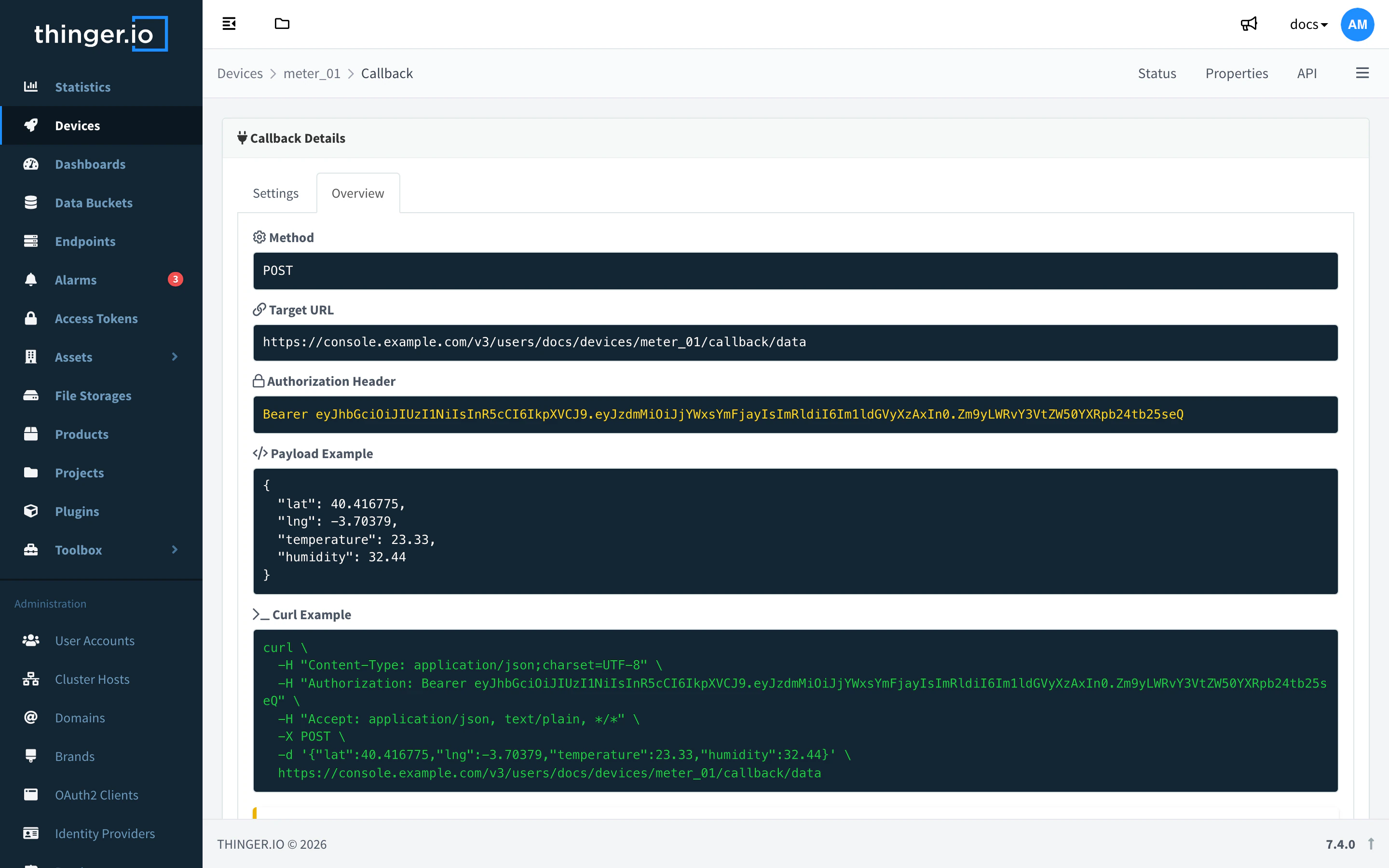
From the API, set the same actions with PUT /v3/users/{user}/devices/{device}/callback:
{
  "actions": {
    "write_bucket": "YOUR_BUCKET",
    "set_property": "telemetry",
    "send_property": "downlink"
  },
  "properties": { "timeout": 10 }
}
Send data to the callback
Post a JSON body to the device callback. YOUR_TOKEN is the token from Overview, or any access token with the CallDeviceCallback action on this device.
curl -X POST "https://YOUR_SERVER/v3/users/YOUR_USER/devices/YOUR_DEVICE/callback/data" \
  -H "Authorization: Bearer YOUR_TOKEN" \
  -H "Content-Type: application/json" \
  -d '{"temperature": 21.5, "humidity": 48}'
The body is in the Data Bucket and in the telemetry property, and the response carries the Response Data property. Change that property as in Send data back to the device; read the current response without sending data with GET /v3/users/YOUR_USER/devices/YOUR_DEVICE/callback/data.
| Part | Value |
|---|---|
| Method and URL | POST https://YOUR_SERVER/v3/users/YOUR_USER/devices/YOUR_DEVICE/callback/data |
| Authorization | Authorization: Bearer YOUR_TOKEN header, or ?authorization=YOUR_TOKEN |
| Body | Any JSON document, with Content-Type: application/json |
ts query parameter | Optional. Time of the reading in milliseconds since the Unix epoch, for data sent late. |
| Location | Optional. lat and lng (or latitude and longitude) at the top level or inside location update the device location and its geofences. |
| Response | Meaning |
|---|---|
200 with a JSON body | Accepted. The body is the Response Data property, or "" if none is set. |
400 | The body is not valid JSON, ts is not a number, or the device is disabled. |
401 | No token, or the token is not valid. |
403 | The token has no permission for this device. |
404 | There is no HTTP device with that ID (device callback not found). The callback does not create devices with Auto Provision. |
Move a callback to a product
| Callback | Product |
|---|---|
POST …/callback/data | POST …/resources/<resource>, an API resource with a Device Stream request |
| Write Bucket | A product bucket with the stream as source, created on the first write |
| Set Device Property | A product property with the stream as source |
| Call Endpoint | A flow with the stream as source and an Endpoint Call target |
| Response Data | The response of the API resource, such as Device Property |
| Timeout | Disconnect Timeout in the device Settings |
ts query parameter | A ts field in the body |
lat and lng in the body | A location property filled by a function, as in Store the location |
| Authorization token from Overview | A device token limited to the API resource |