

This guide connects a board to Thinger.io with the Thinger.io Arduino library: you create the device, install the library, upload a sketch and check that the device is online. The steps use an ESP32; for other boards, change the include and the class as shown in Supported boards.
Before you start
- A Thinger.io account. Your server is
YOUR_SERVER:iot.thinger.ioon the free Cloud account, or your own domain on a private instance. - A supported board and its USB cable.
- The Arduino IDE, or Visual Studio Code with the PlatformIO extension.
Steps
Create the device
Console
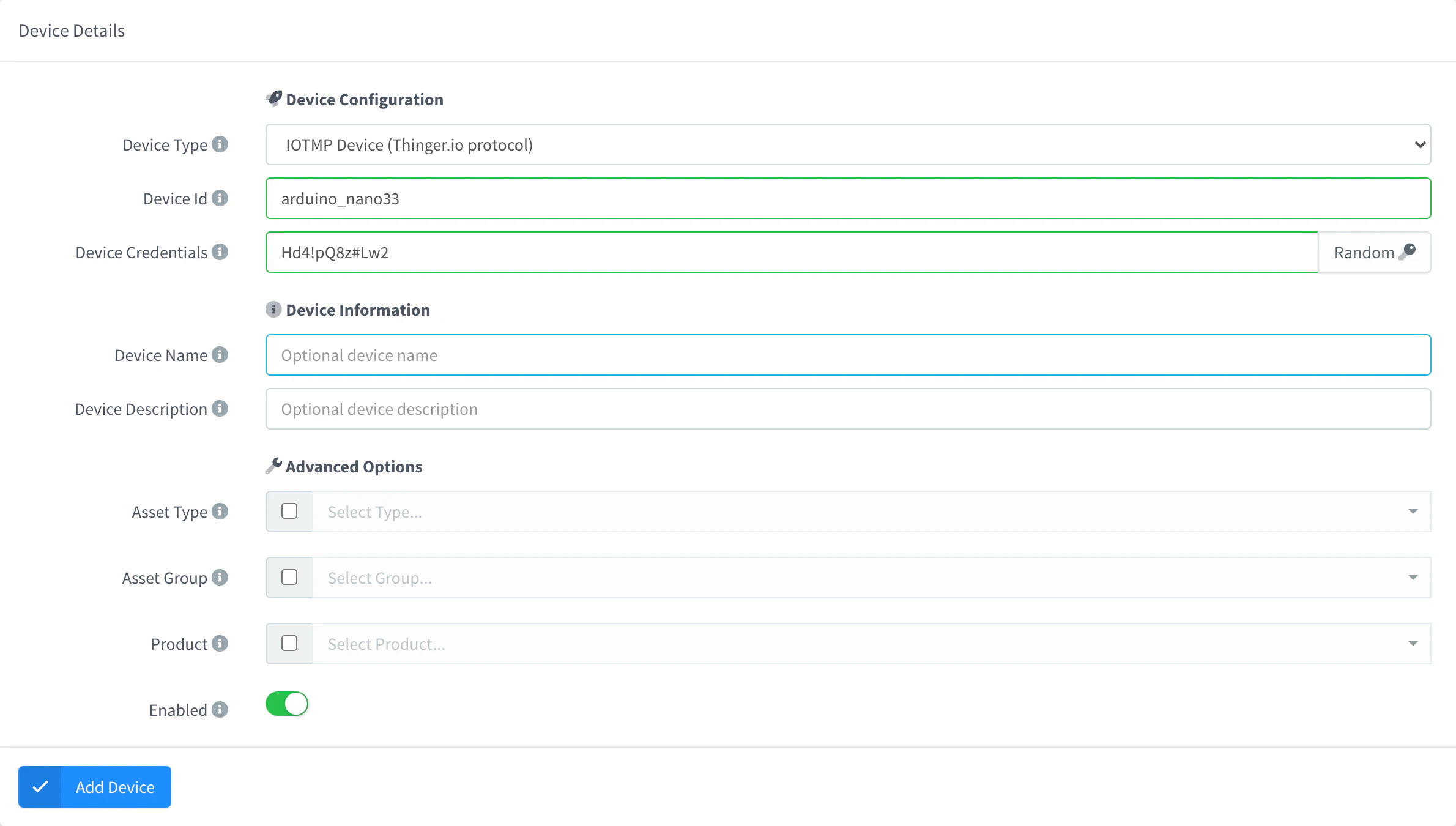
Go to Devices and click Add Device (Create a Device if you have no devices yet). Fill in the form:
- Device Type: IOTMP Device (Thinger.io protocol).
- Device Id:
YOUR_DEVICE. Letters, numbers,_and-. - Device Credentials: click Random, or type your own (6 characters or more). Copy them: you need them in the sketch.
Click Add Device.
Add an IOTMP device API
bashcurl -X POST "https://YOUR_SERVER/v1/users/YOUR_USER/devices" \ -H "Authorization: Bearer YOUR_TOKEN" \ -H "Content-Type: application/json" \ -d '{"device": "YOUR_DEVICE", "type": "Generic", "credentials": "change-me-123"}'YOUR_TOKENis an access token. Setcredentialsto the device credentials you choose (6 characters or more).Genericis the IOTMP device type.CLI
bashthinger device create YOUR_DEVICE -t GenericWithout
-c, the CLI generates random credentials and prints them. See the CLI reference.AI
Ask your AI agentCreate an IOTMP device called YOUR_DEVICE in my Thinger.io account and show me its credentials.
Install the library
Arduino IDE
Install the package of your board. Some packages need an extra URL first: open File > Preferences (Arduino IDE > Settings on macOS) and add it to Additional boards manager URLs. Then open Tools > Board > Boards Manager, search for the package and click Install.
Boards Boards manager URL Package ESP32 None: the package is in the default list. esp32 by Espressif Systems ESP8266 https://arduino.esp8266.com/stable/package_esp8266com_index.jsonesp8266 by ESP8266 Community Arduino boards None. The package named on the family page of your board. Open Sketch > Include Library > Manage Libraries, search for thinger.io and click Install.
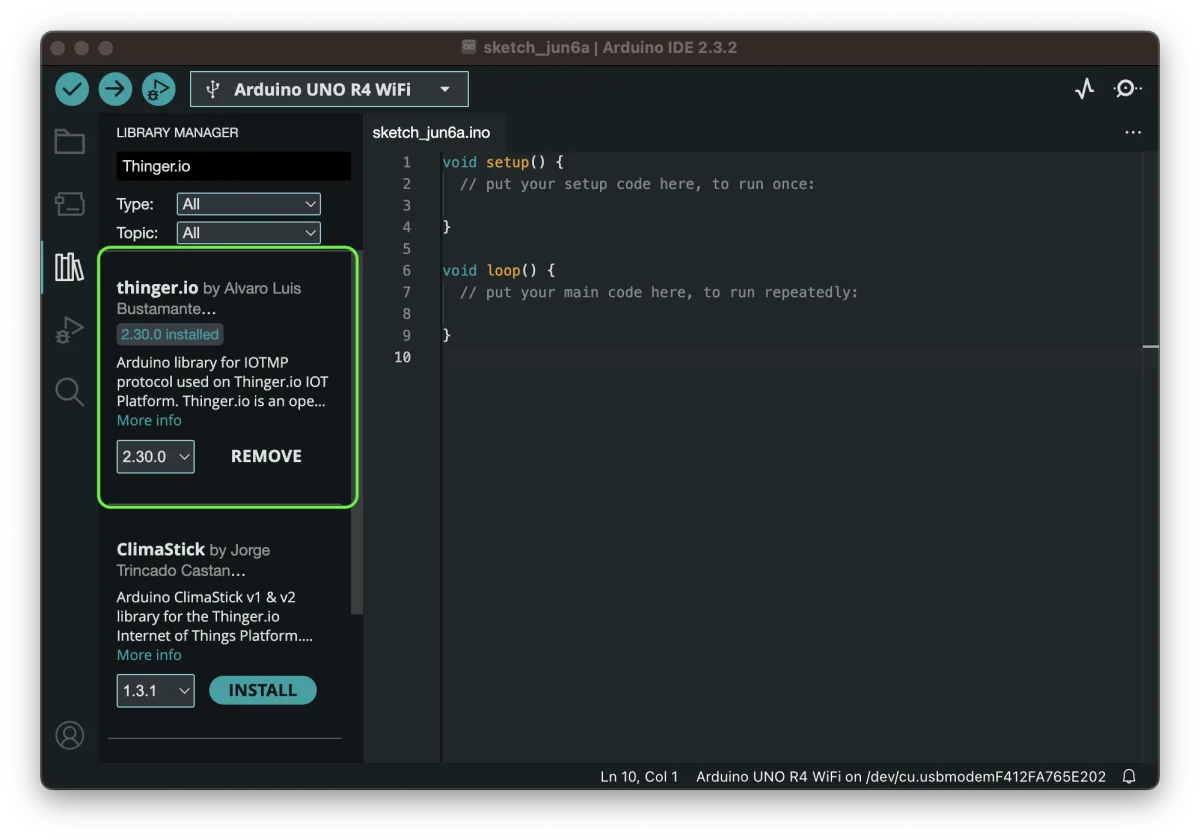
The thinger.io library in the Library Manager The library examples are in File > Examples > thinger.io, one per board (see Start from a library example).
Install from a ZIP file. If you cannot use the Library Manager, for example in an IDE based on the Arduino IDE such as Energia, download the ZIP of the latest release from the Releases page of the library. Then open Sketch > Include Library > Add .ZIP Library and choose the file.
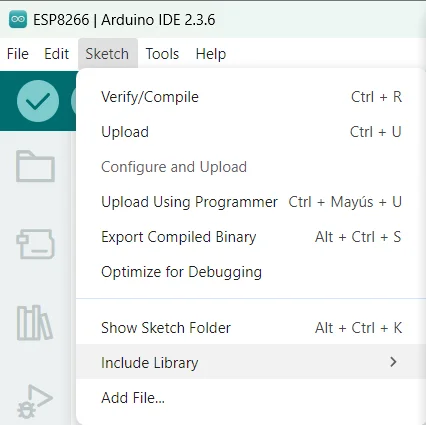
Sketch > Include Library holds Add .ZIP Library PlatformIO
Install Visual Studio Code. Open the Extensions view (
Ctrl+Shift+X, orCmd+Shift+Xon macOS), search for PlatformIO IDE and click Install.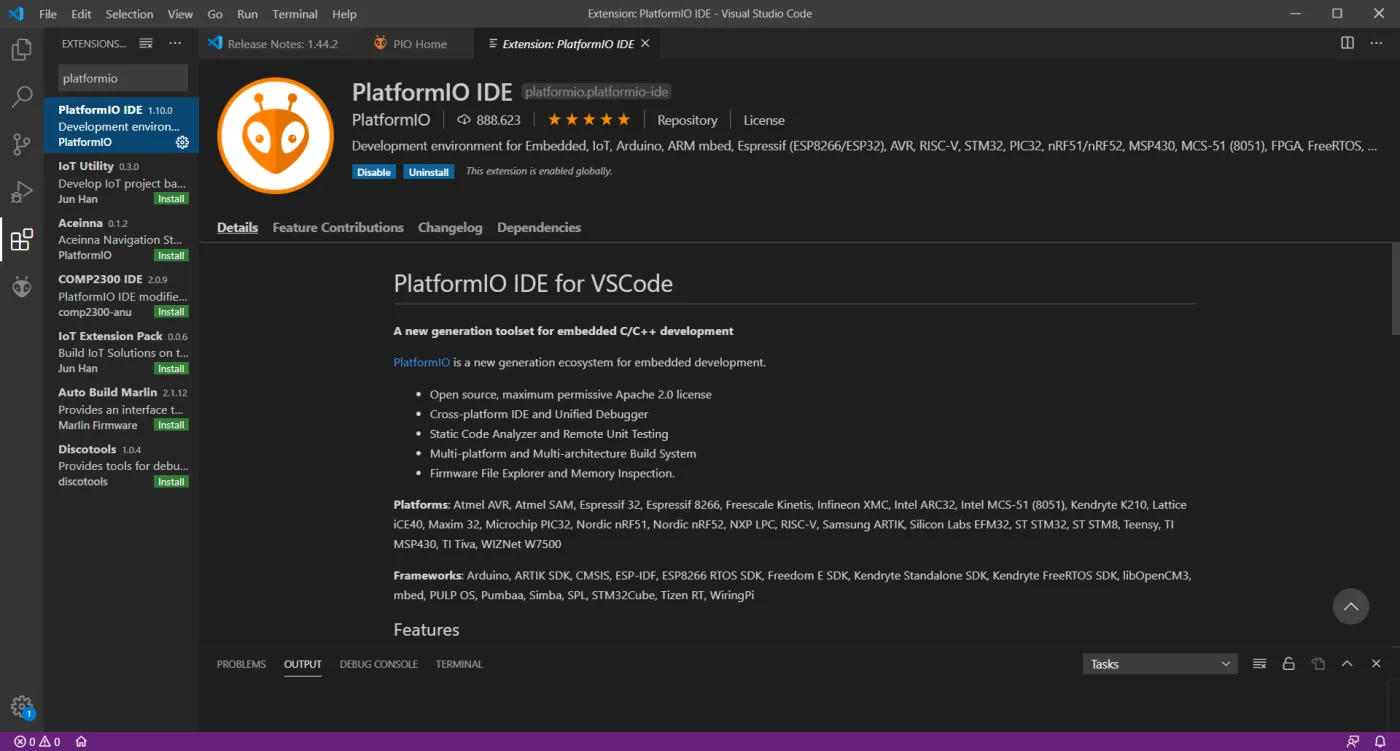
The PlatformIO IDE extension Open PIO Home (the PlatformIO icon in the activity bar, then Home) and click New Project.
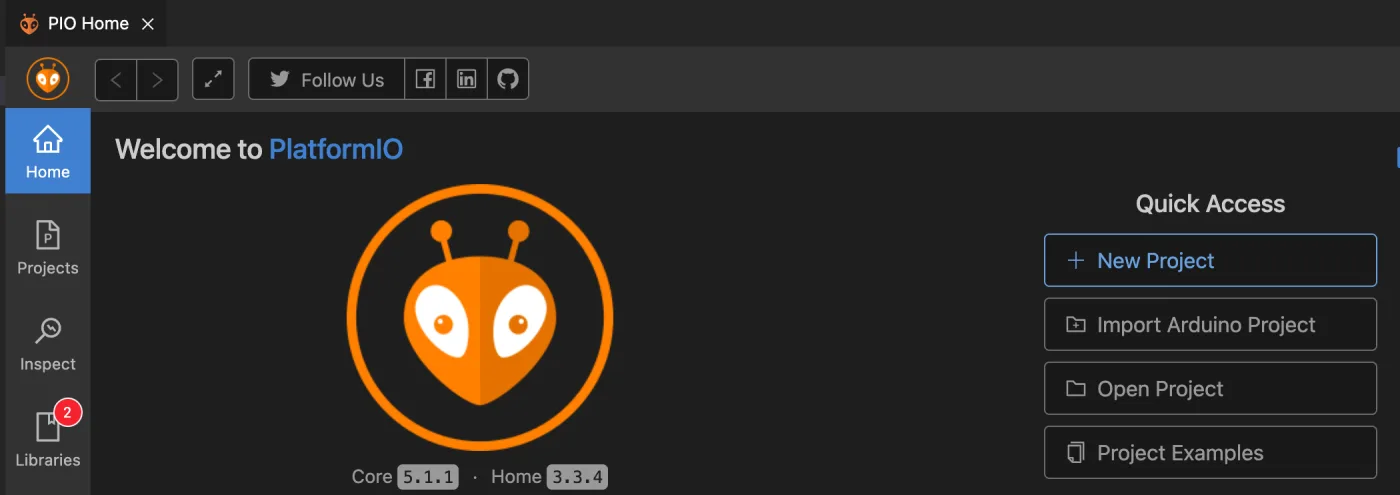
New Project in PIO Home In the Project Wizard, type a Name, choose your Board (Espressif ESP32 Dev Module for a generic ESP32) and the Arduino framework, and click Finish. PlatformIO downloads the tools of the board the first time.
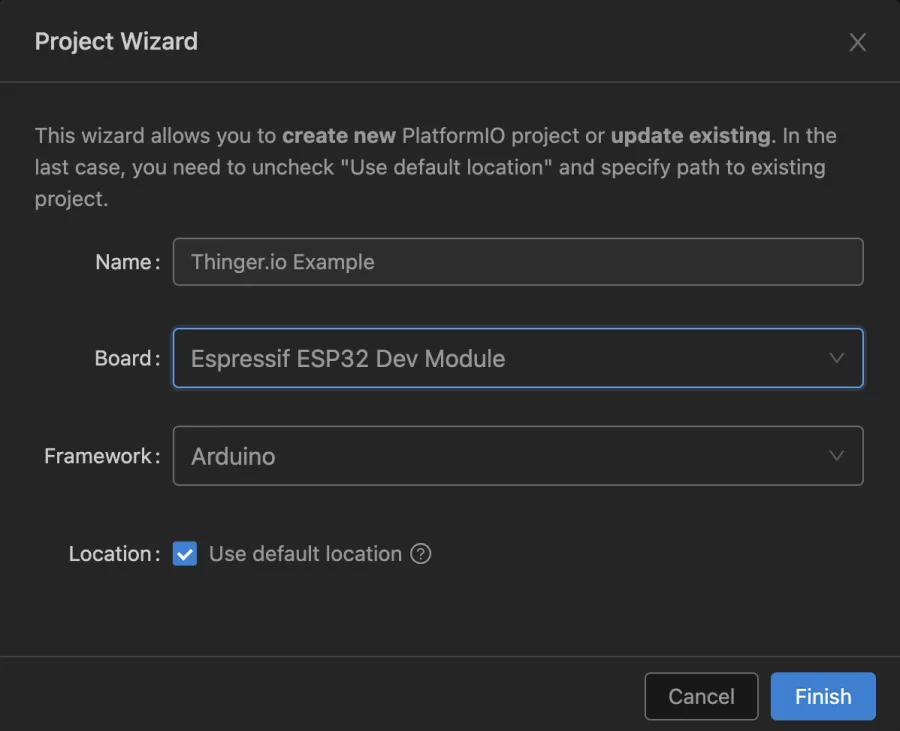
The Project Wizard Add the library to
platformio.ini, in the root of the project. Each[env:…]section is a board you build for:platformio.iniini[env:esp32dev] platform = espressif32 board = esp32dev framework = arduino lib_deps = thinger-io/thinger.io monitor_speed = 115200
PlatformIO downloads the library on the next build. The sketch goes in
src/main.cpp:textmy-project/ ├── include/ header files, such as arduino_secrets.h ├── lib/ private libraries ├── src/ │ └── main.cpp the sketch ├── test/ └── platformio.ini boards, libraries and build optionsWhat each version of the library changes is in the Arduino library changelog.
Write the sketch
Replace the placeholders with your username, the device ID and the device credentials, and set your Wi-Fi network. The three values come from the device you created:
From the console to the sketch main.cppcpp#define THINGER_SERIAL_DEBUG // #define THINGER_SERVER "YOUR_SERVER" // only on a private instance #include <ThingerESP32.h> #define USERNAME "YOUR_USER" #define DEVICE_ID "YOUR_DEVICE" #define DEVICE_CREDENTIAL "YOUR_TOKEN" #define WIFI_SSID "wifi-network" #define WIFI_PASSWORD "wifi-password" #define LED_PIN 2 // change it to the LED pin of your board ThingerESP32 thing(USERNAME, DEVICE_ID, DEVICE_CREDENTIAL); void setup() { Serial.begin(115200); pinMode(LED_PIN, OUTPUT); thing.add_wifi(WIFI_SSID, WIFI_PASSWORD); // input resource: turn the LED on and off thing["led"] << digitalPin(LED_PIN); // output resource: milliseconds since the board started thing["millis"] >> outputValue(millis()); } void loop() { thing.handle(); }DEVICE_CREDENTIALholds the device credentials, not an access token.- On the free Cloud account, leave the
THINGER_SERVERline commented: the library connects to the free Cloud server by default. On a private instance, uncomment it and set your domain. THINGER_SERIAL_DEBUGprints the connection steps to the serial monitor. Keep it while you test.
Upload the sketch
Select your board and port, upload the sketch and open the serial monitor at 115200 baud. When the device connects, the monitor shows
[THINGER] Authenticated.Check that the device is online
Console
Go to Devices. The device shows a green status dot (Device Connected). Open it: the Status page shows Device State as Online, with its IP address and the data transmitted.
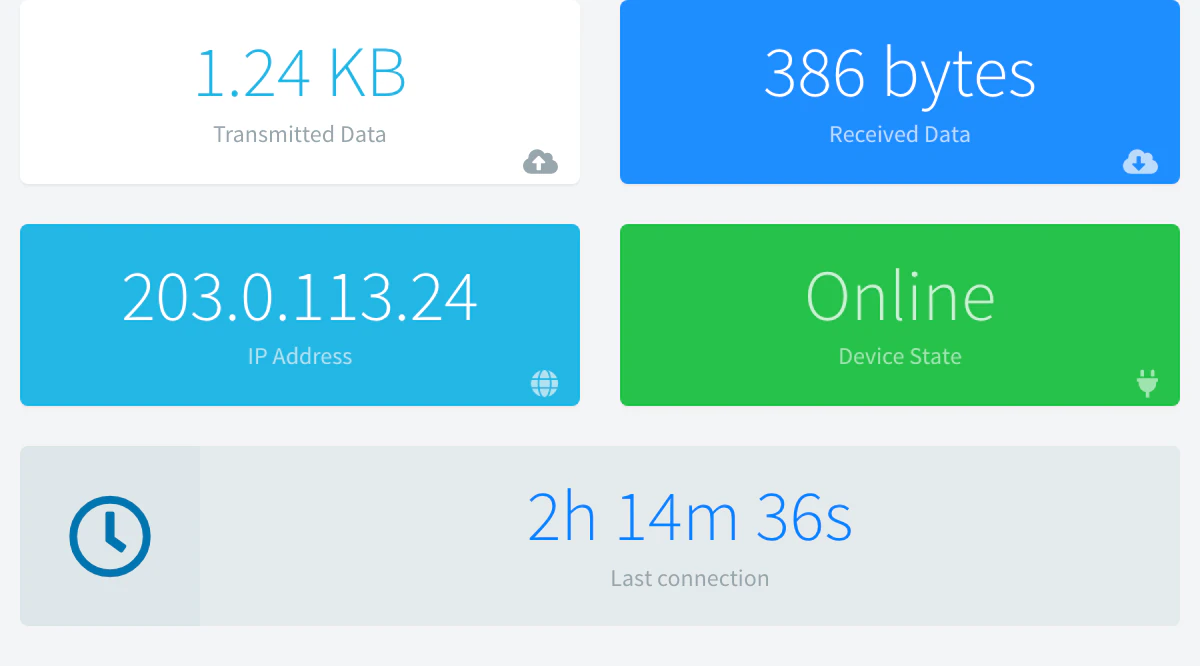
Status of a connected device API
bashcurl "https://YOUR_SERVER/v1/users/YOUR_USER/devices/YOUR_DEVICE" \ -H "Authorization: Bearer YOUR_TOKEN"The response includes the connection state of the device.
CLI
bashthinger device info YOUR_DEVICEAI
Ask your AI agentIs my device YOUR_DEVICE connected to Thinger.io? Tell me since when and its IP address.
Read a device resource
Console
Open the device and go to API. Expand the
millisdevice resource and click Run: the output shows the value from the board. Expandledto turn the LED on and off.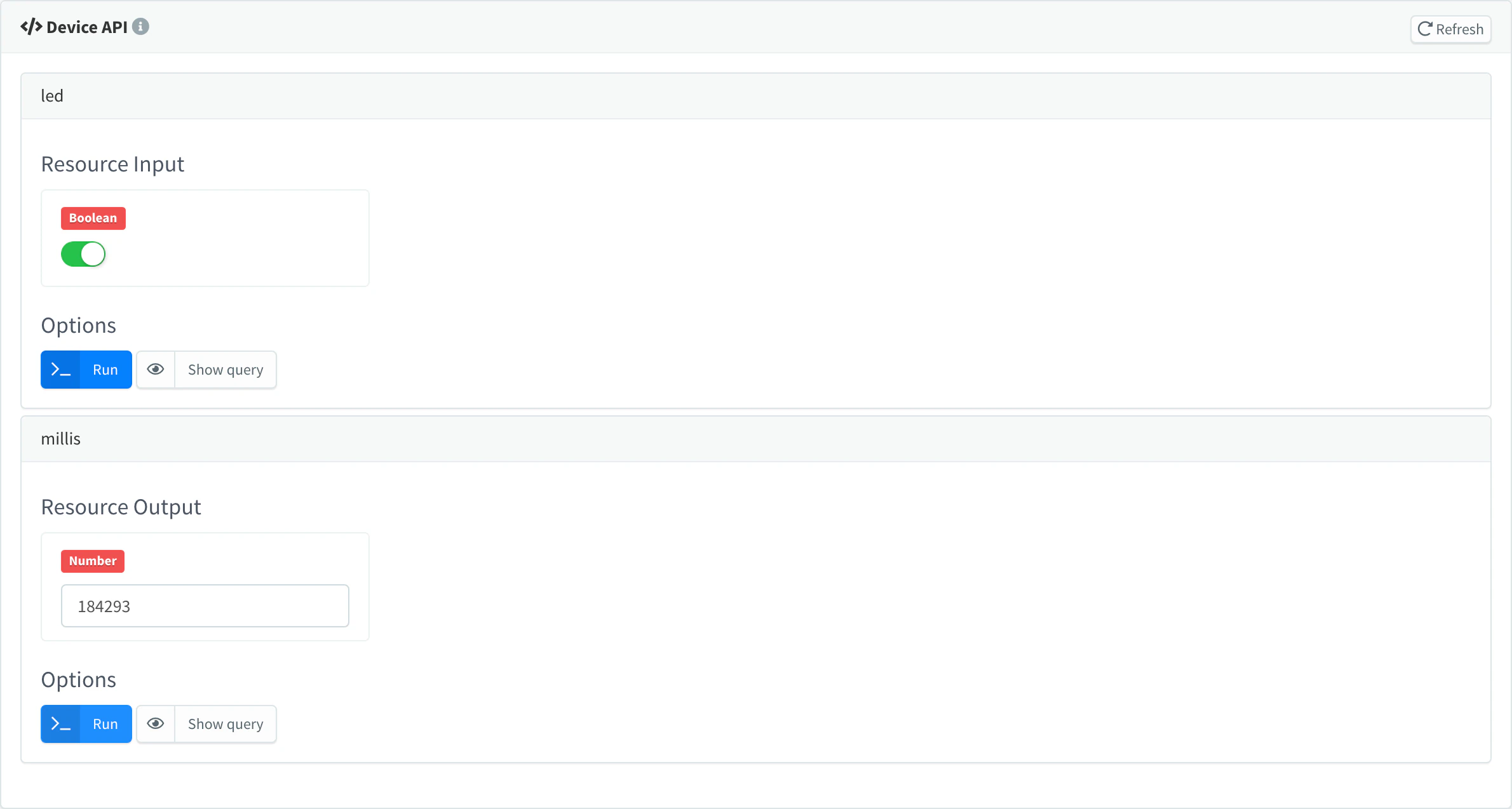
The led and millis resources after Run API
bashcurl "https://YOUR_SERVER/v3/users/YOUR_USER/devices/YOUR_DEVICE/resources/millis" \ -H "Authorization: Bearer YOUR_TOKEN"CLI
bashthinger device resource YOUR_DEVICE millisAI
Ask your AI agentRead the millis resource of my device YOUR_DEVICE.
Result
The device appears as connected in Devices, and its device resources answer from the console, the API, the CLI and your agent. Continue with the Coding guide to send data to a Data Bucket and react to commands.
Start from a library example
The library has a complete sketch for each board in File > Examples > thinger.io of the Arduino IDE. The same sketches are on the family page of each board, to copy into a PlatformIO project.
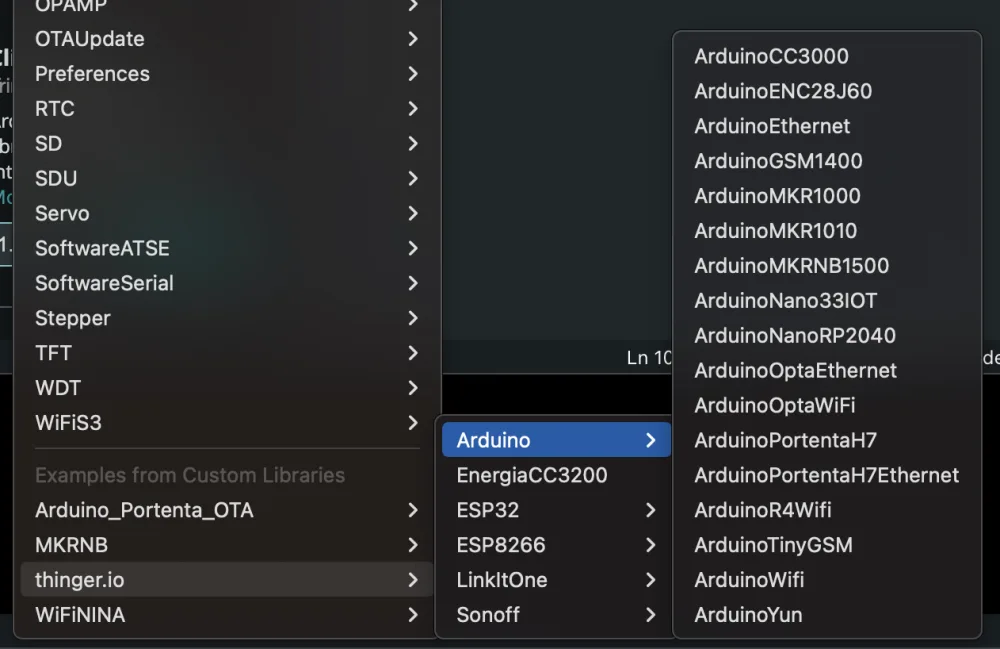
The examples keep the credentials in a second file, arduino_secrets.h, that the Arduino IDE shows as a tab next to the sketch. Fill it in before you upload:
#define USERNAME "YOUR_USER"
#define DEVICE_ID "YOUR_DEVICE"
#define DEVICE_CREDENTIAL "YOUR_TOKEN"

#define SSID "wifi-network"
#define SSID_PASSWORD "wifi-password"DEVICE_CREDENTIALholds the device credentials, not an access token.- Cellular boards replace
SSIDandSSID_PASSWORDwithPIN_NUMBER,GPRS_APN,GPRS_LOGINandGPRS_PASSWORD; Ethernet boards have no network settings. The three versions are in Credentials file. - In PlatformIO, put
arduino_secrets.hininclude/and keep#include "arduino_secrets.h"insrc/main.cpp. - If you share the sketch, keep
arduino_secrets.hout of version control.
Update the firmware over the Internet
The Thinger.io extension for Visual Studio Code builds a PlatformIO project and sends the firmware to a device, or to every device of a product, over its Thinger.io connection. The device must run a sketch with OTA support: add the OTA include and object of your board (see Supported boards).
#include <ThingerESP32.h>
#include <ThingerESP32OTA.h>

ThingerESP32 thing("YOUR_USER", "YOUR_DEVICE", "YOUR_TOKEN");
ThingerESP32OTA ota(thing);

void setup() {
  thing.add_wifi("wifi-network", "wifi-password");
}

void loop() {
  thing.handle();
}
The extension needs the PlatformIO extension, and it becomes active when you open a PlatformIO project. Set it up in the VS Code settings:
| Setting | Default | Description |
|---|---|---|
thinger-io.host | iot.thinger.io | Server of your account: the free Cloud server by default, or YOUR_SERVER. |
thinger-io.port | 443 | Server port. |
thinger-io.ssl | true | Use a TLS connection. |
thinger-io.secure | true | Verify the TLS certificate. |
thinger-io.token | (empty) | Access token of your account. If it is empty, the extension asks for one. |
The access token needs these permissions: ListDevices, ListProducts, AccessDeviceResources and ReadDeviceStatistics. See Access Tokens.
Choose the target
Click the rocket in the status bar, or run Thinger.io: Switch Target Destination from the command palette. Choose Device and the device, or Product to update every device of a product.
Upload the firmware
Click the upload button in the status bar, or run Thinger.io: Upload Firmware. If the project has several environments, pick one. The extension builds the firmware, asks you to confirm and uploads it. The device restarts with the new firmware.
To skip devices that already run the same firmware, define THINGER_OTA_VERSION in the build. If the upload is slow, set Application > Proxy > Proxy Support to fallback in the VS Code settings. Thinger.io: Clear Target Destination removes the target. More on firmware updates in OTA updates.
Troubleshooting
Keep #define THINGER_SERIAL_DEBUG as the first line and open the serial monitor at 115200 baud: the library prints each step of the connection.
| Symptom | Cause | Fix |
|---|---|---|
Stops at [NETWORK] Connecting to network | Wrong Wi-Fi name or password, or the network is out of reach. | Check WIFI_SSID and WIFI_PASSWORD. Most ESP32 boards only join 2.4 GHz networks. |
[_SOCKET] Error while connecting! | The server cannot be reached. | On a private instance, check THINGER_SERVER. Check that the network allows outgoing connections. |
[THINGER] Auth Failed! Check username, device id, or device credentials. | The credentials do not match the device. | Check USERNAME, DEVICE_ID and DEVICE_CREDENTIAL against the device in Devices. |
| No output at all | The sketch blocks before thing.handle(). | Remove long delay() calls and loops from setup() and loop(). |
More cases in Troubleshooting.