

A project groups resources of any type (devices, dashboards, Data Buckets, alarms, file storages…) so you can share them with other accounts and show them together. Each member of the project gets permissions from roles you define, and only sees the resources of the project.
When to use it
- To give a customer access to their own devices and dashboards, and nothing else in your account.
- To let a technician of one site operate the devices of that site only.
- To organize a large account by installation or client, each project with its own home dashboard.
- To receive the devices of a claim: claimed resources join a project shared with the claiming account.
Create a project
YOUR_SERVER is iot.thinger.io on the free Cloud account, or the domain of your private instance.
Console
Open Projects
Go to Projects and click Add Project (or Create a new Project if you have none yet).
Fill in the form
Set the Project ID (letters, numbers and underscores), the Project name and an optional Project description, and click Add Project.
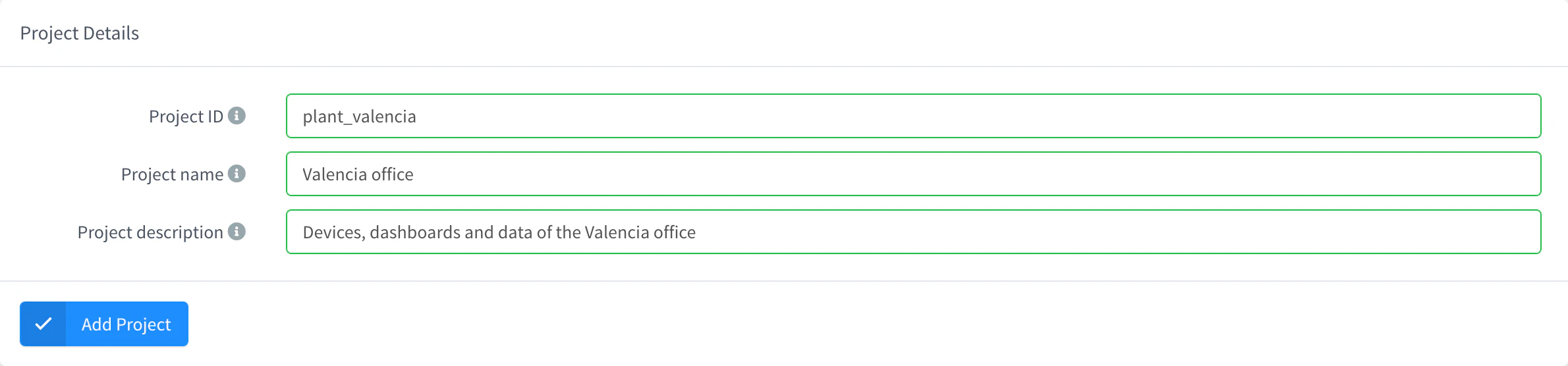
Add a project
The project opens on its Members tab. The other tabs are Project Roles, Dashboard and, in the dropdown, Inspector (the events of the project) and Settings.
API
curl -X POST "https://YOUR_SERVER/v1/users/YOUR_USER/projects" \
  -H "Authorization: Bearer YOUR_TOKEN" \
  -H "Content-Type: application/json" \
  -d '{"project": "plant_madrid", "name": "Madrid plant", "description": "Devices and dashboards of the Madrid plant"}'
The answer includes config.limit_bucket_access: true: see Limit bucket data to the project. YOUR_TOKEN is an access token with permission to create projects.
CLI
The CLI has no commands for projects. Use the console, the API or an agent.
AI
Create a project called plant_madrid for the devices and dashboards of the Madrid plant.
The agent uses thinger_resource_create with the project type. See MCP tools.
Add resources to a project
A resource can belong to several projects. A resource you create while a project is open in the console joins that project automatically.
Console
In the list of any section, such as Devices or Dashboards, select the resources, open the context menu and choose Set Projects. Pick the projects and click Save. The action is not available while a project is open.
API
Send the full list of projects of the resource, each as owner@project. The list replaces the previous one, and [] removes the resource from every project.
curl -X PUT "https://YOUR_SERVER/v1/users/YOUR_USER/devices/YOUR_DEVICE/projects" \
  -H "Authorization: Bearer YOUR_TOKEN" \
  -H "Content-Type: application/json" \
  -d '["YOUR_USER@plant_madrid"]'
The same call exists for buckets, dashboards, endpoints, alarms, file storages, products, asset types and groups, tokens, claims and syncs.
CLI
The CLI cannot change the projects of a resource. Use the console, the API or an agent.
AI
Add YOUR_DEVICE and the dashboard of the Madrid plant to the plant_madrid project.
The agent sets the projects field of each resource with thinger_resource_update.
Define roles
A role is a named set of permissions: the actions it allows (Allow) and the ones it denies (Deny), per resource type, for any resource or for specific ones. There are no built-in roles: create the ones you need, such as viewer or operator.
- Project Roles belong to one project.
- Global Roles, in Projects > Global Roles, belong to your account and can be assigned to members of any of your projects.
Console
Open the project, go to Project Roles and click Add Role. Set the Role Id, leave Enabled on, add permissions to Allow and Deny (choose the resource type, any or specific resources, and any or specific actions) and click Add Role.
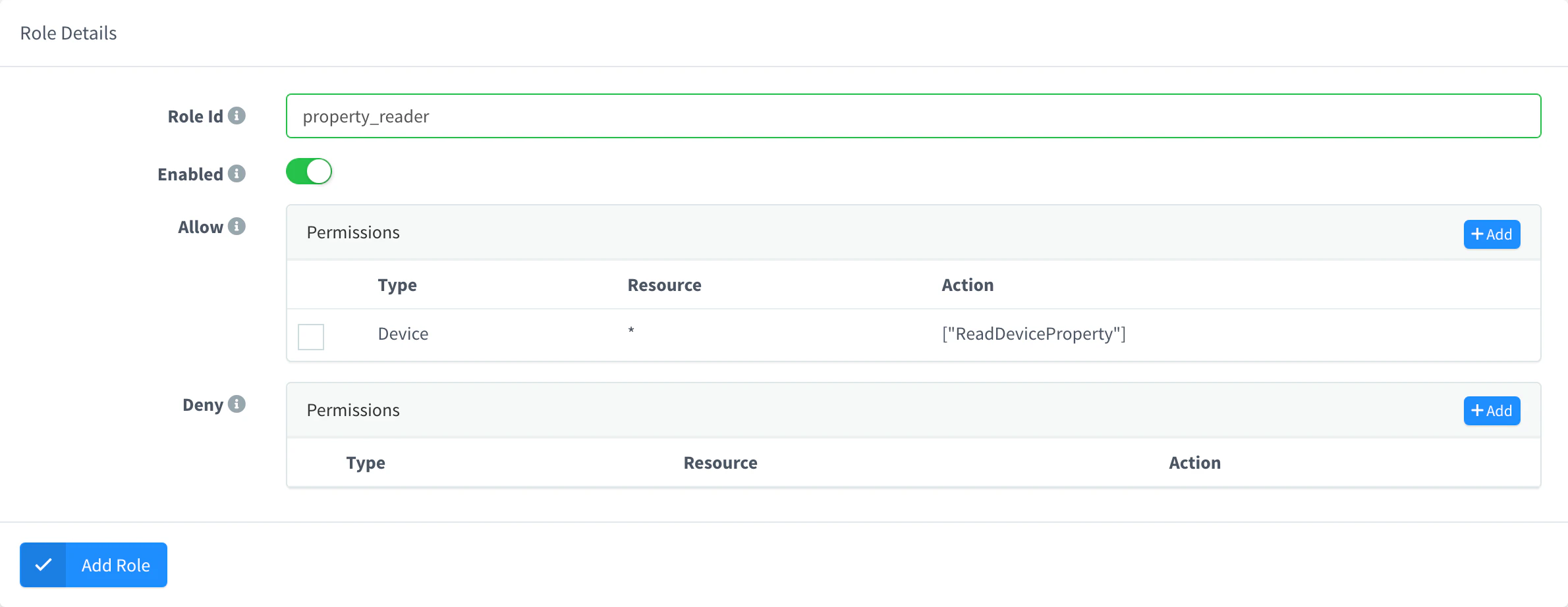
API
curl -X POST "https://YOUR_SERVER/v1/users/YOUR_USER/projects/plant_madrid/roles" \
  -H "Authorization: Bearer YOUR_TOKEN" \
  -H "Content-Type: application/json" \
  -d '{"role": "viewer", "enabled": true, "allow": {"Device": ["ReadDeviceProperty", "ListDeviceProperties"]}}'
Global roles use POST /v1/users/{user}/roles with the same body. A trailing * in an action name matches every action that starts with it.
CLI
The CLI has no commands for roles. Use the console, the API or an agent.
AI
Create a viewer role in the plant_madrid project that can only read the properties of its devices.
The agent uses the project_role type, or role for global roles.
Add members
A member is an account the project is shared with. Its permissions are the sum of its own Allow and Deny, its Project Roles and its Global Roles, and a Deny wins over an Allow; a disabled member has none. The project then appears in the member's own Projects list, and the member opens it from Select Project in the header of the console.
Console
Open the members
Open the project, go to Members and click Add Member.
Choose the account
With Existing User on, type the Username of the account. With it off, set a Username, an Email and an optional Password (leave it blank to let the user set their own) to create a new account for the member.
Set the permissions
Leave Enabled on, and turn on Hide Menu to show the member only the project dashboard. In Member Permissions, choose Global Roles and Project Roles, optionally restrict the member to some Project Groups (asset groups), and add extra Allow or Deny permissions. Click Add Member.
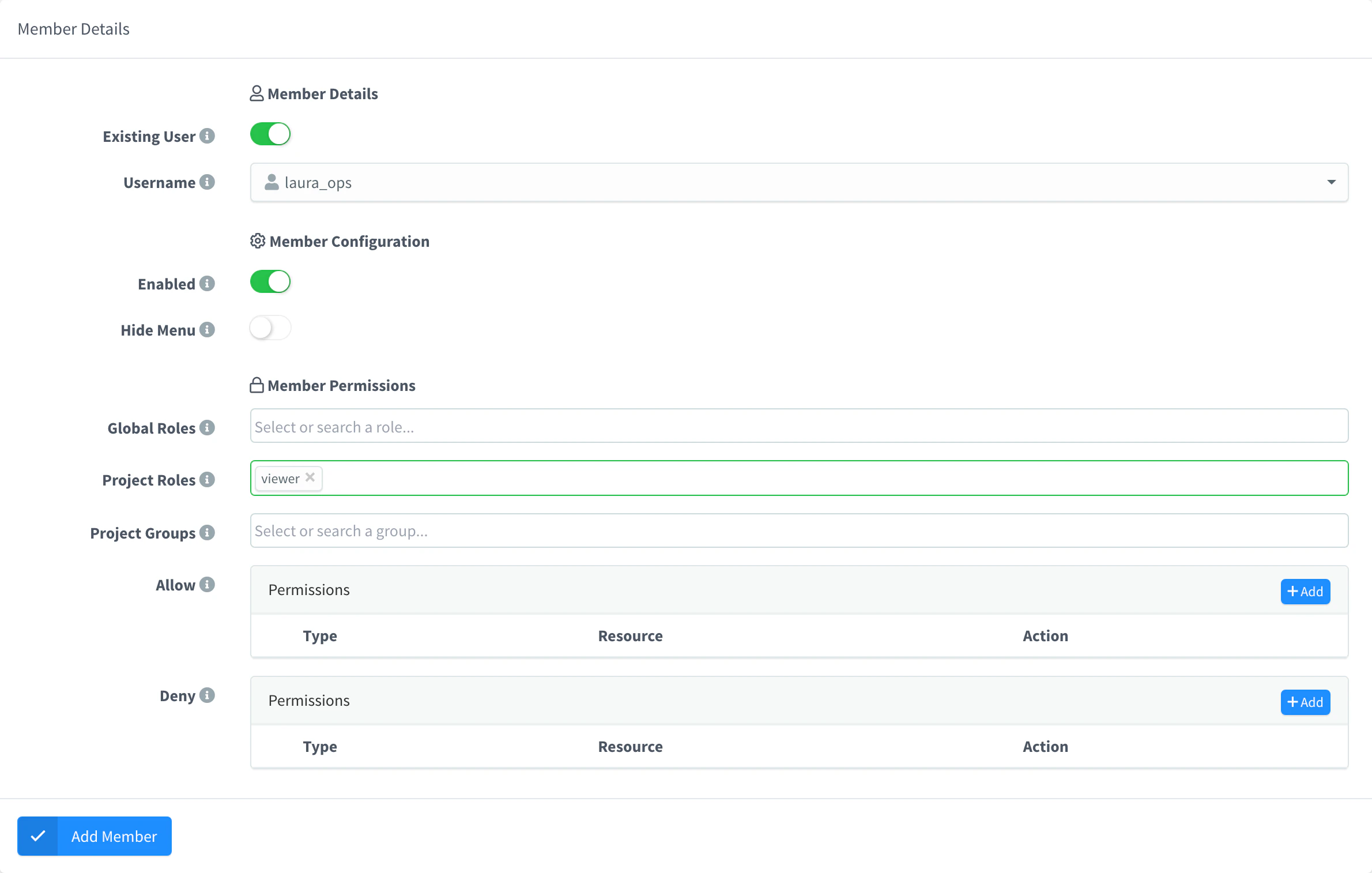
Add a project member
API
curl -X POST "https://YOUR_SERVER/v1/users/YOUR_USER/projects/plant_madrid/members" \
  -H "Authorization: Bearer YOUR_TOKEN" \
  -H "Content-Type: application/json" \
  -d '{"member": "jane", "enabled": true, "roles": ["viewer"], "groups": ["madrid_plant"]}'
The account must exist, unless you add account with an email (and optionally a password): the server then creates a verified account with the member role, and this project as the one it opens at sign-in.
CLI
The CLI has no commands for project members. Use the console, the API or an agent.
AI
Share the plant_madrid project with the user jane, with the viewer role, limited to the madrid_plant group.
The agent uses the project_member type, with the project as parent.
Accounts with the member role, created this way or by an administrator in User Accounts, work only inside the projects shared with them.
Work inside a project
The lists of the console have a Project column with the projects of each resource. It is hidden while a project is selected in Select Project, because the list then shows only that project.
A member, or an application that acts for one, calls the REST API of the owner's resources with the owner's account in the path and the project in ?project=, with the member's own token. The member's account works in the path too: the server uses the owner of the project.
curl "https://YOUR_SERVER/v1/users/OWNER_USER/devices?project=plant_madrid" \
  -H "Authorization: Bearer YOUR_TOKEN"
OWNER_USER is the account that owns the project and plant_madrid its Project ID. Calls to a resource outside the project, or beyond the permissions of the member, are refused. The project field of each resource lists the projects it belongs to. A dashboard app opened in a project adds the parameter on its own.
Limit bucket data to the project
A Data Bucket in a project holds data of many devices. With Limit Bucket Data on, members of the project read only the records of the devices that belong to the project, and get nothing for other devices. It is on by default for new projects (config.limit_bucket_access), and you can turn it off in Settings > Advanced Options.
The filter uses the device tag of the bucket records: buckets without that tag are not filtered. See Data Buckets.
Receive events of the project
Members and access tokens of a project can subscribe to real-time events with GET /v2/users/{user}/events?project=plant_madrid, always limited to the project:
- device state changes and property updates of devices of the project;
- Data Bucket writes, filtered by a device or a bucket of the project;
- alarm executions and alarm instances of the project.
Other events are refused. A token created inside a project only works with that project: see Access Tokens.
Inspector
The Inspector tab of the project shows the changes to the project itself as they happen: its settings, members, roles and properties (project_update, project_member_create, project_role_update…). It does not show the events of the devices and buckets of the project: watch them in the Inspector of each device or bucket, or subscribe to the events above. The same inspector is on devices, Data Buckets, products, alarms, claims, proxies and plugins:
- The first button shows whether it is receiving events (green) or not (red); click it to connect or disconnect.
- Events chooses which kinds of events to show, with the number selected.
- Pause stops the list without losing the connection, and Resume continues. Clear empties it.

Show a project dashboard
The Dashboard tab sets the home page of the project. When a project is open, its name replaces Statistics at the top of the menu and opens that dashboard. It can be a widget dashboard or a dashboard app, which receives the project as its context.
Limits
- The Project ID cannot change after you create the project.
- Members are accounts of the same instance. A project cannot be shared with accounts of another instance or of the free Cloud server.
- Deleting a project removes its members, roles and properties, and takes its resources out of the project; the resources themselves are kept. When a member deletes a shared project, only their membership is removed.
- The number of projects depends on your plan: see Plans and limits.