

User Accounts lists every account of your instance. As an administrator you create accounts for your users, choose their role, disable or delete them, and set limits per account. You can also open the console as one of them to see what they see.
When to use it
- To give access to your instance to a new developer, customer or operator.
- To make an account administrator, or administrator of the accounts of one hostname.
- To stop an account from signing in, or to raise or lower its limits.
Roles
| Role | Shown as | What the account can do |
|---|---|---|
admin | Admin | Administers the whole instance: every account and the Administration menu. Only administrators create administrators and domain administrators. |
domain_admin | Domain Admin | Administers the accounts that belong to its domains (the Domain field). |
user | Developer | A regular account with its own devices, buckets, dashboards and other resources. |
member | Project Member | Works only inside the projects it is invited to, starting in its Default Project. It does not see the Administration menu. |
Create an account
Console
Open User Accounts
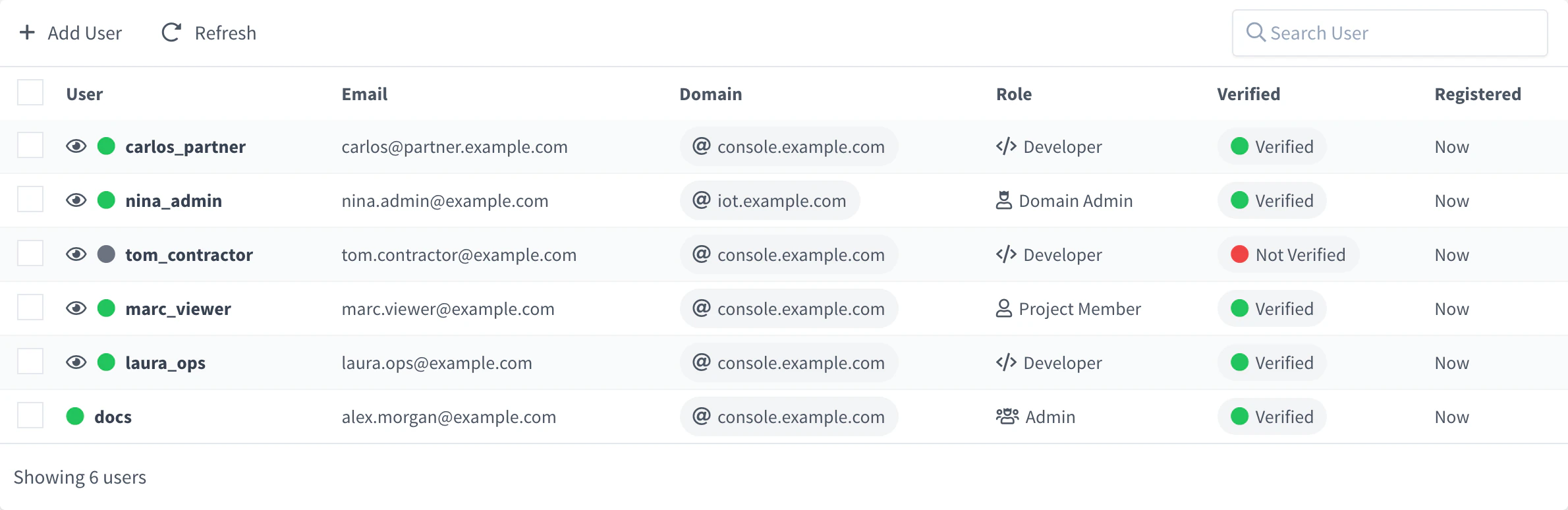
Go to Administration > User Accounts and click Add User (or Create a User Account if the list is empty). The list shows each account with its email, its domains, its role, whether its email is verified and when it registered; a gray dot marks a disabled account.
User Accounts Fill in the account
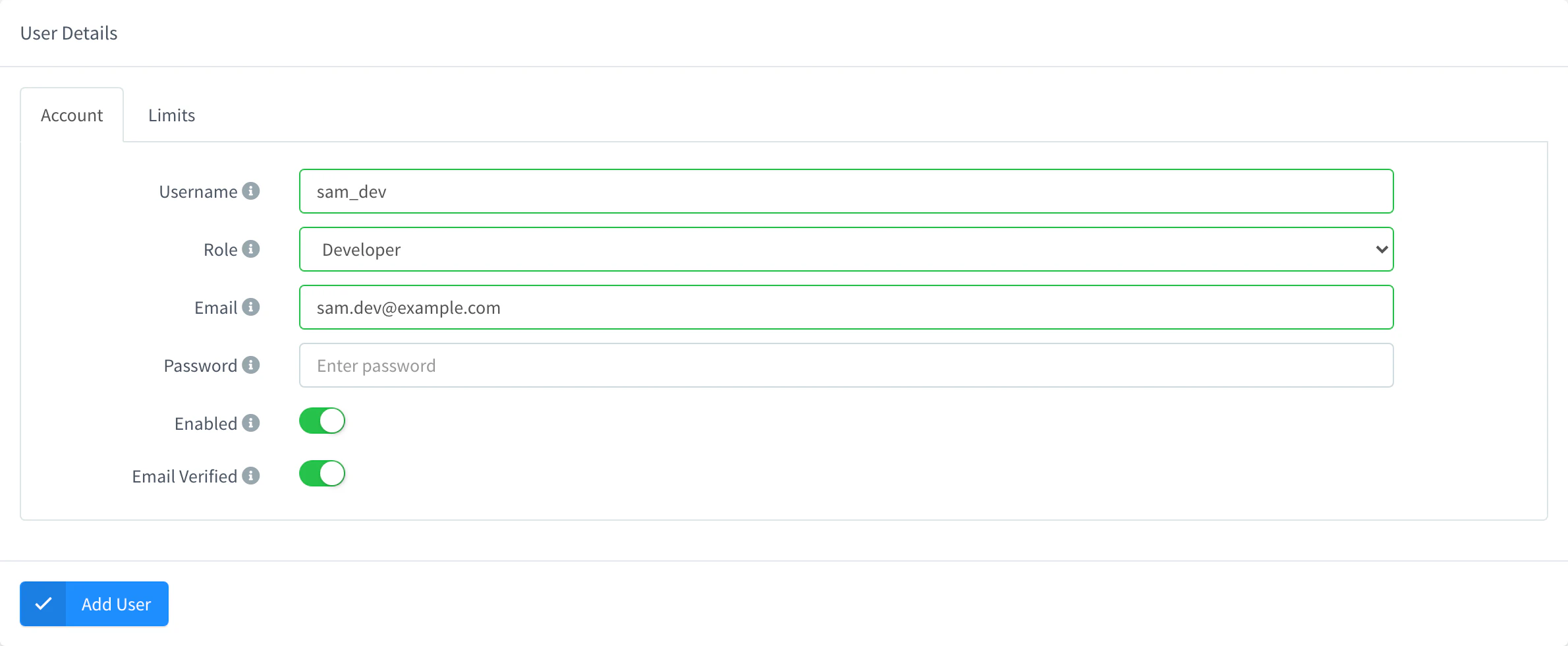
On the Account tab, set the Username, the Role and the Email. For a Project Member, also choose its Default Project.
Choose how the password is set
Enter a Password, or leave it blank so that the user receives an email to set their own. Enabled and Email Verified are on by default. Click Add User.
Add a user account
API
YOUR_SERVER is the hostname of your instance, and YOUR_TOKEN an access token of an administrator. An empty password sends the user an email to set it.
curl -X POST "https://YOUR_SERVER/v1/users" \
  -H "Authorization: Bearer YOUR_TOKEN" \
  -H "Content-Type: application/json" \
  -d '{
    "user": "jdoe",
    "email": "jdoe@example.com",
    "password": "",
    "role": "user",
    "enabled": true,
    "verified": true
  }'
A project member also needs its default project: "role": "member", "options": {"project": {"default": "plant_madrid"}}.
CLI
The CLI has no commands for user accounts. Use the console, the API or an agent.
AI
Create a developer account jdoe with the email jdoe@example.com, and let the user choose their own password.
The agent uses thinger_resource_create with the user type. See MCP tools.
Edit an account
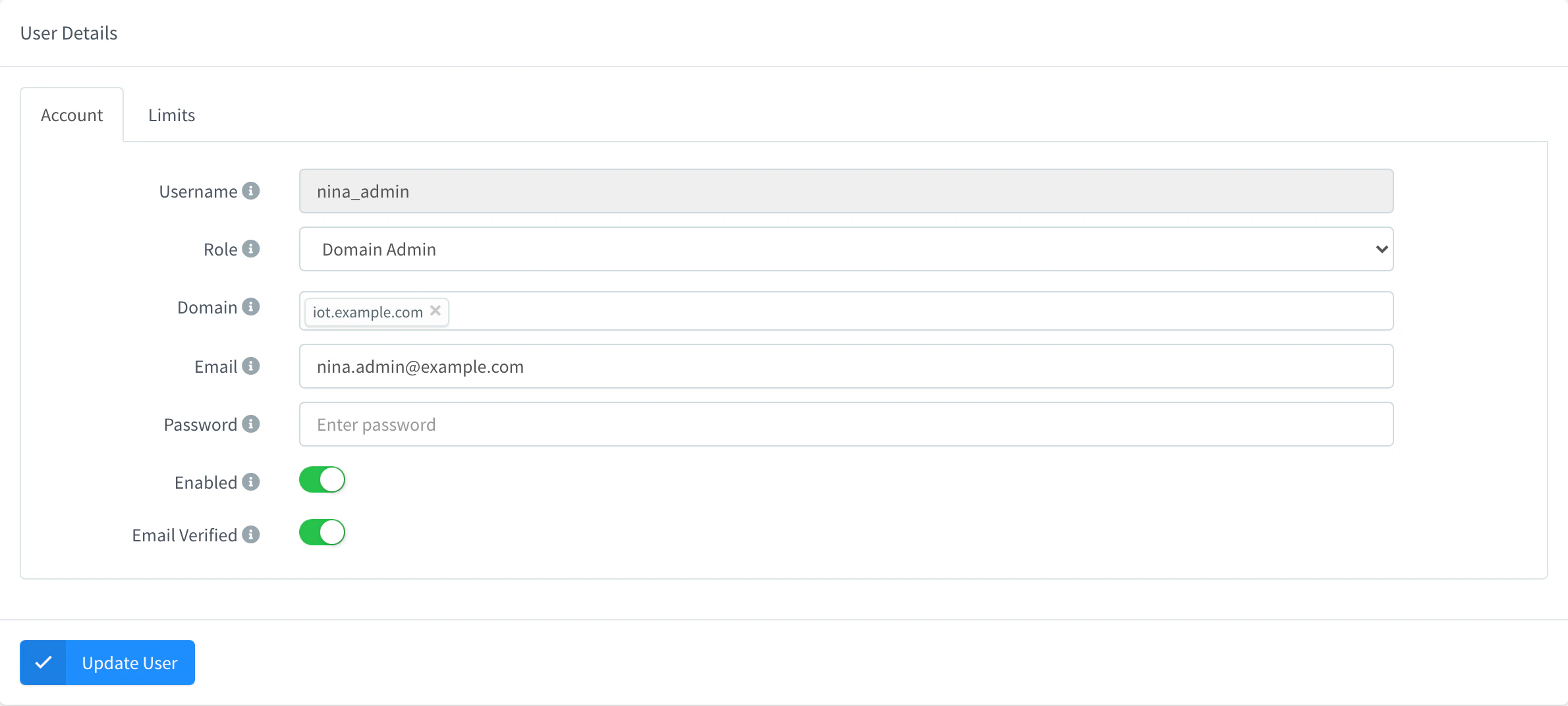
Open the account to change its Role, Email, Password, Enabled and Email Verified. When you edit an account you can also set its Domain: the hostnames it belongs to, which decide the brand of its emails and the accounts a domain administrator manages. The Username cannot be changed.
Console
Go to Administration > User Accounts, click the account, change the fields of its Account tab and click Update User.
API
Send only the fields you change:
curl -X PUT "https://YOUR_SERVER/v1/users/jdoe" \
  -H "Authorization: Bearer YOUR_TOKEN" \
  -H "Content-Type: application/json" \
  -d '{"host": ["iot.example.com"], "role": "domain_admin"}'
CLI
The CLI has no commands for user accounts.
AI
Make jdoe the domain administrator of iot.example.com.
Disable or delete an account
Disable an account to stop it from signing in while keeping everything it owns. Delete it to remove it for good.
Cannot be undone
Deleting an account deletes everything it owns: devices, Data Buckets and their data, dashboards, plugins and files.
Console
To disable an account, open it, turn off Enabled and click Update User. The list shows a gray dot next to disabled accounts. To delete it, select it in the list, click Remove and confirm with Remove.
API
To disable it, send {"enabled": false} with PUT /v1/users/{user}. To delete it:
curl -X DELETE "https://YOUR_SERVER/v1/users/jdoe" \
  -H "Authorization: Bearer YOUR_TOKEN"
CLI
The CLI has no commands for user accounts.
AI
Disable the account jdoe so that it cannot sign in, without deleting anything.
An agent asks you to confirm before it deletes an account.
Set the limits of an account
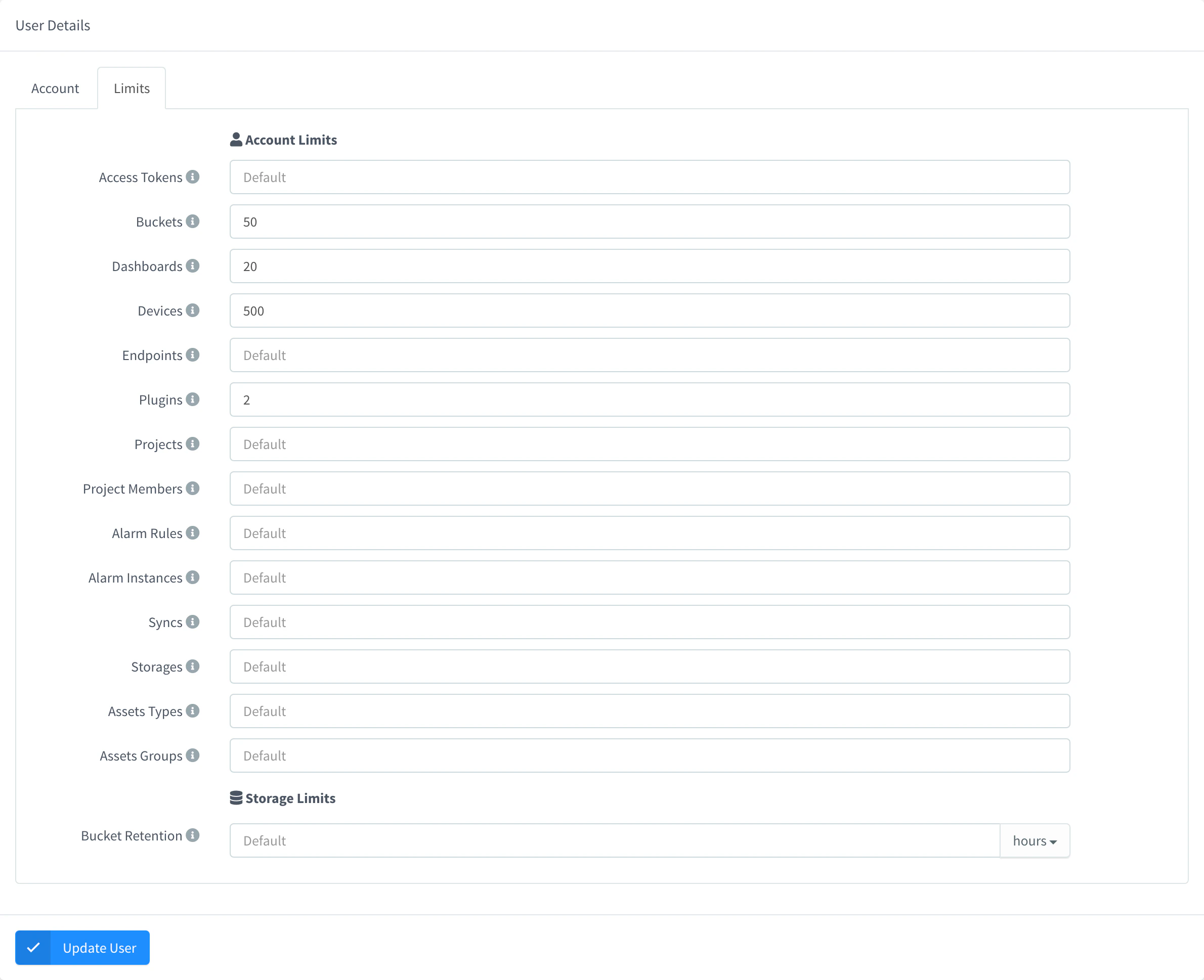
Each account follows the limits of the server settings. The Limits tab of an account overrides them for that account: the maximum number of access tokens, buckets, dashboards, devices, endpoints, plugins, projects, project members, alarm rules and instances, syncs, file storages, asset types and asset groups, and the Bucket Retention. Leave a field empty (it shows Default) to use the server value.
With the API, send limits with PUT /v1/users/{user}: -1 is unlimited and 0 disables the feature.
{ "limits": { "devices": { "max_count": 500 }, "buckets": { "max_count": 50 } } }GET /v1/users/{user}/limits returns the limits that apply to an account and how many resources it has created. On a Cloud instance, the total that your plan allows still applies; see Plans and limits.
See the console as another user
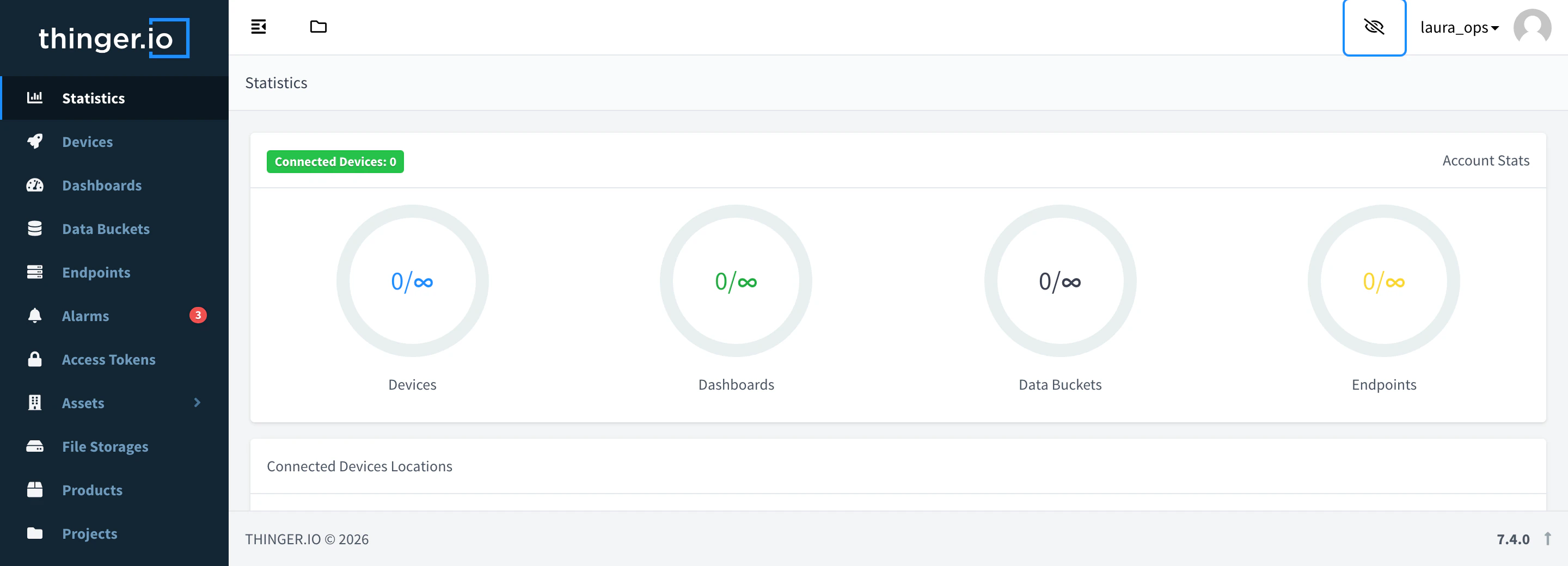
Click the eye icon on a row of the list to open the console as that user, with their permissions; your own account has no eye icon. The top bar then shows the username of that user and a crossed-out eye icon, Close Impersonation: click it to return to your own account. Use it to check what a user sees or to help them with a problem.
Limits
- Project members don't have a Limits tab: they work with the resources of their projects.
- Every account shares the CPU and memory of the instance, and the plugins each account runs use them the most, Node-RED for example. When you add many accounts or plugins, watch the load of the instance in Cluster Hosts; the Limits tab can cap the plugins of each account.
- Project members never see the Administration menu. Developers may see it, but only administrators can use it, and domain administrators only for the accounts of their domains.