

This guide shows how to get a private Thinger.io Cloud instance: a server that Thinger.io hosts and updates only for you, with its own hostname, users and Administration menu.
Before you start
- Decide which plan you need. What each one includes is on Plans and limits and on the pricing page.
- Choose the email address of the instance administrator. It does not have to be the billing address.
Free Cloud account
To learn or prototype you don't need an instance: the free Cloud account runs on the shared server iot.thinger.io. Sign up at console.thinger.io/signup and follow the Quick start.
Steps
Choose a plan
Open thinger.io/pricing and pick a plan (Small, Medium or Large), monthly or yearly.
Configure the instance
Fill in the instance details:
Field What it sets Hostname The name of your instance. Its address is <name>.aws.thinger.io, for exampleacme.aws.thinger.io. It must be free; the form tells you if it is taken.Region Where the server runs. Choose the one closest to your devices and users. Admin email The email of the first administrator of the instance. Only the account created with this email becomes administrator. Billing email Where invoices and subscription emails go. Pay and wait for the deployment
Complete the payment. Thinger.io creates the server and sends an email to the admin email when it is ready, usually a few minutes later.
Create the administrator account
Open
https://<name>.aws.thinger.io, click Create an account and sign up with the admin email. The instance is empty: this first account is its administrator, and it sees the Administration menu in the console.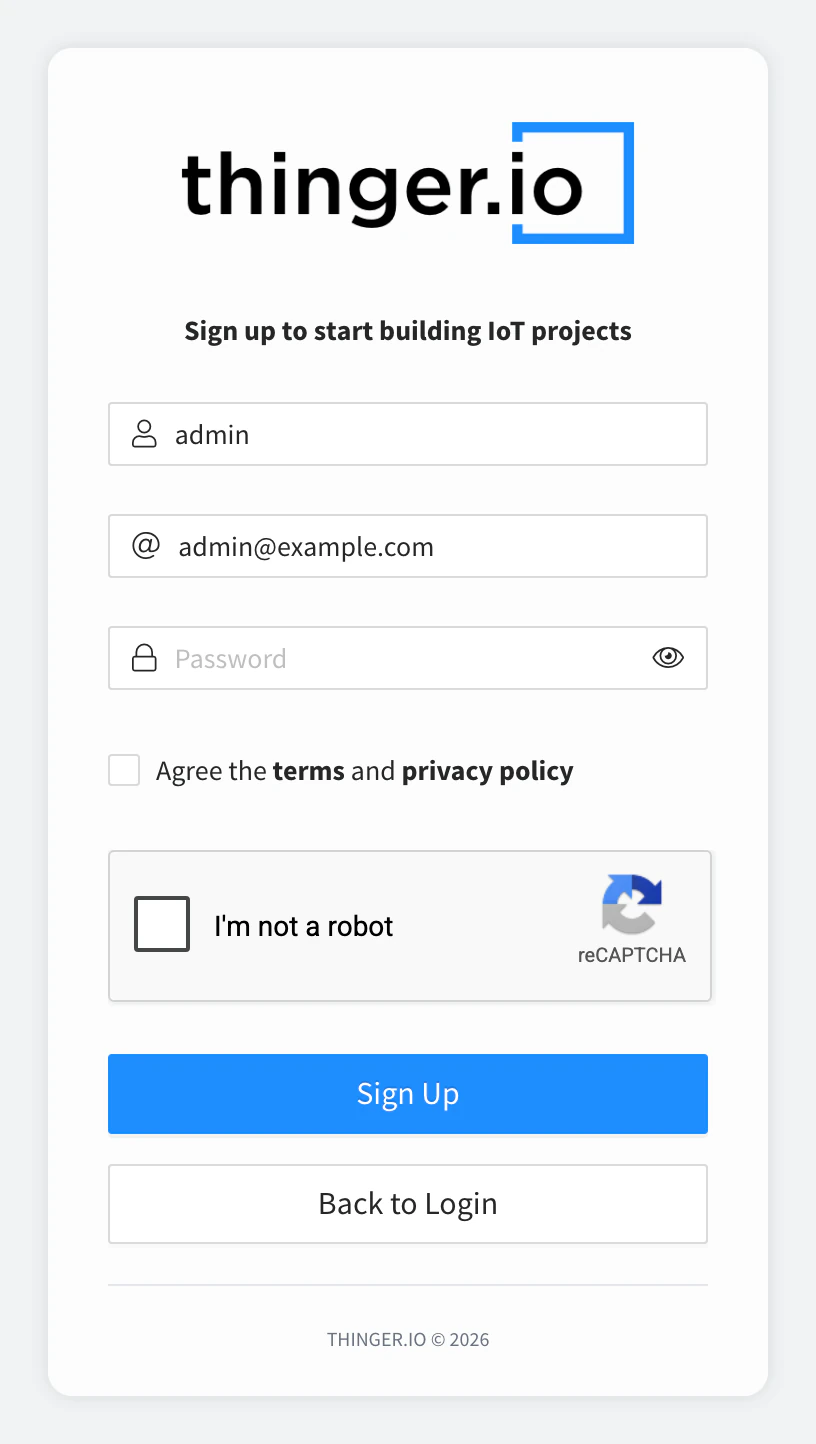
Sign-up form of a new instance Point your devices to the instance
Your instance hostname is your
YOUR_SERVER: use it instead ofiot.thinger.ioin the device libraries, the REST API, MQTT and the CLI. With the Arduino library, define it before including the library; without it, the device connects toiot.thinger.io:cpp#define THINGER_SERVER "acme.aws.thinger.io" #include <ThingerESP32.h> // ...To use the CLI with the instance, sign in to it:
bashthinger login --server acme.aws.thinger.io
Result
The console of your instance opens at its own hostname, your administrator account sees the Administration menu, and your devices connect to the instance instead of the shared server.
What you get
- A server only for your account and your users, hosted and updated by Thinger.io.
- The Administration features your plan includes: User Accounts, Cluster Hosts, and, from the Medium plan, Domains, Brands, OAuth2 Clients and Proxies.
- Plugins, which the free Cloud account does not include.
- The subscription, its invoices and its payment method in Billing. See Billing.
Some limits of a Cloud instance, such as the number of devices or brands, come from the plan and cannot be changed in the server settings. To raise them, change the plan. See Plans and limits.
Troubleshooting
| Symptom | Cause | Fix |
|---|---|---|
| The sign-up form rejects the account | The email is not the admin email of the instance. | Sign up with the admin email you entered when you subscribed. |
A device still appears on iot.thinger.io | The device does not set the instance hostname. | Set THINGER_SERVER (or your client's host) to the instance hostname and flash it again. |