

In this tutorial you create a Thinger.io account, connect an ESP32 board and read a value from it in the console. It takes about 15 minutes.
What you need
- An ESP32 development board and a USB data cable.
- A 2.4 GHz Wi-Fi network with Internet access.
- The Arduino IDE installed on your computer.
This tutorial uses the free Cloud account, so your server is iot.thinger.io. On a private instance, use your own domain wherever this page says YOUR_SERVER, and open your own console instead of console.thinger.io.
Create your account
Sign up
Open console.thinger.io/signup, fill in Username, Email and Password, accept the terms and click Sign Up. Your username is
YOUR_USERin the rest of this tutorial.Sign in to the console
Confirm your email if the console asks you to, and sign in. The console opens on Statistics.
Create the device
Open the Add Device form
In the main menu, go to Devices and click Create a Device.
Fill in the form
- Device Type: IOTMP Device (Thinger.io protocol).
- Device Id: a name for your board, such as
esp32_test. This isYOUR_DEVICE. - Device Credentials: click Random.
Copy the device credentials before you continue: this is
YOUR_TOKENin the sketch. Click Add Device.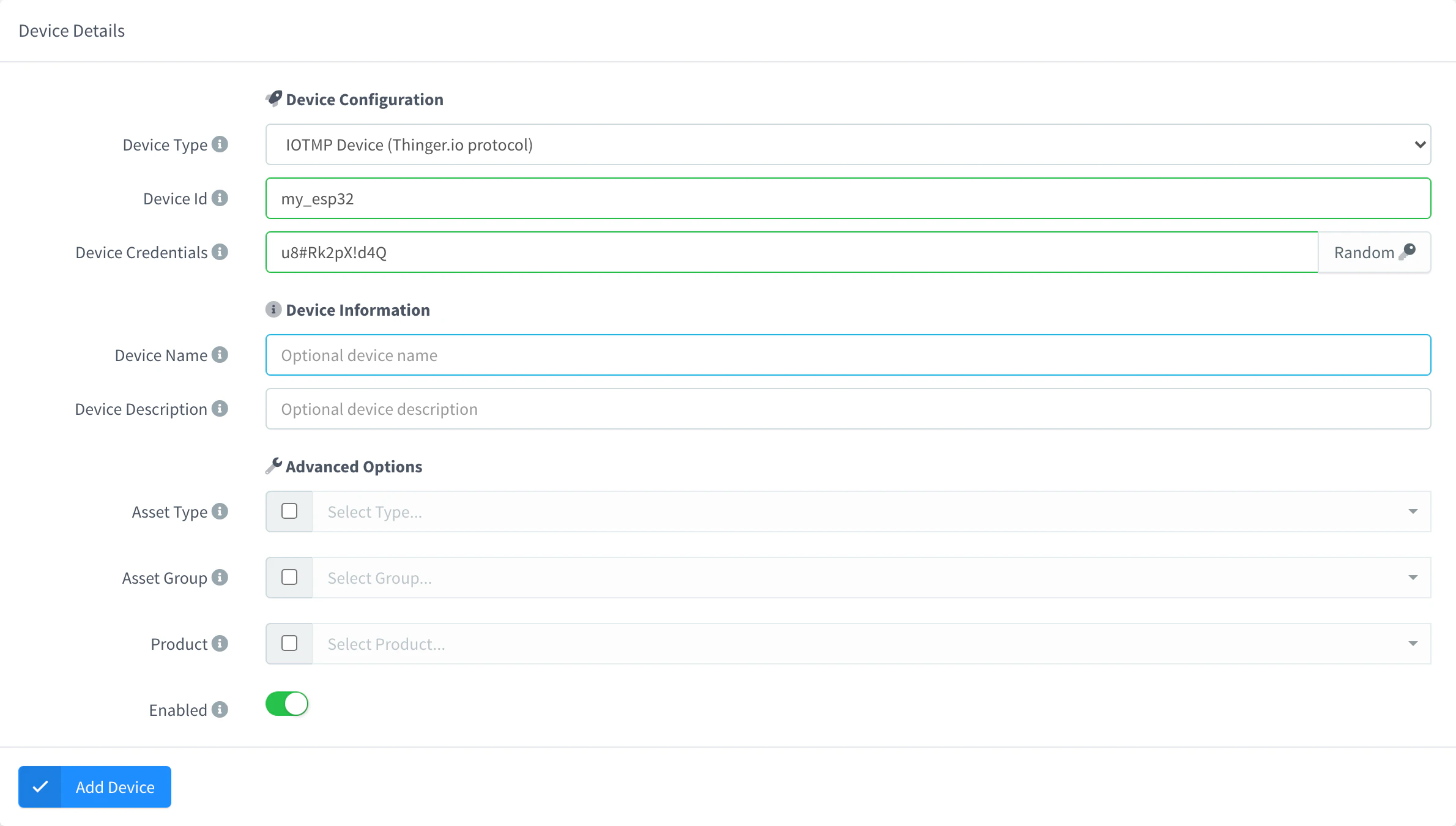
Add an IOTMP device
Program the board
Install the ESP32 package
In the Arduino IDE, open Tools > Board > Boards Manager, search for esp32 and install esp32 by Espressif Systems.
Install the Thinger.io library
Open Sketch > Include Library > Manage Libraries, search for thinger.io and click Install.
Paste the sketch
Create a new sketch and paste this code. Replace
YOUR_USER,YOUR_DEVICEandYOUR_TOKENwith your username, the device ID and the device credentials, and set your Wi-Fi network name and password.cpp#define THINGER_SERIAL_DEBUG #include <ThingerESP32.h> #define USERNAME "YOUR_USER" #define DEVICE_ID "YOUR_DEVICE" #define DEVICE_CREDENTIAL "YOUR_TOKEN" #define WIFI_SSID "wifi-network" #define WIFI_PASSWORD "wifi-password" #define LED_PIN 2 // change it to the LED pin of your board ThingerESP32 thing(USERNAME, DEVICE_ID, DEVICE_CREDENTIAL); void setup() { Serial.begin(115200); pinMode(LED_PIN, OUTPUT); thing.add_wifi(WIFI_SSID, WIFI_PASSWORD); // input resource: turn the LED on and off thing["led"] << digitalPin(LED_PIN); // output resource: milliseconds since the board started thing["millis"] >> outputValue(millis()); } void loop() { thing.handle(); }Upload it
Connect the board, choose it in Tools > Board (for most boards, ESP32 Dev Module) and its port in Tools > Port, and click Upload. Then open Tools > Serial Monitor at 115200 baud. After a few seconds, it shows
[THINGER] Authenticated.
See your device in the console
Check the connection
Go to Devices. Your device has a green status dot. Click it to open its Status page: Device State shows Online.
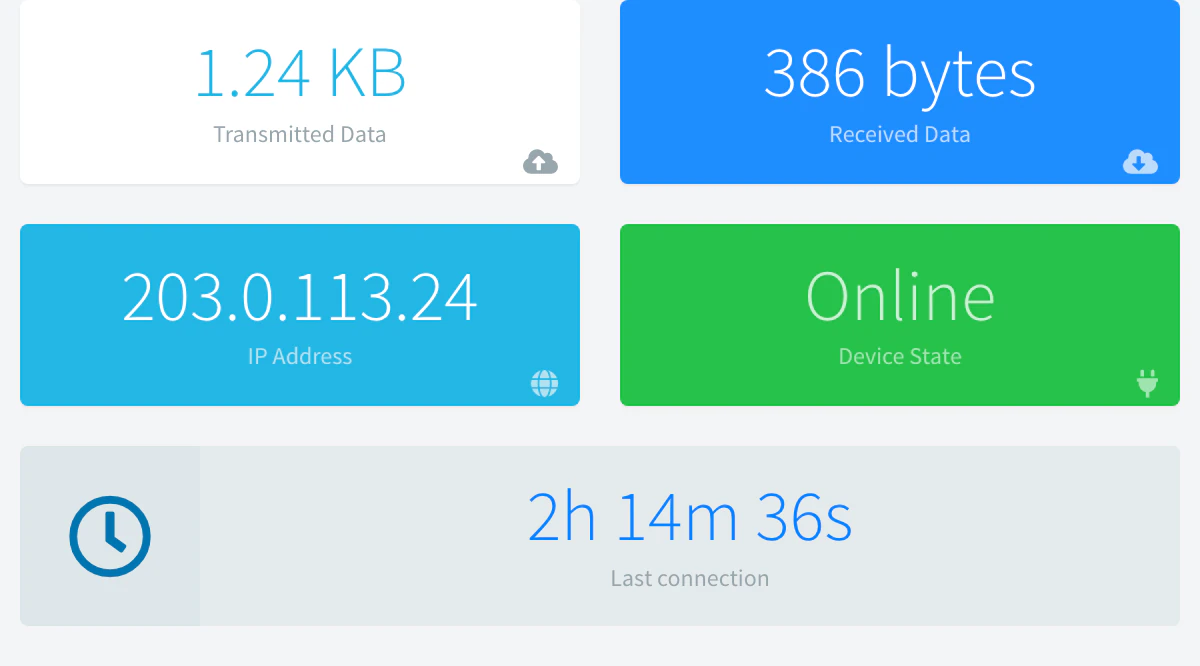
Device State Online Read a value
On the device page, go to API. Expand
millisand click Run: the output shows the milliseconds since the board started. Expandled, switch it on and click Run: the LED of the board turns on.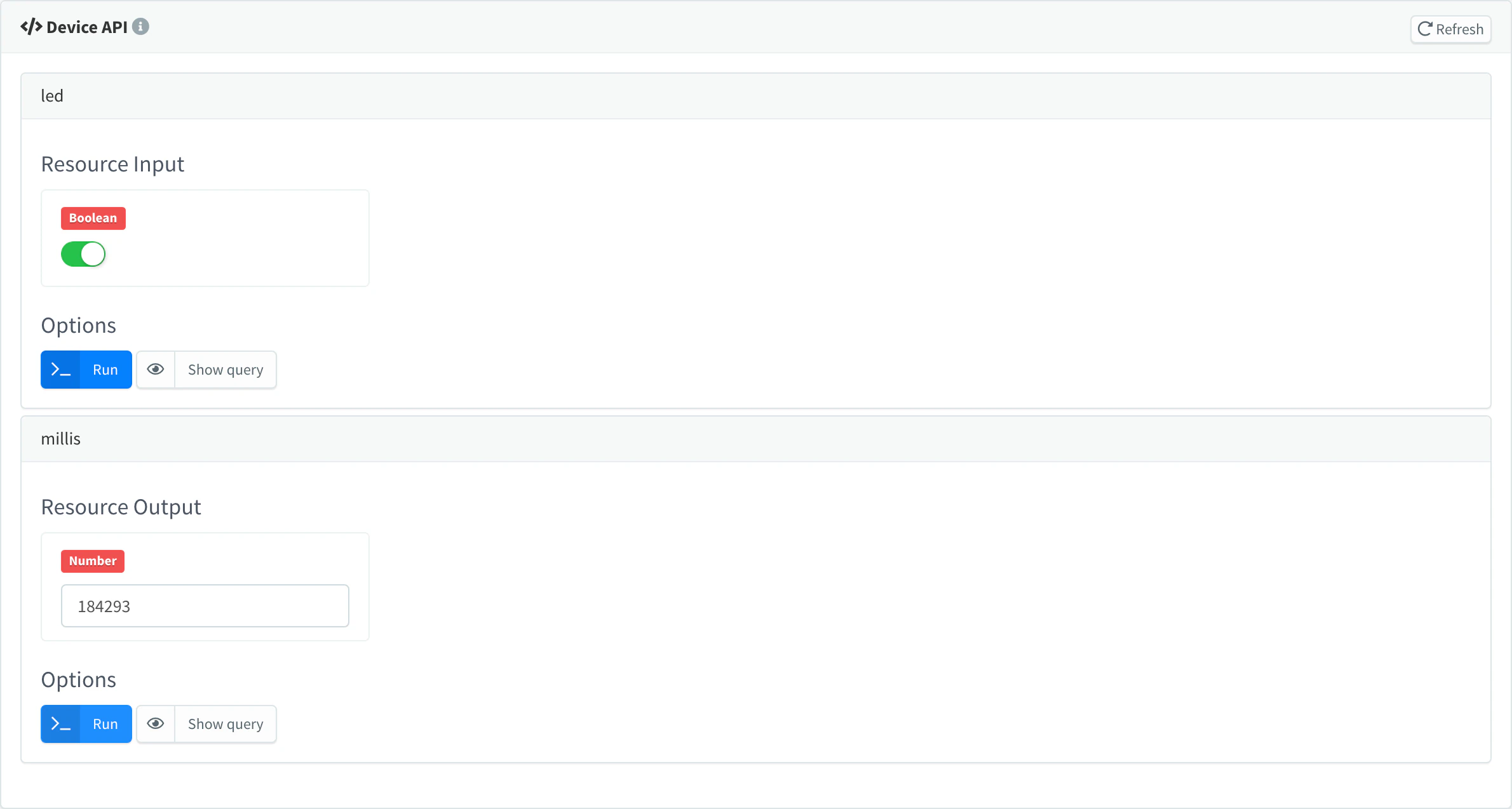
The led and millis resources after Run
Result
Your ESP32 is online in Devices, and you can read its millis device resource and control its LED from the console.
If the serial monitor does not show Authenticated, check the Wi-Fi network and the three credentials, and see Troubleshooting.
Next steps
Then store the readings of your device in a Data Bucket and show them on a dashboard.