

This guide shows how to install the Thinger.io server on your own machine with Docker Compose, sign in to it for the first time and point your devices to it. The data, the devices and the users stay in your network.
Who can install it
Today, Thinger.io grants on-premise licenses to research centers and educational institutions. A 100% open-source Thinger.io server, which anyone will be able to run on their own infrastructure, is coming soon. To request a license, contact Thinger.io. If you need a server of your own today, a private Thinger.io Cloud instance is hosted for you.
Before you start
- A license token for the host. Thinger.io issues one token per host, together with the administrator email of the installation.
- A Linux machine, physical or virtual, on
x86_64(amd64) orarm64, reachable by your devices and users. Start from a clean host: the server uses the ports listed in Network ports. - Docker Engine with the Docker Compose plugin (the
docker composecommand). - Disk space for the data of the instance under
/data. Devices, Data Buckets, files and plugins all live on the machine. How much memory and CPU you need depends mostly on the plugins: see Size the server. - Optional: a hostname that resolves to the machine, and port 80 reachable from the internet, to get Let's Encrypt certificates instead of the self-signed one.
Install
Run the commands as root or with sudo, in an empty folder that will keep the compose file, such as /opt/thinger.
Download the compose file
Download the
docker-compose.ymlof your license.YOUR_LICENSE_TOKENis the license token you received:bashcurl -f -o docker-compose.yml \ "https://subscriptions.thinger.io/v1/docker-compose.yml?token=YOUR_LICENSE_TOKEN"The file is generated for your license and already contains the token. Check that it was written and starts with the
servicesof the stack:bashcat docker-compose.ymlKeep the license token secret
The license token gives access to the configuration of your host. Never share or publish it, nor the
docker-compose.ymlthat contains it. Each token is issued for one host: do not reuse it on another machine.Start the services
Pull the images and start every service in the background:
bashdocker compose up -dThe first start takes a few minutes, depending on your connection. The services start again on their own after a reboot of the host.
Check the installation
List the running containers with their status:
bashdocker ps --format "table {{.Names}}\t{{.Status}}"The
thingercontainer is ready when its status shows(healthy). During the first two minutes it shows(health: starting).NAMES STATUS thinger Up 4 minutes (healthy) mongodb Up 4 minutesThe server also answers its health check, the same one the container uses:
bashcurl -i http://localhost/v1/server/healthcheck
Network ports
The server listens on these ports of the machine. Open in your firewall the ones your devices and users need:
| Port | Use |
|---|---|
| 80, 443 | Console and REST API over HTTP and HTTPS. Port 80 is also needed to verify domains. |
| 25200, 25202 | IOTMP devices (Thinger.io libraries), plain and TLS. |
| 25204, 25206 | IOTMP version 2, plain and TLS. |
| 1883, 8883 | MQTT devices, plain and TLS. |
| 50000–51000 | Proxies without a fixed port. |
The database listens on 127.0.0.1:27017 only: it is not reachable from other machines, and it does not need a firewall rule. Every port of the server can be changed in the server settings.
On Ubuntu, the UFW firewall can block these ports. Allow the ones you use instead of disabling it, for example:
sudo ufw allow 80,443/tcp
sudo ufw allow 25200:25206/tcp
sudo ufw allow 1883,8883/tcp
First access
An installation starts empty, with public sign-up off:
- Open
https://YOUR_SERVER, whereYOUR_SERVERis the IP address or the hostname of the machine, such ashttps://192.168.1.100. - The browser warns that the connection is not private: until you verify a domain, the server uses a self-signed certificate. Accept the warning to continue.
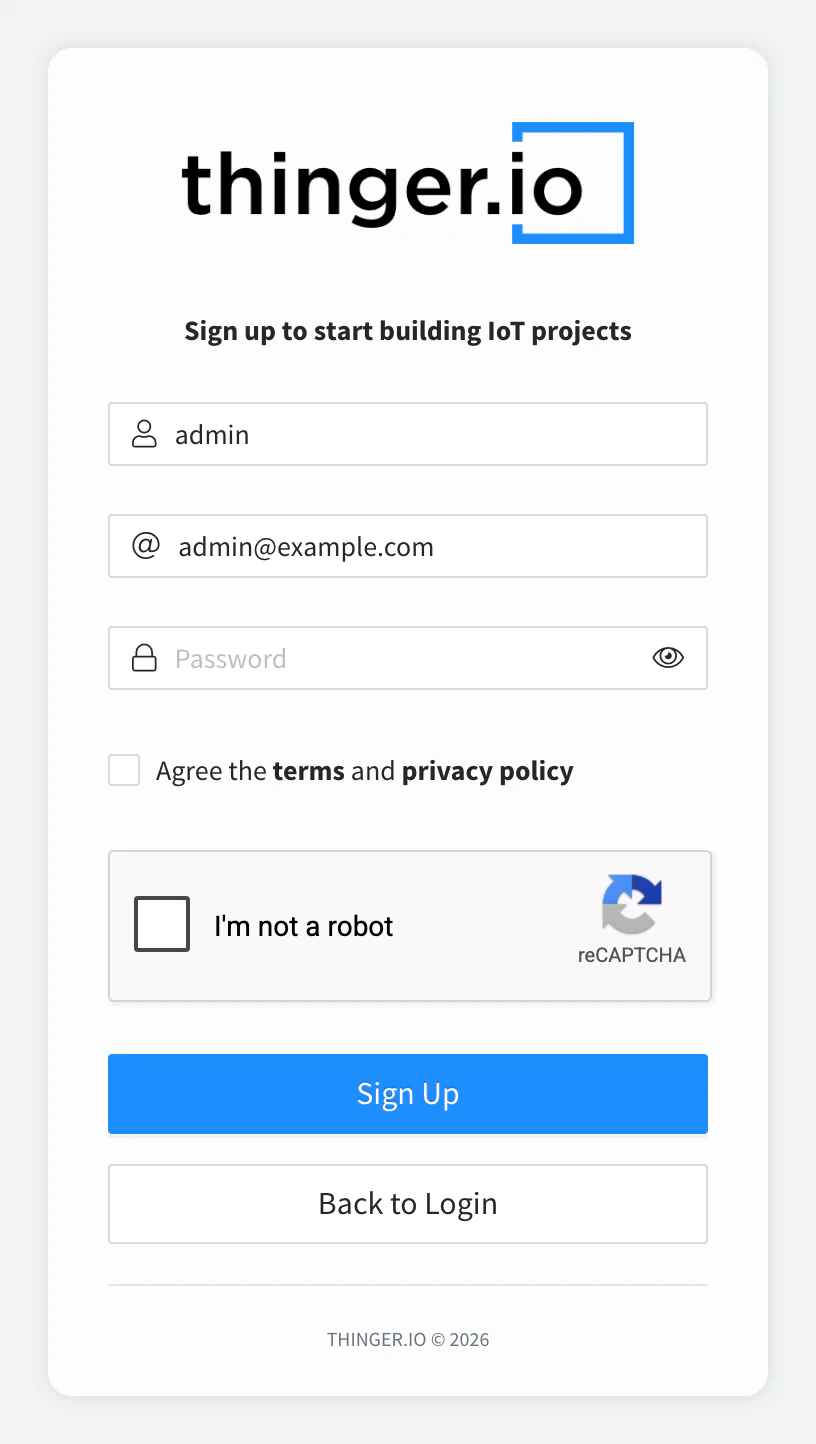
- Click Create an account and sign up with the administrator email of your license. It is the only address that can register, and its account becomes administrator. There is no need to confirm the email.
- Use the Administration menu to create the rest of the accounts, or open sign-up in the server settings.
Connect devices
Devices connect to your installation instead of iot.thinger.io. With the Arduino library, define the address before including the library; without it, the device tries the public Cloud server:
#define THINGER_SERVER "192.168.1.100"
#include <ThingerESP32.h>

// ...
With MQTT, HTTP, the REST API or the CLI, use the address of your installation as YOUR_SERVER.
Result
docker ps shows the thinger container as (healthy), the console opens at the address of your machine with your administrator account, and your devices connect to your own server.
What the compose file contains
The compose file defines two services. Plugins you install from Plugins > Marketplace run as more containers on the same machine, started by the server.
| Service | Image | What it does |
|---|---|---|
thinger | thinger/server | The console, the REST API and the IOTMP, MQTT and HTTP device connections. It uses the network of the host, so its ports are the host ports, and it has access to the Docker socket (/var/run/docker.sock) to run the plugins. A health check calls /v1/server/healthcheck every minute. |
mongodb | mongo:8.0 | The database of the instance: accounts, devices, Data Buckets and the rest of the configuration. Its user and password are generated for your license. |
Every service restarts on its own if it stops, and keeps up to 10 log files of 200 KB. Don't edit the license token or the database credentials in the file: the server needs them as they are.
Where the data is stored
Everything the installation stores is in two folders of the host:
| Folder | Content |
|---|---|
/data/thinger | Files of the server: TLS certificates of your domains, plugins and their data, file storages, bucket exports and the geolocation database. |
/data/mongodb | The database. |
Back up an installation
Back up both folders together, with the services stopped so that the database files are consistent. From the folder of the compose file:
docker compose stop
sudo tar -czf "thinger-backup-$(date +%F).tar.gz" /data/thinger /data/mongodb
docker compose start
The devices disconnect while the services are stopped and reconnect on their own. To restore, stop the services, replace /data/thinger and /data/mongodb with the copy, and start them again. Keep a copy of docker-compose.yml too, as safely as the license token.
Who looks after the installation
An on-premise installation is yours to run. Updates of the server, backups, monitoring and the day-to-day care of the machine are the responsibility of whoever manages it. That is the trade-off of on-premise: full control of the server and the data, in exchange for running it yourself. If you prefer to leave that to Thinger.io, a private Thinger.io Cloud instance comes with the server versions, the backups and the monitoring handled for you.
Troubleshooting
| Symptom | Cause | Fix |
|---|---|---|
curl fails with error 22, or docker-compose.yml contains an error message instead of the services | The license token is empty, unknown or the license is not active. | Check the token, without spaces or line breaks. If it is right, contact Thinger.io. |
docker compose up -d fails because a port is already allocated | Another service of the host, such as a web server, uses port 80, 443 or 1883. | Stop that service, or change the port in the server settings after the first start. |
thinger stays (unhealthy) | The server does not answer on port 80 of the host. | Read its output with docker logs thinger, and check that no other service uses port 80. |
| The browser cannot open the console | A firewall blocks port 443 or 80, such as UFW on Ubuntu. | Open the ports listed in Network ports. |
| The sign-up form rejects the account | The email is not the administrator email of the license. | Sign up with the administrator email of the license. |
A device still appears on iot.thinger.io | The device does not set the address of your installation. | Set THINGER_SERVER (or your client's host) and flash it again. |