

Cluster Hosts lists the servers that run your instance. Each host shows its load over the last week, its live log, and the server settings it runs with. Hosts register themselves when they start: an instance with a single server has one host, named after the server's hostname.
When to use it
- To check whether the server is under load: connections, CPU, memory or disk.
- To follow what the server is doing while you connect a device or try a setting.
- To restart the server after you change its settings.
Check the status of a host
Console
Go to Administration > Cluster Hosts and click the host. The list shows every host of the instance; a single server shows one.

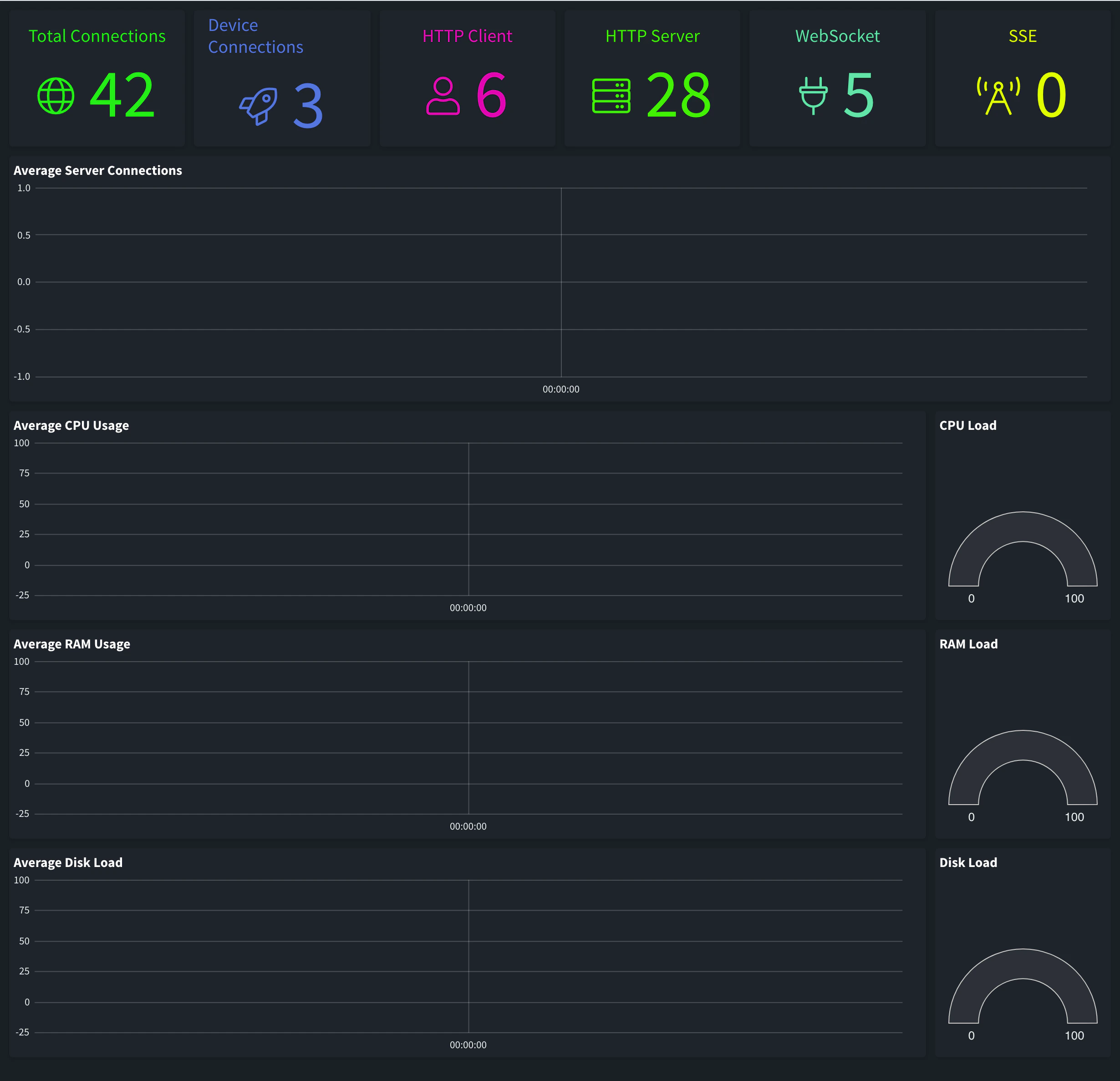
The Overview tab shows:
- The current number of connections: Total Connections, Device Connections, HTTP Client, HTTP Server, WebSocket and SSE.
- Charts of the last week, with the 1, 5 and 15 minute averages, and a gauge with the current value, for Average Server Connections, Average CPU Usage, Average RAM Usage and Average Disk Load.
API
YOUR_SERVER is the hostname of your instance, and YOUR_TOKEN an access token of an administrator. List the hosts to get their IDs:
curl "https://YOUR_SERVER/v1/hosts" \
  -H "Authorization: Bearer YOUR_TOKEN"
To check from a monitoring tool that the server answers, call GET /v1/server/healthcheck, which needs no token. See Monitoring.
CLI
The CLI has no commands for cluster hosts. Use the console, the API or an agent.
AI
List the hosts of my instance and tell me how they are configured.
The agent uses thinger_resource_list and thinger_resource_get with the host type. See MCP tools.
What each counter means
| Counter | What it counts |
|---|---|
| Total Connections | The sum of the five counters below. |
| Device Connections | Devices connected to the server now, over any protocol: IOTMP, MQTT or HTTP. |
| HTTP Client | Outgoing HTTP connections the server opens: endpoint calls, requests to plugins, identity providers and other external services. |
| HTTP Server | Incoming HTTP connections: the console, REST API clients, the CLI and HTTP devices. |
| WebSocket | Open WebSocket connections, such as consoles that show live data, device terminals or the server log. |
| SSE | Open Server-Sent Events streams. |
| Average CPU Usage | Percentage of CPU in use on the machine. It rises with data processing. |
| Average RAM Usage | Percentage of memory in use on the machine, plugins included. It is usually the first limit you reach. |
| Average Disk Load | Percentage of the disk space in use. |
Follow the server logs
The log shows the output of the server: connections, errors and the messages of each service.
Console
Open the host and go to the Logs tab. Click Connect to start receiving new lines live. Use Search... to highlight text, Clear to empty the view and Full Screen to enlarge it.
API
A plain request returns the last lines as text: lines sets how many (up to 5000, 200 by default), timestamps=true adds the time of each line, and since returns only the lines after a unix timestamp, or of the last given seconds.
curl "https://YOUR_SERVER/v1/hosts/server-1/logs?lines=500×tamps=true" \
-H "Authorization: Bearer YOUR_TOKEN"server-1 is the host ID, as GET /v1/hosts returns it. The same path, opened as a WebSocket, streams the new lines live.
CLI
The CLI has no commands for server logs.
AI
Show me the last 200 lines of the server log and tell me if there are errors.
The agent uses thinger_resource_call with the logs action of the host.
Read a log line
Each line starts with the same fields, followed by the message:
2026-10-17 09:41:07.512 (3612.204s) [worker thread 2 ] system_monitor.cpp:116 INFO| system metrics - cpu: 4.2%, ram: 38.5%, disk: 21.0%, connections: 57, sockets: 61| Field | Example | Meaning |
|---|---|---|
| Date and time | 2026-10-17 09:41:07.512 | When the server wrote the line, with milliseconds, in the time zone of the server. |
| Uptime | (3612.204s) | Seconds since the server started. It goes back to zero after a restart. |
| Thread | [worker thread 2 ] | The server thread that wrote the line. |
| Source | system_monitor.cpp:116 | Where in the server the message comes from. Include it when you report a problem to support. |
| Level | INFO | INFO, WARN for warnings, ERR for errors and FATL for fatal errors. A number from 1 to 9 marks a detailed message. |
| Message | system metrics - … | What happened. The server writes a line like this one with its CPU, RAM, disk and connections every minute. |
To find problems, search for ERR or WARN, or for the ID of the device or the user involved.
Size the server
The server alone handles many devices and thousands of data points per second with little load. What makes it grow:
- Plugins. Each plugin installed by each account runs as its own container on the machine, with its own memory and CPU. They are the main use of RAM: an account costs little on its own, but each of its plugins adds a container. Node-RED is a common example.
- Data processing. Product scripts, endpoints and high rates of data written to Data Buckets use CPU.
- Connections. Many devices and users connected at the same time, and consoles with live data open, add connections and memory.
Watch Average RAM Usage and Average CPU Usage over the week. If they stay high, remove the plugins nobody uses, or move to a larger machine: on Thinger.io Cloud, a larger plan (see Plans and limits); on on-premise, a host with more memory and CPU. If the disk fills, reduce the retention of your Data Buckets or export and delete old data.
Restart a host
Changes to the server settings apply after a restart. A restart drops every connection for a few seconds or more: devices reconnect on their own, and users see the console reconnect. Plan it for a quiet moment.
Console
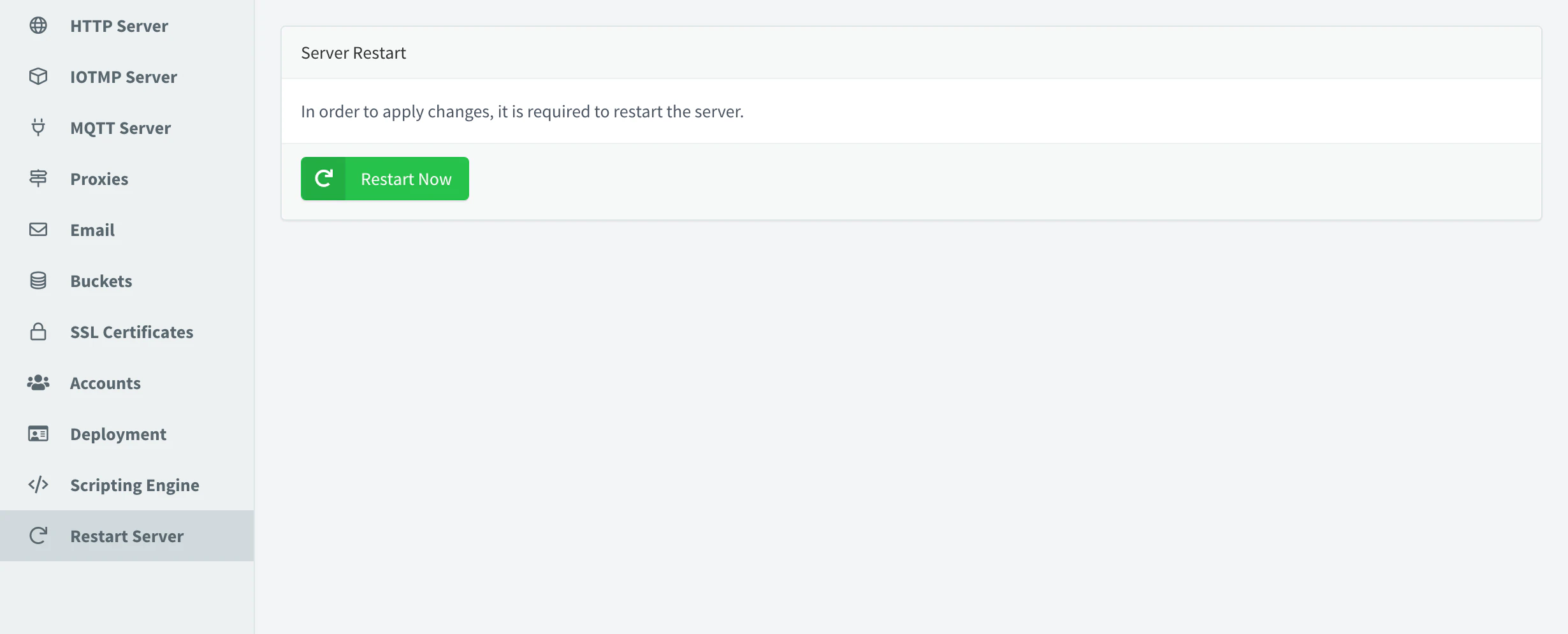
Open the host, go to the Settings tab, open Restart Server and click Restart Now.
API
curl -X POST "https://YOUR_SERVER/v1/hosts/server-1/restart" \
  -H "Authorization: Bearer YOUR_TOKEN"
CLI
The CLI has no commands to restart the server.
AI
Restart the server to apply the new settings.
An agent asks you to confirm before it restarts a host.
Limits
- The overview keeps the metrics of the last week.
- The log shows the server output only; the logs of each plugin are on the plugin page. See Plugin management.
- Restarting the host of an instance with a single server makes the whole instance unavailable while it starts.