

An OAuth2 client is an application you register on your instance so that it can sign users in with their Thinger.io account and call the REST API on their behalf, without ever seeing their password. The user approves the access on a consent screen of your instance, and the application receives tokens for that user.
When to use it
- To let your own web or mobile app sign users in with their account on your instance.
- To connect a third-party service that supports OAuth2 to your users' data.
- To sign in to the
thingerCLI, or another tool without a browser, through the device flow.
Supported flows
| Flow | How it works | Token request |
|---|---|---|
| Authorization code | The application sends the user to the instance; the user signs in and approves; the instance redirects back to the application with a code, which the application exchanges for tokens. | grant_type=authorization_code with code, client_id, client_secret and redirect_uri |
| Device flow | For tools without a browser. The tool asks for a code, the user opens the instance, enters the code and approves, and the tool polls for the tokens. | grant_type=urn:ietf:params:oauth:grant-type:device_code with device_code and client_id |
| Refresh token | The application gets a new access token when the current one expires. | grant_type=refresh_token |
The endpoints of your instance are:
| Endpoint | URL |
|---|---|
| Authorization | https://YOUR_SERVER/oauth/authorize |
| Token | https://YOUR_SERVER/oauth/token |
| Device authorization | https://YOUR_SERVER/oauth/device/authorize |
| Discovery document | https://YOUR_SERVER/.well-known/openid-configuration |
YOUR_SERVER is the hostname of your instance. Token requests are sent as application/x-www-form-urlencoded, with the client credentials in the body.
Register a client
Console
Open OAuth2 Clients
Go to Administration > OAuth2 Clients and click Add Oauth Client (or Create OAuth2 Client if you have none yet).
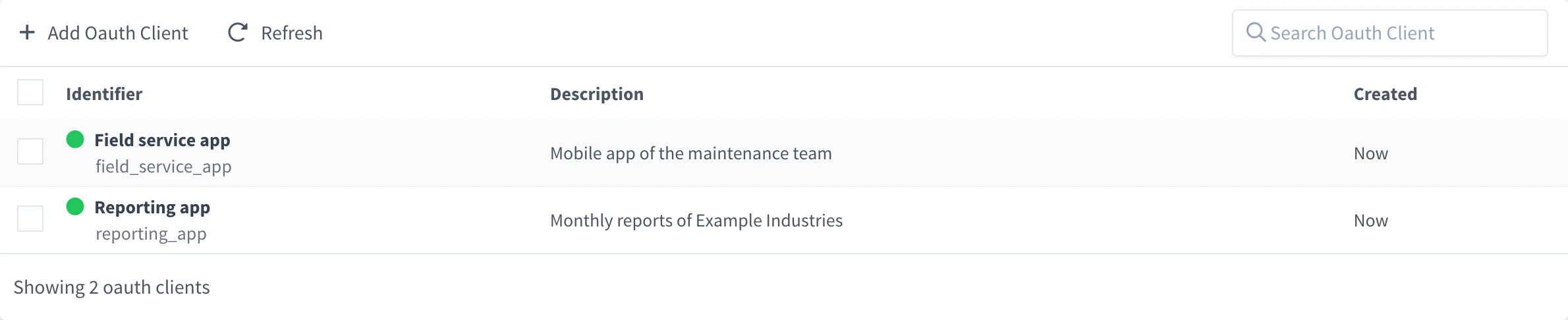
OAuth2 Clients Set the client credentials
In Client Settings, set the Client Id and the Client Secret (each has a Random button), the Name shown on the consent screen and an optional Description. Leave Enabled on.
Add the redirect URLs
In Redirect URL(s), enter the addresses your application receives the user back at, one per line. Each request must use one of them exactly.
Describe the access
In Client Scopes, add the permissions the application needs, and in Consent Screen set the Prompt text and the Client Logo users see when they approve. Click Add Oauth Client.
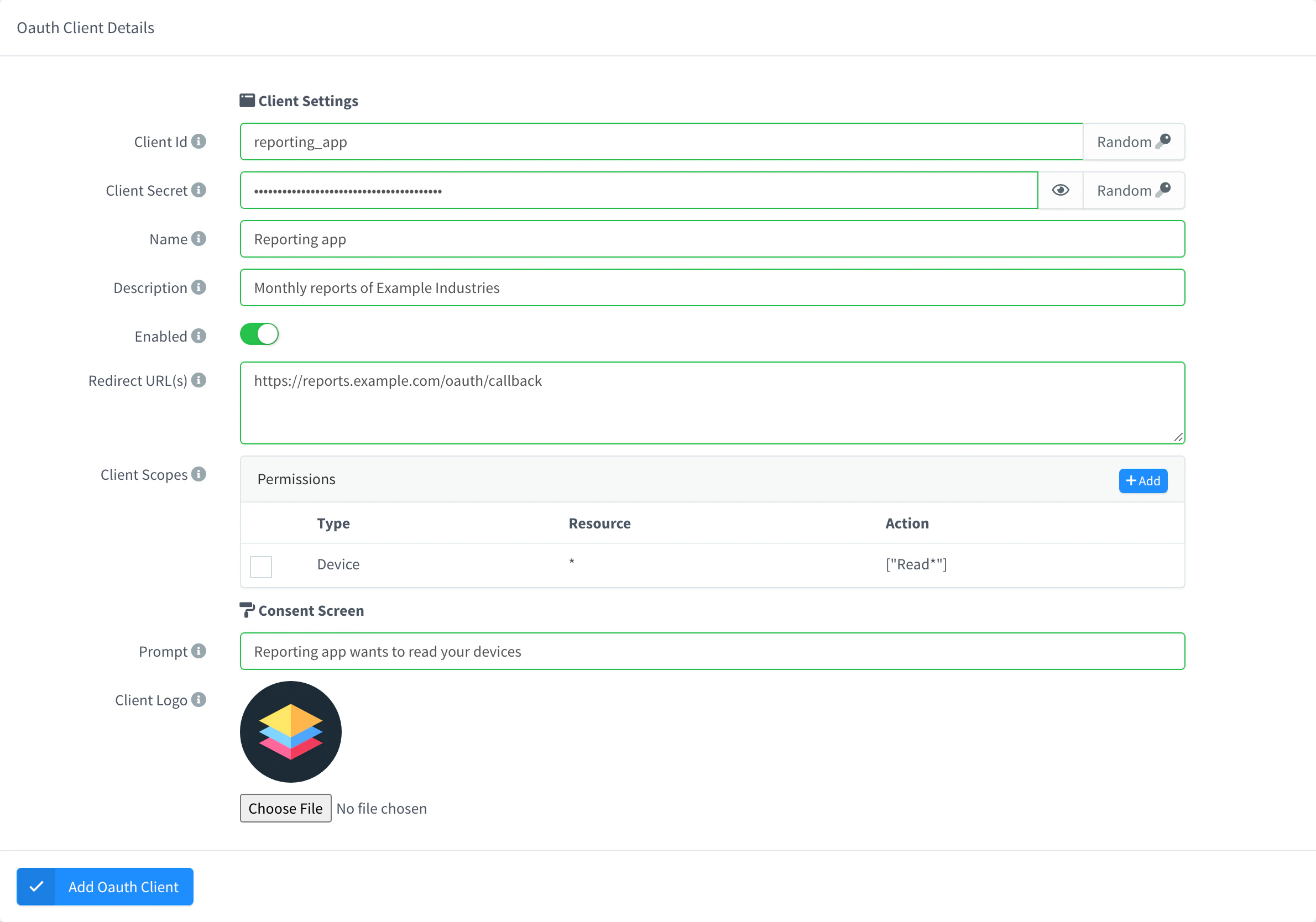
Add an OAuth2 client
Once saved, the client page keeps the Client Id and shows the Client Secret hidden: the eye button shows it and the copy button copies it. Client Integration gives the Authorization URI and the Access Token URI to configure in your application, and the Client Scopes as text. Show Authorization opens the consent screen of the client in a new tab, to check it.
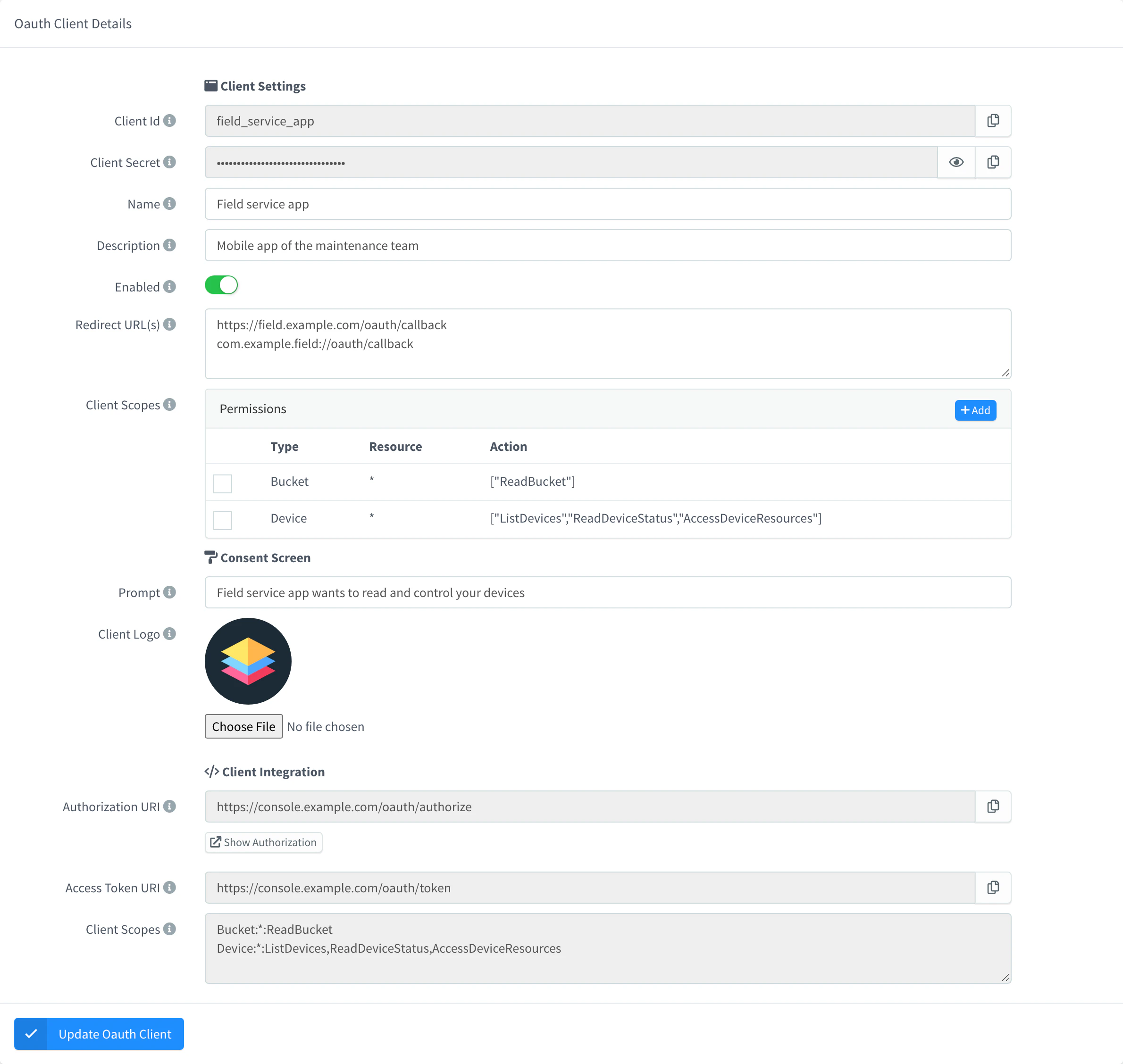
API
YOUR_TOKEN is an access token of an administrator. redirect_uri holds one URL per line.
curl -X POST "https://YOUR_SERVER/v1/oauth_clients" \
  -H "Authorization: Bearer YOUR_TOKEN" \
  -H "Content-Type: application/json" \
  -d '{
    "oauth_client": "example_app",
    "secret": "change-this-long-random-secret",
    "name": "Example App",
    "prompt": "Example App wants to read your devices",
    "enabled": true,
    "redirect_uri": "https://app.example.com/oauth/callback\nhttp://localhost:4200/oauth/callback",
    "scope": { "Device": { "*": ["ListDevices", "ReadDeviceStatus"] } }
  }'
CLI
The CLI does not register OAuth2 clients. It can sign in through one with the device flow: thinger login --oauth --client-id example_app. See the CLI reference.
AI
Register an OAuth2 client called Example App with the redirect URL https://app.example.com/oauth/callback and a random secret, allowed to list and read devices.
The agent uses thinger_resource_create with the oauth_client type. See MCP tools.
Sign users in with the authorization code flow
Send the user to the instance
Open the authorization URL with your client ID, a redirect URL registered on the client, and a random
stateto check on return:texthttps://YOUR_SERVER/oauth/authorize?response_type=code&client_id=example_app&redirect_uri=https://app.example.com/oauth/callback&state=xyzThe user signs in, if needed, and sees the consent screen: the client name and prompt, the account that gives access, the client logo next to the user's picture, the Required permissions, and the buttons Deny and Allow.
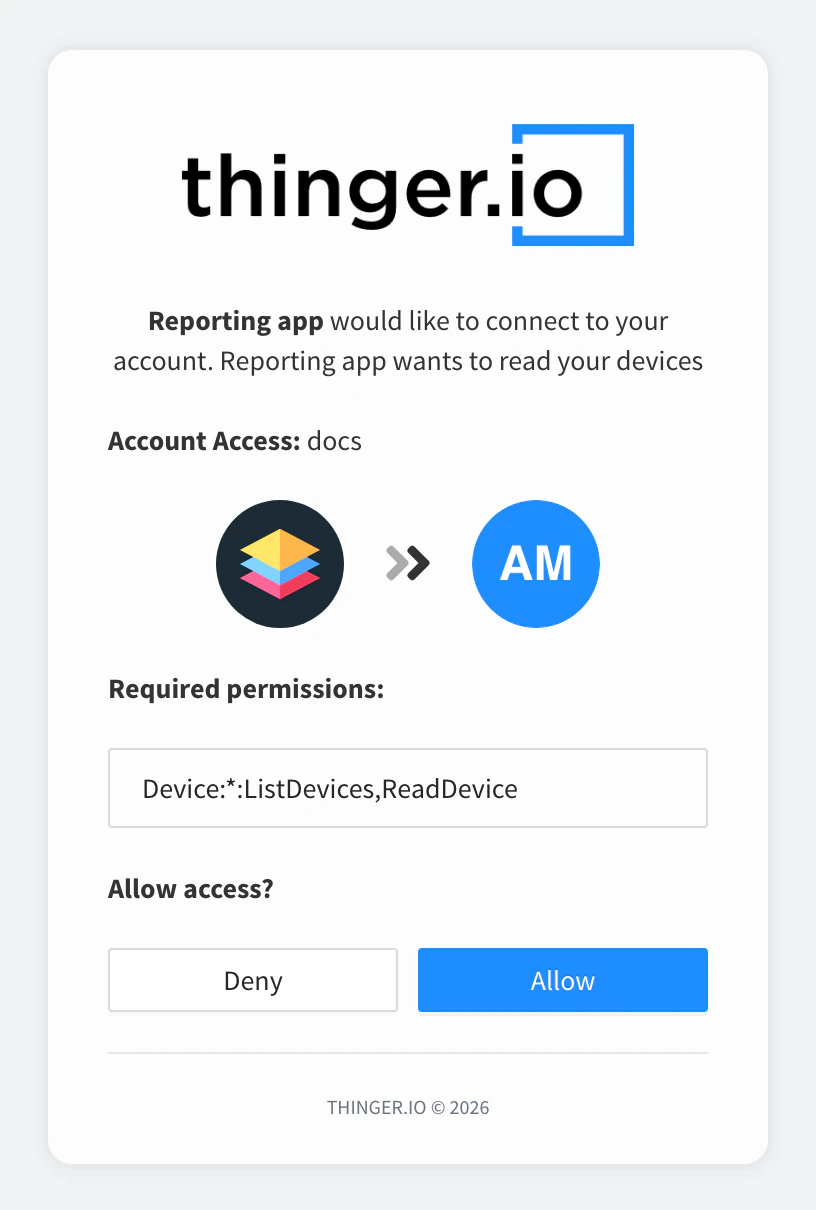
Consent screen of a client Receive the code
If the user clicks Allow, the instance redirects to
https://app.example.com/oauth/callback?code=…&state=xyz. If the user clicks Deny, the redirect carrieserror=access_deniedinstead.Exchange the code for tokens
From your backend, never from the browser, send the code with the client credentials:
bashcurl -X POST "https://YOUR_SERVER/oauth/token" \ -H "Content-Type: application/x-www-form-urlencoded" \ -d "grant_type=authorization_code" \ -d "client_id=example_app" \ -d "client_secret=change-this-long-random-secret" \ -d "code=THE_CODE" \ -d "redirect_uri=https://app.example.com/oauth/callback"The response contains
access_token,refresh_tokenandexpires_in. Call the REST API withAuthorization: Bearer <access_token>. A code can be used only once.
Change or remove a client
Turn off Enabled to stop a client: a disabled client can neither authorize users nor get tokens. To remove it, go to Administration > OAuth2 Clients, select it and click Remove. With the API, use PUT or DELETE /v1/oauth_clients/{oauth_client}; with an agent, ask it to disable or delete the client.
The Client Id and the Client Secret cannot be edited in the console once the client exists. To rotate a secret, change it with PUT /v1/oauth_clients/{oauth_client} and update your application at the same time.
Limits
- The client secret is stored as is and shown to administrators: keep it out of client-side code and treat it as a password.
- Client Scopes describes the access for your records and the consent screen; the scope of each token is the one the authorization request asks for.
- Redirect URLs must match exactly (the comparison ignores case).
- The number of OAuth2 clients depends on your plan. See Plans and limits.