

An identity provider lets users sign in to your instance with an external account through OpenID Connect (OIDC): Microsoft Entra ID, Google, Auth0, Keycloak or any other OIDC provider. The login page shows a button for the provider; the user signs in there and comes back to the console, where the account is matched or created.
When to use it
- To use your company's single sign-on (SSO) instead of separate passwords.
- To create the accounts of your users automatically the first time they sign in.
- To limit sign-in to the email domains of your organization.
How sign-in works
- The user clicks the provider button on the login page of your instance.
- The instance redirects the user to the provider, which asks for their credentials (and its own MFA, if the provider uses it).
- The provider sends the user back to the Callback URL of your instance.
- The instance checks the ID token and reads the user's claims (username, email, name…). It signs the user in to the account already linked to that identity, or to the account with the same email if Email Trust Mode allows it. If there is none, it creates one when Provisioning Mode is Auto Provision.
Set up an identity provider
Register your instance at the provider
In your provider, create an OIDC application (a "web application" or "regular web app") and add the callback URL of your instance to its allowed redirect or callback URLs:
texthttps://YOUR_SERVER/oauth/callbackYOUR_SERVERis the hostname users open the console on. If you serve a brand on its own hostname, register that hostname's callback too (https://iot.example.com/oauth/callback); the Accounts tab of the brand shows it. Copy the client ID and the client secret the provider gives you. Configure your provider has the steps for Google, Microsoft Entra ID, Auth0, Okta and PingOne.Create the provider on your instance
Follow Add an identity provider below.
Test the connection
Open the provider in Administration > Identity Providers and click the test button (the flask icon) in Domain. It checks the saved configuration, so save any change first. The test reads the provider's discovery document and keys, and shows Connection successful, Connection with warnings or Connection failed, with the issuer, the endpoints, the number of signing keys and the signing algorithms it found.
Show it on the login page
Turn on Federated Login in the Accounts settings: on the brand of the hostname, or in the server settings for the default hostname. In Identity Providers, choose which providers to show; leave it empty to show all the enabled ones. The Callback URL below is the one to register at the provider for that hostname.
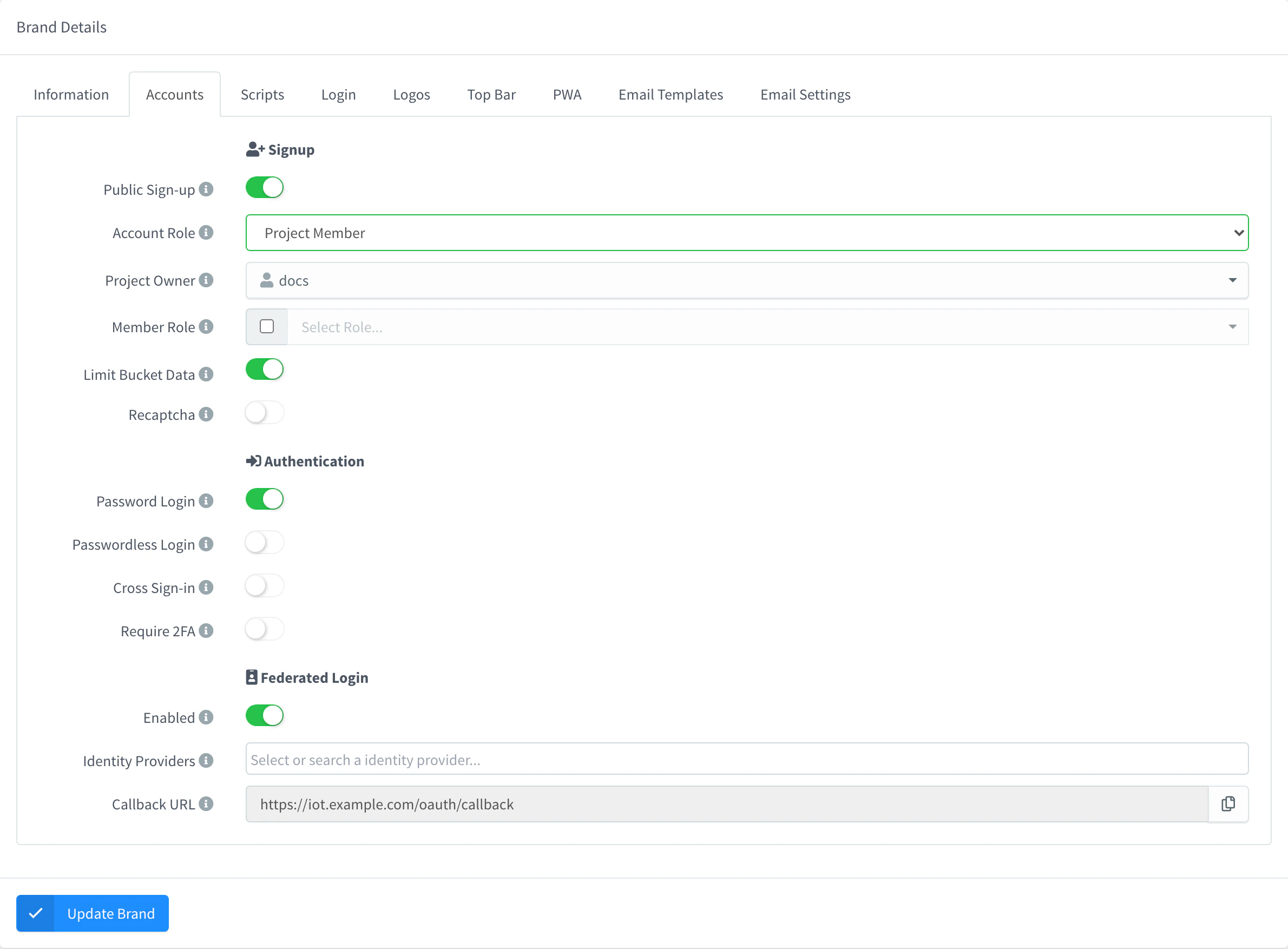
Federated Login in the Accounts tab of a brand
The login page then shows a button for each provider under Or continue with.
Configure your provider
Each provider names its menus differently, but you always do the same: create a web application with your callback URL, copy its client ID and secret, and find its issuer for the Domain. Pick your provider:
- In the Google Cloud console, select or create a project.
- Go to Google Auth Platform and complete Branding (the consent screen) if the project has none. In Audience, choose Internal to allow only the accounts of your Google Workspace, or External.
- In Clients (also under APIs & Services > Credentials > Create credentials > OAuth client ID), create a client of type Web application.
- In Authorized redirect URIs, add
https://YOUR_SERVER/oauth/callbackand click Create. - Copy the Client ID and the Client secret from the dialog.
| Field | Value |
|---|---|
| Domain | accounts.google.com |
| Auth Method | Client Secret Post |
| Email Trust Mode | Verify with Claim: Google sends email_verified. |
Google sends no preferred_username, so new accounts take their username from the part of the email before the @.
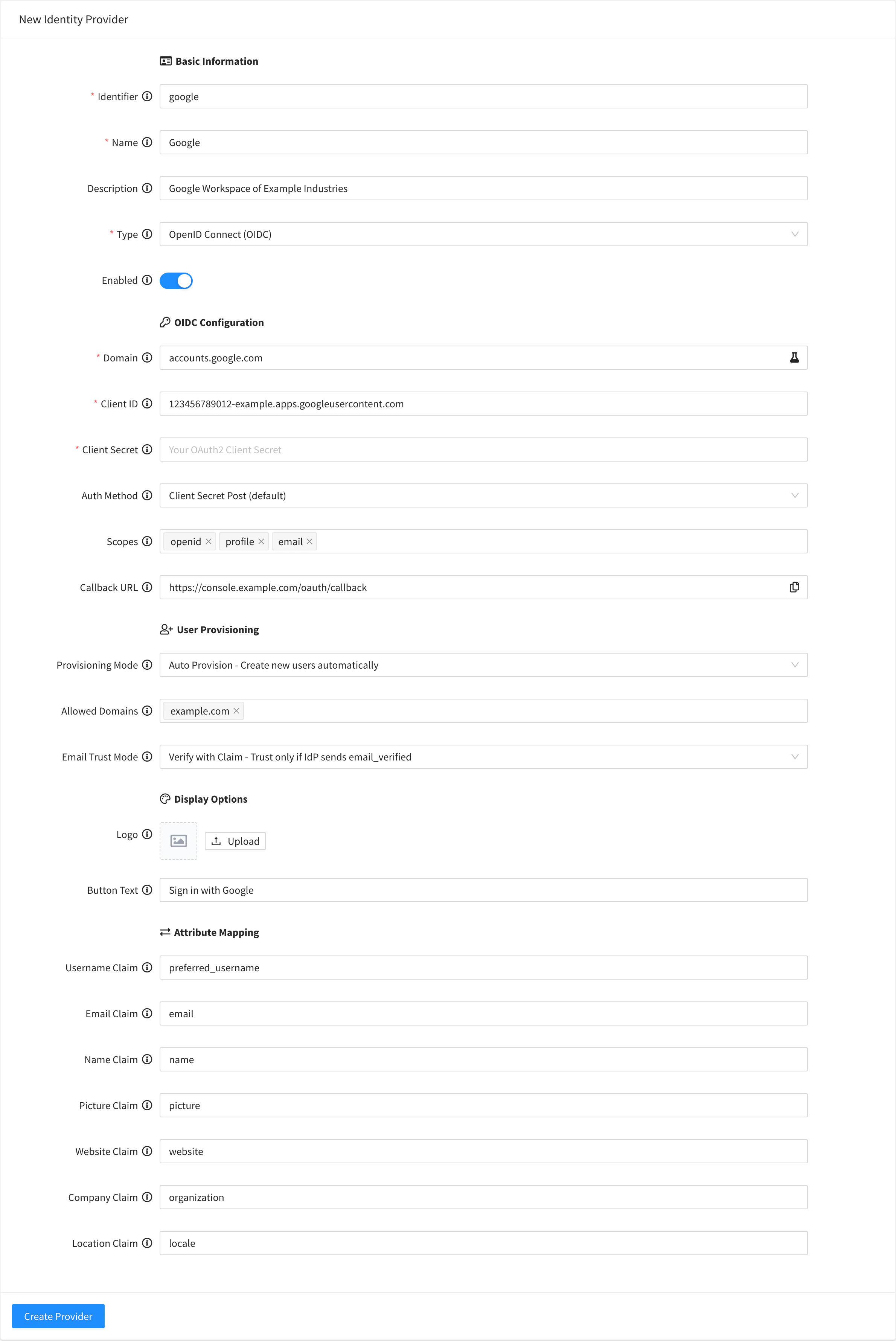
Microsoft Entra ID
- In the Microsoft Entra admin center, go to App registrations and click New registration.
- Enter a name and, in Supported account types, choose the accounts of your directory only (single tenant).
- In Redirect URI, choose the Web platform, enter
https://YOUR_SERVER/oauth/callbackand click Register. - On the Overview of the application, copy the Application (client) ID and the Directory (tenant) ID.
- Go to Certificates & secrets > Client secrets, click New client secret and copy its Value (not the secret ID). The value is shown only once.
| Field | Value |
|---|---|
| Domain | login.microsoftonline.com/<tenant-id>/v2.0, with your directory (tenant) ID |
| Auth Method | Client Secret Post |
| Email Trust Mode | Entra ID does not send email_verified. Use Trust IdP to link existing accounts by email, if you trust the emails of your directory. |
The instance checks that the token comes from the exact issuer of the Domain, so use your tenant ID: the multi-tenant common and organizations endpoints do not work.
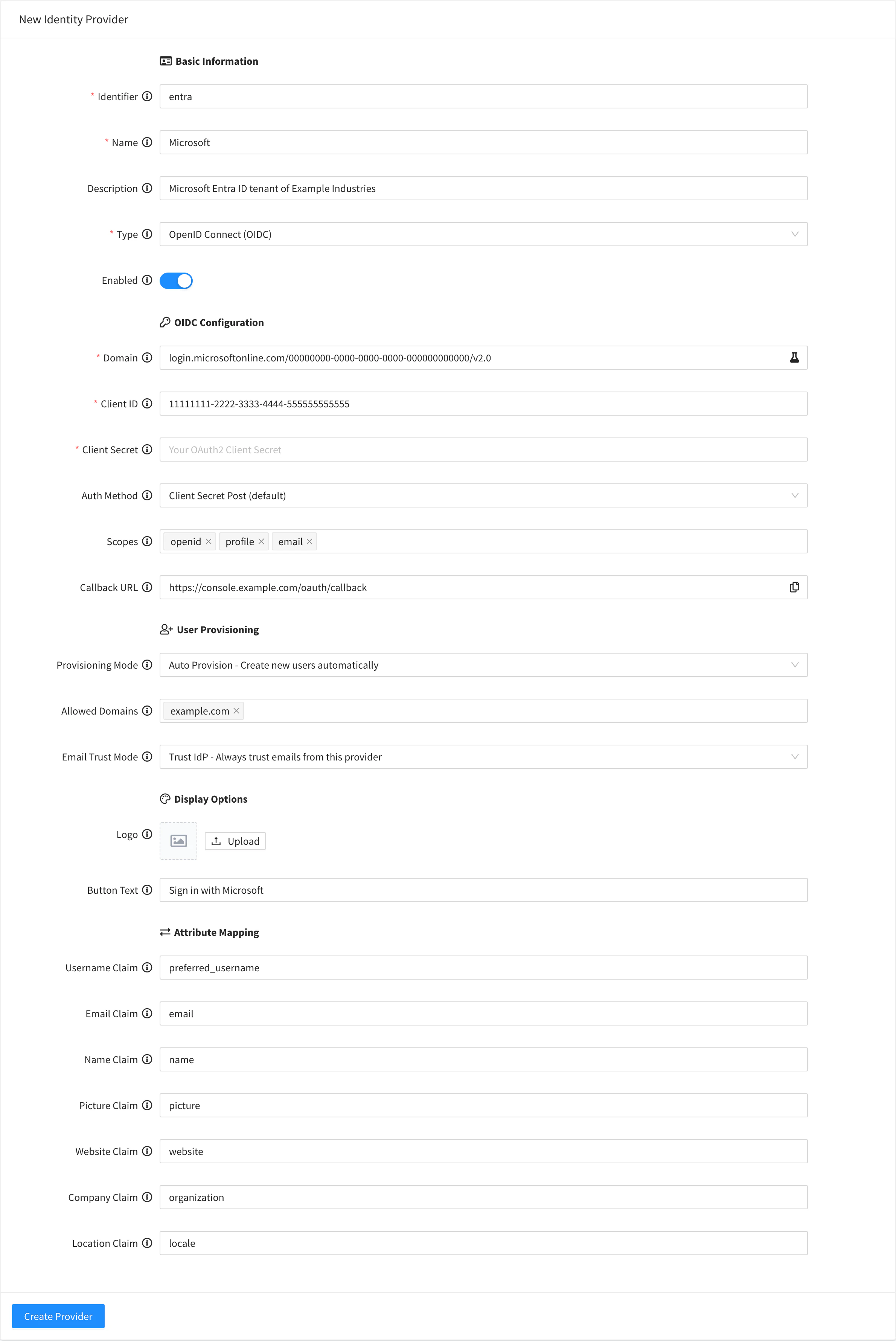
Auth0
- In the Auth0 Dashboard, go to Applications > Applications and click Create Application.
- Choose Regular Web Applications and click Create.
- On the Settings tab, add
https://YOUR_SERVER/oauth/callbackto Allowed Callback URLs and click Save. - Copy the Domain, the Client ID and the Client Secret from the same tab.
| Field | Value |
|---|---|
| Domain | your-tenant.us.auth0.com, or your Auth0 custom domain |
| Auth Method | Client Secret Post, the Auth0 default (Credentials tab) |
| Email Trust Mode | Verify with Claim: Auth0 sends email_verified. |
Keep the signing algorithm of the application at RS256 (Advanced Settings > OAuth): tokens signed with HS256 are rejected.
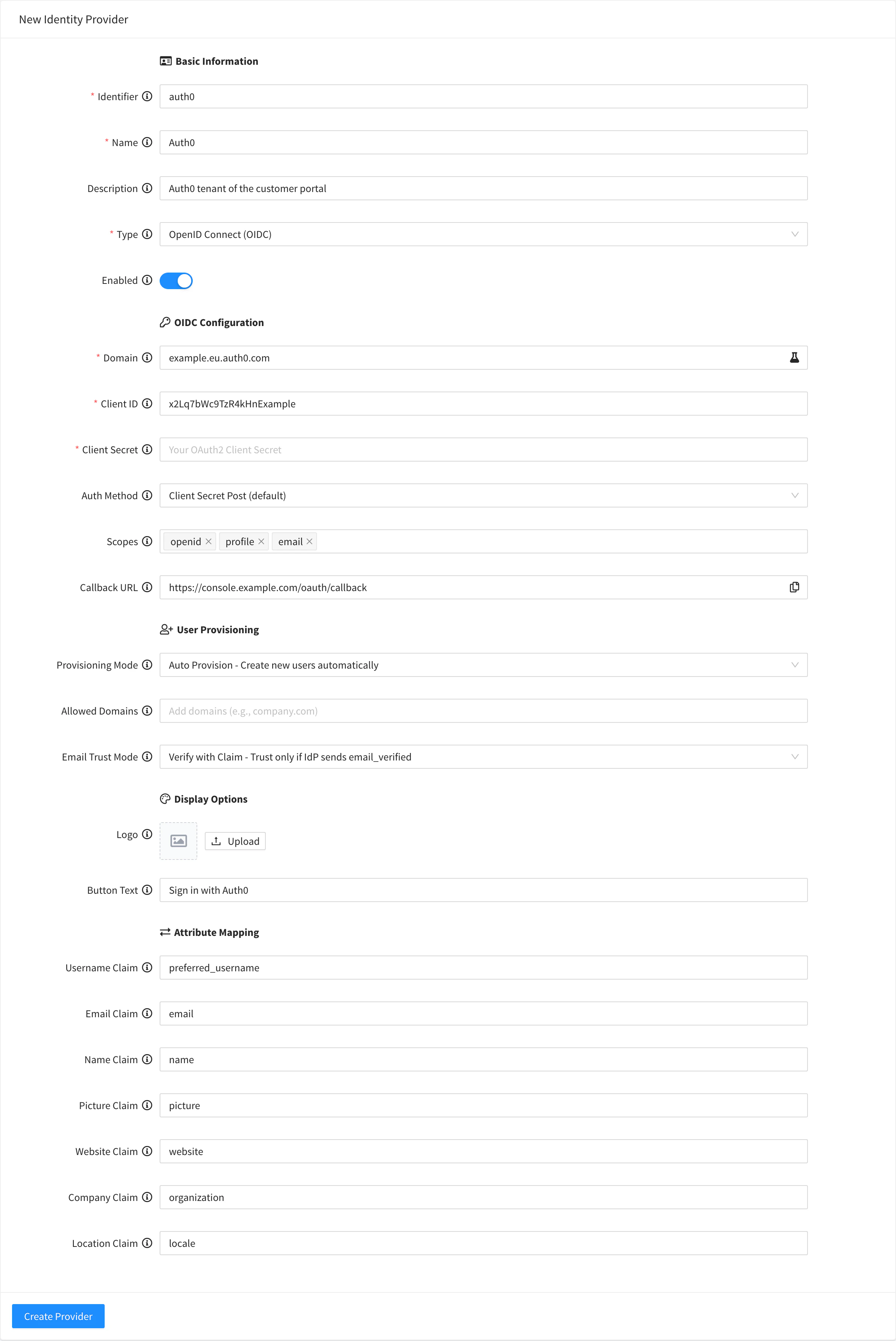
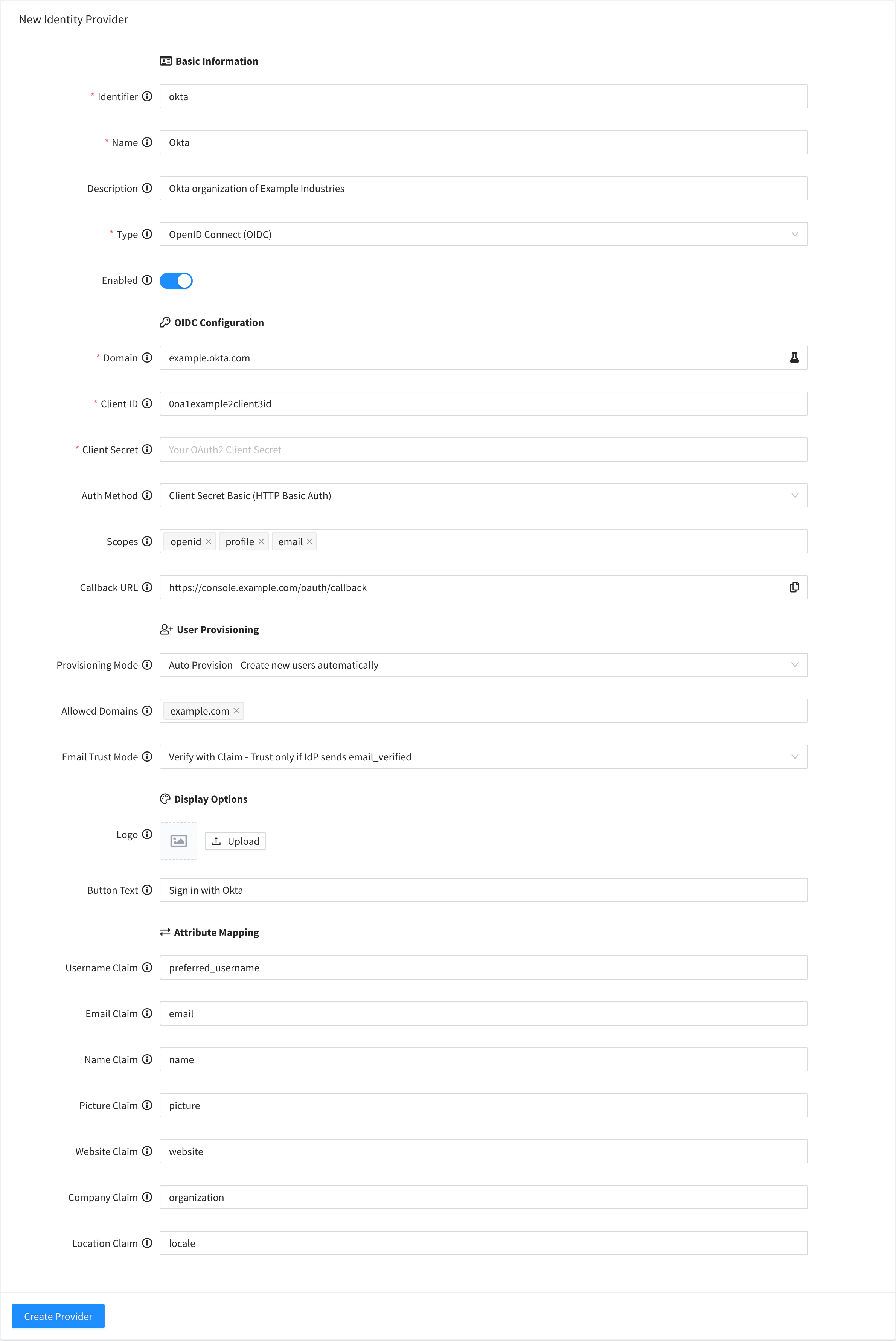
Okta
- In the Okta Admin Console of your organization (
https://your-org-admin.okta.com), go to Applications > Applications and click Create App Integration. - Choose OIDC - OpenID Connect and Web Application, and click Next.
- In Sign-in redirect URIs, enter
https://YOUR_SERVER/oauth/callback. - In Assignments, choose who can use the application, and click Save.
- Copy the Client ID and the Client secret from the General tab.
| Field | Value |
|---|---|
| Domain | your-org.okta.com, or your-org.okta.com/oauth2/default for the default custom authorization server |
| Auth Method | Client Secret Basic, the Okta default |
| Email Trust Mode | Verify with Claim: Okta sends email_verified. |
Users who are not assigned to the application get an error from Okta when they sign in.
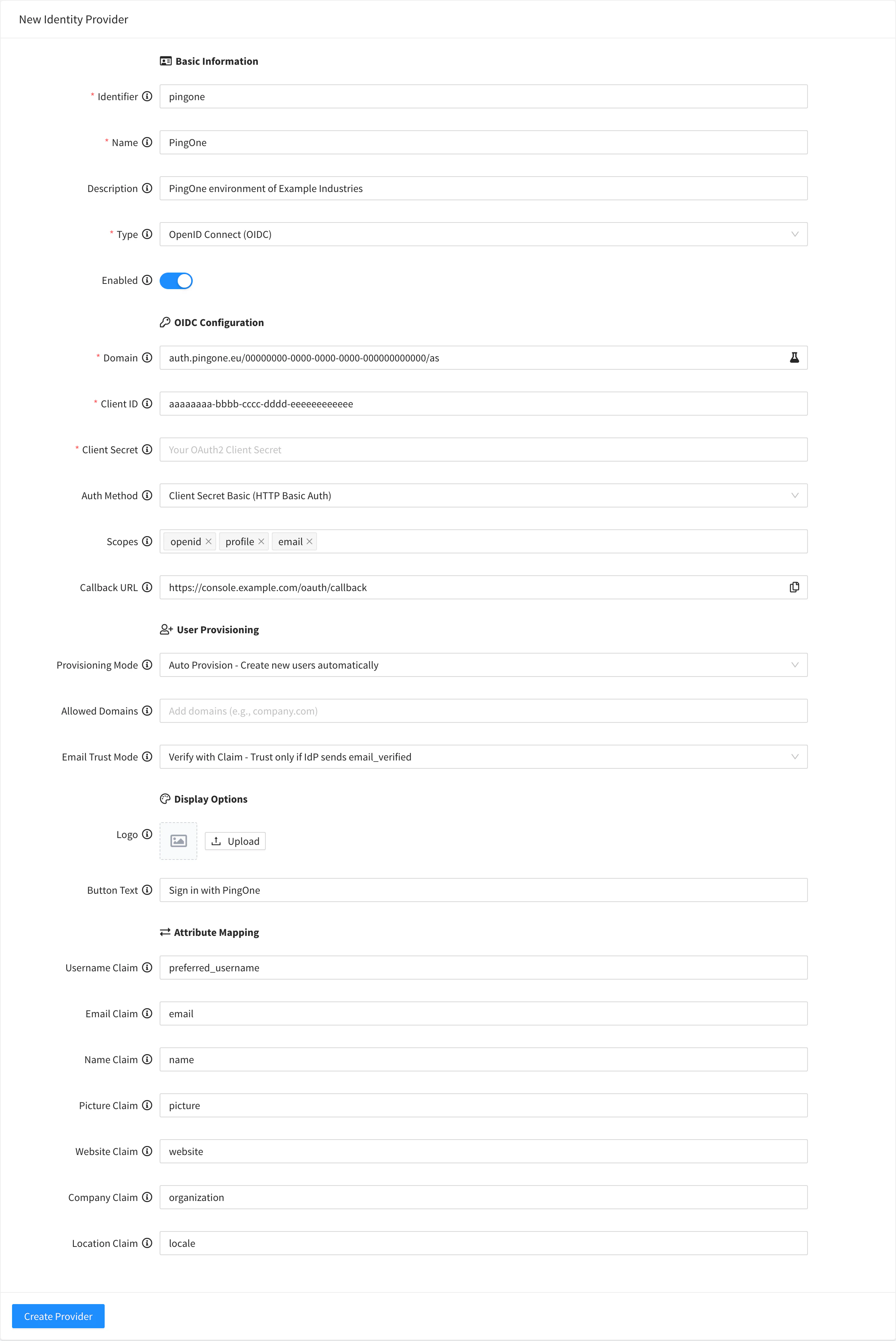
PingOne
- In the PingOne admin console, open your environment and go to Applications > Applications. Click the add button.
- Enter a name, choose OIDC Web App and click Save.
- On the Configuration tab, add
https://YOUR_SERVER/oauth/callbackto Redirect URIs. - On the Resources tab, allow the
openid,profileandemailscopes. - Turn on the application, which PingOne creates disabled.
- Copy the Client ID, the Client Secret and the Environment ID from the Overview or Configuration tab.
| Field | Value |
|---|---|
| Domain | auth.pingone.com/<environment-id>/as, with the host of your region (auth.pingone.eu, auth.pingone.ca, auth.pingone.asia) |
| Auth Method | Client Secret Basic, the PingOne default (Token Endpoint Authentication Method) |
| Email Trust Mode | Verify with Claim, if your environment sends email_verified; otherwise Trust IdP. |
Other OIDC
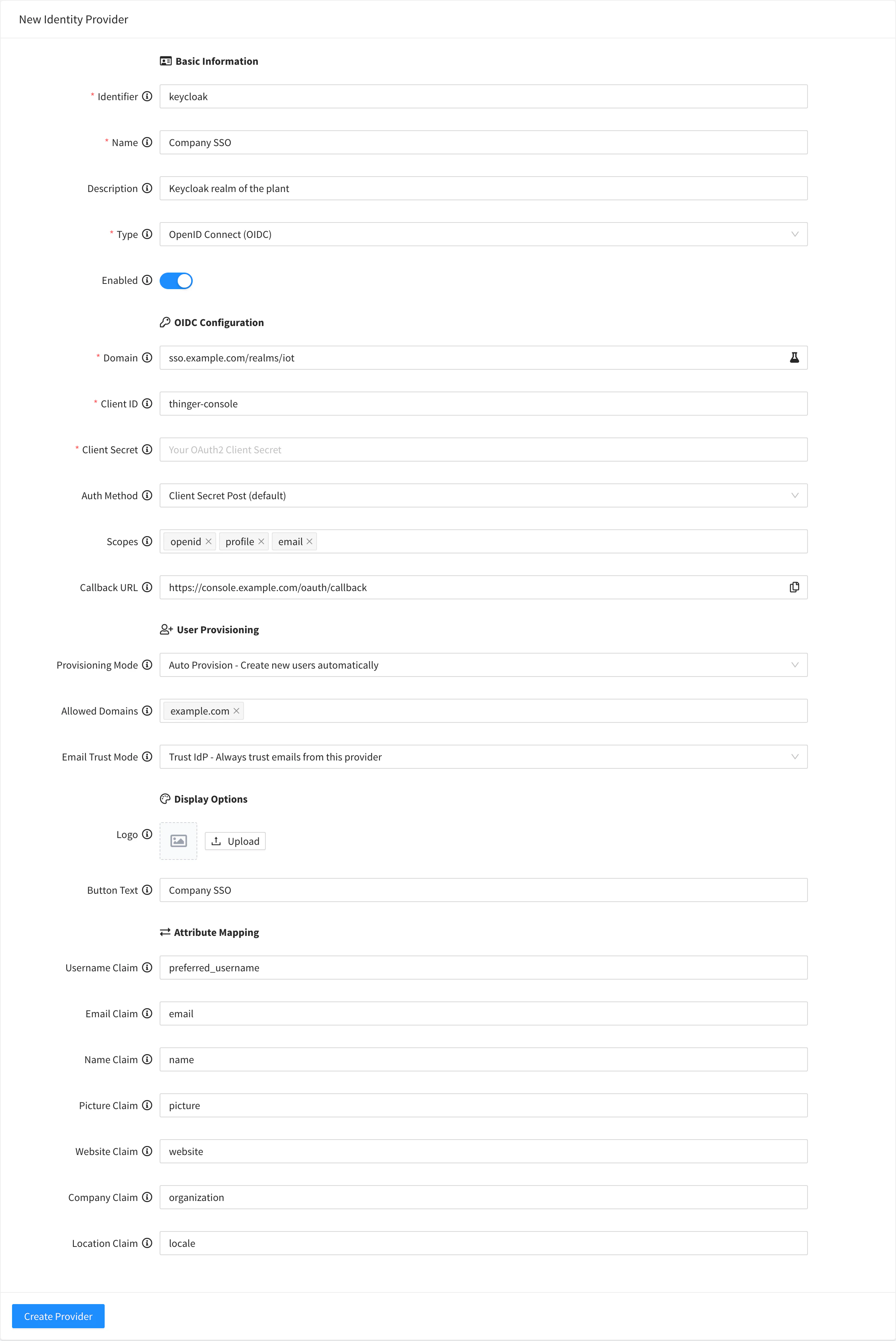
Any OpenID Connect provider works, such as Keycloak:
- Register a confidential web client in your provider, with
https://YOUR_SERVER/oauth/callbackas redirect URI. - Copy its client ID and client secret.
- Find its discovery document,
https://<issuer>/.well-known/openid-configuration. The Domain is the issuer withouthttps://, such assso.example.com/realms/iotfor a Keycloak realm. - Make sure the provider signs ID tokens with RS256, RS384 or RS512.
Create the provider and use the connection test to check it.
Add an identity provider
Console
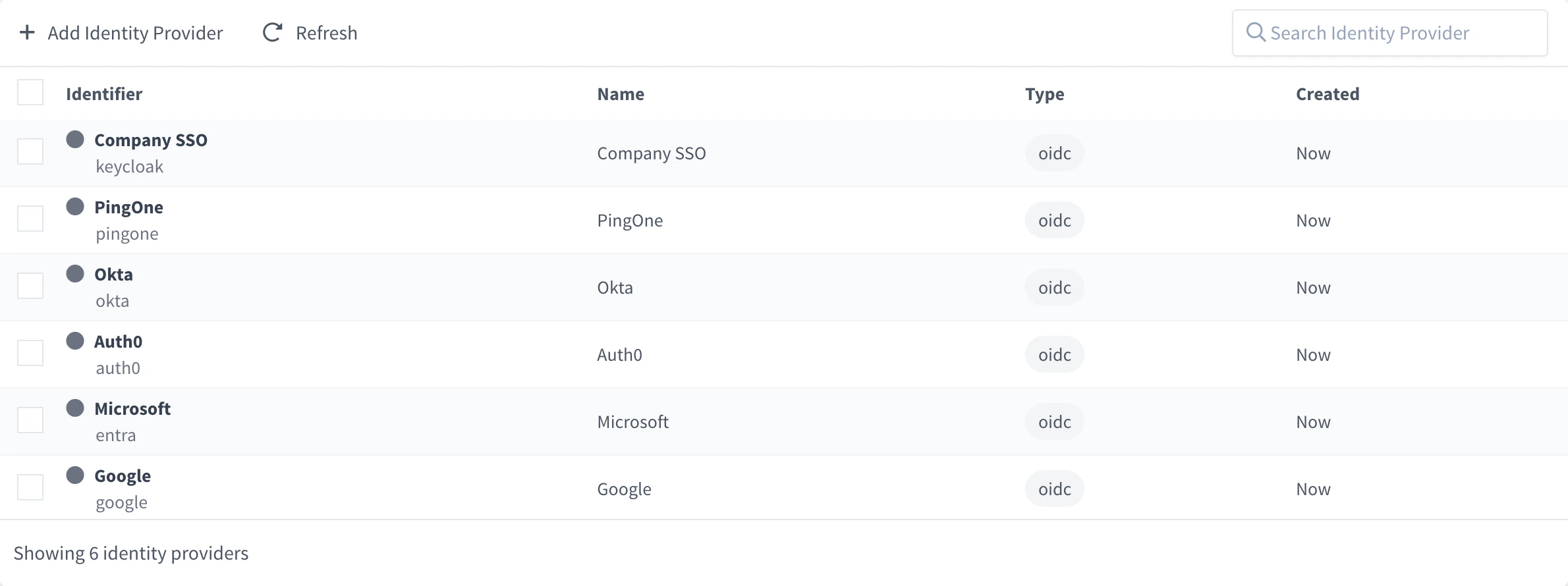
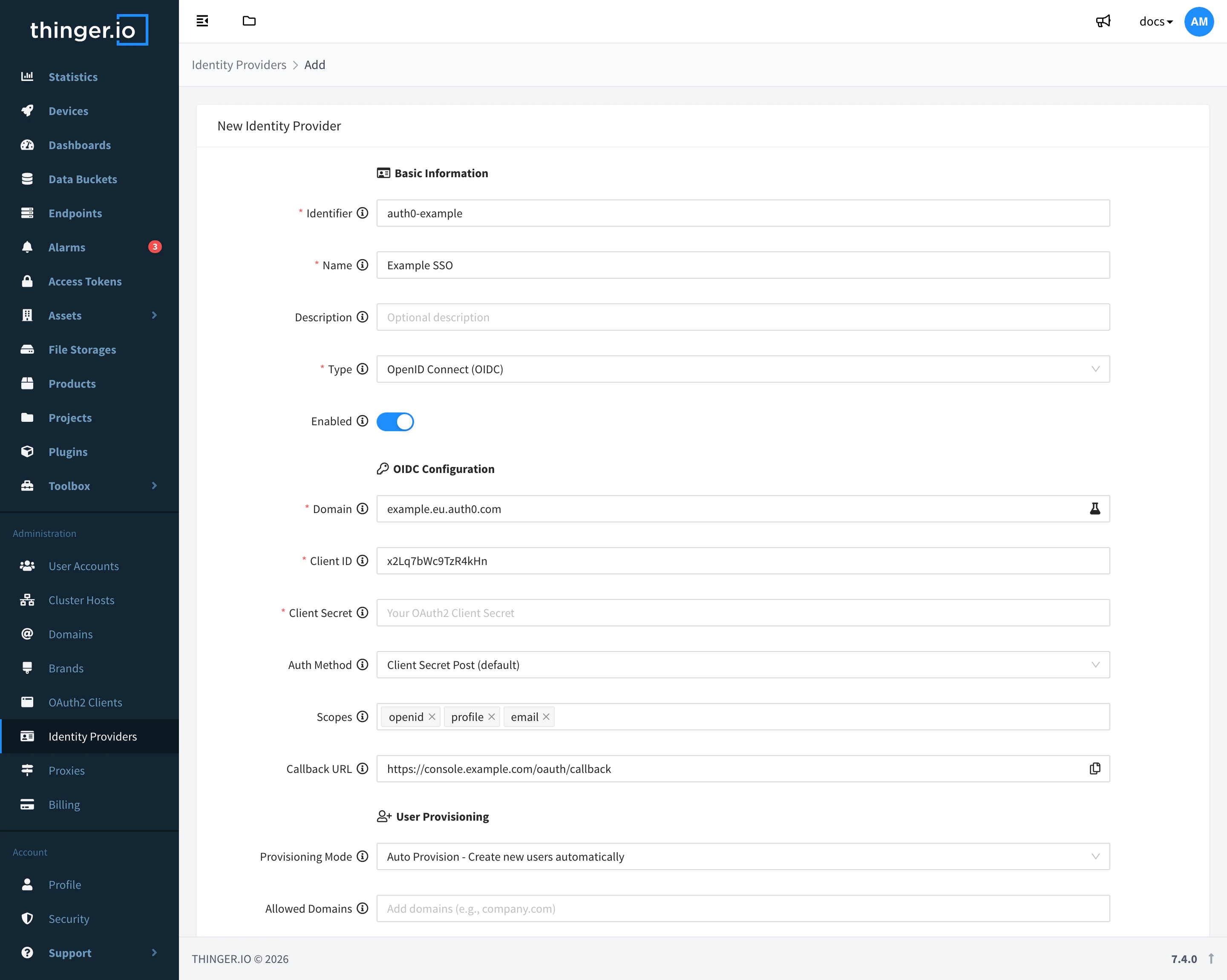
Go to Administration > Identity Providers and click Add Identity Provider. Fill in the form and click Create Provider.
The list shows each provider with its name, its identifier and its type; a gray dot marks a disabled provider.
| Section | Field | What to enter |
|---|---|---|
| Basic Information | Identifier | A unique ID, such as entra. It cannot be changed later. |
| Name | The name shown to users on the login page. | |
| Description | Optional, for administrators. | |
| Type | OpenID Connect (OIDC), the only type. | |
| Enabled | On, to offer it. | |
| OIDC Configuration | Domain | The issuer of the provider, without https://: accounts.google.com, login.microsoftonline.com/<tenant-id>/v2.0 or your-tenant.us.auth0.com. |
| Client ID, Client Secret | The credentials the provider gave you. | |
| Auth Method | How the instance sends the secret to the provider: Client Secret Post (default), Client Secret Basic or None (public client). | |
| Scopes | The scopes to request. Default: openid, profile, email, which give every claim the account uses. The list also suggests address, phone, groups and offline_access: the instance reads only the claims of Attribute Mapping and does not use refresh tokens from the provider, so they add nothing unless your provider needs them to release a claim. | |
| Callback URL | Read only: the URL to register at the provider. | |
| User Provisioning | Provisioning Mode | Auto Provision creates an account the first time a user signs in; Match Only only lets in users whose account already exists. |
| Allowed Domains | With Auto Provision, the email domains that can get a new account, such as example.com. Empty allows all. It does not apply to accounts that already exist. | |
| Email Trust Mode | Whether the provider's email links an existing account and counts as verified. Trust IdP: always. Verify with Claim (default): only if the provider sends email_verified: true. Always Verify: never; new accounts must verify their email. | |
| Display Options | Logo | The icon of the button: a PNG, JPEG or WebP image, scaled down to 64 × 64 pixels and stored as PNG. Use a square logo of at least 64 × 64 pixels so it stays sharp on high-density screens. |
| Button Text | The text of the button, such as Sign in with Microsoft or Company SSO. Empty, it reads "Login with" and the Name. | |
| Attribute Mapping | Username Claim, Email Claim, Name Claim… | The claims the account takes its data from. Defaults: preferred_username, email, name, picture, website, organization and locale. |
API
YOUR_TOKEN is an access token of an administrator. Use your provider's real values instead of <client-id>, <client-secret> and <tenant-id>.
curl -X POST "https://YOUR_SERVER/v1/identity_providers" \
  -H "Authorization: Bearer YOUR_TOKEN" \
  -H "Content-Type: application/json" \
  -d '{
    "identity_provider": "entra",
    "name": "Microsoft",
    "type": "oidc",
    "enabled": true,
    "domain": "login.microsoftonline.com/<tenant-id>/v2.0",
    "client_id": "<client-id>",
    "client_secret": "<client-secret>",
    "scopes": ["openid", "profile", "email"],
    "provisioning": {
      "mode": "auto_provision",
      "allowed_domains": ["example.com"],
      "email_trust_mode": "trust_idp"
    },
    "display": { "button_text": "Sign in with Microsoft" }
  }'
CLI
The CLI has no commands for identity providers. Use the console, the API or an agent.
AI
Add Microsoft Entra ID as an identity provider for my instance. Ask me for the tenant ID, the client ID and the client secret, create accounts automatically only for example.com emails, and tell me the callback URL I have to register in Entra.
The agent uses thinger_resource_create with the identity_provider type. It asks you for the secrets instead of inventing them. See MCP tools.
Accounts created by a provider
- With Auto Provision, accounts are created even if public sign-up is off. Their role (developer or project member) comes from the Account Role of the Accounts settings of the brand or the server.
- A new account needs an email from the provider. Its username comes from the Username Claim, or from the part of the email before the
@if the provider sends none, without the characters a username cannot have; if the username is taken, a number is added (jdoe1). - On each sign-in, the name, website, company and location of the profile are filled in from the claims, only where they are empty.
- An account can be linked to several providers. To unlink one, use
DELETE /v1/users/{user}/federated_identities/{identity_provider}. - Disabling a provider (Enabled off) removes its button and stops new sign-ins with it.
Troubleshooting
When a sign-in fails, the login page shows the reason. The most common ones:
| Symptom | Cause | Solution |
|---|---|---|
| The connection test shows Connection failed | The Domain is wrong, or your instance cannot reach https://<domain>/.well-known/openid-configuration. | Open that URL in a browser and check the issuer. The provider must be reachable from your instance: check firewalls and proxies. Save the provider before testing again. |
| The connection test shows Connection with warnings | The provider has no RSA signing keys or signs with an algorithm other than RS256, RS384 or RS512. | Change the signing algorithm of the application at the provider to RS256. |
| The provider shows a redirect URI error before signing in | The callback URL is not registered at the provider, or it differs in the hostname or the path. | Register exactly the Callback URL of the hostname users open, including https://. |
| "token exchange failed" | The client ID, the client secret or the Auth Method do not match the application at the provider, or the application is disabled there. | Paste the credentials again, switch between Client Secret Post and Client Secret Basic, and check that the application is enabled. |
| "invalid id token" | The token comes from an issuer other than the Domain (for example, the Entra ID common endpoint) or is signed with an unsupported algorithm. | Use the exact issuer of your tenant or organization and RS256. |
| "no matching account found" | Provisioning Mode is Match Only and no account has the user's email. | Create the account first in User Accounts, or switch to Auto Provision. |
| "email domain not allowed" | The user's email domain is not in Allowed Domains. | Add the domain, or leave the list empty. |
| "email is required for account creation" | The provider sent no email. | Request the email scope and check that the user has an email at the provider, or that Email Claim names the right claim. |
| "an account with this email already exists" | An account has that email, but Email Trust Mode does not allow linking it: Always Verify, or Verify with Claim without email_verified. | Use Trust IdP if you trust the provider's emails. |
| The account has an empty or wrong username, name or email | The claims have other names at this provider. | Check the claims of the ID token with your provider's token preview or debugger, and set the claim names in Attribute Mapping; request the scopes that release them. |
| "invalid or expired authentication state" | The user took too long at the provider, or reused an old sign-in page. | Sign in again from the login page, in the same browser. |
| The user returns to the login page again and again | The callback is registered for another hostname than the one the user opened, or the hostname is not served over HTTPS. | Register the callback of each hostname users open, and serve it over HTTPS with a verified domain. Clear the cookies of the site and try again. |
| "your account is disabled" | The account exists but is disabled. | Turn on Enabled in User Accounts. |
Limits
- Only OpenID Connect providers are supported.
- ID tokens must be signed with RS256, RS384 or RS512.
- The Domain must be the issuer of one tenant or organization: multi-tenant endpoints whose tokens come from another issuer, such as
commonin Entra ID, do not work. - Identity providers are disabled until your plan allows them. On a Cloud instance, they depend on the plan; see Plans and limits.
- The client secret is a credential: never share it or paste it in public places.