

A proxy opens a port (or a subdomain) on your instance and forwards its traffic to a service: a host the instance can reach, a plugin running on the instance, or a service on an IOTMP device. Users and devices connect to your instance, and the proxy carries the connection to the target.
When to use it
- To reach the web interface or the API of a plugin, such as a database or a dashboard tool, from outside.
- To receive TCP or UDP traffic from devices that cannot use IOTMP, MQTT or HTTP, and pass it to a plugin that decodes it.
- To open a service of a device (its local web page, a TCP port) through the device connection, without opening ports in its network.
Protocols and targets
| Protocol | Source | Target |
|---|---|---|
| TCP | A port of the instance, optionally with TLS. | A host address or a plugin. |
| UDP | A port of the instance. | A host address or a plugin. |
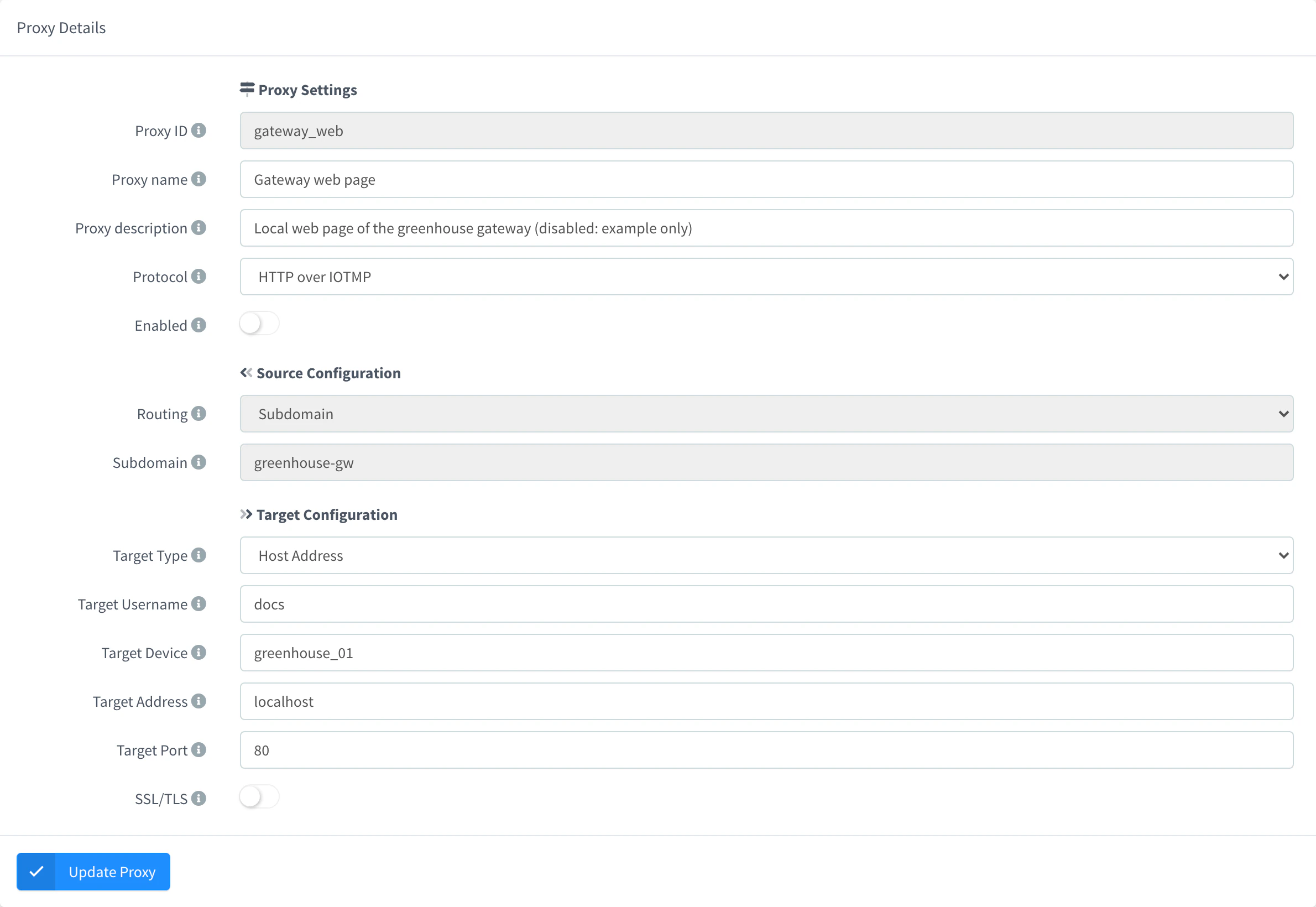
| TCP over IOTMP | A port of the instance, optionally with TLS. | A port on a device, through its IOTMP connection (Target Username and Target Device). |
| HTTP over IOTMP | A port or a subdomain of the instance. | An HTTP service on a device, through its IOTMP connection. |
With Subdomain routing, the proxy is served at https://<subdomain>.YOUR_SERVER, where YOUR_SERVER is the hostname of your instance; the hostname needs a certificate that covers its subdomains.
Create a proxy
The proxy starts listening as soon as you save it.
Console
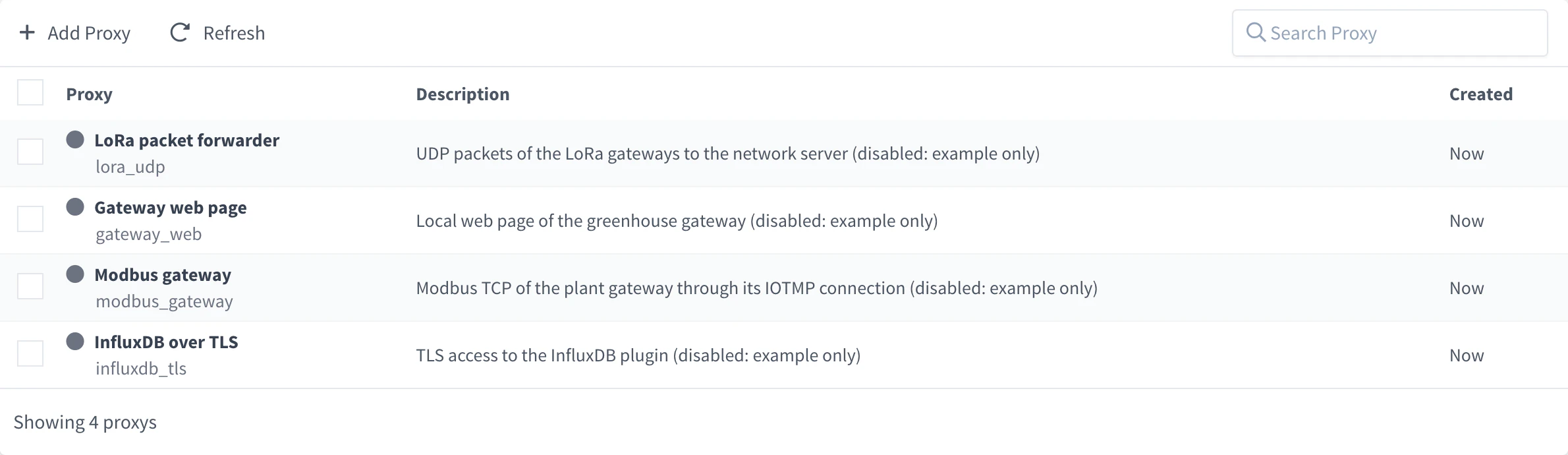
Open Proxies
Go to Administration > Proxies and click Add Proxy (or Create a Proxy if you have none yet). In the list, a green dot marks the enabled proxies and a gray one the disabled ones.
Proxies Name it and choose the protocol
In Proxy Settings, set the Proxy ID, the Proxy name and an optional Proxy description, choose the Protocol and leave Enabled on.
Set the source
In Source Configuration, set the Source Port users connect to, and turn on SSL/TLS to accept TLS connections on it. For HTTP over IOTMP, choose Port or Subdomain routing.
Set the target
In Target Configuration, choose the Target Type: Host Address (set the Target Address, such as
localhost) or Plugin (choose the user and one of its running plugins). For the IOTMP protocols, set the Target Username and the Target Device. Set the Target Port, turn on SSL/TLS if the target expects TLS, and click Add Proxy.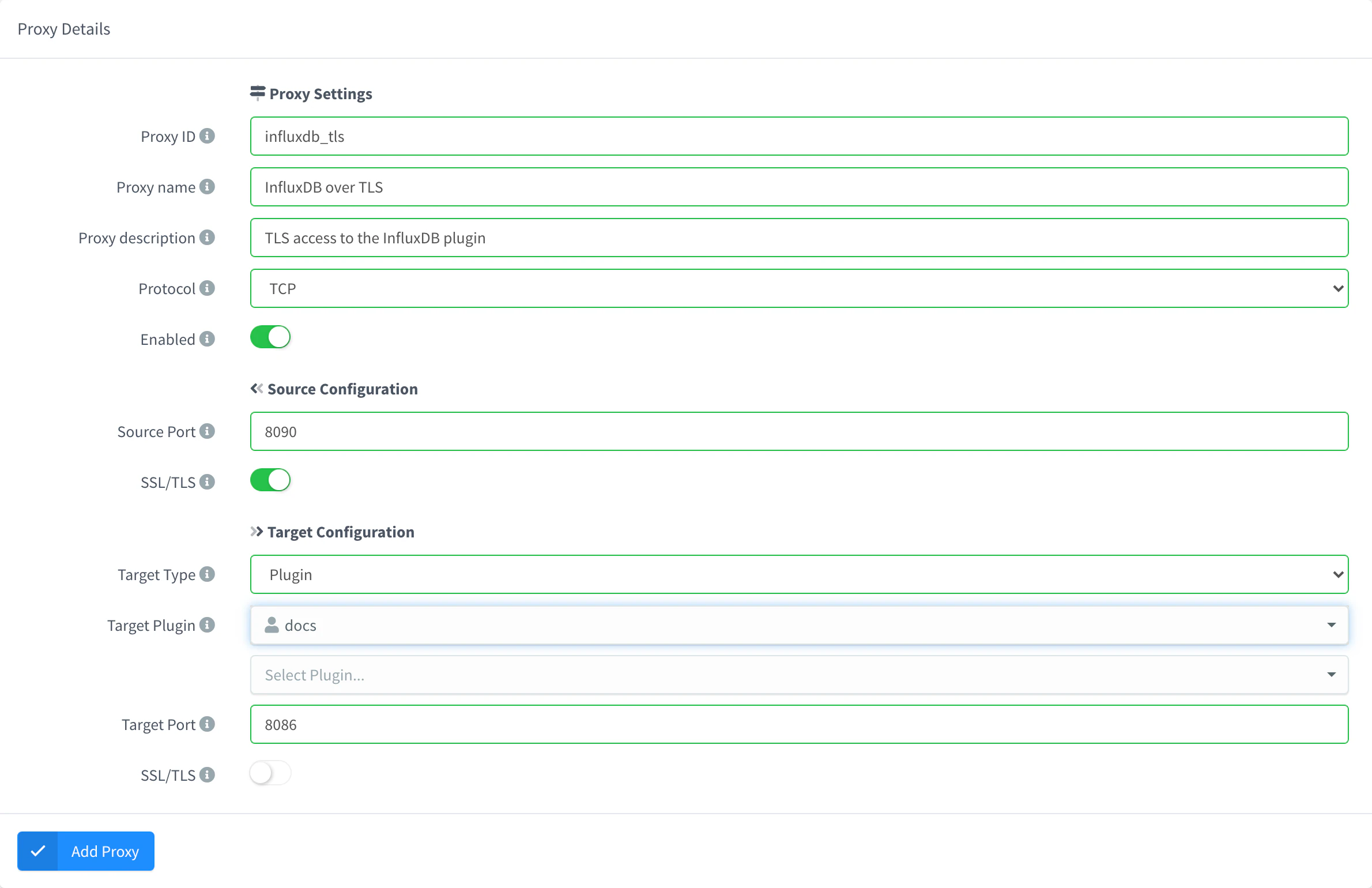
TCP proxy with TLS to a plugin
The proxy page has a Settings tab and an Inspector tab that shows the proxy events in real time.
API
YOUR_TOKEN is an access token of an administrator. This proxy accepts TLS on port 8090 and forwards it to port 8086 of the influxdb2 plugin of YOUR_USER:
curl -X POST "https://YOUR_SERVER/v1/proxies" \
  -H "Authorization: Bearer YOUR_TOKEN" \
  -H "Content-Type: application/json" \
  -d '{
    "proxy": "influxdb",
    "name": "InfluxDB",
    "enabled": true,
    "config": {
      "protocol": "tcp",
      "source": { "port": 8090, "secure": true },
      "target": {
        "type": "plugin",
        "plugin": { "user": "YOUR_USER", "name": "influxdb2" },
        "port": 8086,
        "secure": false
      }
    }
  }'
protocol is tcp, udp, tcp_iotmp or http_iotmp; a host target uses "type": "address" with address. When you update a proxy, send its whole config: a partial one replaces the stored config.
CLI
The CLI has no commands for proxies. Use the console, the API or an agent.
AI
Create a TCP proxy on port 8090 with TLS that forwards to port 8086 of my influxdb2 plugin.
The agent uses thinger_resource_create with the proxy type. See MCP tools.
Edit a proxy
Go to Administration > Proxies, open the proxy, change its fields and click Update Proxy. Every field can change except the Proxy ID and, for HTTP over IOTMP, the Routing and the Subdomain: to change them, remove the proxy and create it again. With the API, use PUT /v1/proxies/{proxy} with the whole config. When you save, the proxy starts again with the new configuration.
Remove a proxy
Removing a proxy closes its port at once. Go to Administration > Proxies, select it and click Remove, or use DELETE /v1/proxies/{proxy}. Turn off Enabled to stop it without removing it.
Limits
- The source port must be free on the instance: a port already used by another proxy or service does not work.
- Proxies without a fixed port take one from the dynamic port range of the server settings.
- On instances hosted by Thinger.io, the ports of proxies are opened in the firewall for you. On other servers, open them yourself.
- The number of proxies depends on your plan. See Plans and limits.