

This guide shows how to keep an eye on your Thinger.io instance: check its load in the console, alert when it stops answering, and export its metrics to your own monitoring tools.
Server monitoring client discontinued
The Thinger.io server monitoring client (thinger_monitor) is no longer maintained: do not use it for new installations. Use the options on this page instead. To monitor and manage Linux machines as devices, see ThinRemote.
Before you start
- An administrator account on a private instance.
YOUR_SERVERis the hostname of your instance. - For external alerts, an uptime monitoring service or tool that can call a URL.
Steps
Check the load of the server
Go to Administration > Cluster Hosts, click the host and open Overview. It shows the current connections and a week of CPU, memory, disk and connection averages. The Logs tab follows the server output live. See what each counter means and how to size the server.
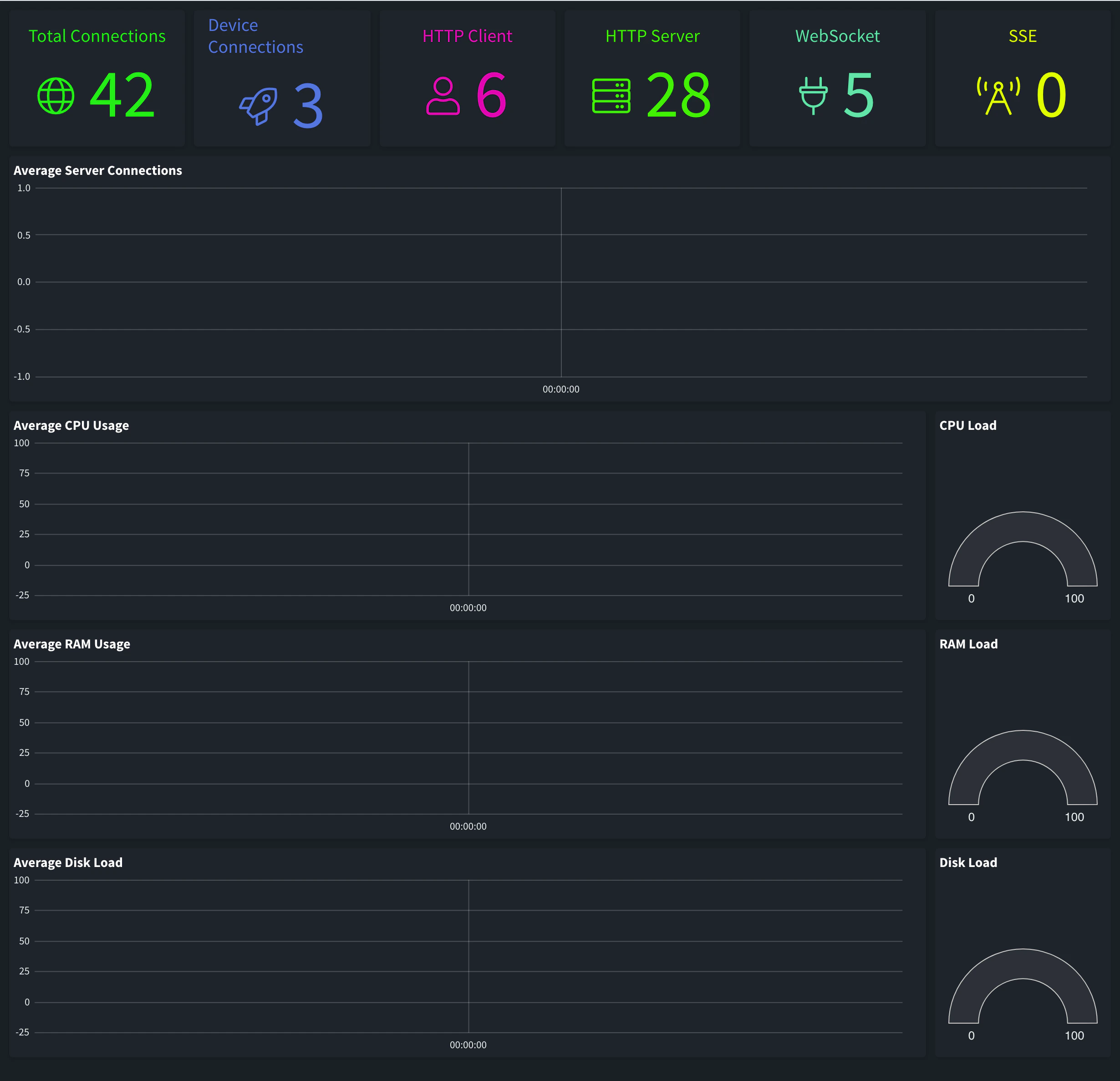
Overview tab of a host Alert when the server stops answering
Point your uptime monitor at the health check of the instance. It needs no token and answers
200 OKwhile the server works:bashcurl -i "https://YOUR_SERVER/v1/server/healthcheck"Set the monitor to alert you when the call fails or takes too long.
Export metrics to Prometheus
Install the Prometheus Exporter plugin from Plugins > Marketplace. It publishes metrics about your devices and other resources in the Prometheus format, so that Prometheus, Grafana or Alertmanager can collect them and alert on them. The plugins of the Monitoring category cover the rest of the stack.
Get notified about devices
To know when a device disconnects or a reading goes out of range, create an alarm instead of watching the server.
Result
The console shows the load of every host, your uptime monitor alerts you if the instance stops answering, and your monitoring stack collects the metrics of your resources.