

An alarm rule checks your data at a fixed interval and raises an alarm when a condition is met, such as a temperature above 30 °C or a device disconnected for ten minutes. Each alarm has a severity and a state, notifies through endpoints and clears itself when the data goes back to normal.
When to use it
- To be notified when a device reports values out of range.
- To detect devices that stop connecting.
- To keep a record of incidents with their activation, acknowledgment and resolution.
How a rule works
A rule has four parts:
| Part | What it sets |
|---|---|
| Data sources | Where the values come from: a Data Bucket (bucket, aggregated per device), a device property (device_property) or the connection status (device_status). Property and status sources can be narrowed to a project, a product, an asset type, an asset group or some devices. |
| Activation | The conditions that raise the alarm (above, below, equal, not_equal, inside, outside, present, absent), how they are confirmed (at once, after several checks in a row or after a time span) and the endpoints to notify. |
| Normalization | The conditions that clear the alarm, with their own confirmation and notifications. |
| Reminder | Optional notifications repeated while the alarm stays active. |
The rule runs every check interval and evaluates each device of its sources separately: one rule can raise one alarm per device. A condition value can be a number or an expression over another source of the same device, such as a per-device threshold stored in a property. Alarm rules describes every setting, how to test a rule and complete examples; Alarm notifications describes what the endpoints receive.
Each alarm (an alarm instance) has a severity (Low, Medium, High or Critical) and a state: Activated, Acknowledged, Latched, Shelved or Cleared (Non-confirmed while the activation is not confirmed yet).
Read fields in conditions
Each data source has a name, and conditions read its fields as <source name>.<field>:
| Source | Example field | What it reads |
|---|---|---|
| Data Bucket | climate.temperature | The temperature field of the records of a bucket source named climate, such as {"temperature": 21.5, "humidity": 40, "pressure": 1013}. |
| Device property | limits.value.max_depth_m | A field inside the property: the value of a property is under value. |
| Device status | status.connection.active | A field of the state of the device: see From Device Status. |
One rule for every device of a product
Use the bucket of a product, which tags each record with its device, as the source instead of one bucket per device. The rule then watches every device of the product, present and future, and raises one alarm per device.
Create an alarm rule
YOUR_SERVER is iot.thinger.io on the free Cloud account, or the domain of your private instance.
Console
Open Alarms
Go to Alarms, open the Rules tab and click Add Rule. Set the Rule Identifier, the Name and an optional Description; in Configuration, choose the Severity and the Check Interval, and click Add Rule. Data sources, conditions and notifications become available once the rule exists.
Add the data sources
In the Data Source tab of the rule, click Add Source, set its Name and choose From Data Bucket, From Device Property or From Device Status, with the fields to check. Test Source shows what it reads now. See Data sources for every option.
Set activation and normalization
In the Activation tab, click Add Condition for each condition (such as IS ABOVE a value), choose the Confirmation (Immediate, Sequence or Timespan) and click Add Notification to pick the endpoints to notify. Do the same in Normalization, and optionally in Reminder. See Conditions and Confirmation.
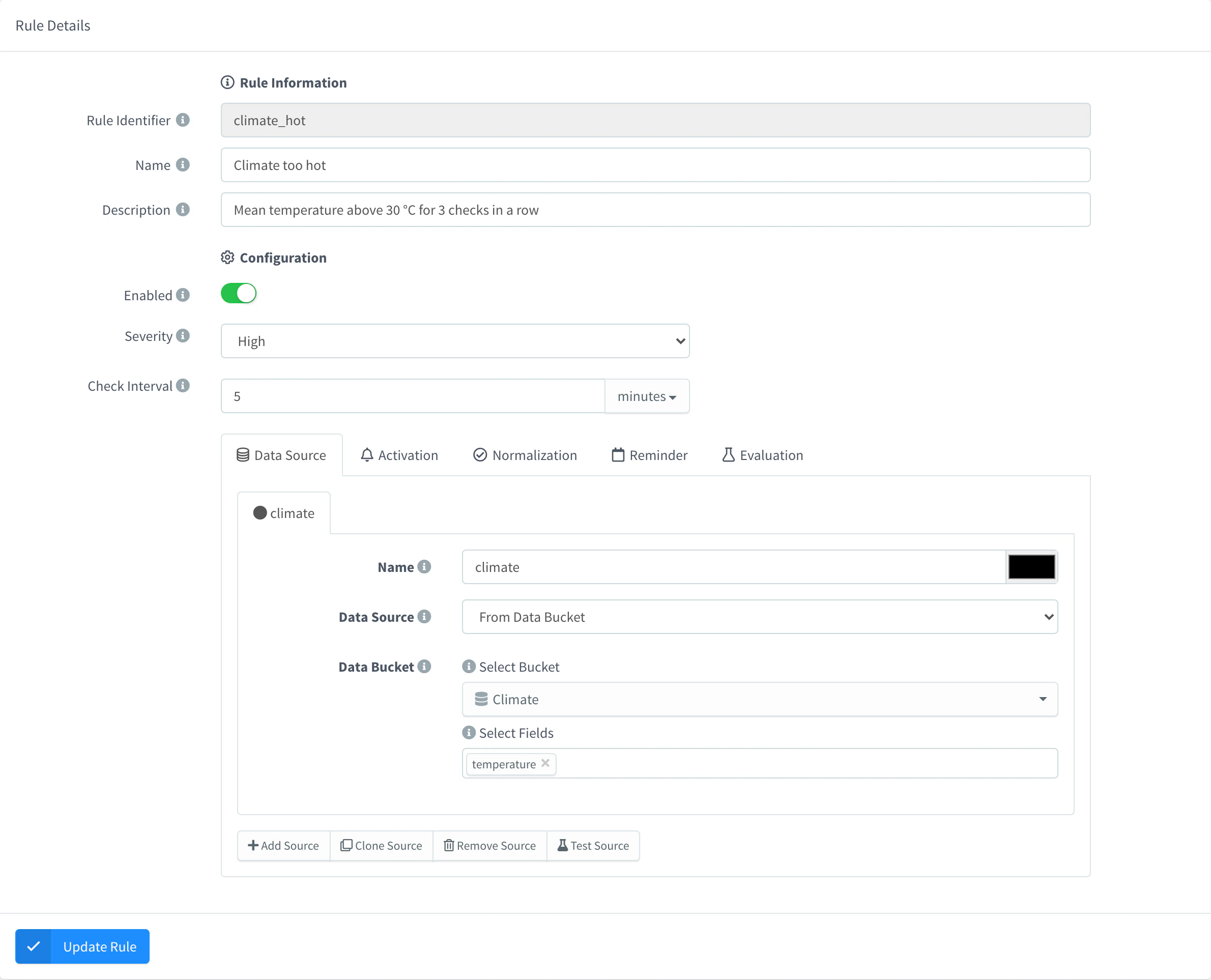
Data source of an alarm rule Evaluate and enable it
Open the Evaluation tab and click Evaluate to see which devices would raise an alarm with the current data (see Test a rule). Turn on Enabled and click Update Rule.
API
curl -X POST "https://YOUR_SERVER/v1/users/YOUR_USER/alarms/rules" \
  -H "Authorization: Bearer YOUR_TOKEN" \
  -H "Content-Type: application/json" \
  -d '{
    "rule": "greenhouse_hot",
    "name": "Greenhouse too hot",
    "enabled": true,
    "config": {
      "severity": 3,
      "check_interval": { "value": 5, "magnitude": "minute" },
      "data": { "sources": [ {
        "name": "climate", "source": "bucket",
        "bucket": { "id": "greenhouse_climate", "mapping": ["temperature"] }
      } ] },
      "activation": {
        "conditions": [ { "operator": "and", "type": "value_check", "field": "climate.temperature", "comparison": "above", "value": "30" } ],
        "confirmation": { "mode": "immediate" },
        "notifications": [ { "type": "endpoint", "id": "ops_webhook" } ]
      },
      "normalization": {
        "conditions": [ { "operator": "and", "type": "value_check", "field": "climate.temperature", "comparison": "below", "value": "28" } ],
        "confirmation": { "mode": "immediate" },
        "notifications": []
      },
      "reminder": { "type": "none", "notifications": [] }
    }
  }'
Condition values are strings, even for numbers. Before you enable a rule, POST .../alarms/rules/{rule}/test-source, test-rule and test-notification check its sources, its conditions and its notifications: see Test a rule. Alarm rules has complete rules, such as a device offline rule, and Alert on per-device temperature limits builds a rule with a threshold per device.
CLI
The CLI does not manage alarms. Use the console, the API or an agent.
AI
Create an alarm rule that notifies my ops_webhook endpoint when the temperature in the greenhouse_climate bucket goes above 30, and clears when it drops below 28.
The agent uses thinger_resource_create with the alarm_rule type and can test the rule with thinger_resource_call. See MCP tools.
Manage alarms
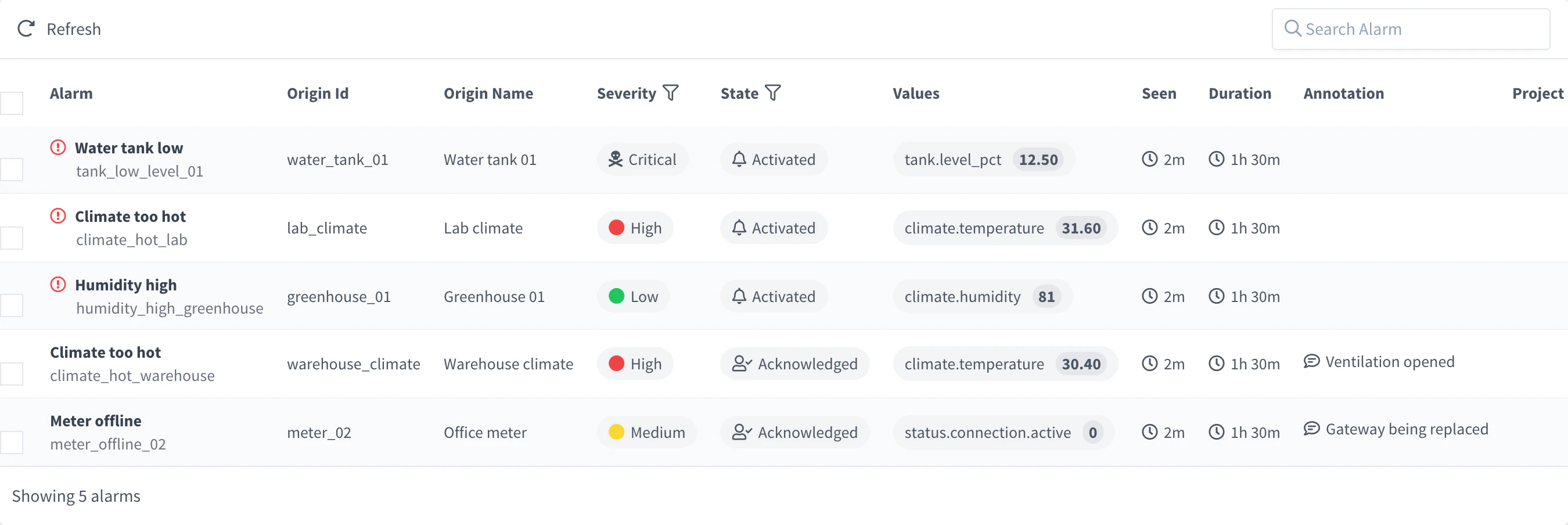
When a rule raises an alarm, it appears in the alarms list with its rule, device, severity and state. These actions change it:
| Action | Effect |
|---|---|
| Acknowledge | Marks that someone is on it. State Acknowledged (2). |
| Latch | Keeps the alarm on hold until a set time. State Latched (3). |
| Shelve | Puts the alarm aside for a while to attend more urgent ones. State Shelved (4). |
| Clear | Closes the alarm as solved. State Cleared (5), final. |
| Set Projects | Changes the projects the alarm belongs to. |
| Remove | Deletes the alarm. |
An acknowledged, latched or shelved alarm stops sending reminders. With a Reactivation time, it goes back to Activated when the time passes, and the reminders resume; without one, it stays in its state. In any of these states, the alarm clears itself when the normalization conditions of the rule are met.
Console
Go to Alarms, open the Instances tab, select one or more alarms and open the context menu. Choose Acknowledge, Shelve, Latch or Clear: the dialog asks for an optional Annotation and, except to clear, a Reactivation (None or Timespan). Set Projects and Remove are in the same menu. The Inspector tab shows the activity of your alarms live.
API
curl "https://YOUR_SERVER/v1/users/YOUR_USER/alarms/instances?alarm.rule=greenhouse_hot" \
  -H "Authorization: Bearer YOUR_TOKEN"
Change the state with PUT /v1/users/{user}/alarms/instances/{instance}: {"state": 2} acknowledges the alarm, 3 latches it, 4 shelves it and 5 clears it. Add an annotation, and a reactivation to bring it back:
curl -X PUT "https://YOUR_SERVER/v1/users/YOUR_USER/alarms/instances/YOUR_INSTANCE" \
  -H "Authorization: Bearer YOUR_TOKEN" \
  -H "Content-Type: application/json" \
  -d '{
    "state": 4,
    "annotation": "Planned maintenance",
    "reactivation": { "type": "timespan", "timespan": { "value": 4, "magnitude": "hour" } }
  }'
YOUR_INSTANCE is the instance ID that the list returns. DELETE /v1/users/{user}/alarms/instances/{instance} removes an alarm, and PUT .../alarms/instances/{instance}/projects sets its projects. Lists accept filters on nested fields, such as ?alarm.rule=.
CLI
The CLI does not manage alarms. Use the console, the API or an agent.
AI
List the active alarms of the greenhouse_hot rule and acknowledge the ones of greenhouse_01.
The agent uses thinger_resource_list and thinger_resource_update with the alarm_instance type.
Limits
- Alarms are evaluated at the check interval of the rule, not on every new record.
- A field missing from the data does not clear an alarm unless the normalization condition says so (for example, with
absent). See Missing data. - Alarms emit the
alarm_instance_activateandalarm_instance_normalizeevents. Project members and project tokens receive only the events of their project.