

This guide raises an alarm when a climate sensor leaves its own temperature range. The range lives in a limits property: the product holds the default for every sensor, and a sensor that needs another range overrides it. One alarm rule watches every sensor, and an email goes out when an alarm is activated and when it clears.
Before you start
- A product whose devices write a
temperaturefield to a Data Bucket tagged withdevice, such as theenv_sensorproduct and itsclimatebucket of Provision a device fleet. A product bucket with a fixed ID has the tag. This guide uses the sensorgreenhouse_01. - For the API calls, an access token (
YOUR_TOKEN) that can manage products, devices, endpoints and alarms.YOUR_SERVERisiot.thinger.ioon the free Cloud account, or the domain of your private instance. For the CLI, thethingerCLI signed in to your account.
Steps
Set the default range on the product
Give the product a
limitsproperty with the range of most sensors,{"min_temp": 5, "max_temp": 30}. Every device of the product inherits it. In the console, open the product on its Properties tab and add it (see Set a value for every device), or use the CLI:bashthinger product property-set env_sensor limits '{"min_temp": 5, "max_temp": 30}'
The default range in the Properties tab of the product Override the range of a sensor
Give
greenhouse_01its ownlimits,{"min_temp": 10, "max_temp": 35}, in the Properties tab of the device (see Properties), or with the CLI:bashthinger device property-set greenhouse_01 limits '{"min_temp": 10, "max_temp": 35}'The device value wins over the product value. Delete it to use the default again.
Create the email endpoint
Create the
alarm_emailendpoint of Send an email. Its subject and body take the rule, the event, the device and the values from the alarm, so it serves this rule and any other.Check what the rule will read
Before you create the rule, read its two sources. The rule ID in the path does not need to exist yet. The
limitssource must return one entry per sensor, with the value of the device or of the product:bashcurl -X POST "https://YOUR_SERVER/v1/users/YOUR_USER/alarms/rules/climate_range/test-source" \ -H "Authorization: Bearer YOUR_TOKEN" \ -H "Content-Type: application/json" \ -d '{"name": "limits", "source": "device_property", "device_property": {"property": "limits", "product": "env_sensor"}}'Send
{"name": "climate", "source": "bucket", "bucket": {"id": "climate", "mapping": ["temperature"], "group_by": ["device"], "aggregation": {"period": "15m", "type": "mean"}}}to check the bucket source: one entry per sensor with its meantemperature. In the console, the Test Source button of each source does the same once the rule exists.Create the rule
The rule reads the 15-minute mean temperature of each sensor and its
limits, and compares them every 5 minutes:- activation: IS OUTSIDE RANGE from
limits.value.min_temptolimits.value.max_temp, in 2 checks in a row; - normalization: IS WITHIN RANGE with a margin of 1 degree, for 15 minutes, so a temperature on the limit does not raise and clear the alarm on every check;
- the
alarm_emailendpoint on activation and normalization, and a reminder every 4 hours.
In the console, go to Alarms > Rules, click Add Rule and set these values in the form and its tabs (see Alarm rules). The Activation tab holds the condition, the confirmation and the notification:
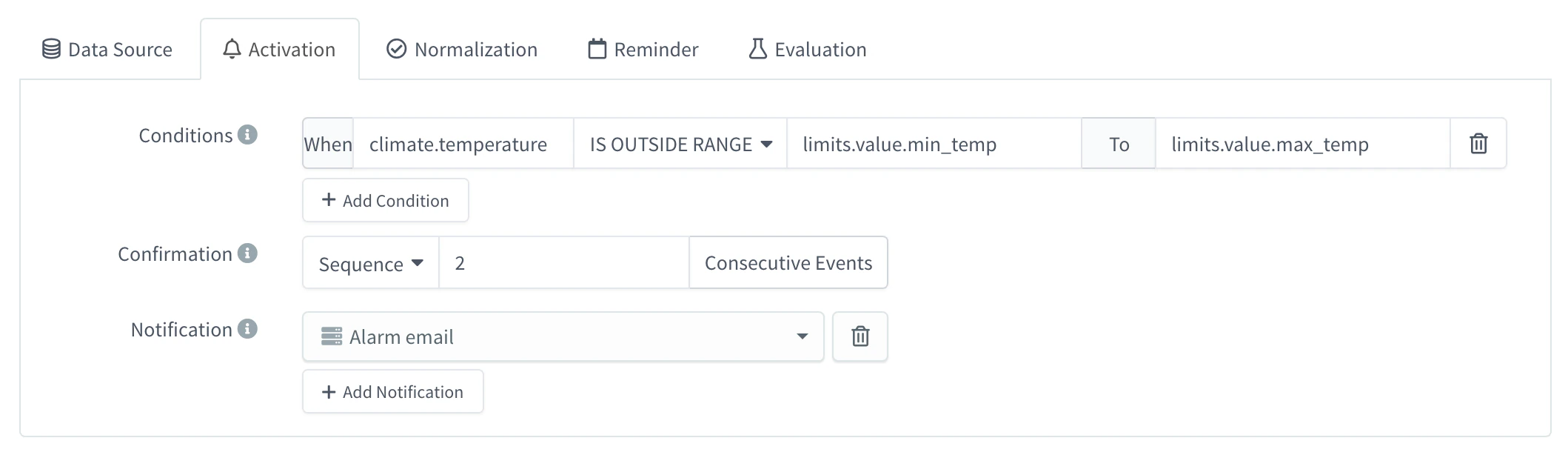
Activation of the rule: outside the limits of each sensor, 2 checks in a row With the API:
bashcurl -X POST "https://YOUR_SERVER/v1/users/YOUR_USER/alarms/rules" \ -H "Authorization: Bearer YOUR_TOKEN" \ -H "Content-Type: application/json" \ -d '{ "rule": "climate_range", "name": "Temperature out of range", "description": "15-minute mean temperature outside the limits of each sensor", "enabled": true, "config": { "severity": 3, "check_interval": { "value": 5, "magnitude": "minute" }, "data": { "sources": [ { "name": "climate", "source": "bucket", "bucket": { "id": "climate", "mapping": ["temperature"], "group_by": ["device"], "aggregation": { "period": "15m", "type": "mean" } } }, { "name": "limits", "source": "device_property", "device_property": { "property": "limits", "product": "env_sensor" } } ] }, "activation": { "conditions": [ { "operator": "and", "type": "value_check", "field": "climate.temperature", "comparison": "outside", "min": "limits.value.min_temp", "max": "limits.value.max_temp" } ], "confirmation": { "mode": "sequence", "sequence": { "value": 2 } }, "notifications": [ { "type": "endpoint", "id": "alarm_email" } ] }, "normalization": { "conditions": [ { "operator": "and", "type": "value_check", "field": "climate.temperature", "comparison": "inside", "min": "limits.value.min_temp + 1", "max": "limits.value.max_temp - 1" } ], "confirmation": { "mode": "timespan", "timespan": { "value": 15, "magnitude": "minute" } }, "notifications": [ { "type": "endpoint", "id": "alarm_email" } ] }, "reminder": { "type": "interval", "interval": { "value": 4, "magnitude": "hour" }, "notifications": [ { "type": "endpoint", "id": "alarm_email" } ] } } }'- activation: IS OUTSIDE RANGE from
Evaluate the rule
Open the rule, go to the Evaluation tab and click Evaluate. Each sensor appears in one tab, with its temperature and its limits under Values: Activations for the sensors out of their range now, Normalizations for those inside the range with the margin, and No Action for those in between. The API does the same with
test-rule(see Test a rule).Send a test email
In the Activations or Normalizations tab, click Notification on a sensor. The
alarm_emailendpoint sends a real email with the values of that sensor.
Result
Every 5 minutes the rule compares each sensor with its own range: greenhouse_01 raises an alarm below 10 °C or above 35 °C, and the other sensors of the product below 5 °C or above 30 °C. After 2 checks out of range, the alarm appears as Activated in Alarms and ops@example.com receives an email with the subject [activation] Temperature out of range on Greenhouse 01. While nobody acknowledges it, a reminder arrives every 4 hours. When the temperature stays 1 degree inside the range for 15 minutes, the alarm is Cleared and a [normalization] email arrives.
To change the range of a sensor, or of every sensor, change the limits property: the next check uses the new values, with no change to the rule.
Troubleshooting
| Symptom | Cause | Fix |
|---|---|---|
Evaluate lists every sensor under Skipped with missing data sources | One of the sources returns nothing for them: the bucket has no device tag or the source does not group by it, the sensors wrote nothing in the last 15 minutes, or there is no limits property on the device or its product. | Check each source with Test Source. |
| A sensor is never activated although it is out of range | It is disabled, or it is not in the env_sensor product. | The property source only reads enabled devices of the product in its filter. |
| Evaluate warns that the activation expression failed to initialize | A value, min or max is a number instead of a string, or is empty. | Write the values as strings: "30", "limits.value.max_temp". |
| The alarm is activated but no email arrives | The endpoint is disabled or failed. | Test the endpoint in Endpoints and watch its endpoint_call_response events. |