

In this tutorial you connect an ESP32 to Thinger.io, store its temperature every minute in a Data Bucket, show it on a dashboard and receive an email when it goes above 30 °C. It takes about 30 minutes.
What you need
- A Thinger.io account. On the free Cloud account your server is
iot.thinger.io; on a private instance, use your own domain wherever this tutorial saysYOUR_SERVER. - An ESP32 board, a USB data cable and a 2.4 GHz Wi-Fi network.
- The Arduino IDE with the ESP32 package and the Thinger.io Arduino library installed, as in the Quick start.
- For the API tabs, an access token (
YOUR_TOKEN) that can create devices, buckets, dashboards, endpoints and alarms. For the CLI tabs, thethingerCLI signed in to your account.
The tutorial uses the device ID esp32_climate and the IDs climate, climate_email and climate_hot for the bucket, the endpoint and the alarm rule. Use your own if you prefer, and keep them consistent.
Create the device
Console
Go to Devices and click Create a Device. Choose IOTMP Device (Thinger.io protocol), set the Device Id to esp32_climate, click Random in Device Credentials and copy them. Click Add Device. See Devices for the other fields.
API
curl -X POST "https://YOUR_SERVER/v1/users/YOUR_USER/devices" \
  -H "Authorization: Bearer YOUR_TOKEN" \
  -H "Content-Type: application/json" \
  -d '{"device": "esp32_climate", "type": "Generic", "credentials": "change-me-123"}'
Replace change-me-123 with device credentials of your own (at least 6 characters) and keep them for the sketch.
CLI
thinger device create esp32_climateThe command prints random device credentials. Copy them for the sketch.
AI
Create an IOTMP device called esp32_climate in my Thinger.io account with random credentials and show me the credentials.
Program the board
Paste the sketch
Create a sketch with this code. Set
YOUR_USER, setYOUR_DEVICEtoesp32_climate, setYOUR_TOKENto the device credentials, and fill in your Wi-Fi network. Theclimateoutput resource returns the internal temperature of the ESP32; replacetemperatureRead()with the reading of your own sensor.cpp#define THINGER_SERIAL_DEBUG #include <ThingerESP32.h> #define USERNAME "YOUR_USER" #define DEVICE_ID "YOUR_DEVICE" #define DEVICE_CREDENTIAL "YOUR_TOKEN" #define WIFI_SSID "wifi-network" #define WIFI_PASSWORD "wifi-password" ThingerESP32 thing(USERNAME, DEVICE_ID, DEVICE_CREDENTIAL); void setup() { Serial.begin(115200); thing.add_wifi(WIFI_SSID, WIFI_PASSWORD); // output resource: the internal temperature of the ESP32, in °C // replace temperatureRead() with the reading of your own sensor thing["climate"] >> [](pson& out) { out["temperature"] = temperatureRead(); }; } void loop() { thing.handle(); }Upload it
Choose your board in Tools > Board and its port in Tools > Port, click Upload and open the serial monitor at 115200 baud. It shows
[THINGER] Authenticated, and the device appears as connected in Devices. To learn more about resources, see Code your device.
Store the readings
Create a Data Bucket that reads the climate resource every minute. Data Buckets explains the other data sources.
Console
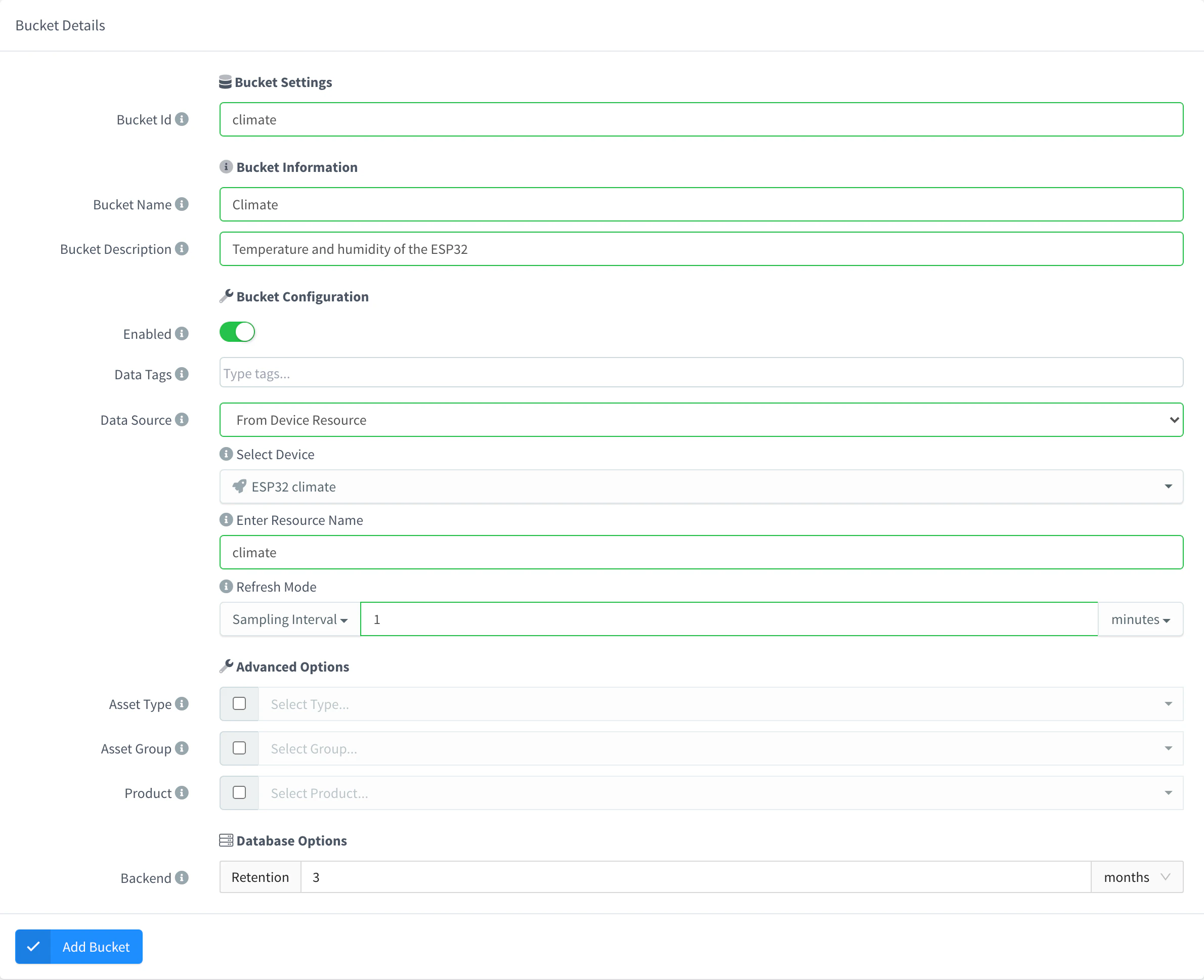
Go to Data Buckets and click Create a Data Bucket. Set the Bucket Id to climate, choose From Device Resource as the Data Source, select esp32_climate in Select Device and climate in Select Resource, choose Sampling Interval as the Refresh Mode with 1 minute, and save.
API
curl -X POST "https://YOUR_SERVER/v1/users/YOUR_USER/buckets" \
  -H "Authorization: Bearer YOUR_TOKEN" \
  -H "Content-Type: application/json" \
  -d '{
    "bucket": "climate",
    "name": "Climate",
    "enabled": true,
    "config": {
      "source": "device",
      "device": "esp32_climate",
      "resource": "climate",
      "update": "interval",
      "interval": 60
    }
  }'
CLI
The CLI cannot create buckets. Once the bucket exists, read its latest records:
thinger bucket read climate --items 5AI
Create a data bucket called climate that reads the climate resource of esp32_climate every minute.
After two or three minutes, the bucket has one record per minute with temperature and ts.
Plot them on a dashboard
Console
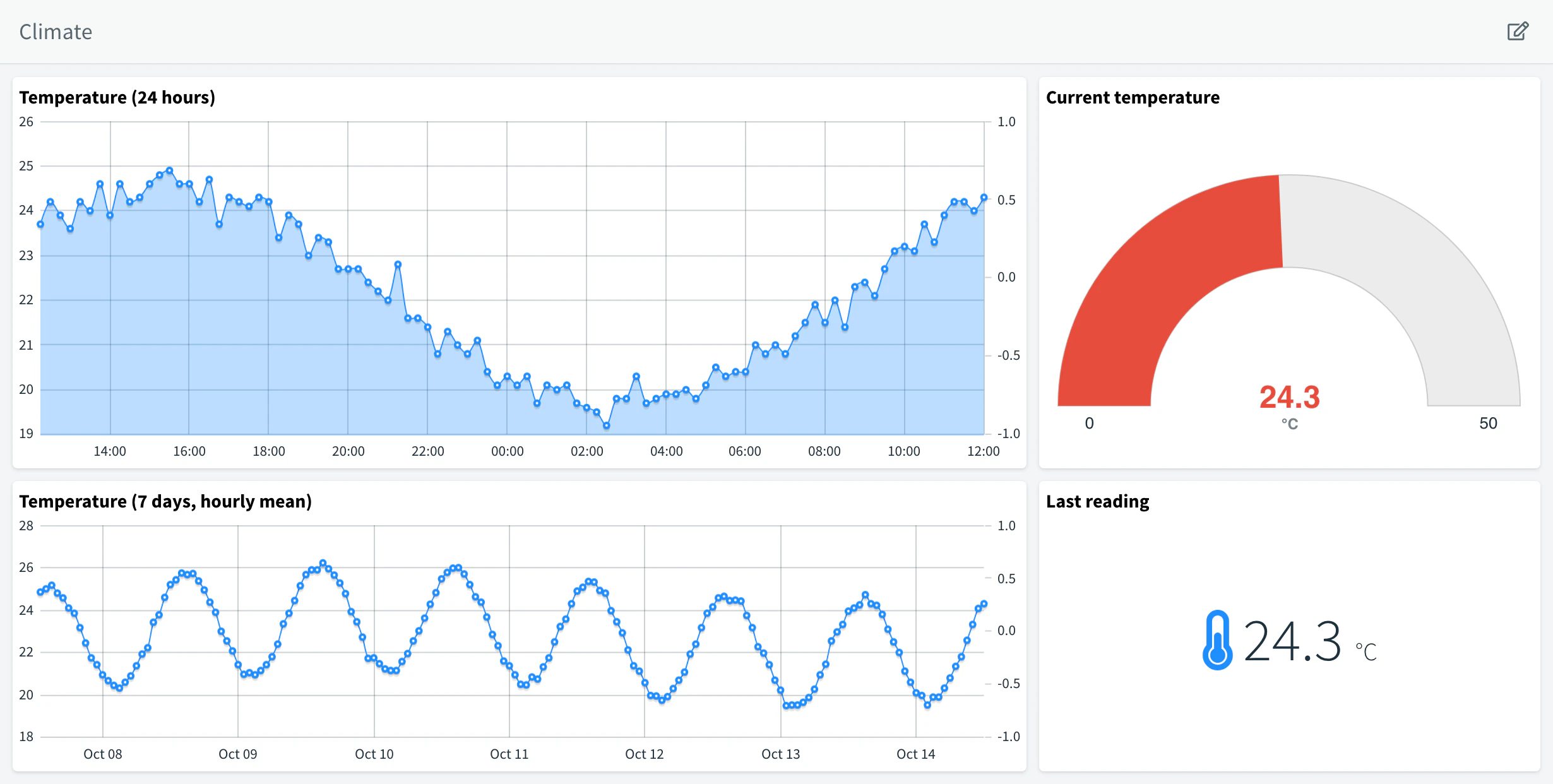
Go to Dashboards, click Create a Dashboard, set the ID climate and a name, and open it. Turn on the edit mode, click Add Widget and choose a Time Series Chart with From Data Bucket as the source: bucket climate, field temperature, the last hour. Save the widget. See Dashboards for the other widgets.
API
The API creates the dashboard; add the chart in the console editor.
curl -X POST "https://YOUR_SERVER/v1/users/YOUR_USER/dashboards" \
  -H "Authorization: Bearer YOUR_TOKEN" \
  -H "Content-Type: application/json" \
  -d '{"dashboard": "climate", "name": "Climate", "tabs": [{"name": "Main", "icon": "fas fa-tachometer-alt", "widgets": []}]}'
The CLI and agents build dashboards as web apps instead of widget layouts: see Build a dashboard app.
Get an email above 30 °C
An alarm rule watches the bucket and calls an email endpoint when the temperature goes above 30 °C. First create the endpoint; Endpoints covers the other types.
Console
Go to Endpoints and click Create an Endpoint. Set the Endpoint Identifier to climate_email, choose Email as the Endpoint Type, and fill in the Destination Addresses, the Subject and the Email body. Click Add Endpoint.
API
curl -X POST "https://YOUR_SERVER/v1/users/YOUR_USER/endpoints" \
  -H "Authorization: Bearer YOUR_TOKEN" \
  -H "Content-Type: application/json" \
  -d '{
    "endpoint": "climate_email",
    "name": "Climate email",
    "enabled": true,
    "type": "email",
    "config": {
      "recipient": "you@example.com",
      "subject": "Temperature alert",
      "body": "esp32_climate is above 30 °C. Open the Climate dashboard to check it.",
      "body_type": "text"
    }
  }'
CLI
The CLI does not manage endpoints. Use the console, the API or an agent.
AI
Create an email endpoint called climate_email that sends "Temperature alert" to you@example.com.
Then create the alarm rule. Alarms explains confirmations, reminders and alarm states.
Console
Add the rule
Go to Alarms, open the Rules tab and click Add Rule. Set the Rule Identifier to
climate_hot, a Name, the Severity and a Check Interval of 1 minute, and click Add Rule.Set the source and the conditions
In Data Source, add From Data Bucket with the bucket
climateand the fieldtemperature. In Activation, click Add Condition, choose IS ABOVE30with Immediate confirmation, and click Add Notification to selectclimate_email. In Normalization, add the condition IS BELOW28. Turn on Enabled and save.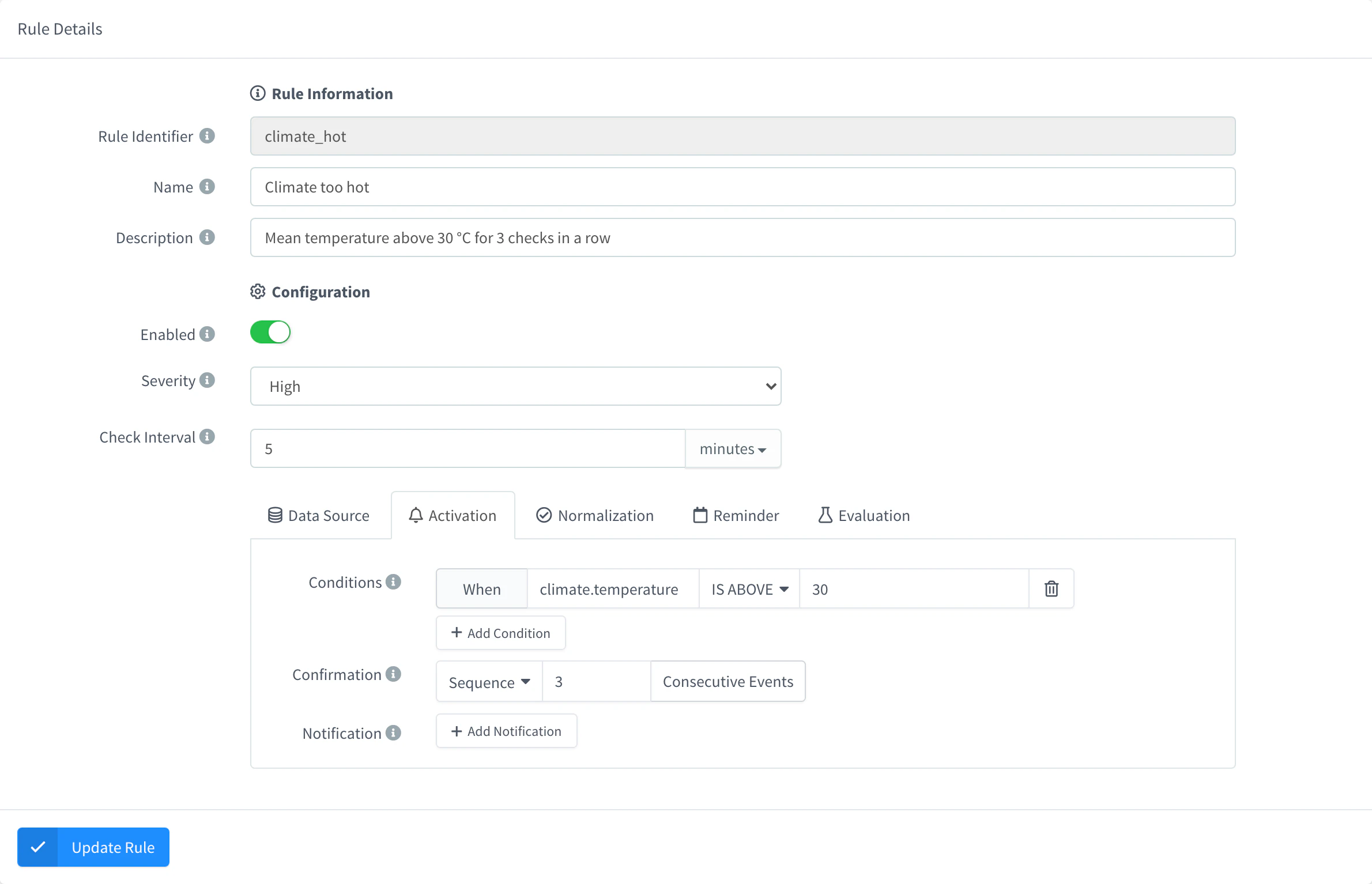
Activation condition of the climate_hot rule
API
curl -X POST "https://YOUR_SERVER/v1/users/YOUR_USER/alarms/rules" \
  -H "Authorization: Bearer YOUR_TOKEN" \
  -H "Content-Type: application/json" \
  -d '{
    "rule": "climate_hot",
    "name": "Climate too hot",
    "enabled": true,
    "config": {
      "severity": 3,
      "check_interval": { "value": 1, "magnitude": "minute" },
      "data": { "sources": [ {
        "name": "climate", "source": "bucket",
        "bucket": { "id": "climate", "mapping": ["temperature"] }
      } ] },
      "activation": {
        "conditions": [ { "operator": "and", "type": "value_check", "field": "climate.temperature", "comparison": "above", "value": "30" } ],
        "confirmation": { "mode": "immediate" },
        "notifications": [ { "type": "endpoint", "id": "climate_email" } ]
      },
      "normalization": {
        "conditions": [ { "operator": "and", "type": "value_check", "field": "climate.temperature", "comparison": "below", "value": "28" } ],
        "confirmation": { "mode": "immediate" },
        "notifications": []
      },
      "reminder": { "type": "none", "notifications": [] }
    }
  }'
CLI
The CLI does not manage alarms. Use the console, the API or an agent.
AI
Create an alarm rule called climate_hot that checks the climate bucket every minute, notifies the climate_email endpoint when the temperature goes above 30 and clears when it drops below 28.
To try it, warm the sensor (or return a value above 30 from the sketch) for a couple of minutes.
Result
The device is online in Devices, the climate bucket gets a temperature record every minute, and the dashboard plots it. When a reading goes above 30 °C, the next check of the rule raises an alarm in Alarms > Instances, and the email arrives at the destination address. When the temperature drops below 28 °C, the alarm clears.