

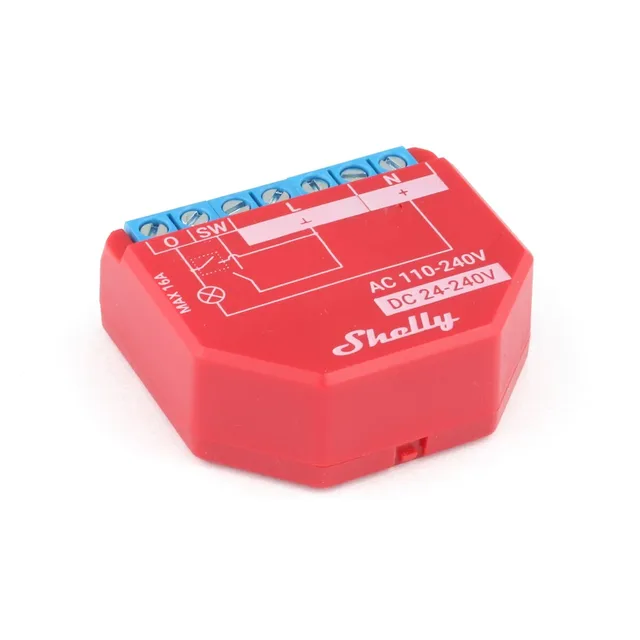
This guide connects a Shelly Plus 1PM, a one-channel Wi-Fi relay with power metering, to Thinger.io over MQTT, keeping its original firmware. The Shelly Plus 1PM product turns its status messages into a property and a Data Bucket, and gives the device API resources to switch the relay and query the device.
Before you start
- A Thinger.io account.
YOUR_SERVERisiot.thinger.ioon the free Cloud account, or the hostname of your private instance, andYOUR_USERis your username. - The Shelly Plus 1PM plugin, installed from Plugins > Marketplace. It creates the product. Plugins are not available on the free Cloud account; there, create the same product by hand with the profile described in What the product does.
- The relay connected to your Wi-Fi network, with access to its web interface.
Steps
Configure MQTT on the relay
In the web interface of the relay, enable MQTT and set the connection with these values. The names of the settings are those of the Shelly firmware; see the Shelly documentation if your version differs.
Setting Value Server YOUR_SERVER:1883Client ID The device ID, such as shellyplus1pm-441793a50208: the default client ID of the relay.Username YOUR_USERPassword The device credentials you choose for this relay. The relay must publish its switch status, which it does on
<client ID>/status/switch:0, and accept commands on<client ID>/rpc.Let the product create the device
The product's Auto Provision rule accepts any device whose ID matches
shellyplus1pm-[a-fA-F0-9]+. On its first connection, the device is created as an MQTT device of the product, with the password it sent as its device credentials. That first connection is refused; the relay connects on its next attempt.To use a different ID, create the device first as an MQTT device in Devices, with the product Shelly Plus 1PM. See MQTT.
What the product does
The relay sends its status as JSON on {{device}}/status/switch:0. The product keeps it in the property relay and in the Data Bucket shelly_plus_1pm_status, both with the payload {{payload:statusProcessor}}. The function statusProcessor of the product script keeps the useful fields and converts the energy from watt-minutes to kWh:
function statusProcessor(payload){
    return {
        energy: payload.aenergy.total/60/1000,
        power: payload.apower,
        current: payload.current,
        output: payload.output,
        temperature: payload.temperature.tC,
        voltage: payload.voltage
    };
}
API resources
Each API resource publishes an RPC request on {{device}}/rpc. The relay answers on the topic given in src followed by /rpc, and the resource returns the result of the answer:
| API resource | RPC method | Returns |
|---|---|---|
relay | Switch.Set | Nothing. The input is true or false. |
status | Shelly.GetStatus | The full status, such as the Wi-Fi IP address. |
info | Shelly.GetDeviceInfo | Model, firmware version and device ID. |
config | Shelly.GetConfig | The configuration of the relay. |
location | Shelly.DetectLocation | The location of the relay, for a map. |
updates | Shelly.CheckForUpdate | The available firmware updates. |
The request of relay is:
{"src":"{{device}}/switch/set","method":"Switch.Set","params":{"id":0,"on":{{payload=property.relay.output}}}}=property.relay.output makes the current state of the relay the default value of the input, so a switch starts in the right position.
Switch the relay
Console
Open the device in Devices, go to its API and set the relay input to on or off.
API
YOUR_DEVICE is the device ID of the relay, and YOUR_TOKEN an access token of your account.
curl -X POST "https://YOUR_SERVER/v3/users/YOUR_USER/devices/YOUR_DEVICE/resources/relay" \
  -H "Authorization: Bearer YOUR_TOKEN" \
  -H "Content-Type: application/json" \
  -d 'false'
AI
Switch off the Shelly relay YOUR_DEVICE.
The agent uses thinger_device_resource_call on the relay resource. See MCP tools.
Result
The relay appears in Devices, connected and assigned to the product. Its relay property holds the output, power, voltage, current, energy and temperature of the last status, the Data Bucket shelly_plus_1pm_status keeps every status, and the product dashboard shows the power switch, the consumption and the device information.