

In this tutorial you give the console of your instance your own identity: your logos and colors, your hostname with its certificate, and the emails your users receive. You need to be an administrator of the instance. It takes about 30 minutes, plus the time your DNS takes to propagate.
What you need
- A Thinger.io private instance on the Medium plan or above, and an administrator account on it.
YOUR_SERVERis the hostname you use today to open the console. - A hostname of your own, such as
iot.example.com, and access to its DNS. - Your logos as PNG or WebP files.
- Optional: an SMTP server or Amazon SES account, if the emails must leave from your own address.
Create the brand
A brand is the look of the console on one hostname. Its ID is that hostname.
Add the brand
Console
Go to Administration > Brands and click Add Brand (or Create a Brand if you have none). Set the Domain Name to
iot.example.com, add a Description if you want and click Add Brand.API
YOUR_TOKENis an access token of an administrator.bashcurl -X POST "https://YOUR_SERVER/v1/brands" \ -H "Authorization: Bearer YOUR_TOKEN" \ -H "Content-Type: application/json" \ -d '{ "brand": "iot.example.com", "name": "Example IoT", "enabled": true, "config": { "title": "Example IoT Console", "copyright": "© Example Inc.", "style": { "topBar": { "background": "#132533", "color": "#ffffff" } } } }'AI
Ask your AI agentCreate a brand for iot.example.com with the title Example IoT Console and a dark blue top bar with white text.
The agent uses
thinger_resource_createwith thebrandtype. See MCP tools.The CLI has no commands for brands.
Set the visual identity
Open the brand and fill in its tabs. Save each tab before you move to the next one.
Tab What to set Information Page title, Company Name, Contact Email, Copyright, and whether the menu shows the Community Links. Logos Favicon, Platform Logo, Menu Logo and Menu Icon. Top Bar Top Bar Background and Top Bar Text colors. Login Background Color or Background Image, and the Box Location of the login form. PWA Name, colors and icons of the app users can install from the browser. 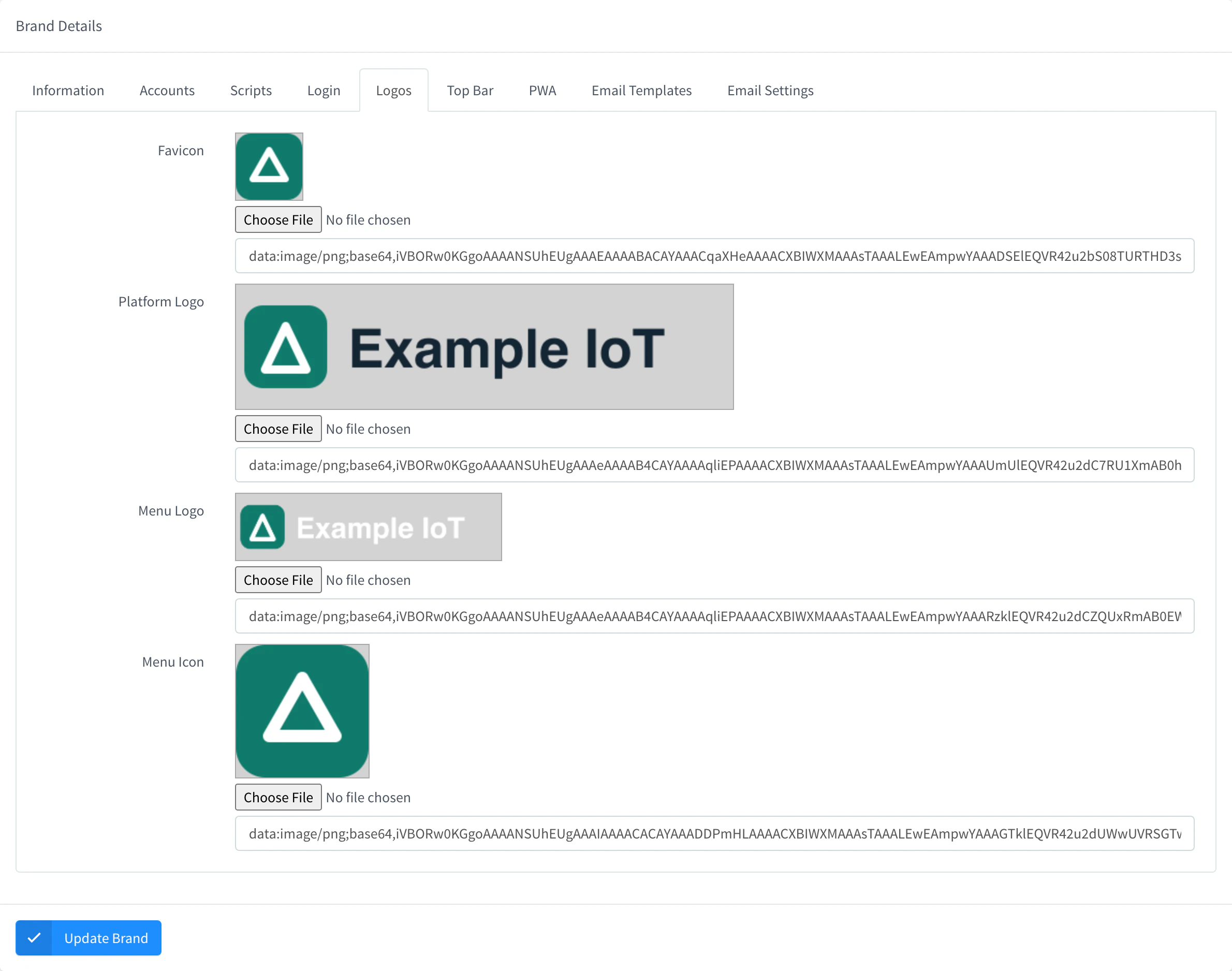
Logos tab of a brand Decide who can sign up
On Accounts, choose whether anyone can sign up on this hostname (Public Sign-up), which sign-in methods the login page offers and whether accounts created on other hostnames can sign in here (Cross Sign-in). Each option is described in Accounts on a brand.
Warning
Keep at least one sign-in method that an administrator can use, or nobody can sign in on this hostname.
Connect your domain
A domain makes the hostname reach your instance over HTTPS. The brand applies as soon as the console is opened on that hostname.
Point the DNS to your instance
In your DNS provider, create a
CNAMErecord fromiot.example.comtoYOUR_SERVER, or anArecord with the public IP address of your instance. Port 80 of the instance must be reachable from the internet, because the certificate is checked over HTTP.Add and verify the domain
Console
Go to Administration > Domains and click Add Domain (or Create a Domain). Set the Domain Name to
iot.example.comand click Add Domain. Open the domain and, in DNS Configuration, click Verify domain.API
bashcurl -X POST "https://YOUR_SERVER/v1/domains" \ -H "Authorization: Bearer YOUR_TOKEN" \ -H "Content-Type: application/json" \ -d '{"domain": "iot.example.com"}'bashcurl -X POST "https://YOUR_SERVER/v1/domains/iot.example.com/verify" \ -H "Authorization: Bearer YOUR_TOKEN"AI
Ask your AI agentAdd the domain iot.example.com to my instance and verify it.
The agent uses
thinger_resource_createwith thedomaintype andthinger_resource_callwith itsverifyaction.When the certificate is issued, the domain shows Domain verified. If verification fails, the console shows the reason; usually the DNS record has not propagated yet.
Customize the emails
The brand also sets the emails the instance sends to the users of this hostname.
Edit the templates
Open the brand and go to Email Templates. Edit the sender, the subject and the HTML body of Email Verification, Create Password, Forgot Password and Device Disabled. Keep the link with the code in each template; the placeholders are listed in Email templates. Link your logo by its public address, such as
https://iot.example.com/brand/images/dark_logo.png, because email clients do not load embedded images.Send from your own server
To send from your own address, go to Email Settings, turn on Custom Brand Email and enter the settings of your SMTP server or Amazon SES. Without it, the emails go out through the mail settings of the instance.
Send a test email
On Email Templates, click Test Email. The instance sends the saved template to your own address.
Result
Opening https://iot.example.com shows the login page with your colors and logo, over a valid certificate. After signing in, the menu, the top bar and the page title are yours, and the emails of this hostname arrive with your templates.
To go back to the default look, remove the brand in Administration > Brands; the domain and its certificate stay.
Next steps
To give your users the mobile app with your brand too, see White-label app.