

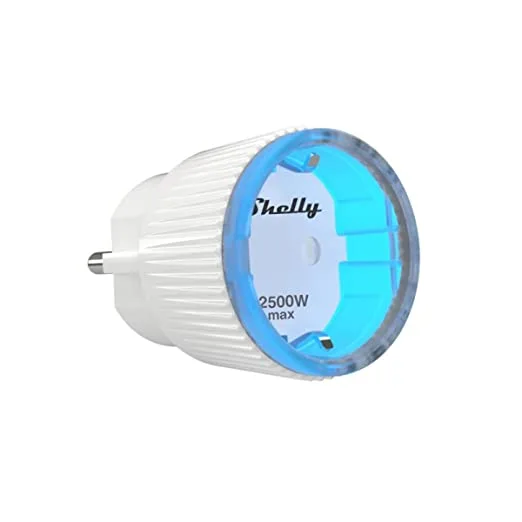
This guide connects a Shelly Plug S, a Wi-Fi smart plug with power metering, to Thinger.io. The plug speaks MQTT out of the box, so you keep its original firmware: you point it to your instance, and the Shelly Plug S product stores its state, power and energy and lets you switch it on and off.
Before you start
- A Thinger.io account.
YOUR_SERVERisiot.thinger.ioon the free Cloud account, or the hostname of your private instance, andYOUR_USERis your username. - The Shelly Plug S plugin, installed from Plugins > Marketplace. It creates the product. Plugins are not available on the free Cloud account; there, create the same product by hand with the profile described in What the product does.
- The plug connected to your Wi-Fi network, and its web interface open in a browser.
Steps
Find the device ID
In the web interface of the plug, open Internet & Security and then Advanced - Developer Settings.
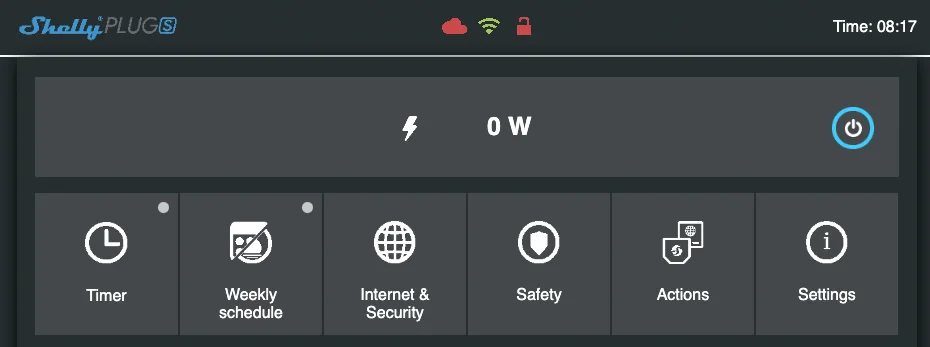
Web interface of the plug The MQTT client ID of the plug is not editable: it shows in the Will Topic, such as
shellies/shellyplug-s-C18B12/online. The part between the slashes,shellyplug-s-C18B12, is the ID the device gets in Thinger.io.Point the plug to your instance
On the same screen, enable action execution via MQTT and fill in:
Field Value Username YOUR_USERPassword The device credentials you choose for this plug. Server YOUR_SERVER:1883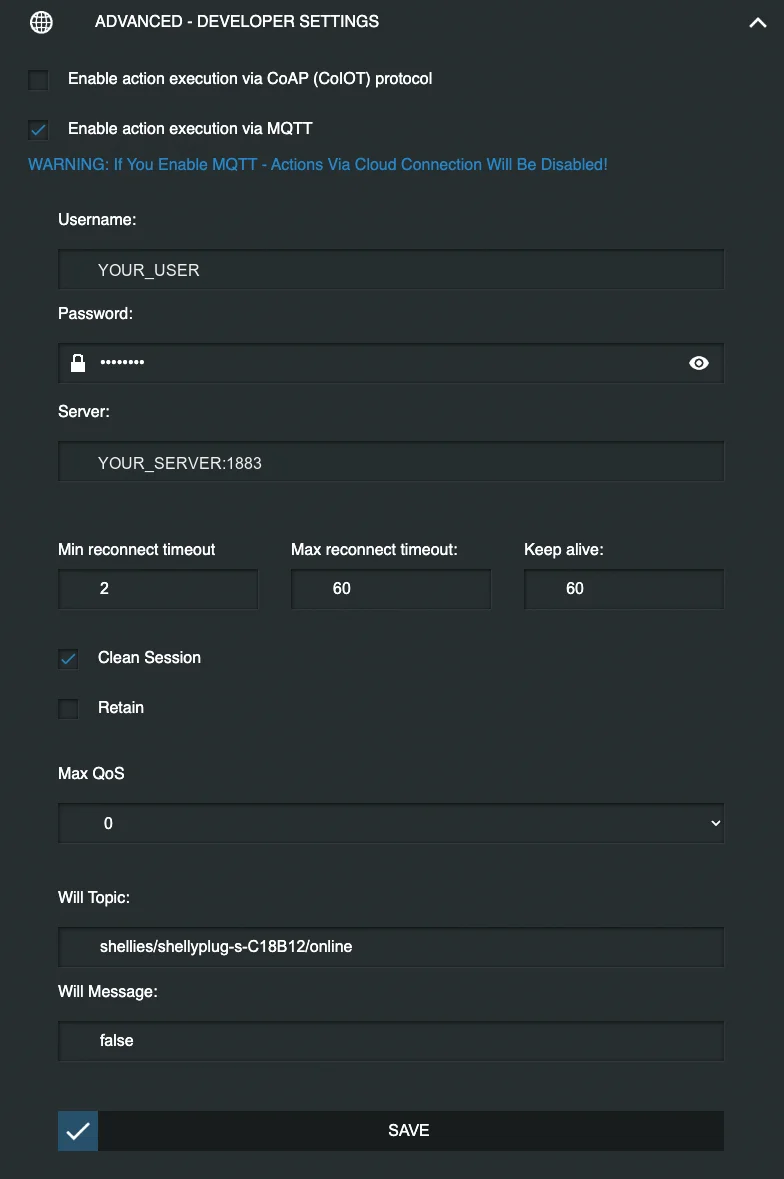
MQTT settings of the plug Save. Enabling MQTT turns off the connection of the plug to the Shelly cloud.
Let the product create the device
The product's Auto Provision rule accepts any device whose ID matches
shellyplug-s-[0-9A-F]+. On its first connection, the device is created as an MQTT device of the product, with the password it sent as its device credentials. That first connection is refused; the plug retries and connects on the next attempt.To use other credentials, or a plug with another ID, create the device first as an MQTT device in Devices with the plug's client ID as its device ID and the product Shelly Plug S. See MQTT.
What the product does
The product listens to the topics the plug publishes, so the device needs no code. The device topics use the placeholder {{device}} for the device ID.
Properties
| Property | Topic | Payload |
|---|---|---|
relay | shellies/{{device}}/relay/0 | {{payload:toBoolean}} |
power | shellies/{{device}}/relay/0/power | {{payload}} |
The plug reports its relay as the text on or off. {{payload:toBoolean}} passes it through the toBoolean function of the product script, so the property holds true or false.
Data Buckets
| Data Bucket | Topic | Payload |
|---|---|---|
shelly_plug_s_power | shellies/{{device}}/relay/{{relay}}/{{field=energy|power}} | {{payload:processData}} |
shelly_plug_s_temperature | shellies/{{device}}/{{field=temperature|overtemperature}} | {{payload}} |
shelly_plug_s_announce | shellies/announce | {{payload}} |
{{field=energy|power}}listens to both topics and stores them in one record, with a field named after each topic:energyandpower.{{relay}}captures the relay number from the topic and stores it as a tag of the record, so you can filter by relay.processDataconverts the energy, which the plug reports in watt-minutes, to kWh.- The plug publishes its model, firmware version (
fw_ver), IP address (ip) and whether a firmware update is available (new_fw) onshellies/announce.
A product bucket is created with its first message, so the first reading of each topic only creates the bucket and the data starts with the next one.
Switch the plug
The API resource relay publishes on shellies/{{device}}/relay/0/command, with the payload {{payload:toOnOff=property.relay}}. toOnOff turns true and false into the on and off the plug expects, and =property.relay makes the current state of the relay the default value, so a switch in a dashboard or in the device API starts in the right position.
Console
Open the device in Devices, go to its API and set the relay input to on or off.
API
YOUR_DEVICE is the device ID of the plug, and YOUR_TOKEN an access token of your account.
curl -X POST "https://YOUR_SERVER/v3/users/YOUR_USER/devices/YOUR_DEVICE/resources/relay" \
  -H "Authorization: Bearer YOUR_TOKEN" \
  -H "Content-Type: application/json" \
  -d 'false'
AI
Turn off the Shelly plug YOUR_DEVICE.
The agent uses thinger_device_resource_call on the relay resource. See MCP tools.
Script
function toBoolean(value){
    return value == "on" ? true : false;
}

function toOnOff(value){
    return value ? "on" : "off";
}

function processData(value){
    // energy is missing when the plug is off
    if(!value.energy) value.energy=0;
    // convert energy from watt-minutes to kWh
    value.energy = value.energy/60/1000;
    return value;
}
To find the topics and payloads of other devices, use the device's events inspector, which shows every MQTT message it publishes, or the vendor's documentation.
Result
The plug appears in Devices, connected and assigned to the product. Its relay and power properties follow the plug, the three Data Buckets fill with its readings, and the product dashboard shows the power switch, the consumption and the temperature.