

A brand is the look and the sign-in behavior of the console on one hostname: logos, colors, page titles, the login page, who can sign up and how, and the emails users receive. Each brand applies to the hostname that is its ID, so one instance can show a different console on each of its domains.
When to use it
- To show your company's logo, colors and texts instead of the Thinger.io ones.
- To give each customer or tenant its own console on its own hostname.
- To change who can sign up, how users sign in, or which emails they get on a hostname.
Brands and domains
The brand ID is the hostname, for example iot.example.com: the console opened on that hostname uses the brand. A hostname without a brand shows the default Thinger.io look and follows the server settings. For the hostname to work over HTTPS, add it as a domain and verify it.
The full setup, from DNS to the branded login page, is in White-label the console:
Create a brand
Console
Open Brands
Go to Administration > Brands and click Add Brand (or Create a Brand if you have none yet). The list shows each brand by its name and its hostname.
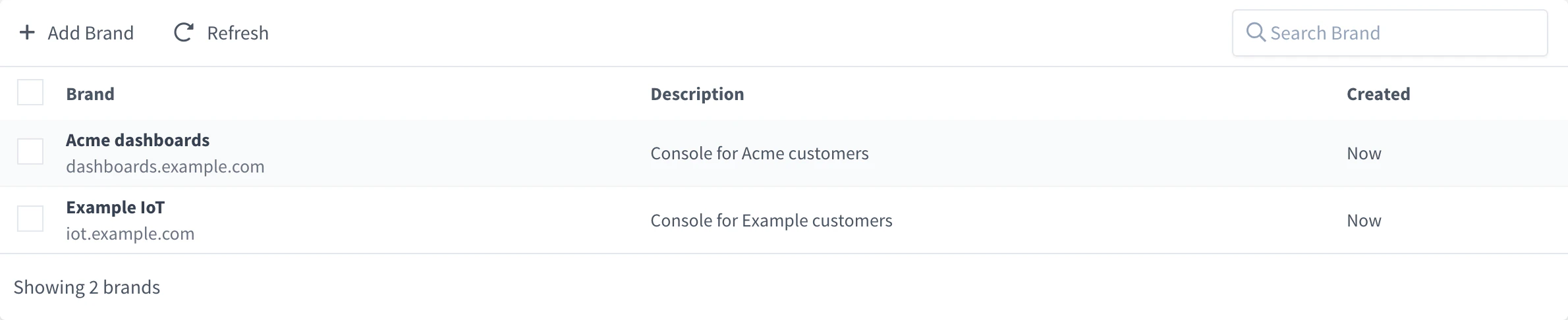
Brands Set the hostname
Set the Domain Name to the hostname the brand applies to, for example
iot.example.com, add an optional Description and click Add Brand.Customize it
Open the brand and fill in its tabs (see Brand settings). Save each tab. If you edit the brand of the hostname you are browsing, the console changes at once.
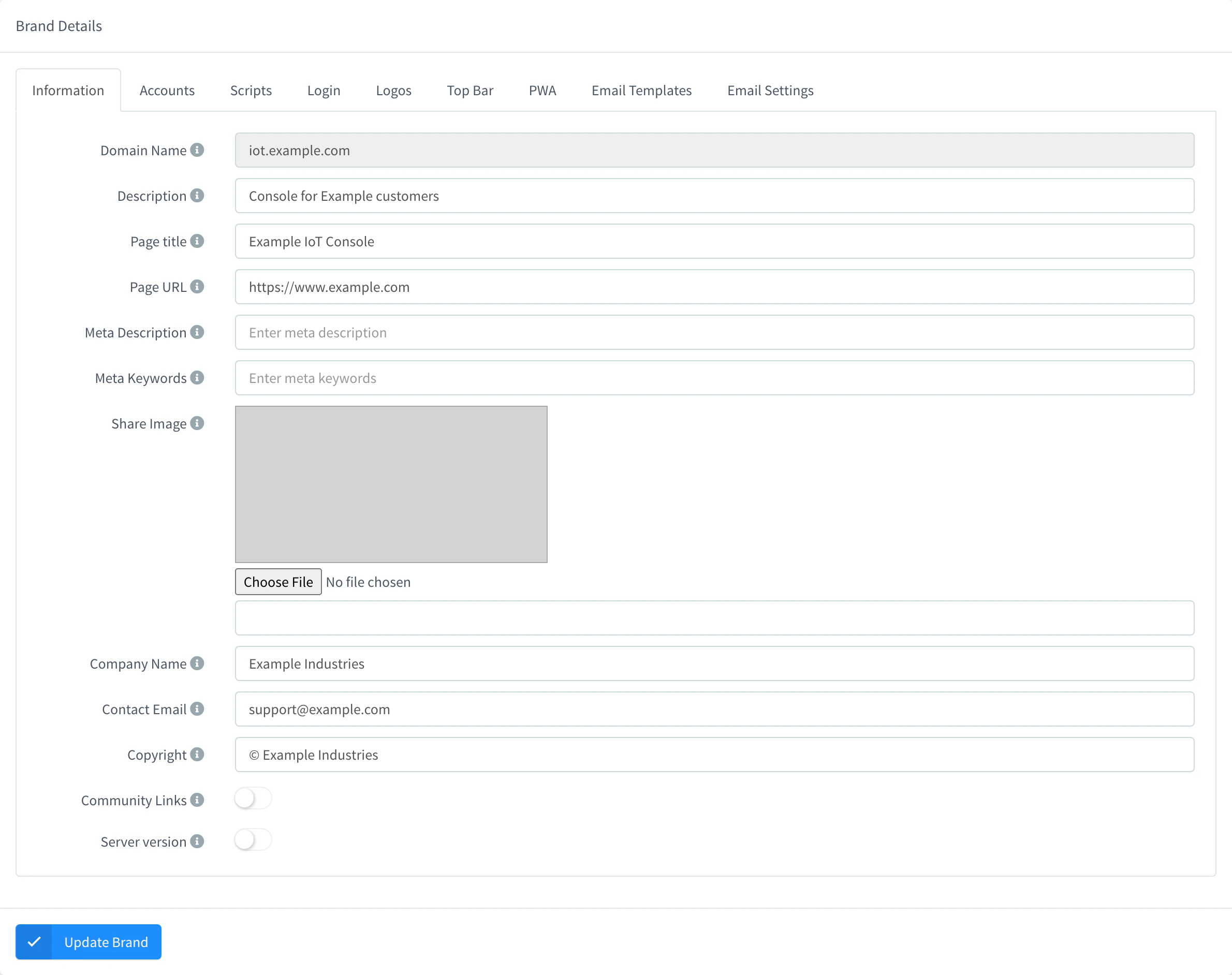
Information tab of a brand
API
YOUR_SERVER is the hostname of your instance, and YOUR_TOKEN an access token of an administrator.
curl -X POST "https://YOUR_SERVER/v1/brands" \
  -H "Authorization: Bearer YOUR_TOKEN" \
  -H "Content-Type: application/json" \
  -d '{
    "brand": "iot.example.com",
    "name": "Example IoT",
    "enabled": true,
    "config": {
      "name": "Example",
      "title": "Example IoT Console",
      "copyright": "© Example Inc.",
      "show_community": false,
      "style": { "topBar": { "background": "#132533", "color": "#ffffff" } },
      "login": { "background_color": "#132533", "box_class": "login-center" }
    }
  }'
To change some settings later, use PATCH /v1/brands/{brand}: it merges the body into the stored brand. PUT replaces the whole config and email and deletes the images missing from the new config, so send it only with the complete brand. Images (logos, favicon, icons) are sent as data:image/png;base64,… or data:image/webp;base64,… URLs.
CLI
The CLI has no commands for brands. Use the console, the API or an agent.
AI
Create a brand for iot.example.com with the title Example IoT Console, a dark blue top bar with white text, and without the community links in the menu.
The agent uses thinger_resource_create with the brand type, and thinger_resource_update with merge to change it afterwards. See MCP tools.
Brand settings
The brand page groups its settings in tabs:
| Tab | What it sets |
|---|---|
| Information | Page title, Page URL (where the login logo links), Meta Description, Meta Keywords, Share Image for link previews, Company Name, Contact Email shown in the support menu, Copyright, and whether the menu shows the Community Links and the Server version. |
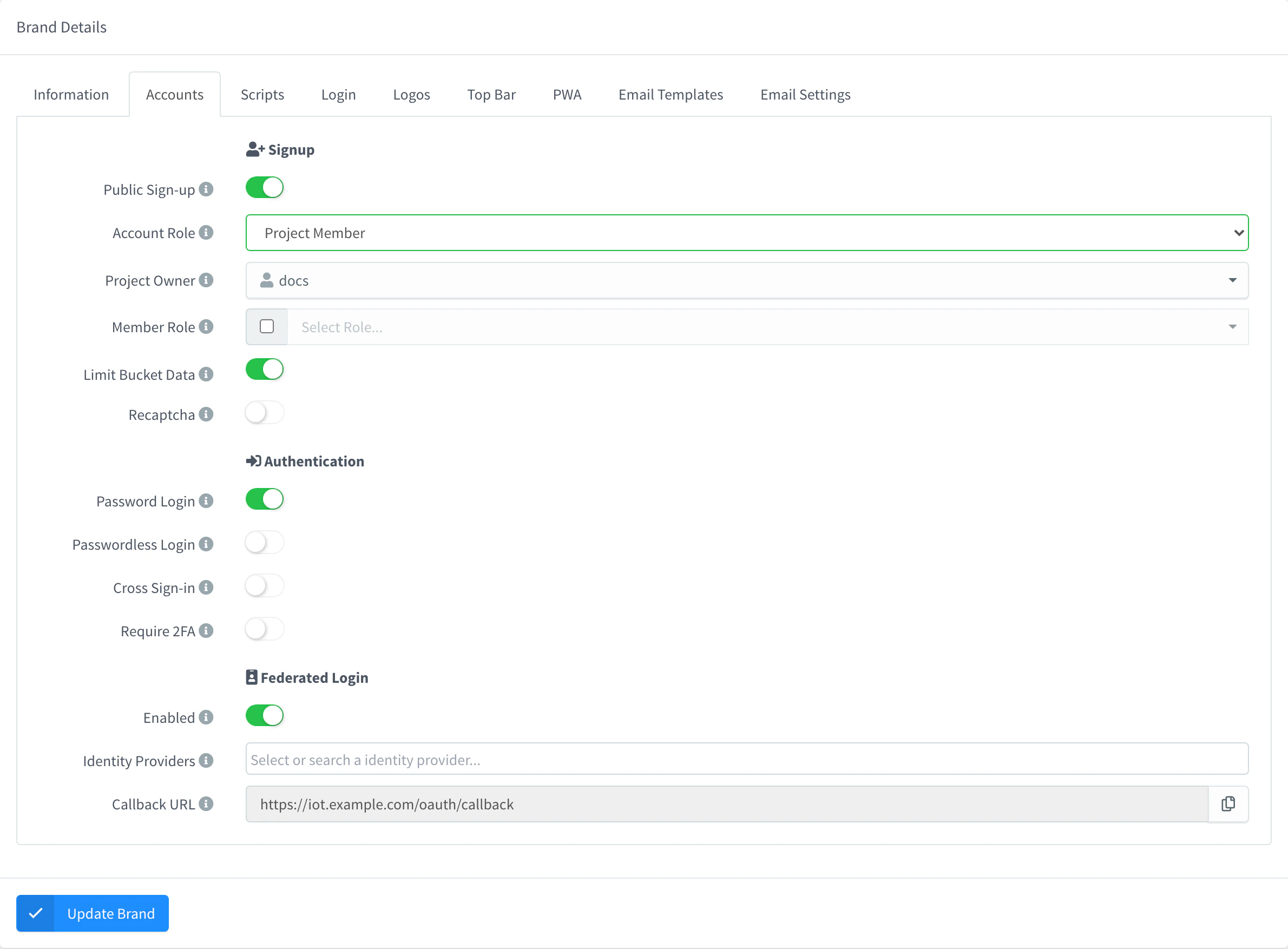
| Accounts | Sign-up and sign-in on this hostname. Each option overrides the server setting of the same name. |
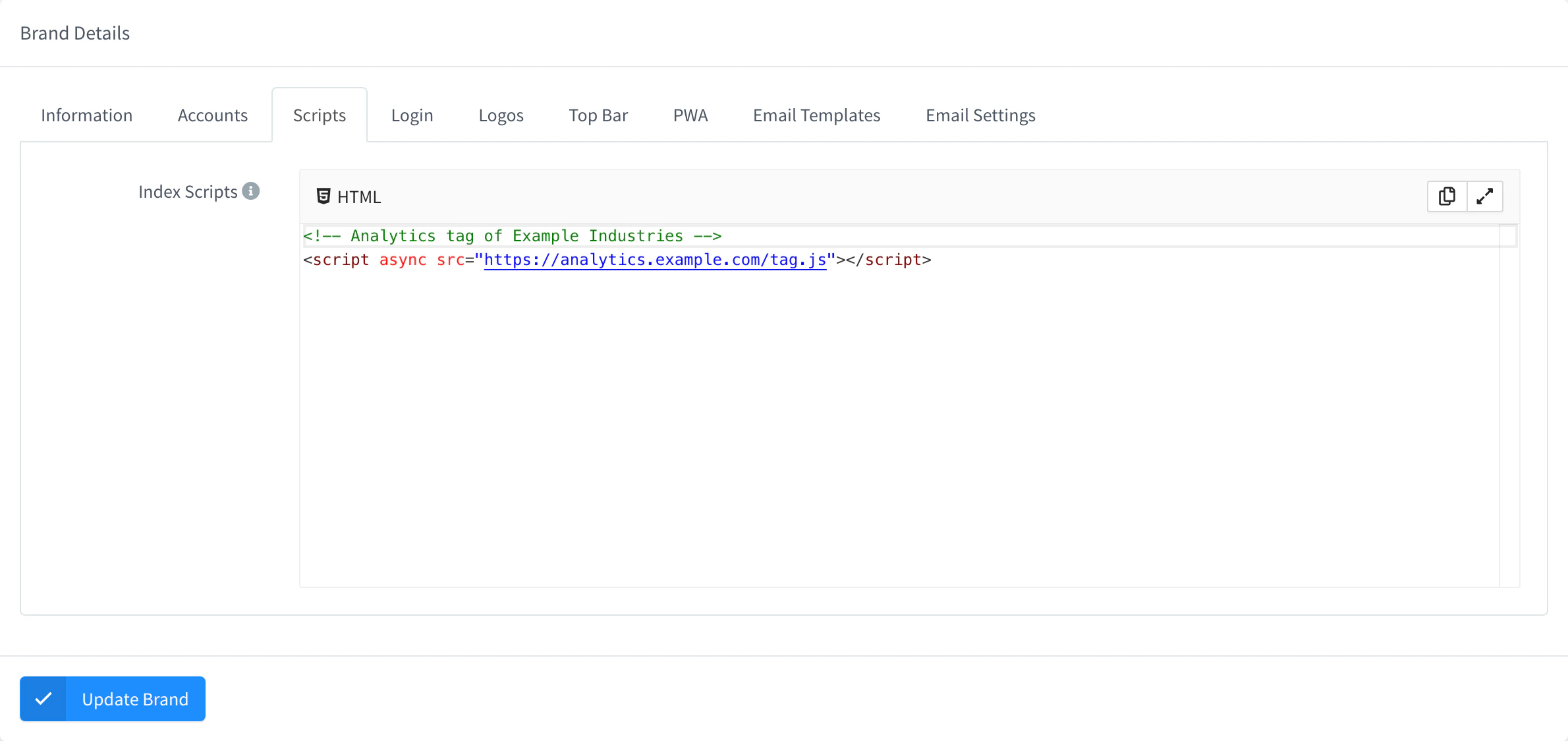
| Scripts | Index Scripts: HTML added to the page head, for example an analytics tag. |
| Login | Background Color, Background Image, Background Style, Box Location (center, left or right) and Box Style of the login page. |
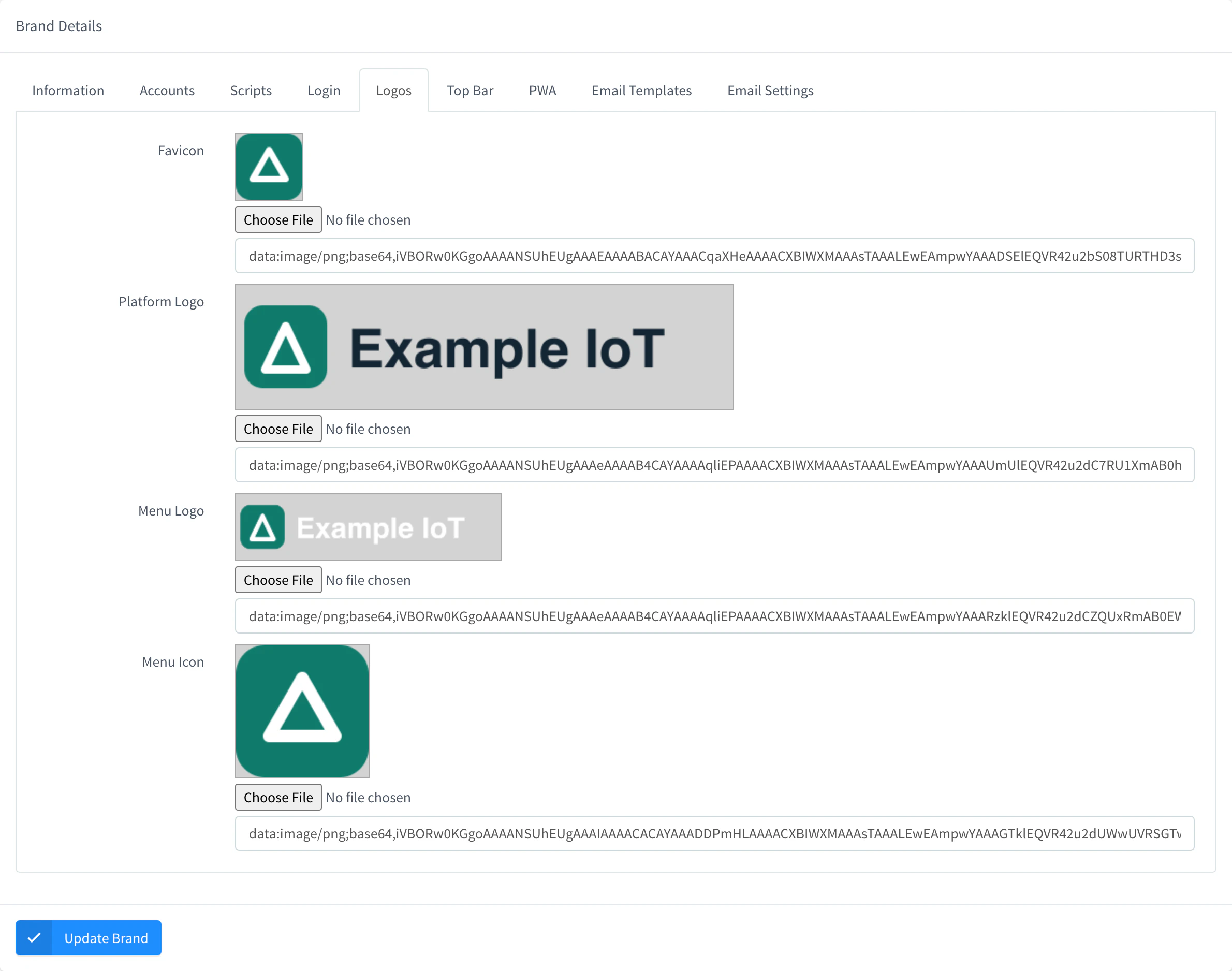
| Logos | Favicon, Platform Logo (login and public pages, exports), Menu Logo and Menu Icon (folded menu). See Logos. |
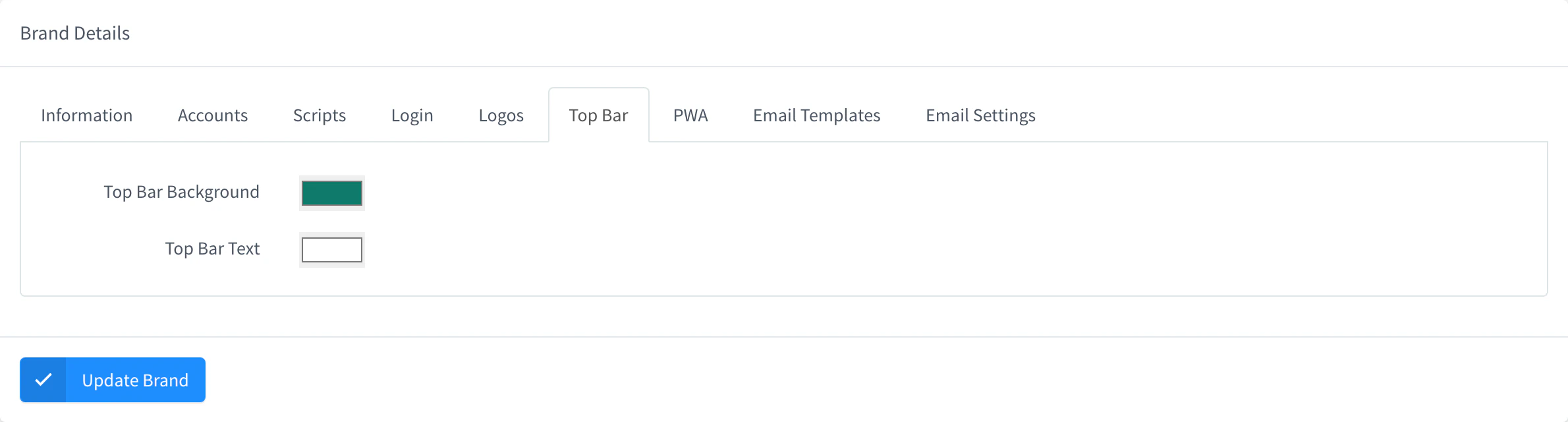
| Top Bar | Top Bar Background and Top Bar Text colors. |
| PWA | Name, short name, colors and icons of the installable web app. See Install the console as an app. |
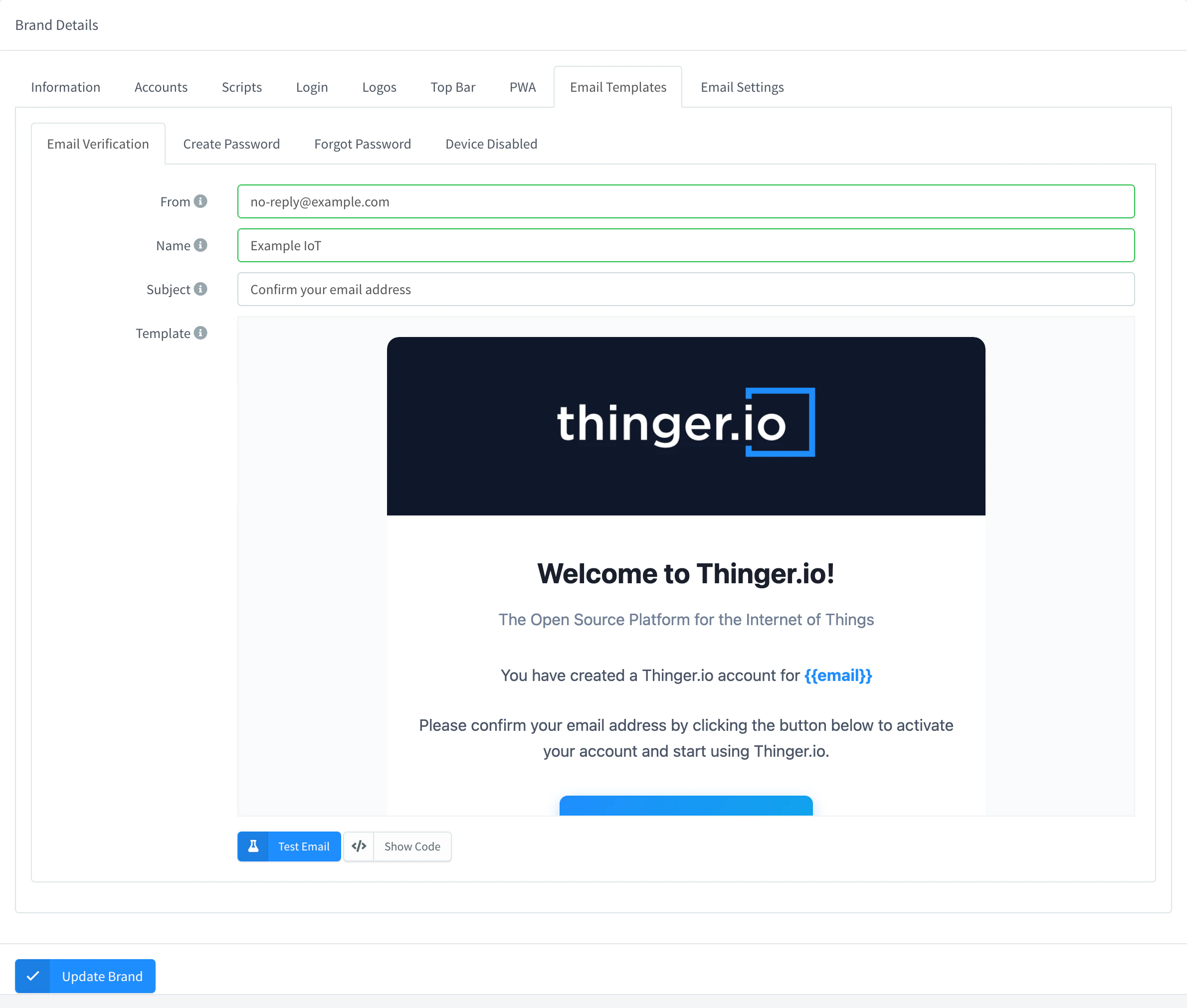
| Email Templates | Sender, subject and HTML body of the Email Verification, Create Password, Forgot Password and Device Disabled emails. Test Email sends the saved template to your own address. |
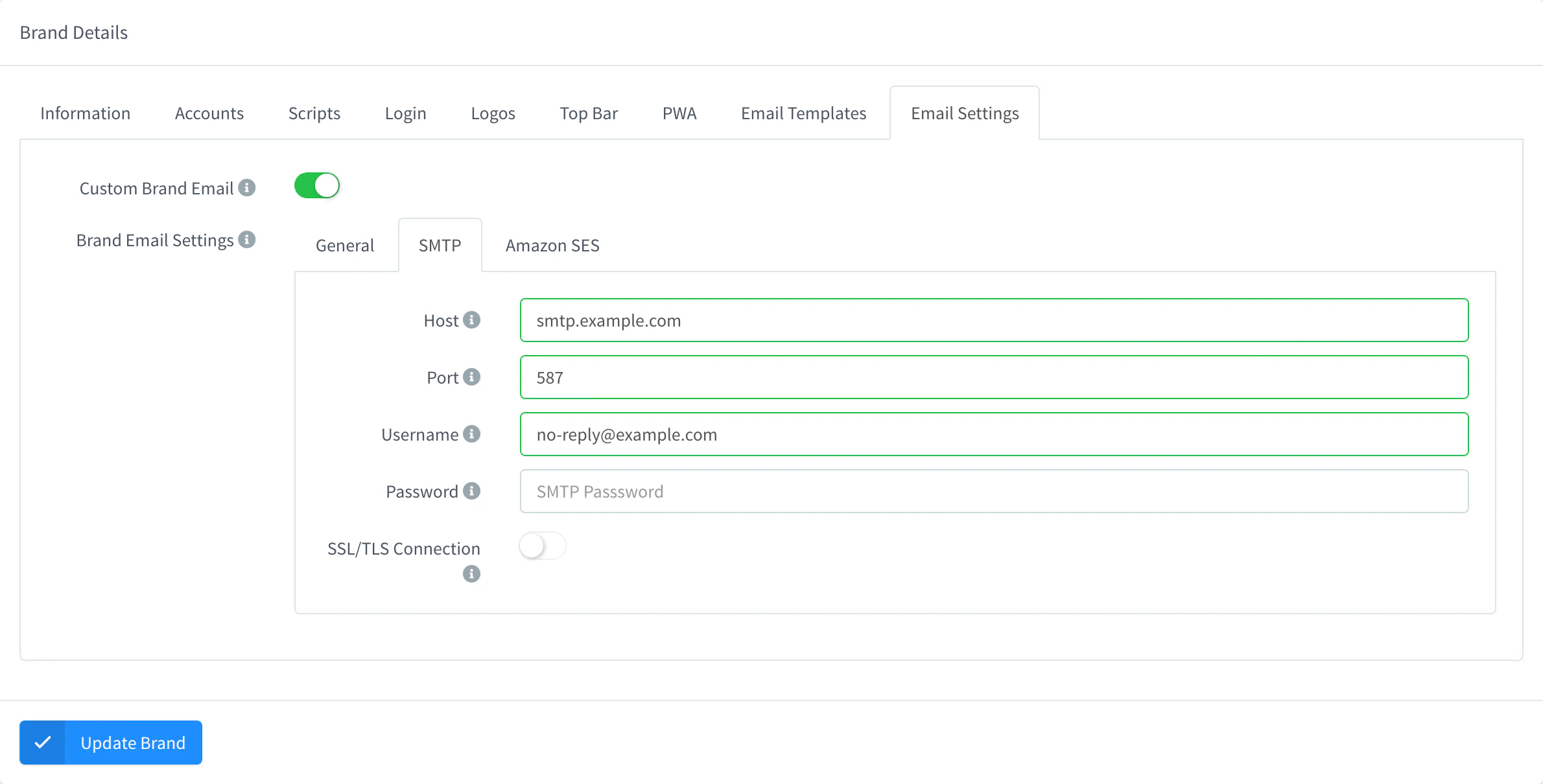
| Email Settings | Custom Brand Email: send this hostname's emails through your own SMTP server or Amazon SES instead of the server's mail settings. |
Every field is optional. A brand starts with the default Thinger.io values (logos, contact email, community links): replace them, or clear the ones you don't want. Clear Contact Email to remove the Email entry from the Support menu, and turn off Community Links to remove Documentation, Community, Helpdesk and Github Libraries.
Scripts
Index Scripts is HTML that the console adds to the head of its page on this hostname, such as the tag of your analytics tool. It runs for every user of the hostname: add only code you trust.
Login page and top bar
The Login tab sets the login page: a Background Color or a Background Image (with its CSS in Background Style), where the login box sits (Box Location: Center, Left or Right) and the CSS of the box (Box Style). The Top Bar tab sets the colors of the bar at the top of the console.
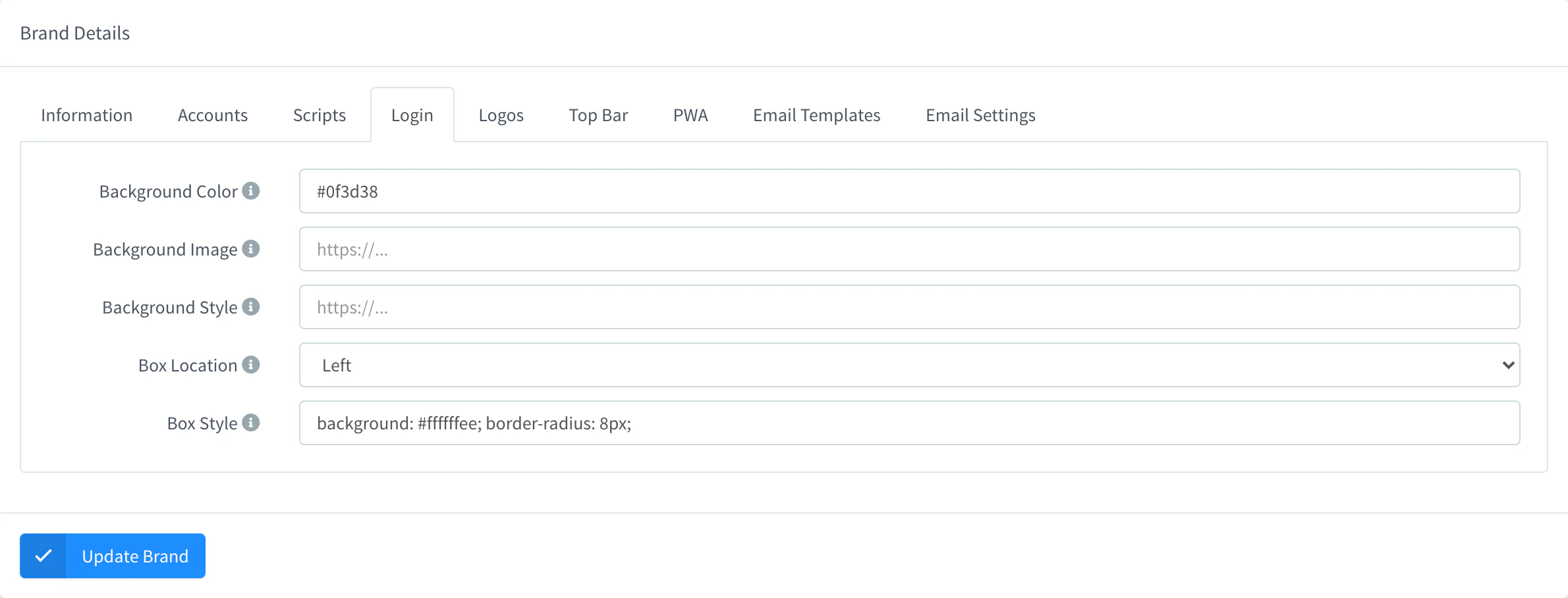
The console has no preview of a brand: open the hostname of the brand to see the result.
Logos
| Logo | Where it shows | Size |
|---|---|---|
| Favicon | The browser tab. | Up to 128 × 128 pixels. |
| Platform Logo | The login and sign-up pages, public pages such as shared dashboards, and exports. It usually sits on a light background. | Up to 150 pixels high. |
| Menu Logo | The top of the main menu, which is dark by default. | Up to 64 pixels high. |
| Menu Icon | The main menu when it is folded. | Up to 128 × 128 pixels. |
In the console you can pick a PNG or JPEG file with Choose File: it is scaled down to the size above and stored as PNG. Use logos with a transparent background, a light version for the dark menu and a dark one for the light login page, so they keep their contrast.
Accounts on a brand
| Option | Effect |
|---|---|
| Public Sign-up | Anyone can create an account on this hostname. Account Role sets whether new accounts are developers or project members; it also applies to accounts created by an identity provider. |
| Project Owner, Member Role | For project members: each new member gets its own project, <username> workspace, in the account of the Project Owner (an administrator or a domain administrator), with the Member Role of that account. |
| Limit Bucket Data | For project members: the new project only shows the bucket data of the devices in the project. The buckets must store a device tag. See Limit bucket data to the project. |
| Recaptcha | Asks for a reCAPTCHA on sign-up, with your Recaptcha Secret. |
| Password Login, Passwordless Login | Which sign-in methods the login page offers (password, passkeys). If none is enabled, nobody can sign in on this hostname. |
| Cross Sign-in | When off, only accounts created on this hostname can sign in on it. |
| Require 2FA | Users must set up a second factor. |
| Federated Login | Shows the buttons of the identity providers on the login page; Identity Providers limits which ones (empty shows all). The Callback URL is the one to register at the provider for this hostname. |
Warning
Changing the sign-in options can lock users out of the hostname. Keep at least one sign-in method that an administrator can use.
Email templates
The Email Templates tab has one tab per email: Email Verification, Create Password, Forgot Password and Device Disabled. Each one has these fields:
| Field | What it sets |
|---|---|
| From, Name | The sender address and name. Leave them empty to use the ones of the email settings (the brand's own, with Custom Brand Email, or the server's). |
| Subject | The subject of the email. |
| Template | The HTML body, shown as a preview. Show Code opens the HTML editor and Hide Code returns to the preview. |
Test Email sends the saved template to your own address.
Templates are HTML and can use these placeholders: {{code}}, {{user}}, {{email}}, {{host}}, {{admin}} (the server contact email) and {{host_url}}; {{device}} in Device Disabled. Keep the link of each template:
| Template | Link |
|---|---|
| Email Verification | {{host_url}}/verify_email?code={{code}} |
| Forgot Password | {{host_url}}/password?code={{code}} |
| Create Password | {{host_url}}/create_password?code={{code}} |
Email clients do not load embedded images: link your logo by its public address, https://iot.example.com/brand/images/dark_logo.png.
Email settings
By default, the emails of every hostname go out through the email settings of the server. Turn on Custom Brand Email in the Email Settings tab to send the emails of this hostname through your own server: in Brand Email Settings, the General tab sets the Email Type (SMTP or Amazon SES) and the default sender, and the SMTP and Amazon SES tabs hold the server and its credentials.
Install the console as an app
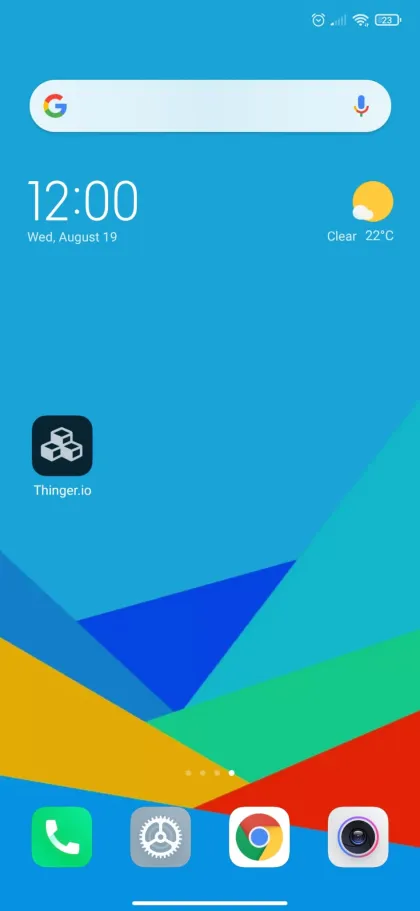
The console is an installable web app (PWA). On a phone or a computer, users can install it from the browser: it gets an icon on the home screen or in the app list, and it opens in its own window, without the browser bar. On each hostname the app takes the name, colors and icons of the PWA tab of its brand.
| Field | What it sets |
|---|---|
| Name | The name of the app in the install prompt and the app list. Required. |
| Short Name | The name under the icon on the home screen, when Name is too long. |
| Theme Color | The color of the title bar or the status bar of the app, and the browser theme color of the console. |
| Background Color | The background of the splash screen while the app loads. |
| App Icon | Four PNG icons: 192 × 192 and 512 × 512 pixels, each for the purposes any and maskable. A maskable icon is cropped to a circle or a rounded square by the phone: keep the logo inside its central area. |
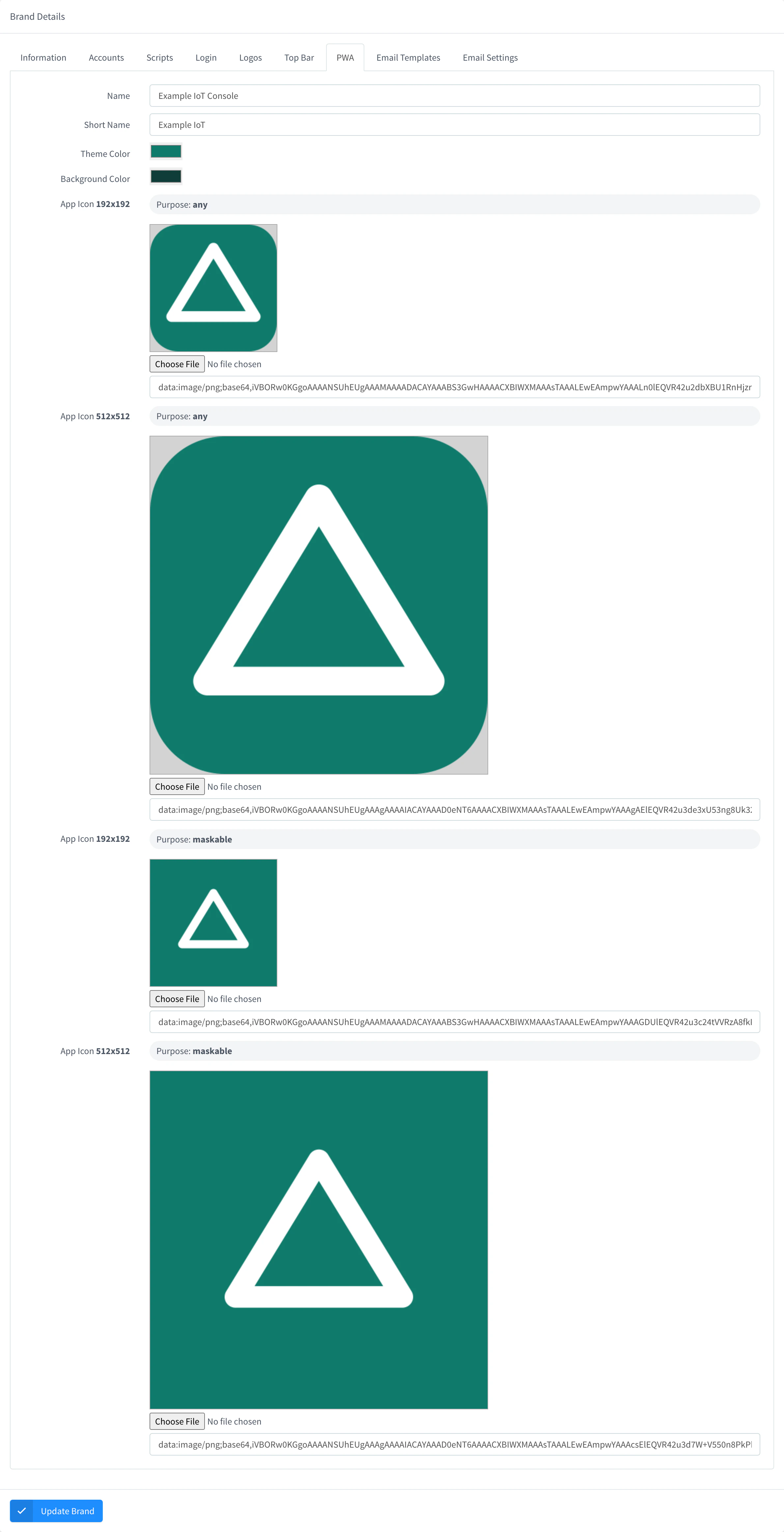
A brand starts with the default Thinger.io app: change at least the name and the icons. The instance serves the manifest of each hostname at https://iot.example.com/manifest.webmanifest; with the API, it is the config.pwa object of the brand.
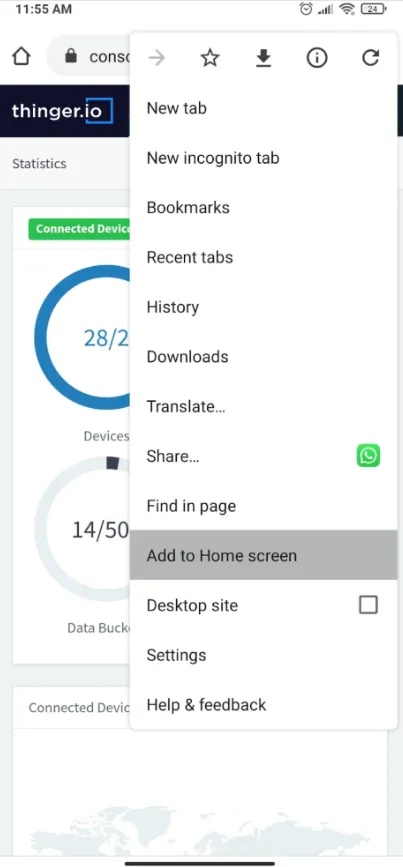
To install it:
| Device | Steps |
|---|---|
| Android (Chrome) | Open the console on the hostname, open the browser menu and tap Add to Home screen (or Install app), then confirm. |
| iPhone and iPad (Safari) | Open the console, tap the share button and then Add to Home Screen. |
| Computer (Chrome or Edge) | Open the console and click the install icon in the address bar. |
Remove a brand
Removing a brand returns the hostname to the default look. The domain and its certificate stay.
Console
Go to Administration > Brands, select the brand and click Remove, then confirm with Remove.
API
curl -X DELETE "https://YOUR_SERVER/v1/brands/iot.example.com" \
  -H "Authorization: Bearer YOUR_TOKEN"
CLI
The CLI has no commands for brands.
AI
Remove the brand of iot.example.com.
Limits
- A brand is readable without signing in, because the login page needs it. Secrets in it, such as the reCAPTCHA secret or the email password, are only returned to administrators.
- Logos and images are stored as PNG or WebP: the console converts the file you pick to PNG, and the API accepts PNG or WebP data URLs.
- The number of brands depends on your plan. See Plans and limits.