

An alarm rule reads one or more data sources every check interval, evaluates its conditions for each device and raises, confirms or clears one alarm per device. This page describes every setting of a rule, how to test it and some complete rules. Alarms explains alarms and how to handle them; Alarm notifications explains what your endpoints receive.
When to use it
- To configure a rule in the console or write one for the API, knowing what each option does.
- To compare each device with its own threshold, stored in a property (see Alert on per-device temperature limits).
- To detect devices that disconnect or stop sending data.
- To check a rule against your current data before you enable it.
How a rule is evaluated
When you save an enabled rule, it runs a check at once and then every Check Interval. In each check:
- Every data source returns its values per device ID.
- The rule joins them by device: the conditions of a device see the values of that device in every source.
- For each device, the rule evaluates the activation conditions and, if they do not hold, the normalization conditions. The result decides what happens to the alarm of that device:
| Result | When | Effect on the alarm of the device |
|---|---|---|
| Activation | The activation conditions hold. | Without an alarm, the rule raises one. A Non-confirmed alarm counts one more check toward its confirmation. An active alarm stays active. |
| Normalization | The activation conditions do not hold and the normalization conditions do, or the rule has none. | An active alarm counts toward its normalization and is Cleared once it is confirmed. A Non-confirmed alarm is removed. |
| No action | Neither holds. Only possible when the normalization has conditions of its own. | A Non-confirmed alarm is removed. The normalization of an active alarm starts over. |
| Skipped | The device lacks the data to evaluate it. See Missing data. | Nothing changes. |
An active alarm is one in the Activated, Acknowledged, Latched or Shelved state. A rule keeps at most one open alarm per device; when it is cleared, the next activation raises a new one.
The Rules tab of Alarms shows the last check of each rule: Execution (when it ran), Duration, Checks (devices evaluated), Activations and Normalizations (devices where each held) and Skipped. The alarm_rule_execute event carries the same figures.
General settings
Go to Alarms, open the Rules tab and click Add Rule. The form starts with these settings; the Data Source, Activation, Normalization, Reminder and Evaluation tabs appear once you click Add Rule and the rule exists.
| Console | Field | Description |
|---|---|---|
| Rule Identifier | rule | Unique ID: letters, digits, _ and -, up to 32 characters. It cannot be changed. The IDs of the alarms start with its initials, such as CH- for climate_hot. |
| Name | name | Name of the rule, up to 255 characters. Each alarm takes it as its own name. |
| Description | description | Optional text, up to 255 characters, copied to each alarm. |
| Enabled | enabled | Only enabled rules run. Saving a rule restarts it with its new settings; its alarms keep their state. |
| Severity | config.severity | Severity of the alarms of the rule: see the table below. |
| Check Interval | config.check_interval | How often the rule runs: {"value": 5, "magnitude": "minute"}. magnitude is second, minute, hour, day, week, month or year. With a value of 0 the rule never runs. |
| Severity | severity |
|---|---|
| None | 0 |
| Low | 1 |
| Medium | 2 |
| High | 3 |
| Critical | 4 |
A new rule in the console starts enabled, with Medium severity, a Check Interval of 30 minutes and a reminder interval of 1 day. The Confirmation of the activation and of the normalization starts as Timespan of 5 minutes.
To put a rule in projects, select it in the Rules tab, open the context menu and choose Set Projects, or call PUT /v1/users/{user}/alarms/rules/{rule}/projects with the list of <owner>@<project> IDs. Each alarm belongs to the projects of its rule and to those of its device.
A complete rule, as the API takes it:
{
  "rule": "climate_hot",
  "name": "Climate too hot",
  "description": "Mean temperature above 30 °C for 3 checks in a row",
  "enabled": true,
  "config": {
    "severity": 3,
    "check_interval": { "value": 5, "magnitude": "minute" },
    "data": {
      "sources": [
        {
          "name": "climate",
          "source": "bucket",
          "bucket": { "id": "climate", "mapping": ["temperature"], "group_by": ["device"], "aggregation": { "period": "5m", "type": "mean" } }
        }
      ]
    },
    "activation": {
      "conditions": [ { "operator": "and", "type": "value_check", "field": "climate.temperature", "comparison": "above", "value": "30" } ],
      "confirmation": { "mode": "sequence", "sequence": { "value": 3 } },
      "notifications": [ { "type": "endpoint", "id": "ops_email" } ]
    },
    "normalization": {
      "conditions": [ { "operator": "and", "type": "value_check", "field": "climate.temperature", "comparison": "below", "value": "28" } ],
      "confirmation": { "mode": "immediate" },
      "notifications": [ { "type": "endpoint", "id": "ops_email" } ]
    },
    "reminder": { "type": "none", "notifications": [] }
  }
}
Create it with POST /v1/users/{user}/alarms/rules (see Create an alarm rule). PUT /v1/users/{user}/alarms/rules/{rule} replaces the fields you send, and config as a whole: read the rule first to change part of it.
Data sources
A rule reads one or more sources. In the Data Source tab, click Add Source, give it a Name and choose the Data Source. Clone Source copies the open source, Remove Source deletes it and Test Source reads it now (see Test a rule).
| Console | Field | Description |
|---|---|---|
| Name | name | Unique name of the source in the rule. Conditions read its values as <name>.<field>. Use letters, digits and _, starting with a letter, such as climate. Names are case-sensitive. |
| Data Source | source | From Data Bucket (bucket), From Device Property (device_property) or From Device Status (device_status). |
| (the options below) | bucket, device_property or device_status | Options of the source, under a key named like its type. |
From Data Bucket
Reads the records of a Data Bucket and gives one value per device. For that, each record must carry its device in the device tag of the bucket, and the source must group by it:
- A product bucket with a fixed ID, such as
meter_telemetry, tags each record with itsdevice: one rule watches every device of the product, present and future. - A bucket of your own needs
deviceamong its tags ("config": {"tags": ["device"]}) and adevicefield with the device ID in each record.
Without the device tag there is no value per device, and nothing to join with property or status sources.
| Console | Field | Description |
|---|---|---|
| Select Bucket | id | ID of the bucket. |
Tag <tag> | tags | Only the records with these tag values: {"device": ["greenhouse_01", "greenhouse_02"]}. One entry per tag of the bucket; leave it empty to read every record. |
| Select Fields | mapping | Fields of the records that the conditions read: ["temperature", "humidity"]. Each field is read on its own, so a device whose records lack one still gets the others. |
| Aggregation (period) | aggregation.period | Time window to read and reduce: 5m, 15m, 30m, 1h, 3h, 6h, 12h, 1d, 1w, 1mo, 3mo, 6mo or 1y in the console; the API takes any number with m, h, d, w, mo or y. None reads without aggregation. |
| Aggregation (type) | aggregation.type | How the records of the window become one value per device and field: mean, median, mode (most frequent value), min, max, sum, count (number of records), spread (maximum minus minimum) or stddev. |
| Transform Data | transform | Optional function applied to the result, such as abs, ceil, floor or round. |
| Group by | group_by | ["device"]: one value per device. |
The console shows Tag and Group by only when the bucket has tags, and Aggregation and Transform Data only when the Backend of the bucket supports aggregation (see Data Buckets). The API accepts every field.
The window the source reads ends at the moment of the check:
- With aggregation, it spans the period:
{"period": "15m", "type": "mean"}gives the mean of the last 15 minutes of each device. - Without aggregation, it spans the Check Interval, and each device gives its latest record in it.
A device that wrote nothing in the window has no value from this source in that check, and is skipped. Make the period, or the check interval, longer than the time between two records of a device.
{
  "name": "climate",
  "source": "bucket",
  "bucket": {
    "id": "climate",
    "mapping": ["temperature", "humidity"],
    "group_by": ["device"],
    "aggregation": { "period": "15m", "type": "mean" }
  }
}
Each device then has climate.temperature and climate.humidity. Test Source returns what the source reads now, one entry per device:
[
  { "ts": 1792310400000, "device": "greenhouse_01", "temperature": 31.2, "humidity": 48.5 },
  { "ts": 1792310400000, "device": "greenhouse_02", "temperature": 24.8, "humidity": 52.1 }
]
From Device Property
Reads a property of each device. When a device does not have it, the source takes the property of its asset type, its asset group or its product, the first that has it in that order (see Assets). Put a default on the product or the group and override it on the devices that need another value. A device without the property at any level has no value from this source.
| Console | Field | Description |
|---|---|---|
| Property Identifier | property | ID of the property, such as limits. |
fields | API only, optional: paths of the property document to read, such as ["value.max_temp"]. Without it, the source reads the whole document, as the console does. | |
| Filter by Project | project | Devices of these projects (project IDs, without the owner). |
| Filter by Product | product | Devices of these products. |
| Filter by Group | asset_group | Devices of these asset groups. |
| Filter by Type | asset_type | Devices of these asset types. |
| Filter by Device | device | These devices. |
Each filter takes one ID ("product": "env_sensor") or a list ("product": ["env_sensor", "meter"], any of them). Several filters must all match. Without filters, the source reads every device of the account. It only reads enabled devices.
The source reads the property document, not only its value. Conditions read its fields with these paths, for a source named limits:
| Path | What it reads |
|---|---|
limits.value | The value, when it is a number or a boolean, such as 30. |
limits.value.max_temp | A field of the value, when the value is an object such as {"min_temp": 5, "max_temp": 30}. |
limits.modified, limits.created | When the property was last changed and created, in unix milliseconds. |
{
  "name": "limits",
  "source": "device_property",
  "device_property": { "property": "limits", "product": "env_sensor" }
}
From Device Status
Reads the state of each device. It takes the same filters as From Device Property (Filter by Project, Filter by Product, Filter by Group, Filter by Type and Filter by Device) and only reads enabled devices, so a disabled device does not raise a disconnection alarm. For each device it reads these fields:
| Field | Value |
|---|---|
device | The device ID. |
created, modified | When the device was created and last modified, in unix milliseconds. |
enabled | Whether the device is enabled. |
connection.active | Whether the device is connected now: the field to detect a device that stops connecting. |
connection.ts | When the device last connected or disconnected, in unix milliseconds. It is not the time of its last data. |
{
  "name": "status",
  "source": "device_status",
  "device_status": { "product": "meter" }
}
Conditions read status.connection.active. Booleans compare as 1 (true) and 0 (false).
Conditions
The Activation tab holds the conditions that raise the alarm, and the Normalization tab those that clear it. Click Add Condition for each one: the first row starts with When, and the next ones with AND or OR. Each row has the field, the comparison and its value, or from and to for a range.
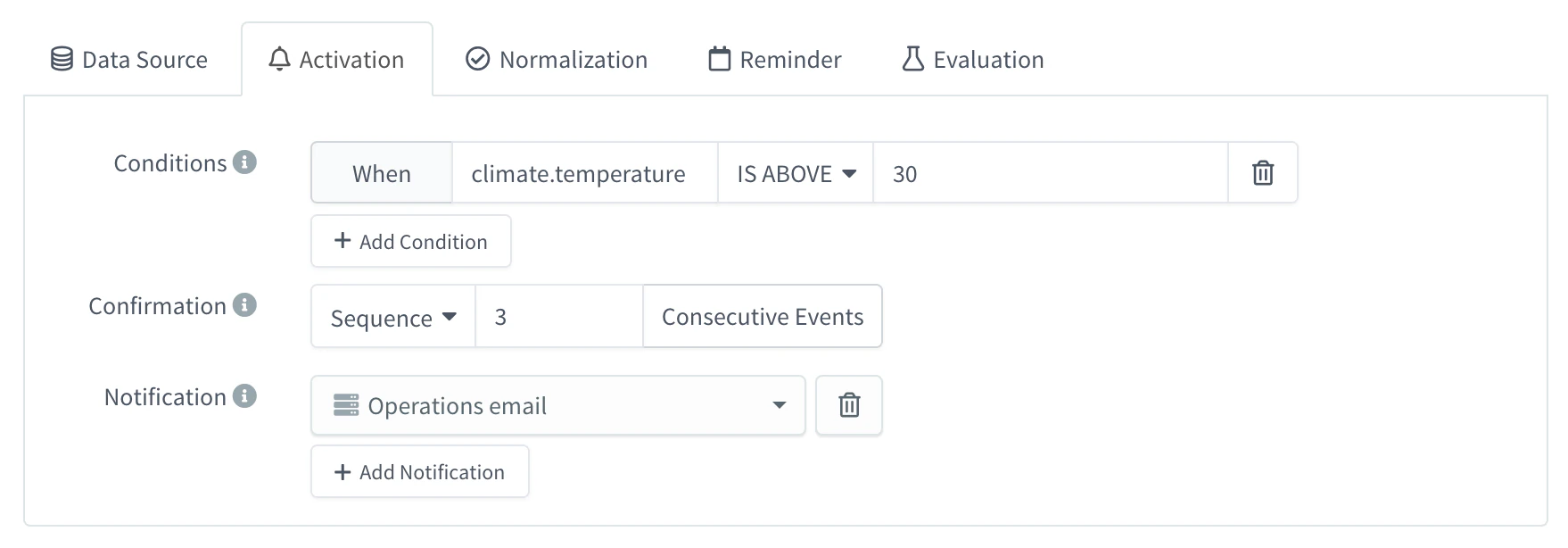
| Field | Description |
|---|---|
operator | and or or: how the condition joins the one before it. The first condition ignores it. |
type | Always value_check. |
field | What to compare: <source name>.<field>, such as climate.temperature, or an expression. |
comparison | One of the comparisons below. |
value | Value to compare with, as a string: "30", not 30. It can be an expression. |
min, max | Bounds of a range, as strings, for inside and outside. |
| Console | comparison | Holds when | Takes |
|---|---|---|---|
| IS ABOVE | above | field > value | value |
| IS BELOW | below | field < value | value |
| IS EQUAL | equal | field = value | value |
| IS NOT EQUAL | not_equal | field ≠ value, and the device has both | value |
| IS WITHIN RANGE | inside | min ≤ field ≤ max | min, max |
| IS OUTSIDE RANGE | outside | field < min, or field > max | min, max |
| IS PRESENT | present | The device has the field. | nothing |
| IS ABSENT | absent | The device does not have the field. | nothing |
Write every value as a string. A number, such as "value": 30, is not read: the rule never activates, and Evaluate warns that the activation expression failed to initialize.
Combine conditions
AND groups before OR, as in most languages: A OR B AND C holds when A holds, or when B and C both hold. There are no parentheses: to require that several conditions hold at once, join them all with AND.
[
  { "operator": "and", "type": "value_check", "field": "climate.temperature", "comparison": "above", "value": "30" },
  { "operator": "and", "type": "value_check", "field": "climate.humidity", "comparison": "below", "value": "20" }
]
These conditions hold when the temperature is above 30 and, at the same time, the humidity is below 20.
Expressions
Fields, values and range bounds are expressions over the values of the same device, from any source of the rule:
- arithmetic with
+,-,*,/,%,^and parentheses; - functions such as
abs(),min(),max(),avg(),round(),floor(),ceil()andsqrt(); ts(), the current time in unix milliseconds.
| Field | Comparison | Value | Holds when |
|---|---|---|---|
climate.temperature | above | limits.value.max_temp | The temperature is above the limit of that device. |
well.depth_m | below | limits.value.max_depth_m * 0.9 | The depth is below 90 % of the limit of that device. |
abs(climate.temperature - climate.setpoint) | above | 2 | The temperature is more than 2 degrees away from the setpoint that the device reports. |
ts() - status.connection.ts | above | 600000 | The device connected or disconnected more than 10 minutes ago. |
ts() - limits.modified | above | 3600000 | The limits property has not changed in the last hour. |
Rules for the names and values that conditions read:
- A name can be read when it has letters, digits and
_, with dots between levels:climate.env_1.temperature. A field with a hyphen or a space, such astemp-1, cannot be read in a condition. - Names are case-sensitive:
climate.Temperatureis notclimate.temperature. - Only numbers and booleans can be compared. A field that holds a text, such as
"on", makes the device skipped.
Missing data
Devices do not always have every value. The rule handles it this way:
- A comparison on a field that the device does not have is false, except IS ABSENT, which is true. So
zone1 IS ABOVE 5 OR zone2 IS ABOVE 5works on devices that only reportzone1. - A device is skipped when it has no value from one of the sources, when it has none of the fields that the activation conditions read, or when a field holds a text.
- A device that does not meet the activation, misses some field and belongs to a rule without normalization conditions is skipped too. A field that did not arrive does not clear its alarm.
- With IS PRESENT or IS ABSENT in the activation conditions, the device is evaluated even if it misses fields or a whole source: the way to raise an alarm when data does not arrive. The device must still appear in some source, such as a status source (see No data received).
Evaluate lists the skipped devices with the reason (see Test a rule), and the Skipped column of the rules list counts them.
Confirmation
Each of the Activation and Normalization tabs has a Confirmation: how many checks the conditions must hold before the alarm is activated or cleared. It filters out values that cross the threshold once.
| Console | confirmation | Activation | Normalization |
|---|---|---|---|
| Immediate (Confirm as soon as detected) | {"mode": "immediate"} | The alarm is Activated in the first check where the conditions hold. | The alarm is Cleared in the first check where the normalization holds. |
| Sequence (Consecutive Events) | {"mode": "sequence", "sequence": {"value": 3}} | Activated when the conditions hold in that number of checks in a row. | Cleared when the normalization holds in that number of checks in a row. |
| Timespan | {"mode": "timespan", "timespan": {"value": 10, "magnitude": "minute"}} | Activated when the conditions have held in every check for that time. magnitude as in the check interval. | Cleared when the normalization has held in every check for that time. |
| None (Never confirm) | {"mode": "none"} | Do not use it for the activation. | The rule never clears the alarm: someone clears it by hand. |
While the activation is not confirmed, the alarm is Non-confirmed (state 0) in the Instances tab. If a check does not meet the conditions, the alarm is removed and the count starts over. The same happens with the normalization of an active alarm: if the activation holds again, or neither holds, the count starts over.
The rule only checks at its Check Interval, so the confirmation takes whole checks. With checks every minute, Sequence of 5 takes about 5 minutes, and Timespan of 10 minutes is confirmed in the first check after the 10 minutes. Make the timespan a multiple of the check interval. Without a confirmation, the API confirms at once, as Immediate.
Normalization conditions
Leave the normalization conditions empty to clear the alarm when the activation conditions stop holding. Give them conditions of their own to leave a margin (hysteresis): activate above 30 and clear below 28, so a temperature around 30 does not raise and clear the alarm on every check. Between both values, the result is No action and the alarm stays as it is.
Notifications
The Notification list of the Activation, Normalization and Reminder tabs sets the endpoints to call. Click Add Notification and choose an endpoint; add as many as you need.
{ "notifications": [ { "type": "endpoint", "id": "ops_email" } ] }type is always endpoint. The activation notifications go out when an alarm becomes Activated, the normalization ones when the rule clears it, and the reminders on their interval. Each endpoint receives the alarm as its payload: see Alarm notifications for its fields, placeholders and examples.
Reminder
The Reminder tab repeats a notification while an alarm stays active and nobody handles it.
| Console | reminder | Effect |
|---|---|---|
| None | {"type": "none", "notifications": []} | No reminders. |
| Interval | {"type": "interval", "interval": {"value": 1, "magnitude": "hour"}, "notifications": [{"type": "endpoint", "id": "ops_email"}]} | Every interval, the reminder notifications go out for each alarm of the rule that is still Activated and has not been notified in the last interval. magnitude as in the check interval. |
Acknowledged, latched and shelved alarms get no reminders; they start again if the alarm returns to Activated with its reactivation time. A notification counts once its endpoint answers without error: if the activation notification failed, the reminder goes out at the next interval.
Test a rule
Test the sources and the conditions of a rule against your current data before you enable it. Evaluate and test-rule raise no alarm and send nothing; the test notification does send.
YOUR_SERVER is iot.thinger.io on the free Cloud account, or the domain of your private instance.
Console
Test each source
In the Data Source tab, open a source and click Test Source. The console reads the source now and shows how many records it returned, the records, one per device, and the Available Variables: the
<source>.<field>names with a number or a boolean, ready to use in conditions. Click a variable to copy it.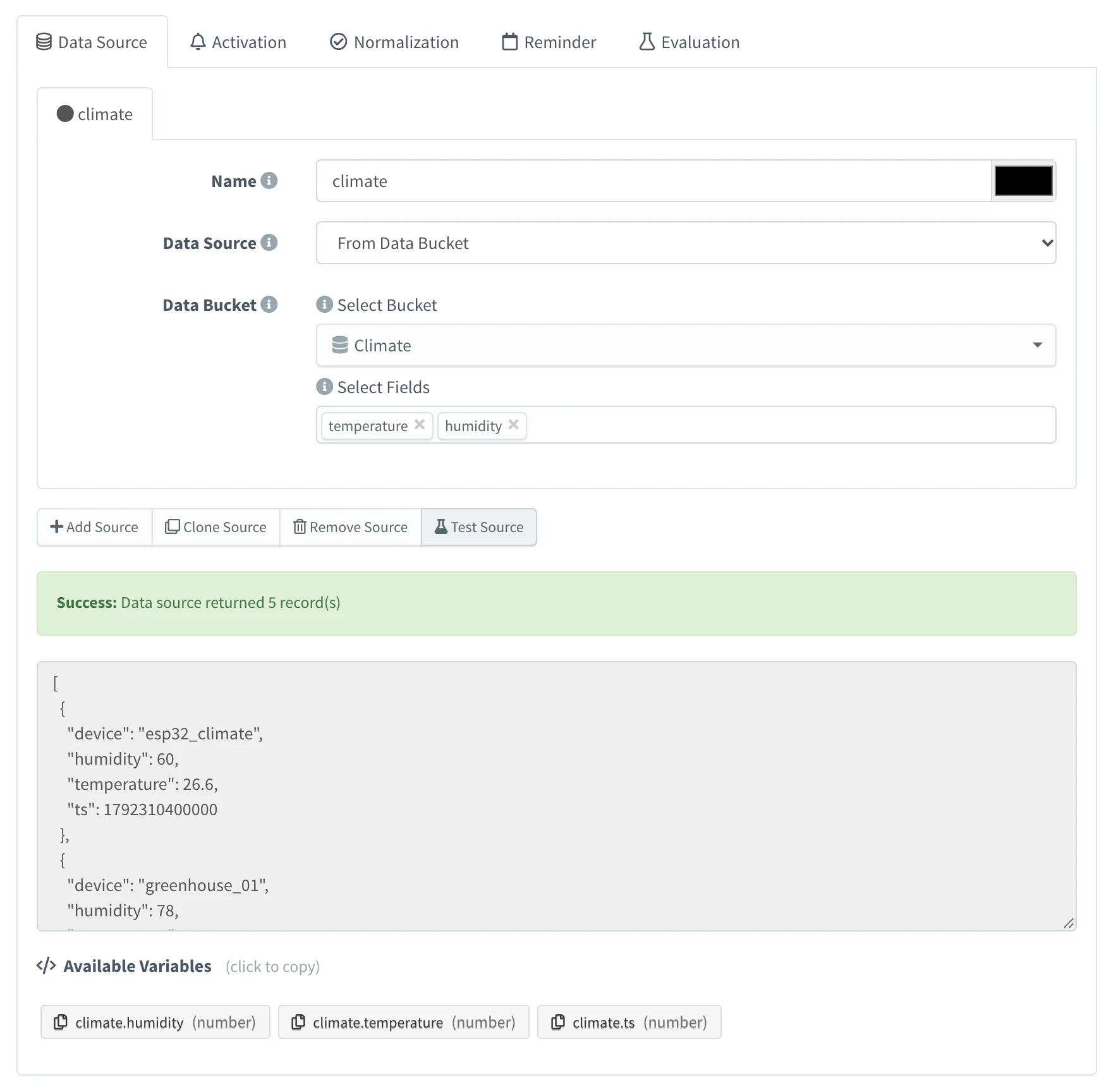
Test Source on a bucket source Evaluate the rule
Open the Evaluation tab and click Evaluate. The rule runs once as it is in the form, saved or not. The summary shows the Duration, Total Processed and the number of devices in each result: Activations, Normalizations, No Action and Skipped. Each result has a tab that lists the devices (Origin) with the Values that the conditions read; in Skipped, the missing values show as N/A. Warnings at the top point to conditions that cannot be evaluated, such as an empty field.
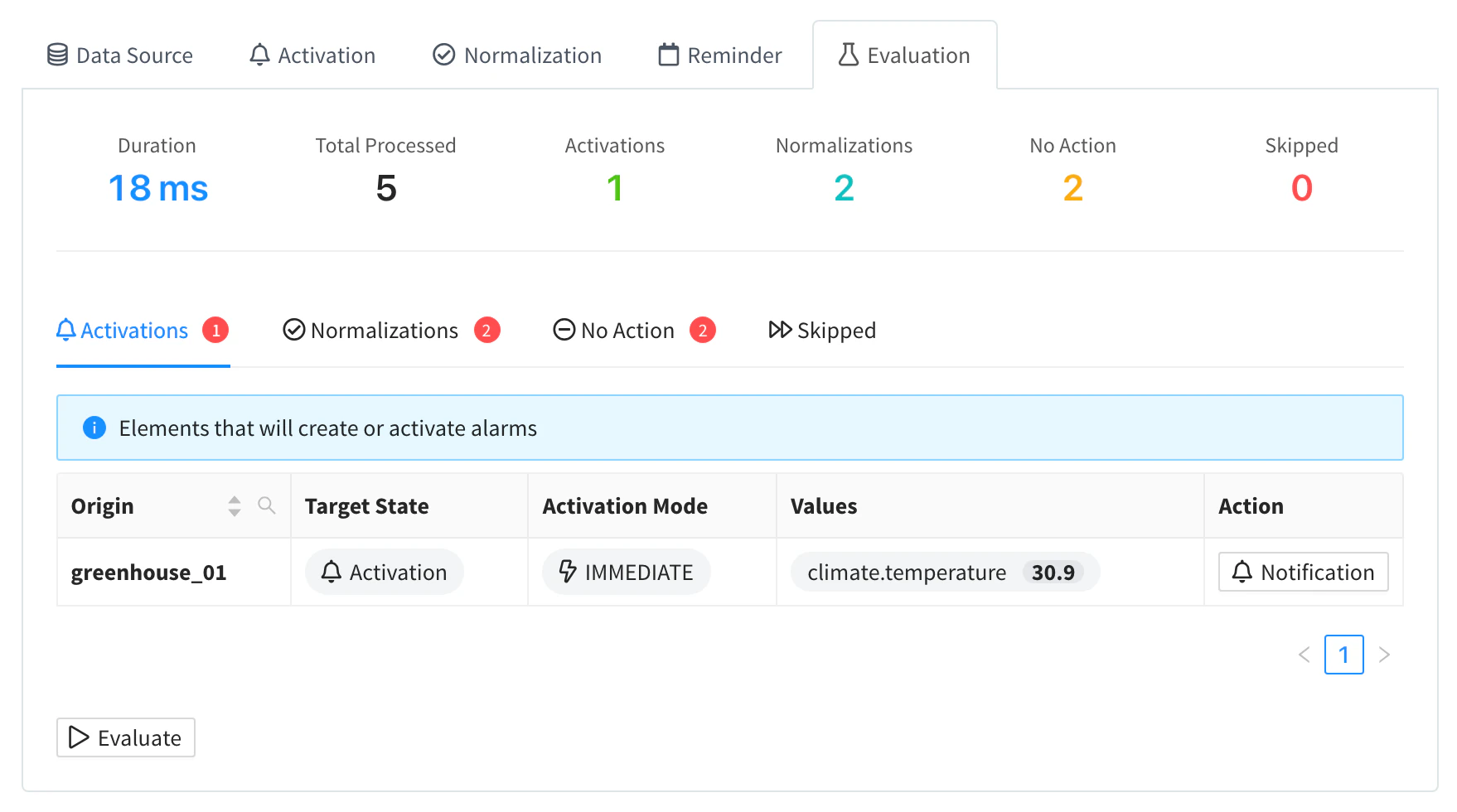
Result of Evaluate Send a test notification
In the Activations or Normalizations tab, click Notification on a device. The console sends the notifications of that event to their endpoints, with the values of that device. They are real: people receive the email or the webhook.
API
The rule ID in the path does not need to exist. Read one source as the rule would:
curl -X POST "https://YOUR_SERVER/v1/users/YOUR_USER/alarms/rules/climate_hot/test-source" \
  -H "Authorization: Bearer YOUR_TOKEN" \
  -H "Content-Type: application/json" \
  -d '{
    "name": "climate",
    "source": "bucket",
    "bucket": { "id": "climate", "mapping": ["temperature"], "group_by": ["device"], "aggregation": { "period": "15m", "type": "mean" } }
  }'
It returns an array with an entry per device. A bucket source without aggregation reads the window of the rule's check interval, or of a check_interval in the body (1 minute if neither exists).
Evaluate a whole rule: the body is the rule as you would save it, without rule.
curl -X POST "https://YOUR_SERVER/v1/users/YOUR_USER/alarms/rules/climate_hot/test-rule" \
  -H "Authorization: Bearer YOUR_TOKEN" \
  -H "Content-Type: application/json" \
  -d '{
    "name": "Climate too hot",
    "enabled": true,
    "config": {
      "severity": 3,
      "check_interval": { "value": 5, "magnitude": "minute" },
      "data": { "sources": [ {
        "name": "climate", "source": "bucket",
        "bucket": { "id": "climate", "mapping": ["temperature"], "group_by": ["device"], "aggregation": { "period": "15m", "type": "mean" } }
      } ] },
      "activation": {
        "conditions": [ { "operator": "and", "type": "value_check", "field": "climate.temperature", "comparison": "above", "value": "30" } ],
        "confirmation": { "mode": "immediate" },
        "notifications": []
      },
      "normalization": { "conditions": [], "confirmation": { "mode": "immediate" }, "notifications": [] }
    }
  }'
The answer groups the devices by result. Each entry has the device (origin) and the values read; state_info has the confirmation modes (0 none, 1 immediate, 2 timespan, 3 sequence), and each skipped device has a reason: missing data sources or missing condition fields. warnings lists conditions that cannot be evaluated. For example:
{
  "activations": { "total": 1, "items": [ { "origin": "greenhouse_01", "values": { "climate.temperature": 31.2 }, "state_info": { "activation": true, "normalization": false, "activation_mode": 1, "normalization_mode": 1 } } ] },
  "normalizations": { "total": 1, "items": [ { "origin": "greenhouse_02", "values": { "climate.temperature": 24.8 }, "state_info": { "activation": false, "normalization": true, "activation_mode": 1, "normalization_mode": 1 } } ] },
  "no_action": { "total": 0, "items": [] },
  "skipped": { "total": 0, "items": [] },
  "warnings": { "total": 0, "items": [] },
  "summary": { "total_processed": 2, "total_skipped": 0 },
  "execution": { "started": 1792310400000, "stopped": 1792310400042, "duration": 42 }
}
Send the notifications of an event, as the rule would for a device. They are real: people receive them.
curl -X POST "https://YOUR_SERVER/v1/users/YOUR_USER/alarms/rules/climate_hot/test-notification" \
  -H "Authorization: Bearer YOUR_TOKEN" \
  -H "Content-Type: application/json" \
  -d '{
    "name": "Climate too hot",
    "description": "Mean temperature above 30 °C",
    "config": { "severity": 3, "activation": { "notifications": [ { "type": "endpoint", "id": "ops_email" } ] } },
    "event": { "type": "activation", "origin": "greenhouse_01", "values": { "climate.temperature": 31.2 } }
  }'
event.type is activation, normalization or reminder, and the notifications are those of config.<type>.notifications. The answer has the alarm_instance that the endpoints received and the list of notifications sent. Nothing is stored.
AI
Test my climate_hot alarm rule against the current data and tell me which devices would raise an alarm and which ones are skipped, and why.
The agent uses thinger_resource_call with the alarm_rule type and the test_source, test_rule and test_notification actions. It asks before it sends a test notification. See MCP tools.
Examples
Two complete rules, ready to adapt. Alert on per-device temperature limits builds a rule step by step, with a threshold per device, an email endpoint and the tests.
Device offline
Raise an alarm when a meter stays disconnected for 10 minutes, clear it when it connects again, and remind every hour through a webhook.
{
  "rule": "meter_offline",
  "name": "Meter offline",
  "description": "A meter has been disconnected for 10 minutes",
  "enabled": true,
  "config": {
    "severity": 2,
    "check_interval": { "value": 1, "magnitude": "minute" },
    "data": {
      "sources": [ { "name": "status", "source": "device_status", "device_status": { "product": "meter" } } ]
    },
    "activation": {
      "conditions": [ { "operator": "and", "type": "value_check", "field": "status.connection.active", "comparison": "equal", "value": "0" } ],
      "confirmation": { "mode": "timespan", "timespan": { "value": 10, "magnitude": "minute" } },
      "notifications": [ { "type": "endpoint", "id": "ops_webhook" } ]
    },
    "normalization": {
      "conditions": [ { "operator": "and", "type": "value_check", "field": "status.connection.active", "comparison": "equal", "value": "1" } ],
      "confirmation": { "mode": "immediate" },
      "notifications": [ { "type": "endpoint", "id": "ops_webhook" } ]
    },
    "reminder": { "type": "interval", "interval": { "value": 1, "magnitude": "hour" }, "notifications": [ { "type": "endpoint", "id": "ops_webhook" } ] }
  }
}
With checks every minute, a disconnection shorter than 10 minutes removes the Non-confirmed alarm without notifying. Disabled meters are not read, so they raise no alarm. To use the time since the disconnection instead, join two conditions with AND, status.connection.active IS EQUAL 0 and ts() - status.connection.ts IS ABOVE 600000, with an Immediate confirmation.
No data received
A device can stay connected and stop sending data, or send it over HTTP or MQTT without a connection. This rule raises an alarm when a sensor of env_sensor writes nothing to the climate bucket for 30 minutes:
{
  "rule": "climate_no_data",
  "name": "No climate data",
  "description": "No records in the climate bucket for 30 minutes",
  "enabled": true,
  "config": {
    "severity": 2,
    "check_interval": { "value": 10, "magnitude": "minute" },
    "data": {
      "sources": [
        { "name": "status", "source": "device_status", "device_status": { "product": "env_sensor" } },
        {
          "name": "climate",
          "source": "bucket",
          "bucket": { "id": "climate", "mapping": ["temperature"], "group_by": ["device"], "aggregation": { "period": "30m", "type": "count" } }
        }
      ]
    },
    "activation": {
      "conditions": [ { "operator": "and", "type": "value_check", "field": "climate.temperature", "comparison": "absent" } ],
      "confirmation": { "mode": "immediate" },
      "notifications": [ { "type": "endpoint", "id": "ops_email" } ]
    },
    "normalization": {
      "conditions": [ { "operator": "and", "type": "value_check", "field": "climate.temperature", "comparison": "present" } ],
      "confirmation": { "mode": "immediate" },
      "notifications": []
    },
    "reminder": { "type": "none", "notifications": [] }
  }
}
The status source lists every enabled sensor of the product, so a sensor without records in the last 30 minutes is still evaluated: IS ABSENT holds and the alarm is activated. It clears when records arrive again.
Limits
- A rule evaluates its sources at its check interval, not on each new record or connection.
- A rule keeps at most one open alarm per device.
- Conditions compare numbers and booleans. Texts cannot be compared.
- A bucket source gives values per device only when it groups by the
devicetag of the bucket. - Device property and device status sources only read enabled devices.
- Endpoint calls are subject to the minimum interval between calls of your account: a notification that comes too soon fails. See Endpoints.