

Account > Security controls how you sign in to the console: your password, the passkeys that replace it, the second factor that protects it (an authenticator app or security keys) and the identity providers linked to your account.
When to use it
- To change your password, or to set one if you signed up with an identity provider.
- To sign in without a password, with the fingerprint or face recognition of your device or a security key.
- To ask for a second factor every time someone signs in with your password.
Sign-in methods
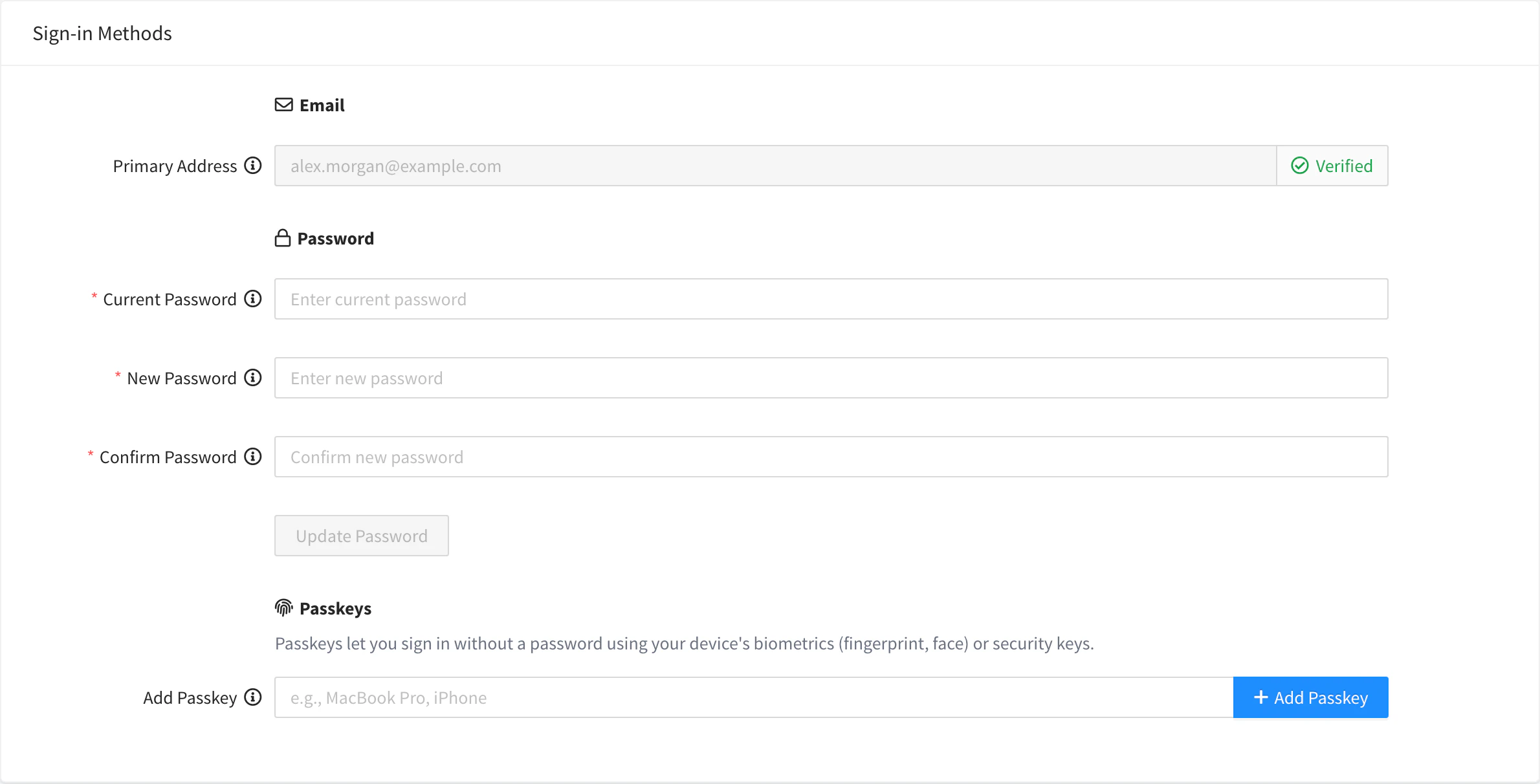
The Sign-in Methods form shows how you can sign in:
| Section | What it shows |
|---|---|
| Your Primary Address, tagged Verified or Pending. | |
| Password | The form to change or set your password. |
| Passkeys | Your passkeys, with their name, the date they were added and the last time they were used. Shown only if your browser supports passkeys. |
| Connected Accounts | The identity providers linked to your account, if any. |
Change your password
Console
In Password, type the Current Password, the New Password and the same again in Confirm Password, and click Update Password. If your account has no password yet, the console says so, asks only for the new one and the button reads Set Password: from then on you can also sign in with your username and password.
API
curl -X PUT "https://YOUR_SERVER/v1/users/YOUR_USER/password" \
  -H "Authorization: Bearer YOUR_TOKEN" \
  -H "Content-Type: application/json" \
  -d '{"current": "my-current-password", "new": "my-new-password"}'
YOUR_SERVER is iot.thinger.io on the free Cloud account, or the domain of your private instance. YOUR_TOKEN is a token of your own session; send current empty if the account has no password. A wrong current password returns 403.
CLI
The CLI cannot change your password. Use the console.
AI
Agents cannot change your password: the MCP tools do not manage account security. Use the console.
If you forgot your password, use Forgot password? on the sign-in page to receive a reset link by email.
Sign in with a passkey
A passkey lets you sign in without a password, with the biometrics of your device (fingerprint, face) or a security key. Signing in with a passkey does not ask for a second factor.
Add a passkey
In Passkeys, type a name for it in Add Passkey (for example, the name of your laptop or phone) and click Add Passkey. Your browser or operating system asks you to confirm with your fingerprint, your face, your device PIN or a security key.
Sign in with it
On the sign-in page, click Sign in with Passkey and confirm on your device.
To remove a passkey, click Remove next to it. Passkeys are registered from the console; the REST API has the matching calls (/v1/users/{user}/passkeys), but the CLI and the MCP tools do not manage them.
Turn on two-factor authentication
Two-factor authentication asks for a second step after your password. It does not apply when you sign in with a passkey or through an identity provider. The Two-Factor Authentication form offers two methods; you can use both.
Authenticator app
Start the setup
In Authenticator App, click Enable Authenticator App.
Scan the QR code
Scan the QR code with an authenticator app (Google Authenticator, Authy or similar), or type the code shown under Or enter the code manually. Click Next.
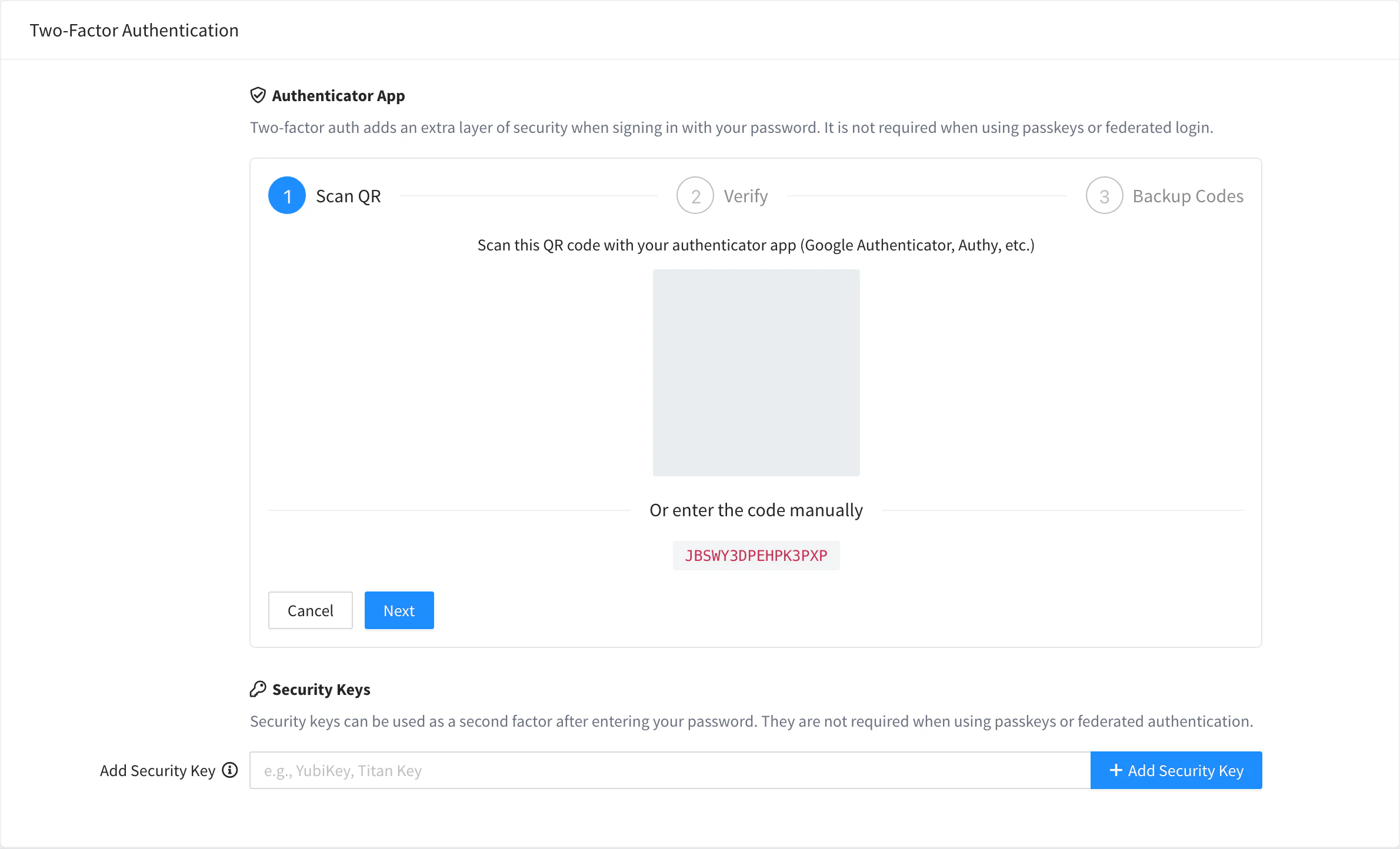
Scan QR step of the authenticator setup Verify the code
Type the 6-digit code the app shows and click Verify and Enable.
Save the backup codes
The console shows your backup codes once. Keep them with Copy Codes or Print in a safe place, and click Done.
When it is on, the section shows how many backup codes remain. Disable Authenticator App turns it off and deletes the backup codes.
Security keys
In Security Keys, type a name in Add Security Key (for example, the model of the key) and click Add Security Key, then touch the key when your browser asks. Remove a key with Remove next to it.
Backup codes
Each backup code works once, instead of a code of the authenticator app, if you lose your phone. The console does not generate new codes: disable the authenticator app and enable it again to get a new set. With the API, POST /v1/users/{user}/mfa/totp/backup-codes with a current code of the app replaces them. See the REST API reference.
Sign in with two-factor authentication
After your username and password, the console asks for the second factor:
- With an authenticator app, type the 6-digit code and click Verify. If you do not have the app, click Use a backup code instead and type one of your backup codes.
- With a security key, click Use Passkey and touch the key.
- With both, choose the method first.
Repeated failed attempts are blocked for a while, both for passwords and for codes.
Password sign-in disabled
An instance can be set to accept only federated sign-in, through identity providers, and passkeys (the allow_password setting, for the whole instance or per domain). Then the sign-in page has no password form, and accounts sign in with the buttons of their identity providers or with a passkey. The administrator sets it: see Identity Providers and Brands.
An administrator can also require two-factor authentication for password sign-in. If you have no second factor configured, sign in with a passkey or an identity provider, or ask your administrator.
Connected accounts
If you signed in with an identity provider, it appears in Connected Accounts with the date it was linked. Click Remove to unlink it. You can only unlink an identity if you have a password or another connected account, so you do not lose access.
Limits
- The email address cannot be changed from the console.
- The console does not show active sessions or sign-in history.
- Changing your password does not sign out your other sessions.