

The HTML Widget and the HTML Time Series widget show the data of their sources with your own HTML, CSS and JavaScript. Use them for anything the other widgets do not show: a custom card, a table of records, a third-party snippet or a whole AngularJS component.
Your code runs in the browser of whoever opens the dashboard, not on the server. The console compiles it as an AngularJS template, so you write the values with double braces, such as {{value}}, and use AngularJS directives and filters such as ng-repeat and date.
Choose a widget
| HTML Widget | HTML Time Series | |
|---|---|---|
| Sources | One. | One or more. |
| Data | The latest value of the source, all of it or the fields you select. | The time series of each source, with timeframe, aggregation and transformation, as in the Time Series Chart. |
value | The value, or an object with the selected fields. | An array of rows, one per timestamp, newest first. |
| Use it for | Cards, status panels, third-party snippets. | Custom tables and charts of stored data. |
Settings
The Widget tab has the common settings of every widget.
The source tab of the HTML Widget takes one source of any type: From Data Bucket, From Device Bucket, From Device Resource, From Device Property or Manual. Select Fields picks the fields of the value; leave it empty to receive the whole value. The source tab of the HTML Time Series takes several sources, configured as in the Time Series Chart; the Name of each source is its key in the rows. Both offer Processing with the functions of the dashboard. The source types are in Widget data sources.
The Display Options tab sets where the code comes from:
| Option | Default | What it does |
|---|---|---|
| HTML Source | Code Snippet to write the code in an editor, or File Storage to load it from a file. | |
| File Storage | With File Storage, the storage and the name of the file. | |
| File name | index.html | An .html file is compiled as a template; a .js file is loaded as an AngularJS directive (see Build a widget as a directive). |
Template variables
A code snippet and an .html file can use these variables:
| Variable | Content |
|---|---|
value | HTML Widget: the latest value of the source, such as 21.5, or an object with its fields, such as {"temperature": 21.5, "humidity": 40}. HTML Time Series: the array of rows (see HTML Time Series). |
ts | HTML Widget: the timestamp of the latest value, in milliseconds. 0 until the first value arrives. |
source | The configuration of the first source of the widget: its name, type, device or bucket and fields. |
sources | The configuration of every source of the widget, as an array. |
properties | The Display Options of the widget. |
placeholders | The values of the dashboard placeholders, by name: {{placeholders.location}}. |
The code is a fragment that goes inside the widget: do not add <html>, <head> or <body>. Each new value updates the template on its own.
Info
Do not name a dashboard placeholder like a template variable (value, ts, source): the dashboard replaces every {{name}} of a placeholder in the widget settings, the template included. Read placeholders in templates as placeholders.<name>.
Code snippet
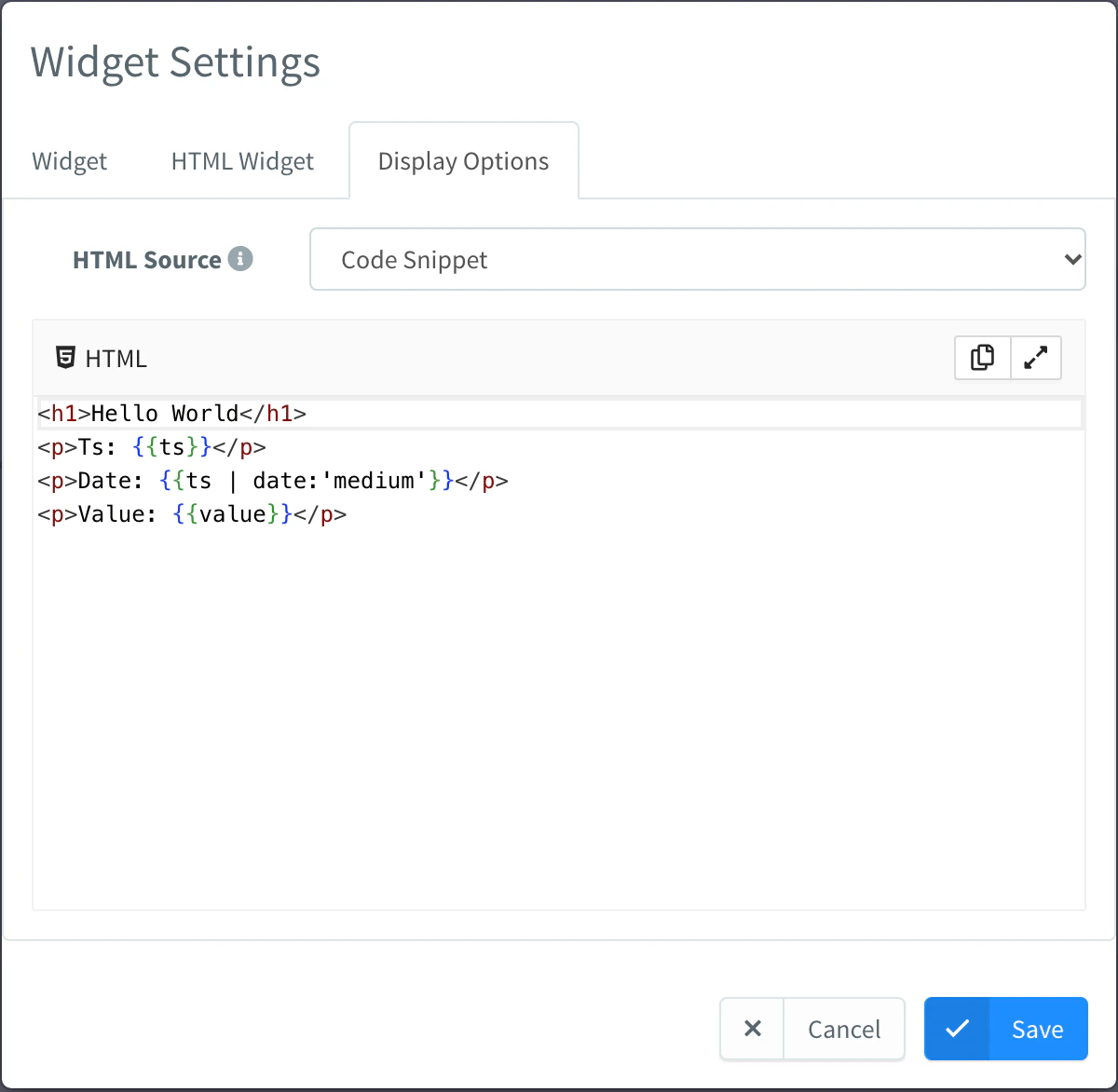
With HTML Source set to Code Snippet, write the code in the editor of Display Options.
Show the latest value
This snippet shows the timestamp as a number and as a date, and the value:
<h1>Hello World</h1>
<p>Ts: {{ts}}</p>
<p>Date: {{ts | date:'medium'}}</p>
<p>Value: {{value}}</p>
When the source has several fields, read each one with a dot:
<p>Temperature: {{value.temperature | number:1}} °C</p>
<p>Humidity: {{value.humidity | number:0}} %</p>
Draw with CSS
Bind the value to styles with ng-style. This bar fills to a percentage, such as the level of a tank:
<div style="padding: 12px">
  <div style="height: 16px; background: #e2e8f0; border-radius: 8px; overflow: hidden">
    <div style="height: 100%; background: #1f8efe" ng-style="{width: value + '%'}"></div>
  </div>
  <p>Level: {{value | number:0}} %</p>
</div>
Add third-party snippets
Paste the snippet of an external service, such as a weather forecast or a banner, as the service gives it. Its <script> tags run when the widget loads, inline and external ones alike:
<div id="forecast"></div>
<script src="https://example.com/forecast-widget.js" data-target="forecast"></script>
Replace the address with the one of your provider. Snippets whose script writes with document.write do not work in a widget: the page has already loaded, so the browser ignores what the script writes or replaces the whole dashboard with it. Ask your provider for a version that inserts its content into an element.
Warning
The code of the widget runs inside the console with the session of whoever opens the dashboard. Add only scripts you trust.
HTML Time Series
The HTML Time Series widget merges the data of all its sources by timestamp. value is an array with one row per timestamp, newest first: each row has ts, in milliseconds, and one key per source Name with the value of that source at that time. A source with no value at a timestamp has no key in that row.
For two sources named temperature and humidity, value looks like this:
[
  { "ts": 1718000060000, "temperature": 21.6, "humidity": 41 },
  { "ts": 1718000000000, "temperature": 21.5, "humidity": 40 }
]
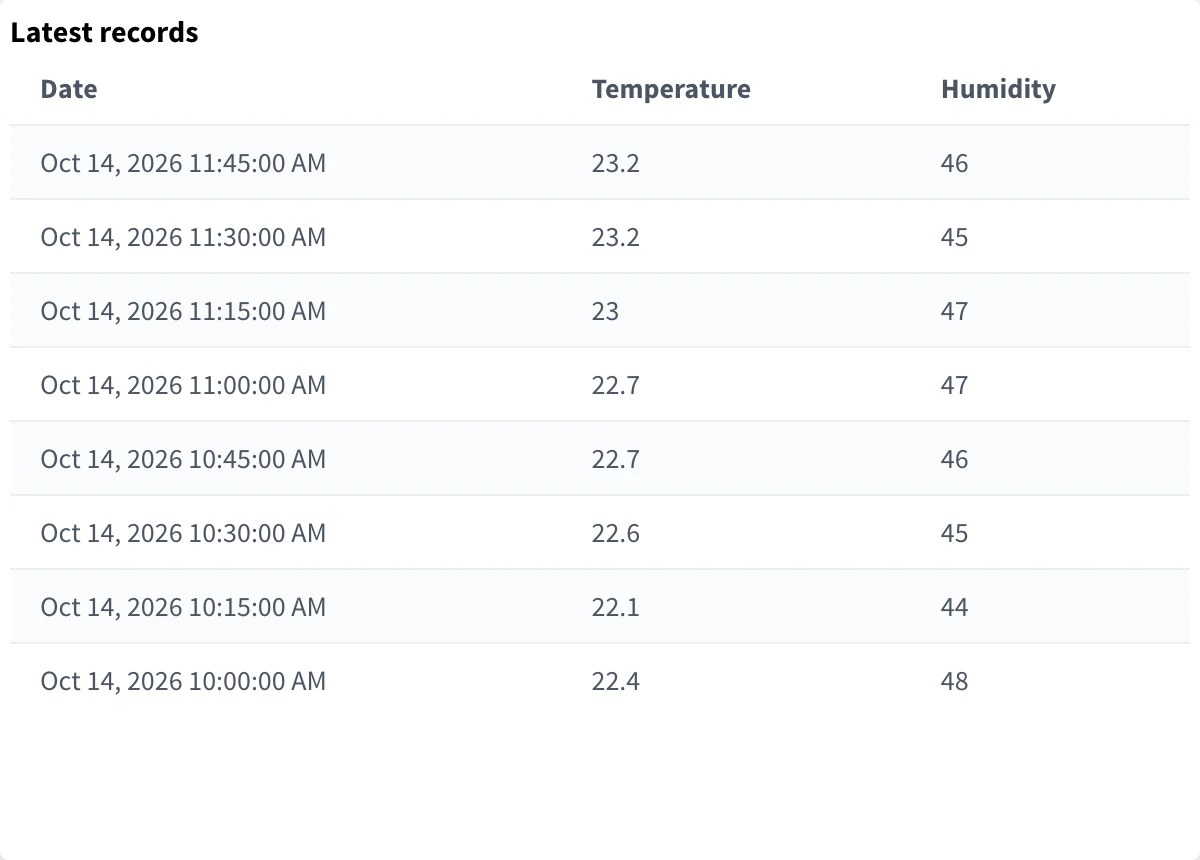
This template shows the rows in a table. ng-repeat repeats the <tr> for each entry of value, and the column names match the source names:
<div style="width: 100%; height: 100%; overflow-y: scroll">
  <table class="table table-striped">
    <thead>
      <tr>
        <th>Date</th>
        <th>Temperature</th>
        <th>Humidity</th>
      </tr>
    </thead>
    <tbody>
      <tr ng-repeat="entry in value">
        <td>{{entry.ts | date:'medium'}}</td>
        <td>{{entry.temperature}}</td>
        <td>{{entry.humidity}}</td>
      </tr>
    </tbody>
  </table>
</div>
Use sources with the same timestamps, such as fields of one Data Bucket, so each row is complete.
From a File Storage
For larger widgets, or to use one widget in several dashboards, keep its code in a File Storage. Set HTML Source to File Storage, choose the storage and type the file name:
- An
.htmlfile is compiled like a code snippet, with the same variables. - A
.jsfile is loaded as an AngularJS directive, which can have its own logic and react to each change.
The console reads the file with the access of whoever opens the dashboard. When you share the dashboard, its access token can read the files of the storage. If a viewer cannot read the storage, such as a project member without permission on it, the widget loads only if the storage has Public Read on.
Build a widget as a directive
Create the storage
Create a File Storage for your widgets.
Add the two files
Create
helloWidget.jsandhelloWidget.htmlin the storage, with the code below. The.jsfile holds the logic; the.htmlfile, the view. The directive finds its.htmlnext to its.js.Point the widget to the script
Add an HTML Widget, set HTML Source to File Storage, choose the storage and type
helloWidget.js. The widget shows the source, the timestamp and the value.
angular.module('helloWidget', [])
.directive('helloWidget', function () {
    return {
        restrict: 'EA',
        scope: {
            source: "=",
            ts:     "=",
            value:  "="
        },
        templateUrl: function () {
            // load helloWidget.html from the same folder as this script
            const script = document.querySelector("script[src*='helloWidget.js']");
            return script.src.replace('.js', '.html');
        },
        controller: ["$scope", function ($scope) {
            console.log("controller initialized, scope is", $scope);

            // runs when the source configuration changes
            $scope.$watch('source', function (newVal, oldVal) {
                console.log("Source has changed:", newVal, oldVal);
            });

            // runs when a new value arrives
            $scope.$watch('value', function (newVal, oldVal) {
                console.log("Value has changed:", newVal, oldVal);
            });
        }]
    };
});<div>
<h3>Hello World from an AngularJS directive</h3>
<p><strong>Source</strong> is {{source}}</p>
<p><strong>Timestamp</strong> is {{ts}}</p>
<p><strong>Value</strong> is {{value}}</p>
</div>The console names the directive after the file: it takes the name up to the first dot and turns camelCase into dashes, so helloWidget.js becomes <hello-widget>. Name the file in camelCase, exactly like the directive and its module.
The directive receives these attributes; declare in its scope the ones it uses:
| Attribute | Content |
|---|---|
value, ts, source, sources, properties | As in the template variables. |
callback | An object where the directive sets functions the widget calls (see below). |
| Callback | Called |
|---|---|
onUpdate(rows) | HTML Time Series: after the rows of value change, with the rows. |
onSourceUpdate(source, data) | HTML Time Series: when one source receives data, with its configuration and its points as [ts, value] pairs. |
onClear(source) | When the widget clears its data: after you edit the widget, when a Source Switcher selects another device or bucket, or when the time range changes. |
In an HTML Time Series widget, value keeps the same array and changes its content, so $scope.$watch('value', …) does not fire: use onUpdate, or $scope.$watchCollection('value', …).
React to each new value
This directive draws a dot that pulses each time a new value arrives, next to the value. It watches ts, which changes with every record even when the value repeats:
angular.module('pulseWidget', [])
.directive('pulseWidget', function () {
    return {
        restrict: 'EA',
        scope: {
            ts:       "=",
            value:    "=",
            callback: "="
        },
        templateUrl: function () {
            const script = document.querySelector("script[src*='pulseWidget.js']");
            return script.src.replace('.js', '.html');
        },
        controller: ["$scope", "$timeout", function ($scope, $timeout) {
            $scope.pulse = false;

            // restart the animation on every new record
            $scope.$watch('ts', function (newTs, oldTs) {
                if (!newTs || newTs === oldTs) return;
                $scope.pulse = false;
                $timeout(function () { $scope.pulse = true; }, 20);
            });

            // stop the animation when the widget clears its data
            $scope.callback.onClear = function () {
                $scope.pulse = false;
            };
        }]
    };
});<div class="pulse-widget">
<style>
.pulse-widget { display: flex; align-items: center; justify-content: center; gap: 16px; height: 100%; }
.pulse-widget circle { fill: #1f8efe; transform-box: fill-box; transform-origin: center; }
.pulse-widget .pulse circle { animation: pulse-widget-ring 0.8s ease-out; }
@keyframes pulse-widget-ring {
from { transform: scale(1.6); opacity: 0.3; }
to { transform: scale(1); opacity: 1; }
}
</style>
<svg width="48" height="48" viewBox="0 0 48 48" ng-class="{pulse: pulse}">
<circle cx="24" cy="24" r="16"></circle>
</svg>
<span style="font-size: 28px">{{value}}</span>
</div>Use it in an HTML Widget with one value, such as the temperature of a device resource.