Every widget of a dashboard, with what it shows, when to use it and each option of its settings. Where the data comes from (device resources, Data Buckets, properties, timeframes, aggregation and transformations) is in Widget data sources.
Add or edit a widget
Turn on the edit mode in the dashboard toolbar and click Add Widget. The Widget Settings dialog has three tabs:
| Tab | What it sets |
|---|---|
| Widget | The common settings and the widget Type. |
| The widget name (for example Time Series Chart) | The data source, or the device resource or property the widget controls. |
| Display Options | The options of that widget type, listed on this page. |
In edit mode each widget shows Clone, Edit and Remove buttons; double-click a widget to edit it. Drag a widget to move it and drag its corner to resize it.
Common settings
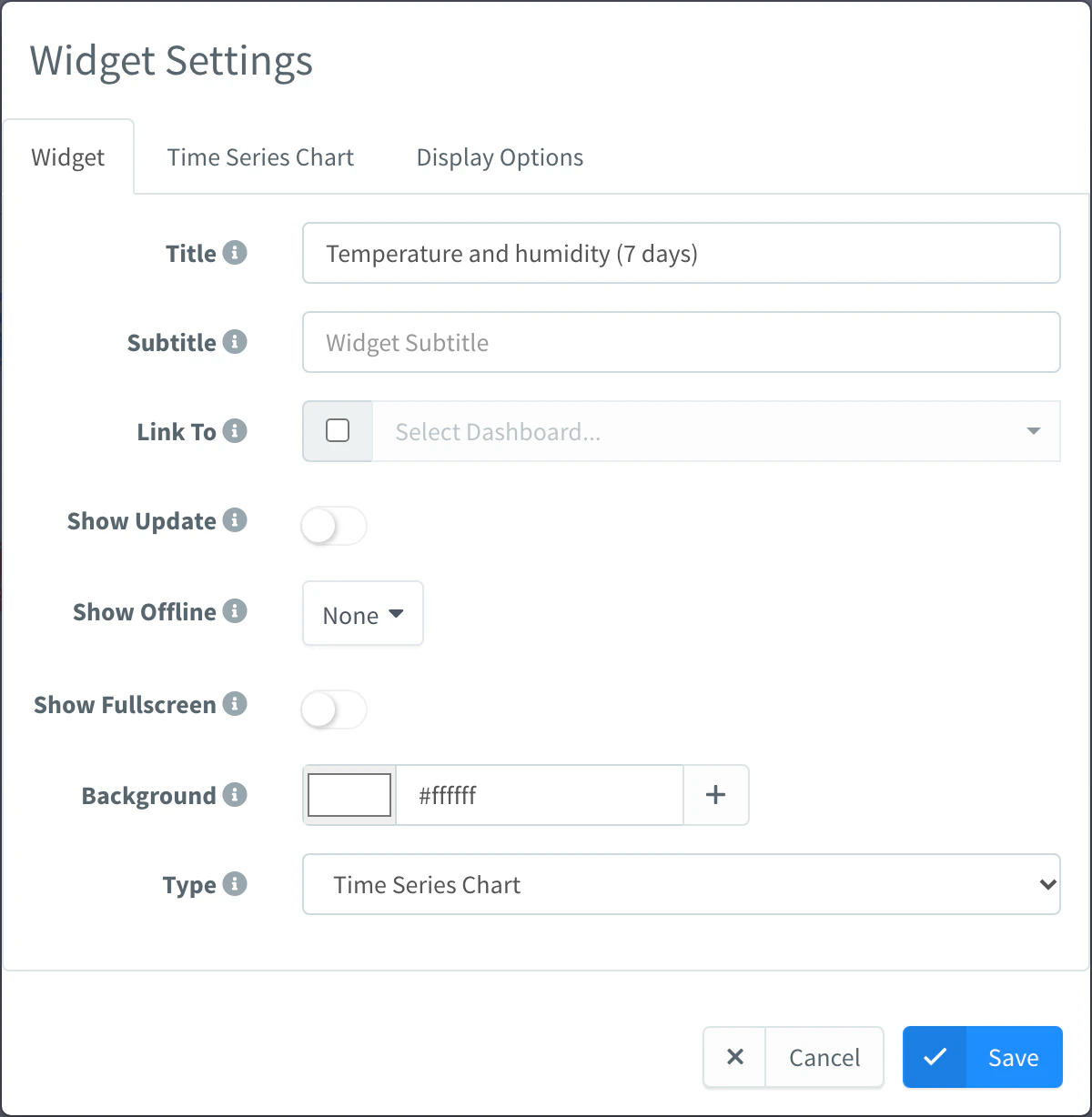
The Widget tab is the same for every widget type.
| Setting | Default | What it does |
|---|---|---|
| Title | empty | Text at the top of the widget. Optional. |
| Subtitle | empty | Smaller text below the title. Optional. |
| Link To | none | Another dashboard. The widget shows a button that opens it, to go from a summary to a detailed dashboard. |
| Show Update | off | Shows the time of the last value the widget received, next to the title. |
| Show Offline | None | With Timespan, the widget is shown muted and marked offline when it receives no data for that time. With None, a widget fed by a device resource is marked offline while its device is disconnected. |
| Show Fullscreen | off | Shows a button that opens the widget full screen. |
| Background | #ffffff | Background color of the widget. Click + to add colors by value. |
| Type | The widget type, grouped in Display, Device Control and Dashboard Control. |
Background colors by value
Click + next to Background to add a range with a Min, a Max and a color. When the widget receives a number between the minimum and the maximum of a range (both included), the background takes that color; the first matching range wins. Outside every range, the widget uses the Background color.
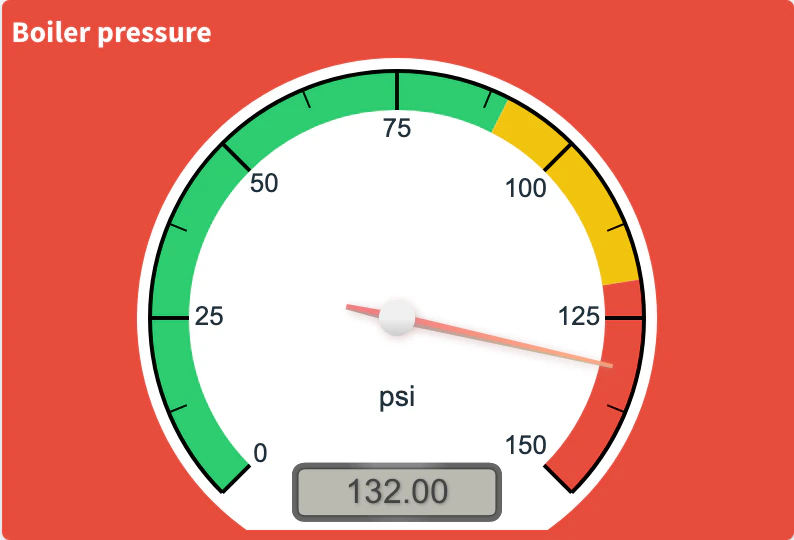
Use it to make a value stand out: a Tachometer of pressure that turns red above a safe limit, or a Text/Value of battery level that turns orange when it is low. The text of the widget switches between dark and light to stay readable on the color.
Display widgets
Time Series Chart
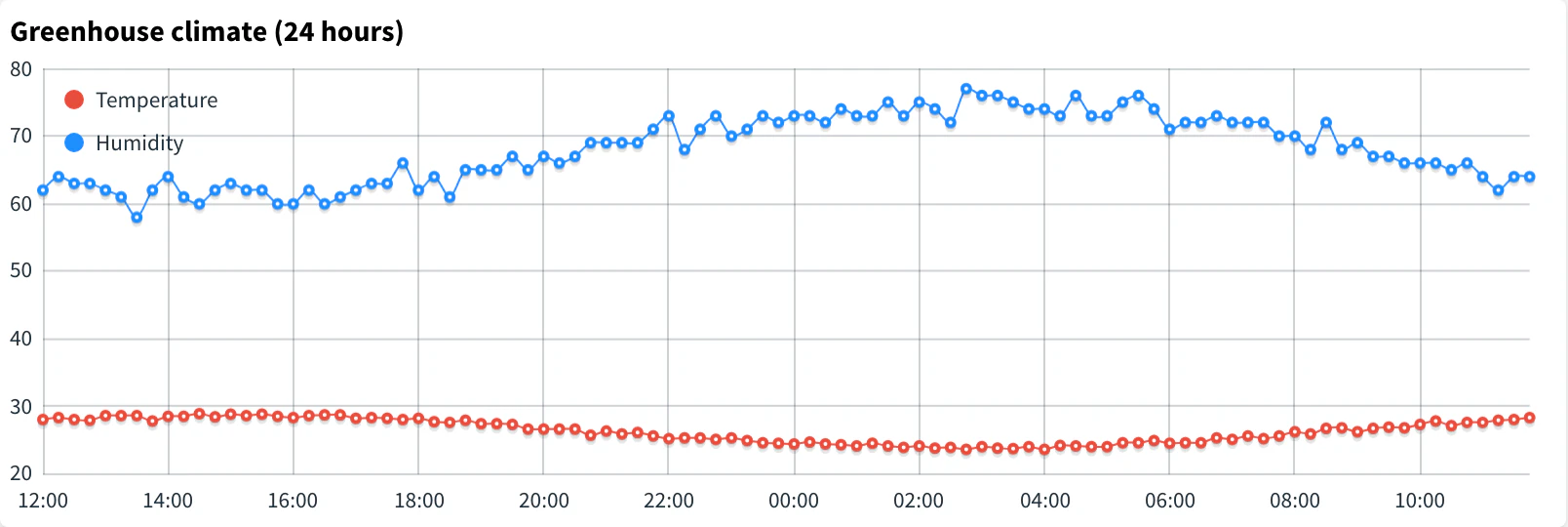
A line chart of one or more values over time. Use it to follow how a measure changes: the temperature of the last 24 hours, or the power of several devices side by side.
Each line is a source, with one field. To draw several fields of the same bucket, add a source for each one: Clone Source copies the selected source, so you only change the field. Add sources with Add Source and delete the selected one with Remove Source. Each source has:
| Field | What it does |
|---|---|
| Name | Name of the series, shown in the legend and the tooltip. Must be unique in the widget. |
| Color | The color of the series, next to the name. Each new source gets a different color. |
| Data Source | Where the values come from: From Data Bucket, From Device Bucket, From Device Resource, From Device Property or Manual, and the field to draw. See Data sources. |
| Timeframe | For bucket sources: which time range to show. See Timeframe. |
| Time Period | For device resources and properties: how much live data to keep in the chart. See Time Period. |
| Aggregate and Transform | For buckets that support them: group the data in intervals and transform it. See Aggregate and Transform. |
| Processing | A dashboard function applied to the values. See Processing. |
Display Options:
| Option | Default | What it does |
|---|---|---|
| Axis | on | Shows the X and Y axes. |
| Legend | off | Shows the legend with the name of each series. |
| Fill Splines | off | Fills the area under each line. |
| Multiple Axes | off | Gives each series its own Y axis, for values with different scales (temperature and pressure). |
| X Axis | automatic | Number of ticks of the X axis (1 to 1000). Shown when Axis is on. |
| Y Axis | automatic | Minimum, maximum and number of ticks (1 to 1000) of the Y axis. Leave them empty to fit the data. Shown when Axis is on. |
Apex Charts
A chart drawn with ApexCharts: lines, areas, columns, scatter, heatmap, pie, donut, radial, radar or polar. Use it when the Time Series Chart is not enough: stacked columns of energy per day, or a pie with the share of each device.
Its sources work as in the Time Series Chart. In time charts (line, area, column, scatter, heatmap) each source is a series. In pie, donut, radial and polar charts each source is a slice with its latest value: the slice takes the name and the color of the source.
Display Options:
| Option | Default | What it does |
|---|---|---|
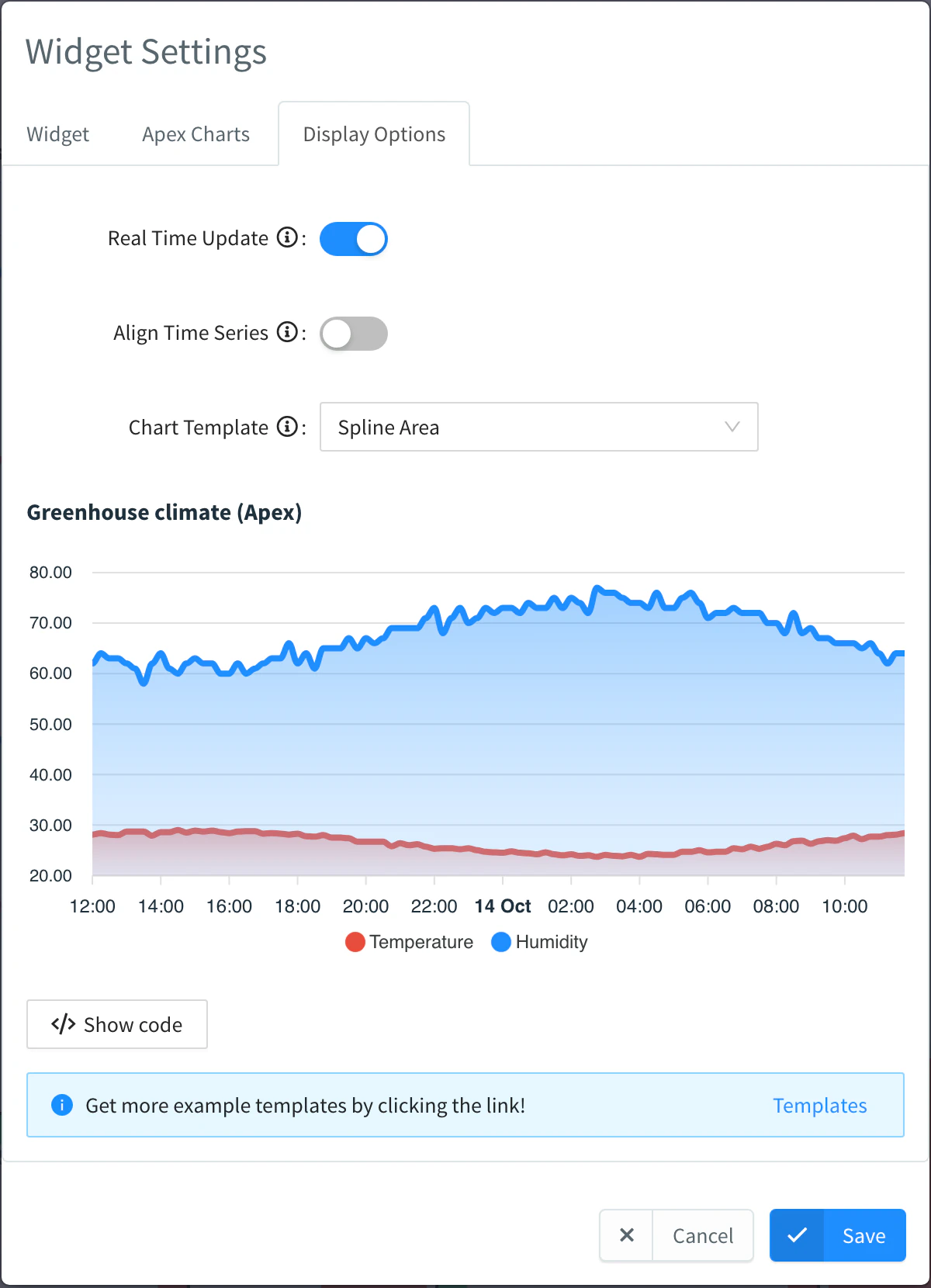
| Real Time Update | on | Updates the chart as new data arrives. Off, the chart keeps the data it loaded first. |
| Align Time Series | off | Aligns the series on the same timestamps, adding empty points where a series has no value. It needs extra processing: turn it on only when a chart type needs it, such as stacked columns. Available with two or more sources and not in pie, donut, radial or polar charts. |
| Chart Template | Line | The starting chart. Choosing a template replaces the chart options. |
| Show code / Preview chart | Switches between the chart preview and the code of its options. |
The 17 templates are Line, Line with Labels, Line with Markers, Step Line, Area, Spline Area, Stacked Area, Column, Column Stacked, Column Stacked 100%, Scatter, Heatmap, Pie Chart, Donut, Radial, Radar and Polar.
Show code opens the options of the chart as JavaScript that assigns an ApexCharts options object to options. Edit it to change anything ApexCharts supports: colors, curves, markers, axes, annotations. The data series come from the sources, so the code does not set them. The Templates link opens the ApexCharts demos for more examples. For instance, this code draws columns with rounded corners and data labels:
var options = {
    chart: {
        type: 'bar'
    },
    plotOptions: {
        bar: {
            borderRadius: 4
        }
    },
    dataLabels: {
        enabled: true
    },
    xaxis: {
        type: 'datetime'
    }
};
HTML Time Series
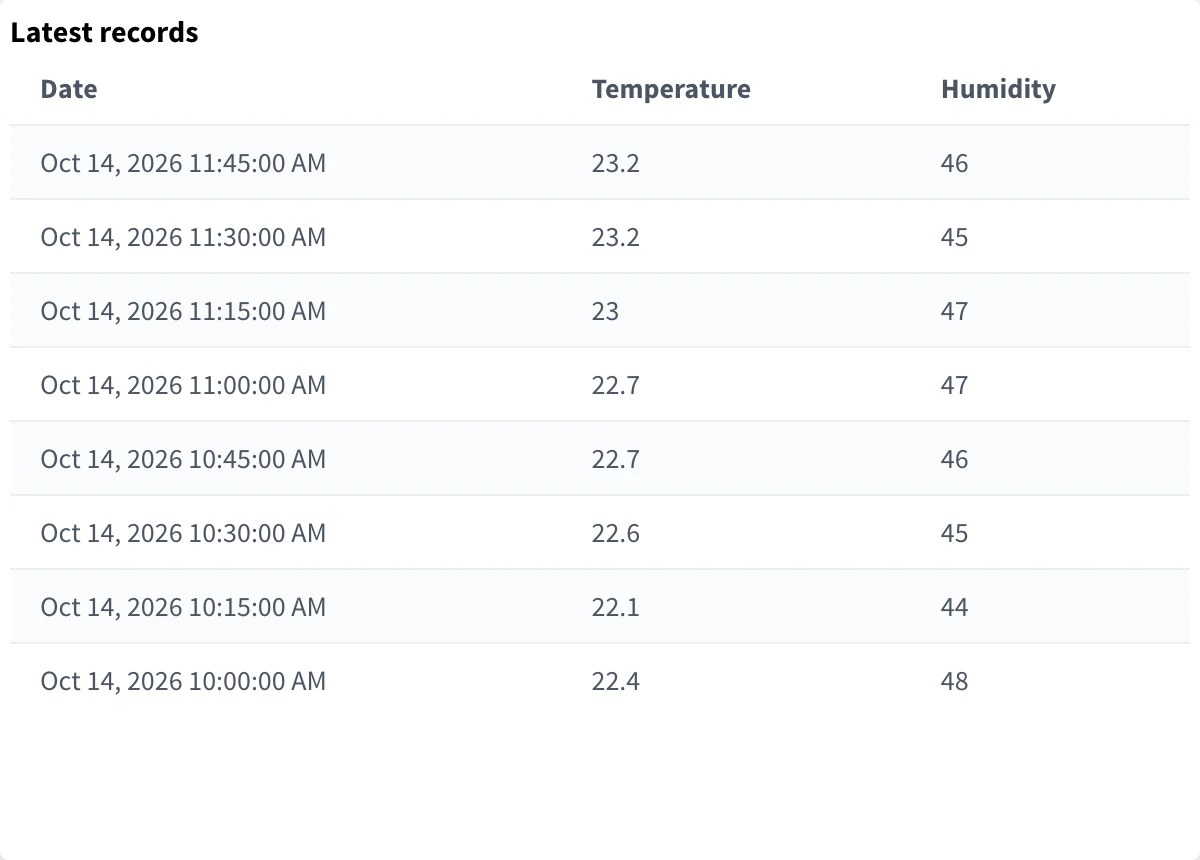
An HTML Widget that receives time series instead of single values: its sources work as in the Time Series Chart, with timeframe, aggregation and transformations. Use it to draw a custom chart or table with your own HTML and JavaScript. Its Display Options are those of the HTML Widget. The shape of its data and a table example are in HTML Widget.
Donut Chart
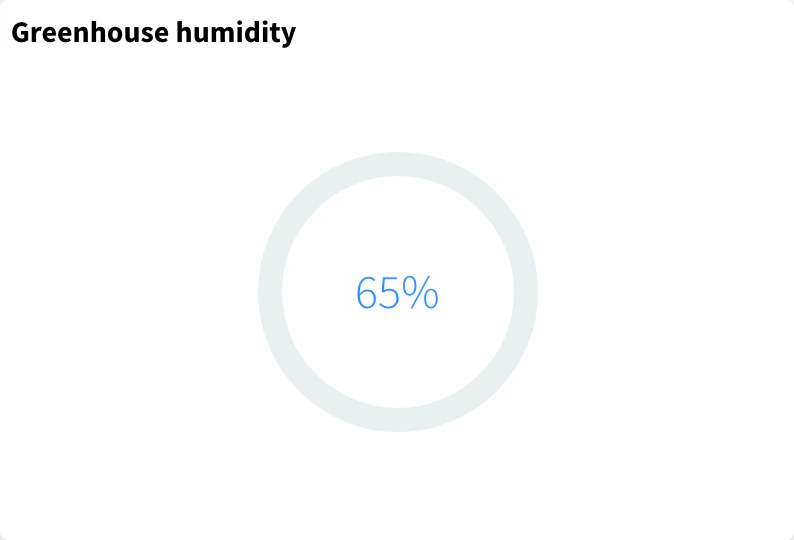
A ring that fills from a minimum to a maximum, with the value in the center. Use it for values with known limits: a tank level, a battery percentage.
It has one source with one value (see Data sources), which can go through a dashboard function with Processing.
| Option | Default | What it does |
|---|---|---|
| Units | empty | Unit shown with the value (%, °C). |
| Min Value | 0 | Value of the empty ring. |
| Max Value | 100 | Value of the full ring. |
| Donut Color | #1E313E | Color of the filled part. |
Progressbar
A horizontal bar that fills from a minimum to a maximum. Use it for progress or fill levels: a process completion, a tank, a disk.
It has one source with one value.
| Option | Default | What it does |
|---|---|---|
| Units | empty | Unit shown with the value. |
| Min Value | 0 | Value of the empty bar. |
| Max Value | 100 | Value of the full bar. |
| Icon | none | A Font Awesome class (fas fa-tachometer-alt) or the URL of an image, shown with the bar. |
| Icon Color | #ffffff | Color of a Font Awesome icon. Not shown for image URLs. |
| Icon Size | 24 | Height of the icon in pixels, 16 to 128. |
Gauge
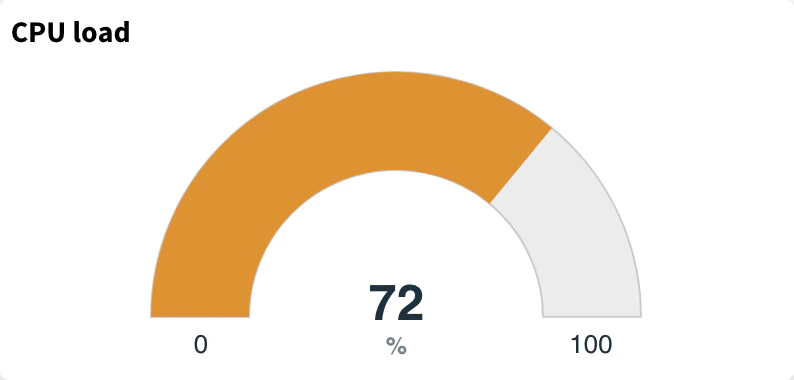
A semicircular gauge with the value in the center. Use it for a single reading with a range: speed, CPU load, noise level.
It has one source with one value.
| Option | Default | What it does |
|---|---|---|
| Units | empty | Unit shown below the value. |
| Min Value | 0 | Start of the gauge. |
| Max Value | 100 | End of the gauge. |
| Text Color | #1E313E | Color of the value. With Gradient off, it is also the color of the gauge. |
| Gradient | on | Colors the gauge from green (low) through yellow to red (high). |
Tachometer
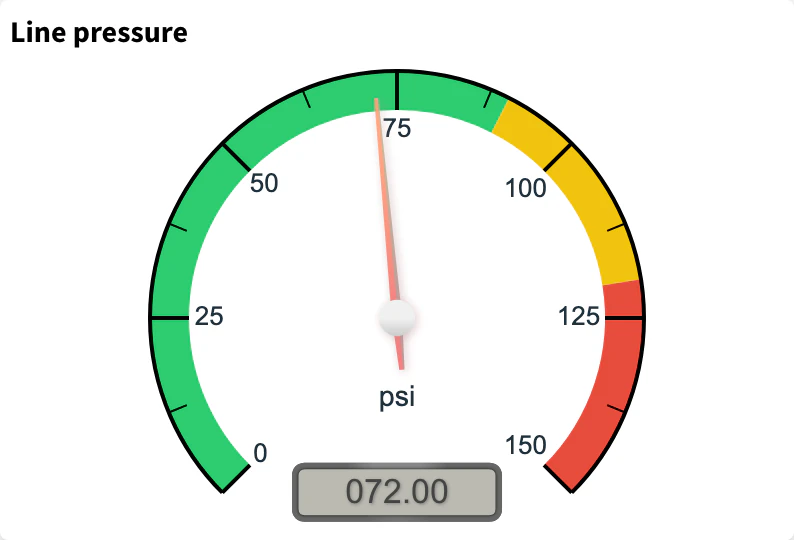
A dial with a needle, ticks and colored ranges, like a car speedometer. Use it when the reader must see at a glance whether a value is in a normal, warning or danger zone.
It has one source with one value.
| Option | Default | What it does |
|---|---|---|
| Units | empty | Unit shown on the dial. |
| Range Values | 0 to 100 | Minimum and maximum of the dial. Click + to add colored ranges (min, max and color) drawn on the scale. |
| Plate Color | #ffffff | Color of the dial face. |
| Text Color | #1E313E | Color of the numbers and units. |
| Tick Color | #000000 | Color of the ticks. |
| Major Ticks | 10 | Spacing between major ticks. |
| Show Value | on | Shows the value as a number in the dial. |
To change the whole widget color when the value is dangerous, add background colors by value too.
Text/Value
Shows a value or a text, with units, an icon and an extra text, each of them able to change with the value. Use it for any reading that needs no chart: the current temperature, a device status, the last error message.
It has one source with one value; with Manual, the fixed value is a text. The Display Options tab has three tabs.
Value:
| Option | Default | What it does |
|---|---|---|
| Decimal Places | 2 | Decimal places of numeric values. |
| Units | empty | Unit shown after the value. |
| Units Size | 20px | Size of the unit, in px, em or rem. |
| Text Color | #1E313E | Color of the value. Accepts conditions (see below). |
| Text Size | 75px | Size of the value, in px, em or rem. |
| Text Weight | Light | Light, Normal or Bold. |
| Text Alignment | Center | Left, Center or Right. |
| Open URL | empty | A link opened when you click the value. |
Icon:
| Option | Default | What it does |
|---|---|---|
| Icon | none | A Font Awesome icon or the URL of an image. Accepts conditions. |
| Icon Color | off, #1E313E | Turn it on to give the icon its own color; off, Font Awesome icons use the text color and images keep theirs. Accepts conditions. |
| Icon Size | off, 75px | Turn it on to give the icon its own size; off, it uses the text size. |
| Icon Position | Before Value | Before Value, After Value, Top Right, Bottom Left or Bottom Right. |
| Icon Gap | 8px | Space between the icon and the value. |
| Vertical Offset | 0px | Moves the icon up (negative) or down to align it with the value. |
Extra Text:
| Option | Default | What it does |
|---|---|---|
| Text | empty | An additional text shown with the value. Accepts conditions. |
| Text Color | off, #1E313E | Turn it on to give the extra text its own color; off, it uses the main text color. Accepts conditions. |
| Text Size | 20px | Size of the extra text. |
| Text Weight | Light | Light, Normal or Bold. |
| Text Position | Above Value | Above Value, Below Value, After Value, Before Value or Replace Value. With Replace Value the text is shown instead of the value: use it with conditions to show a word for each value (0 → "Closed", 1 → "Open"). |
Conditions by value. The options that accept conditions let you add values for ranges: each condition has the value to use (a color, an icon or a text), a Min and a Max. When the widget value is a number greater than the minimum and lower than or equal to the maximum, the option takes the value of the first matching condition; otherwise it keeps its normal value.

Led Indicator
A round light whose color depends on the value, and that can blink. Use it for states and alarms: green when a machine runs, red when it stops, blinking when it needs attention.
It has one source with one value.
| Option | Default | What it does |
|---|---|---|
| Led Size | 75px | Diameter of the LED, as a CSS size. |
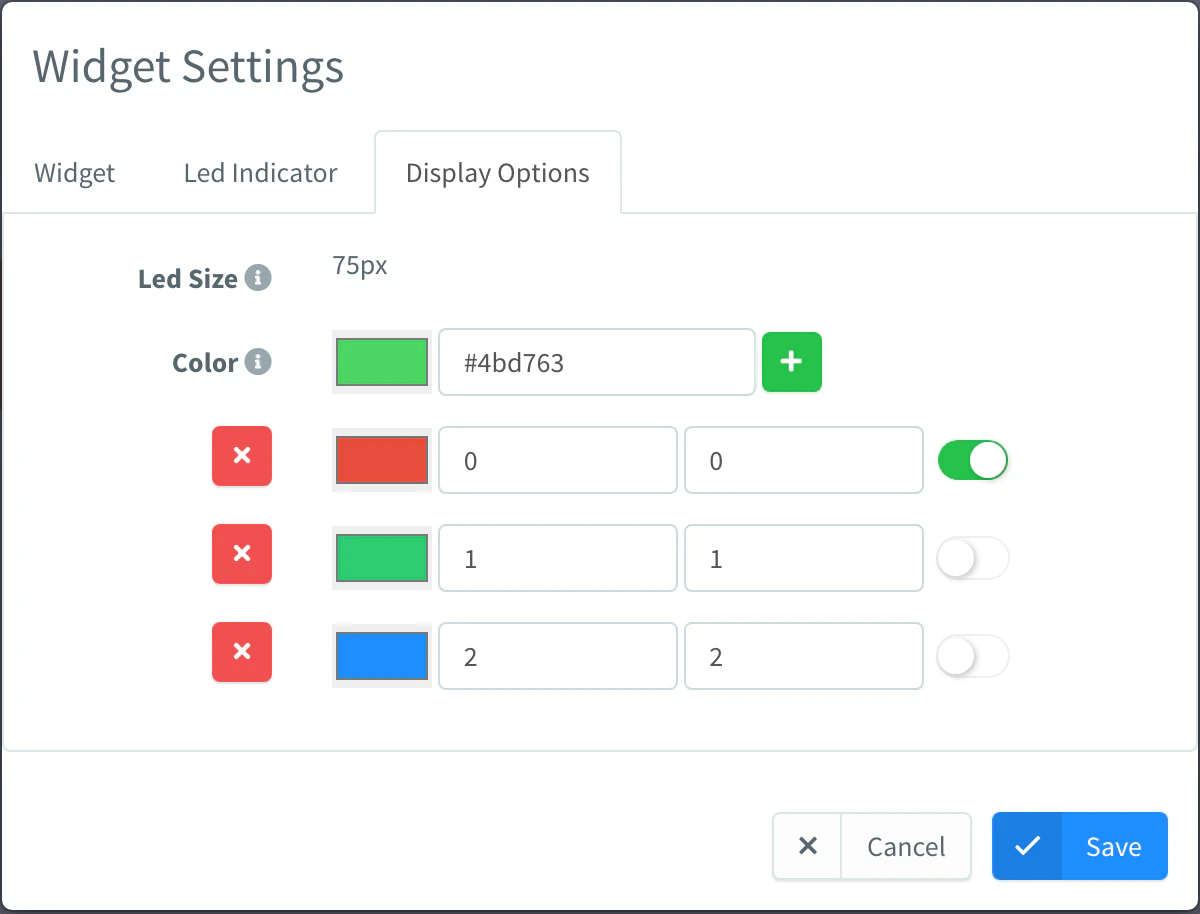
| Color | #4bd763 | Color of the LED when no range matches. Click + to add colored ranges. |
| Color ranges | Each range has a color, a Min, a Max and a blink switch. A value between the minimum and the maximum (both included) gives the LED that color; with the switch on, the LED blinks. Click the LED to stop the blinking. |
For an RGB LED with three states, add three ranges: 0 to 0 red, 1 to 1 green and 2 to 2 blue, and turn on blinking in the red one.

Clock
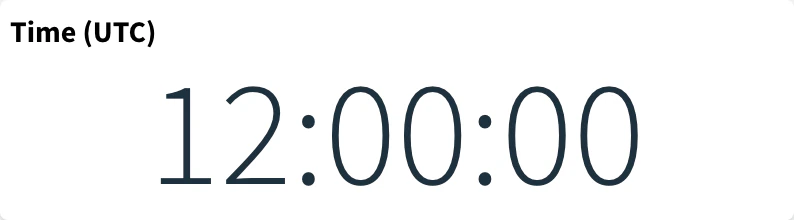
The current time of the viewer's computer, as HH:mm:ss. Use it on dashboards shown on a screen, or to compare local time with UTC. It has no data source.
| Option | Default | What it does |
|---|---|---|
| Color | #1E313E | Color of the digits. |
| UTC | off | Show in UTC shows UTC instead of the local time of the browser. |
Google Map
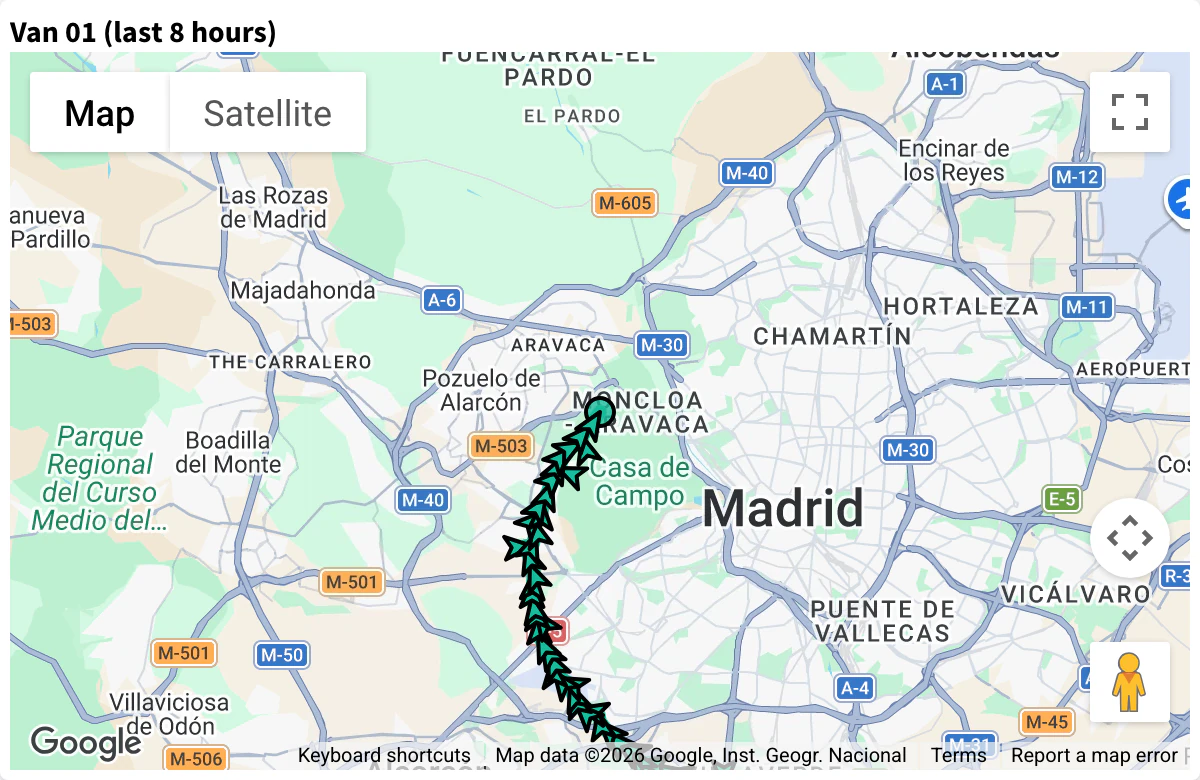
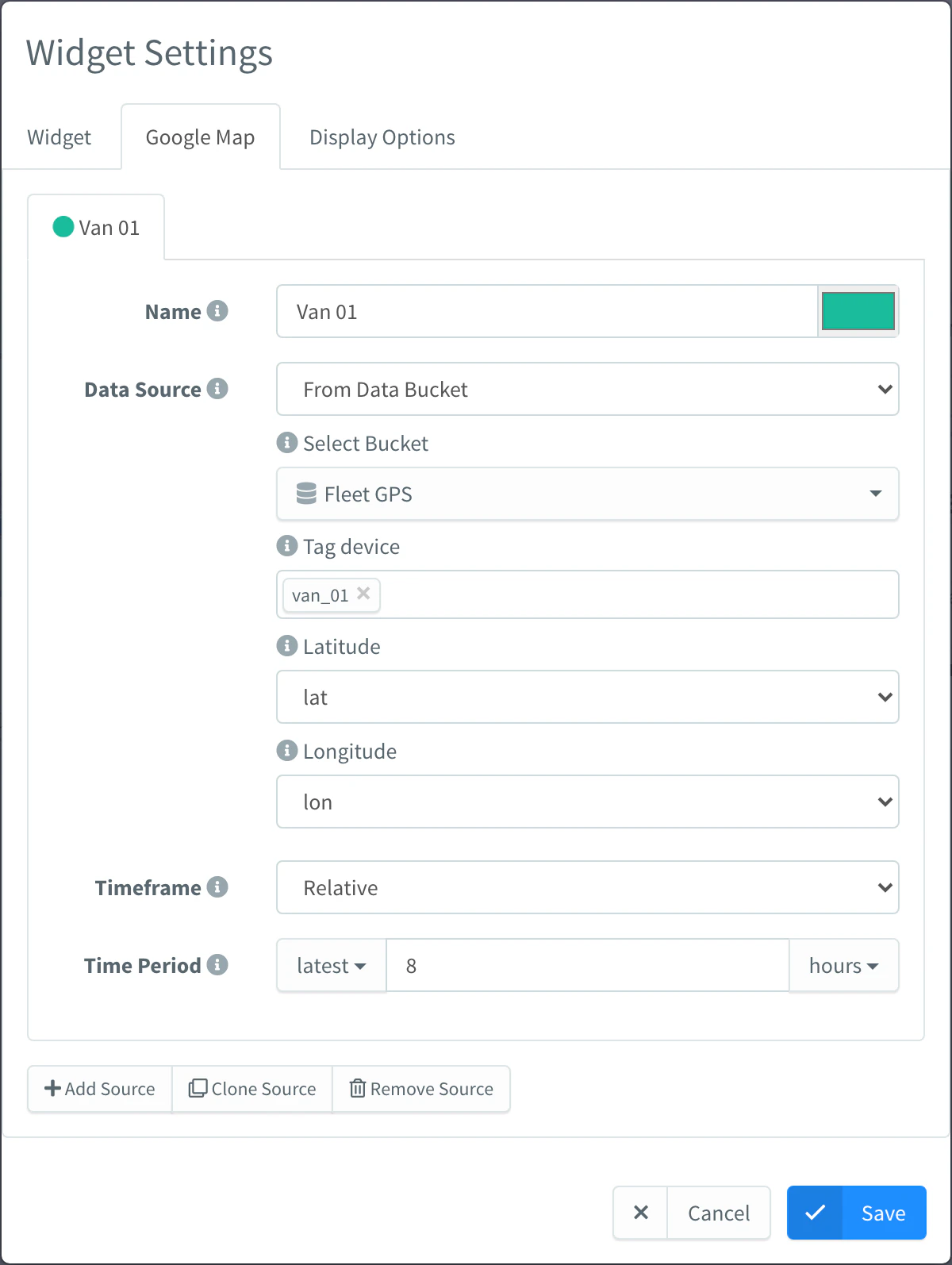
A Google map with the location of one or more devices, live or from stored data. Use it to track vehicles, assets or sensors in the field: a GPS tracker, a Sigfox device that reports its position to a Data Bucket.
Each source is a marker. For each source, choose where the location comes from and select the Latitude and Longitude fields of the data (in degrees):
| Source | What it shows |
|---|---|
| From Device Resource | The position a connected device reports. |
| From Data Bucket or From Device Bucket | The stored positions. With a Timeframe, the map draws the track of that time range. |
| From Device Property | A position stored in a property. |
| Fixed Location | A latitude and longitude you enter. |
| Current Location | The location of the viewer's browser. |
Display Options:
| Option | Default | What it does |
|---|---|---|
| Center | on | Centers the map on the latest position. |
| Zoom Level | 8 | Initial zoom, 1 (world) to 20 (buildings). |
| Map Type | Roadmap | Roadmap, Satellite, Hybrid or Terrain. |
| Waypoints | on | Shows a mark at each point of the track. |
| Location | 0, 0 | Latitude and longitude where the map starts, before it receives any position. |
| Geofences | none | A device whose geofences the map draws. |
| Hide Controls | off | Hides the Google Maps controls (zoom, map type, street view). |
This video shows a device sending its GPS position over GPRS to a live map. It was recorded with an earlier version of the console; the map works the same way.
Assets Map
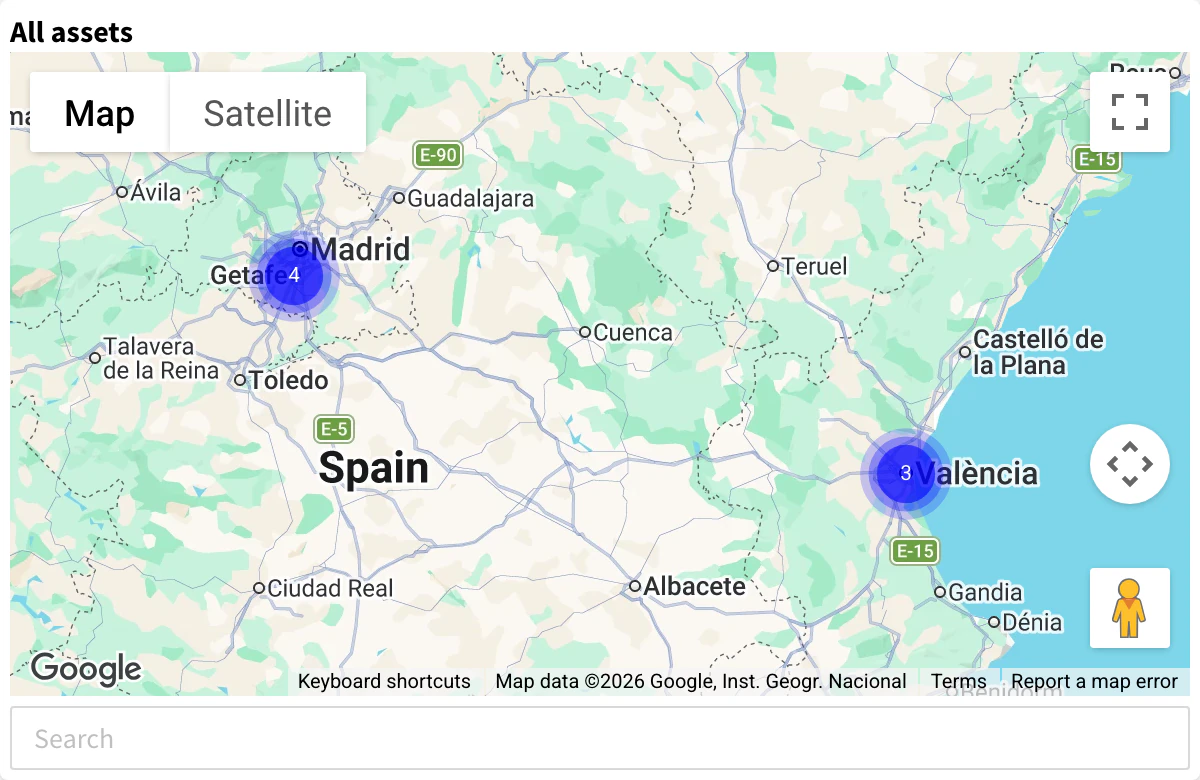
A map with the location of many devices at once, with clusters, search and connection filters. Use it to see a whole fleet: every truck of a group, every sensor of a product.
The Assets Map tab sets Assets to Plot: All assets, From Asset Type, From Asset Group or From Asset Product, and the type, group or product to show. A device appears on the map when it has a location. See Assets.
Display Options:
| Option | Default | What it does |
|---|---|---|
| Map Type | Roadmap | Roadmap, Satellite, Hybrid or Terrain. |
| Show Options | off | Shows controls on the map to turn its features on and off. |
| Show Search | on | Shows a search box to find a device on the map. |
| Geofences | on | Draws the geofences of the asset type or group. Shown when you plot a type or a group. |
| Connected | on | Shows the connected devices. |
| Disconnected | on | Shows the disconnected devices. |
| Clustering | on | Groups nearby devices into clusters that show how many devices they hold. |
Assets Table
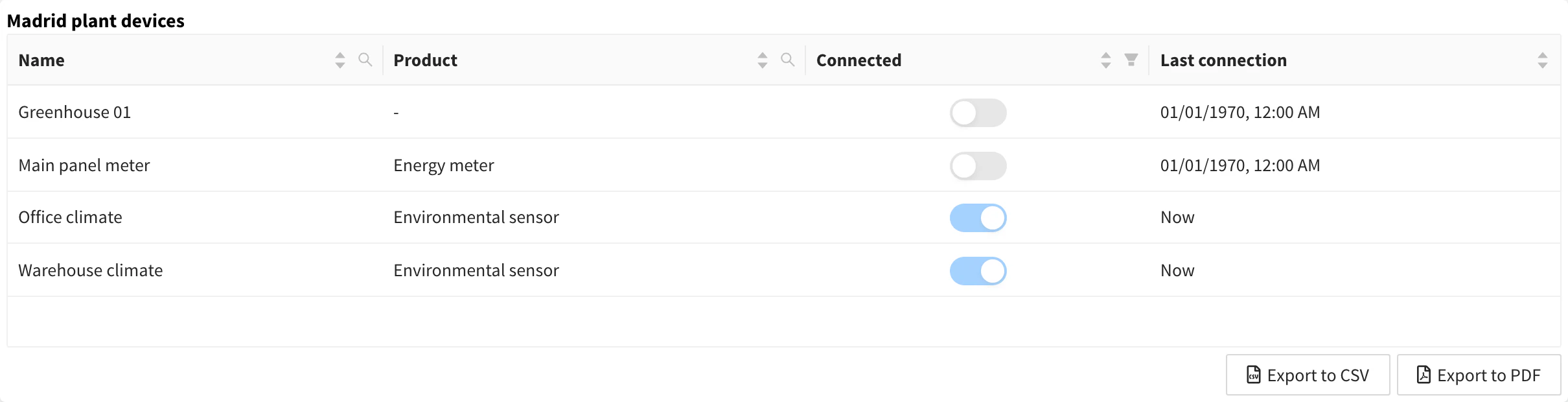
A table with one row per device, with the columns you define, sortable and searchable, that you can export. Use it for fleet lists: name, product, connection state and time since the last connection of each device.
The Assets Table tab sets Assets to Plot as in the Assets Map. In Display Options, add Columns. Each column has:
| Field | What it does |
|---|---|
| Column Name | Header of the column. |
| Field Type | How the value is shown and sorted: String, Switch, Number, Date, Time, DateTime or TimeAgo (time since the value, such as "5 minutes ago"). |
| Value Template | The value of the cell: text with fields of the device between double braces, such as {{name}}, {{asset_group}} or {{connection.active}}. Empty fields show -. |
The available fields are device, name, description, type, enabled, connection, asset_type, asset_group and product. Click a header to sort, and use the search icon of a text column to filter. Export to CSV and Export to PDF download the table.
Image/MJPEG
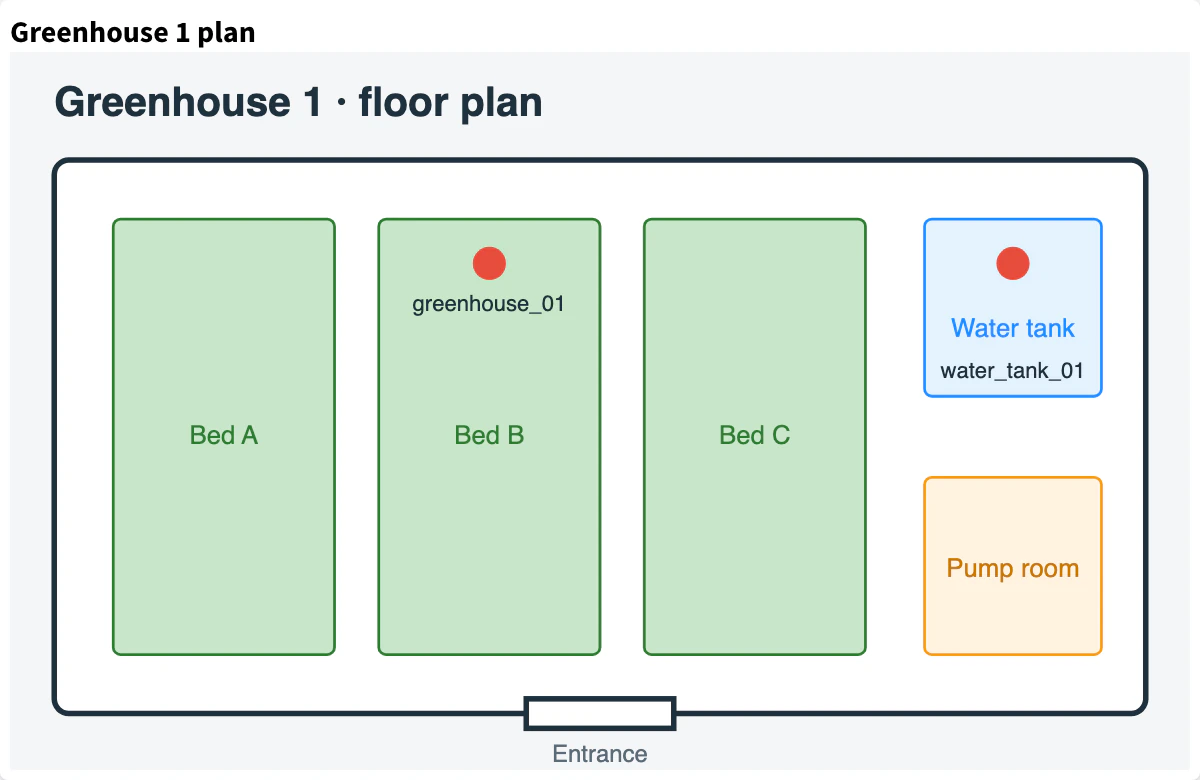
An image from a URL: a still image that can refresh, or the MJPEG stream of an IP camera. Use it for logos and plans, or to watch a camera next to the readings of the same place.
| Option | Default | What it does |
|---|---|---|
| Image Source | MJPEG Url for a camera stream, or Still Image Url for an image. | |
| MJPEG URL | URL of the MJPEG stream. | |
| Image URL | URL of the image. | |
| Refresh Interval | 0 | For still images, seconds between reloads of the image. 0 loads it once. |
The browser of the viewer loads the URL, so it must be reachable from it and, on an HTTPS console, served over HTTPS.
HTML Widget
A widget made with your own HTML, CSS and JavaScript, for anything the other widgets do not show. It receives the values of its sources, and can select several fields of a source.
| Option | What it does |
|---|---|
| HTML Source | Code Snippet to write the HTML in an editor, or File Storage to load it from a file of a File Storage. |
| File Storage | The file storage and the file (index.html by default), with File Storage. |
How to write the code, the variables it receives and examples are in HTML Widget.
Group Widget
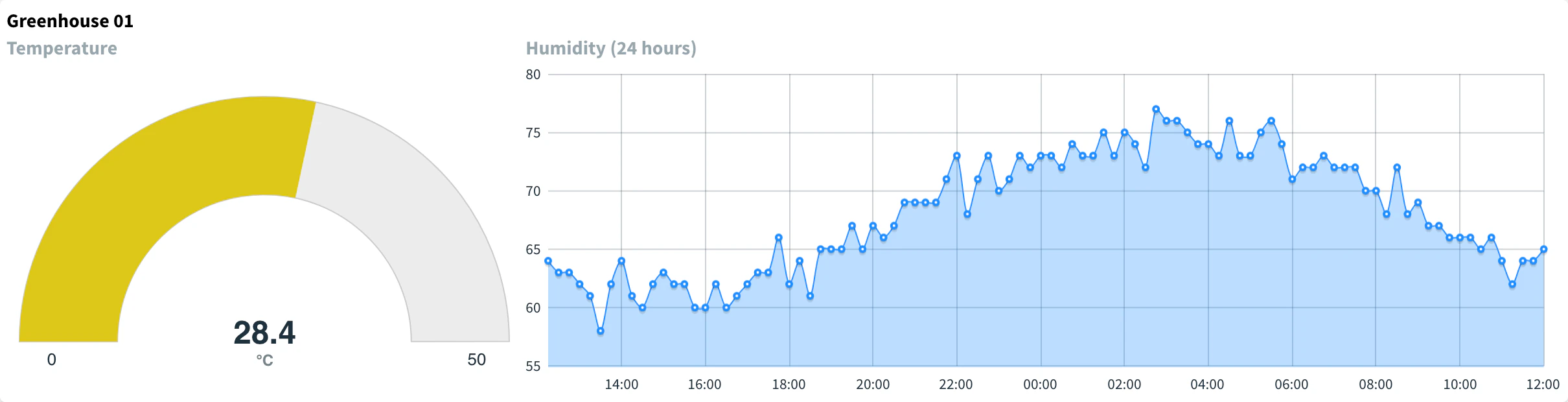
A container for other widgets, with its own grid. Use it to keep related widgets together, such as the gauge and the humidity chart of one room, and move them as one block.
In edit mode, click + in the group to add a widget inside it; drag the inner widgets to arrange them. A group can hold any widget except another Group Widget, an Assets Table and a Property Table.
Info
The Group Widget has no data of its own: each widget inside it has its own source and settings.
Device control widgets
Control widgets change a device resource or a property. They write to Device Resource (an input resource of a device; the device must be connected) or Device Property, selected in Target Value. They also show the current value: the one the resource returns, or the one stored in the property. To write the input resources in your firmware, see Arduino coding.
On/Off State
A switch or a button that turns a boolean on and off. Use it to control a light, a relay or a motor, and to see its current state.
| Option | Default | What it does |
|---|---|---|
| Switch Style | Switch | Switch shows a toggle. Button shows a round button that toggles on each click. Push Button is on while you hold it pressed and off when you release it, like a doorbell. |
| On Color | #4bd763 | Color of the button when the value is on. |
| Off Color | #ff4d4f | Color of the button when the value is off. |
| Icon | fa-power-off | A Font Awesome icon or the URL of an image, shown in the button. |
| Icon Color | #ffffff | Color of a Font Awesome icon. |
| Icon Size | 42 | Height of the icon in pixels, 16 to 48. |
All the options but Switch Style apply to the Button and Push Button styles.

Slider
A slider that sets a number. Use it to adjust a set point: a target temperature, a threshold, the speed of a fan.
| Option | Default | What it does |
|---|---|---|
| Min Value | 0 | Lowest value of the slider. |
| Max Value | 100 | Highest value of the slider. |
| Step Width | 1 | Increment between values, from 0.01. |
The slider sends the value as you move it.

Property Button
A button that opens a property of a device in a form, to read and edit it from the dashboard. Use it for settings that change rarely: the configuration of a device, its calibration.
| Option | Default | What it does |
|---|---|---|
| Property | The device and the property to open. | |
| Button Icon | far fa-list-ul | Icon of the button. |
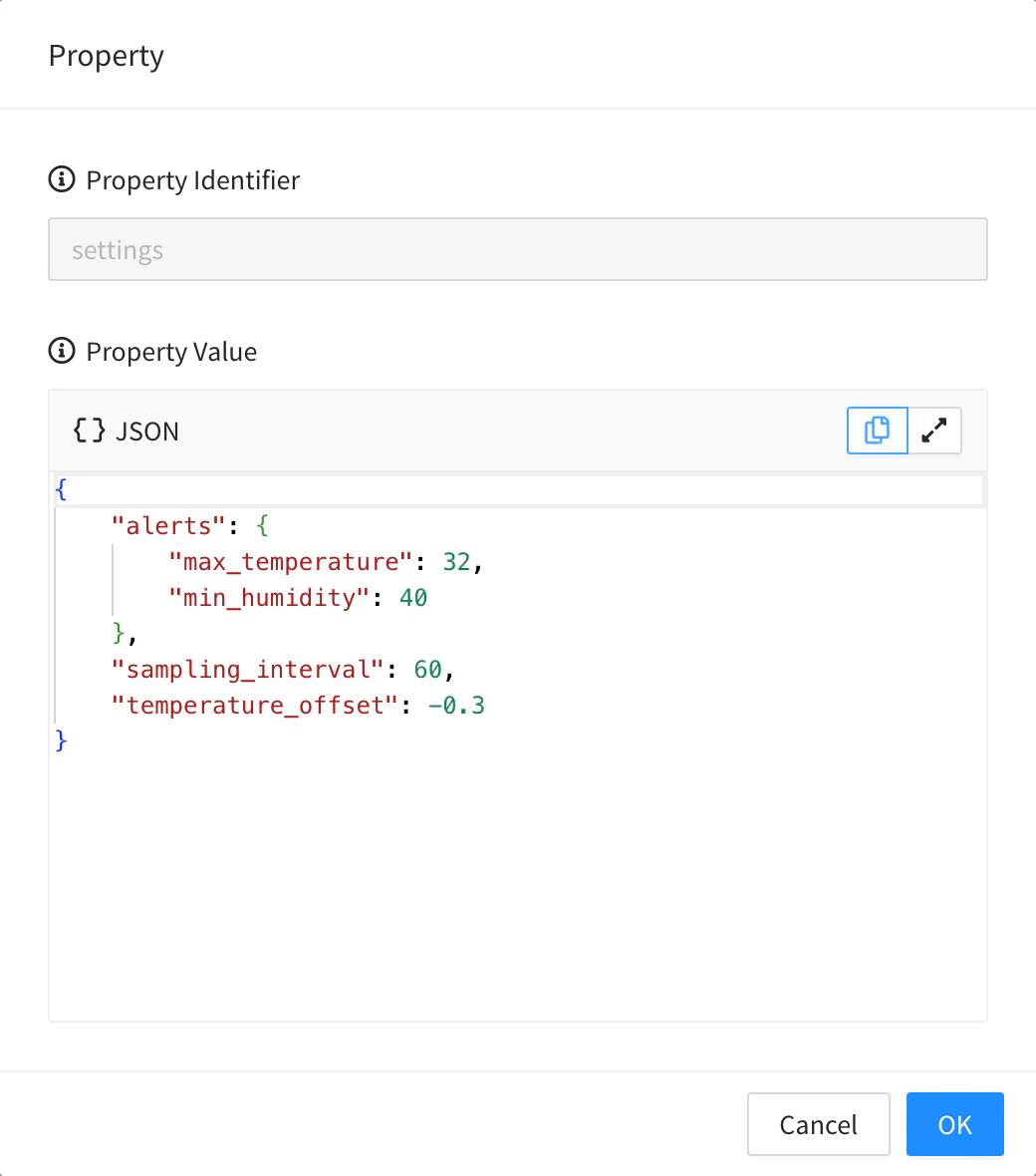
See Properties.
Property Table
A table of device properties that you can read and edit in place. Use it to manage the same setting across devices, or the fields of several properties of one device.
Each source is a row: a From Device Property source with a device and a Property Identifier, or a Property Pattern that adds one row for each property of the device that matches it. In Display Options, add Columns:
| Field | What it does |
|---|---|
| Column Name | Header of the column. |
| Field Type | Text (read only), Switch, Input Text, Input Number, Slider, Color Picker, Time Picker, Property Button (opens the property, as the Property Button) or Save Button (saves the changes of the row). |
| Value Path | The field of the property shown in the column. Not used by Property Button and Save Button. |
| Min and max | For Input Number and Slider, the limits of the value. |
| Button Icon / Save Icon | For Property Button and Save Button, the icon of the button. |
Changes stay in the row until you click its Save Button, which writes them to the property. Add a Save Button column to any table with editable columns.

Dashboard control widgets
Source Switcher
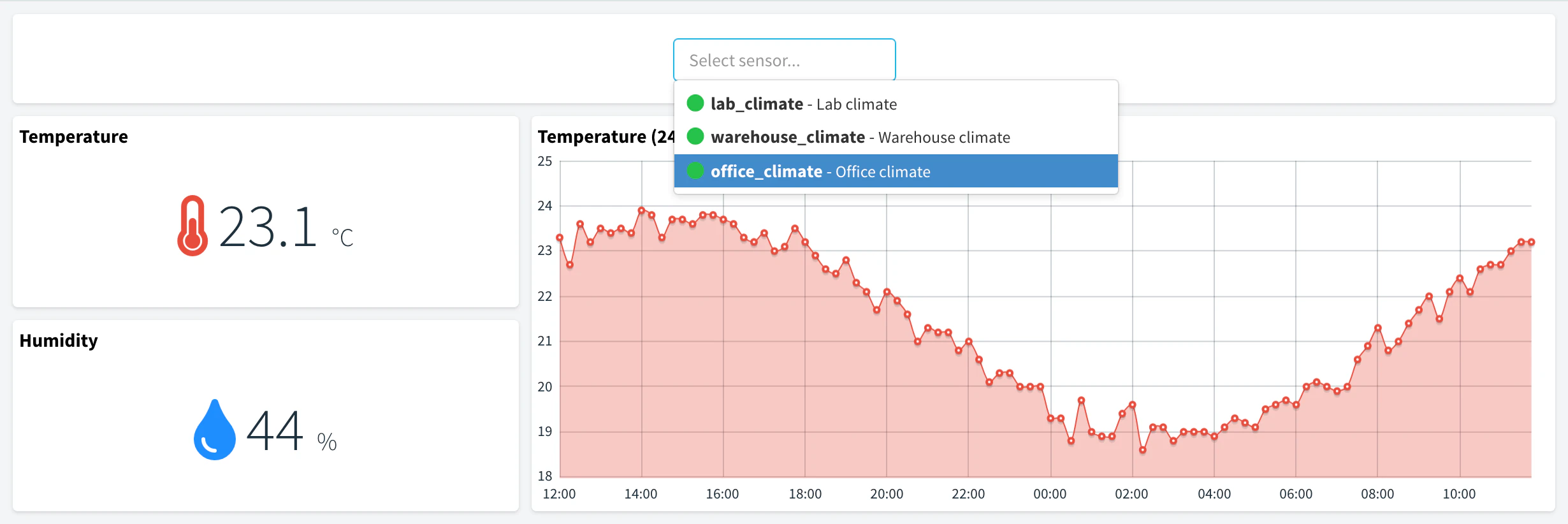
A drop-down that changes the device, bucket or bucket tags of the widgets of the same dashboard tab. Use it to build one dashboard for every device of the same kind: the viewer picks a device and every widget shows its data.
| Option | What it does |
|---|---|
| Source Type | What the switcher changes: Device, Bucket or Bucket Tags. |
| Search Hint | Text of the drop-down before a selection, such as "Select truck...". |
| Search Icon | Icon shown with the selected item. Defaults to a rocket for devices, a database for buckets and a tag for tags. Device and Bucket only. |
| Asset Type, Asset Group and Product | Limit the items offered to those of an asset type, an asset group or a product. Device and Bucket only. |
| Bucket Tag | For Bucket Tags: the bucket, the tag, and the Minimum Tag Number and Maximum Tag Number of values the viewer must and can select. |
What each type changes:
- Device: the device of the device resource, device property and device bucket sources, and the
devicetag of Data Bucket sources. - Bucket: the Data Bucket of the bucket sources.
- Bucket Tags: the selected values of that tag in the sources of that bucket, to show one or several devices, places or groups stored in a shared bucket.
Configure the widgets with one device or bucket first: the switcher starts on it and replaces it with the viewer's choice.