

The Marketplace lists every plugin you can install in your account, grouped by category. From it you open a plugin, read its documentation and install the version you choose.
When to use it
- To look for an integration for a device or a network before building your own.
- To install a tool such as Node-RED or Grafana in your account.
- To check which plugins have a newer version than the one you installed.
Find a plugin
- Go to Plugins. The page opens on the Marketplace.
- Pick a category under Marketplace: All, Devices, Connectivity, Monitoring, Development, Infrastructure or Templates. The number next to each one is how many plugins it has.
- To search by name, type in Search plugins... at the top of the list.
Each card shows the plugin name and description. Plugins you already have are marked Installed, and plugins that are no longer maintained are marked Deprecated.
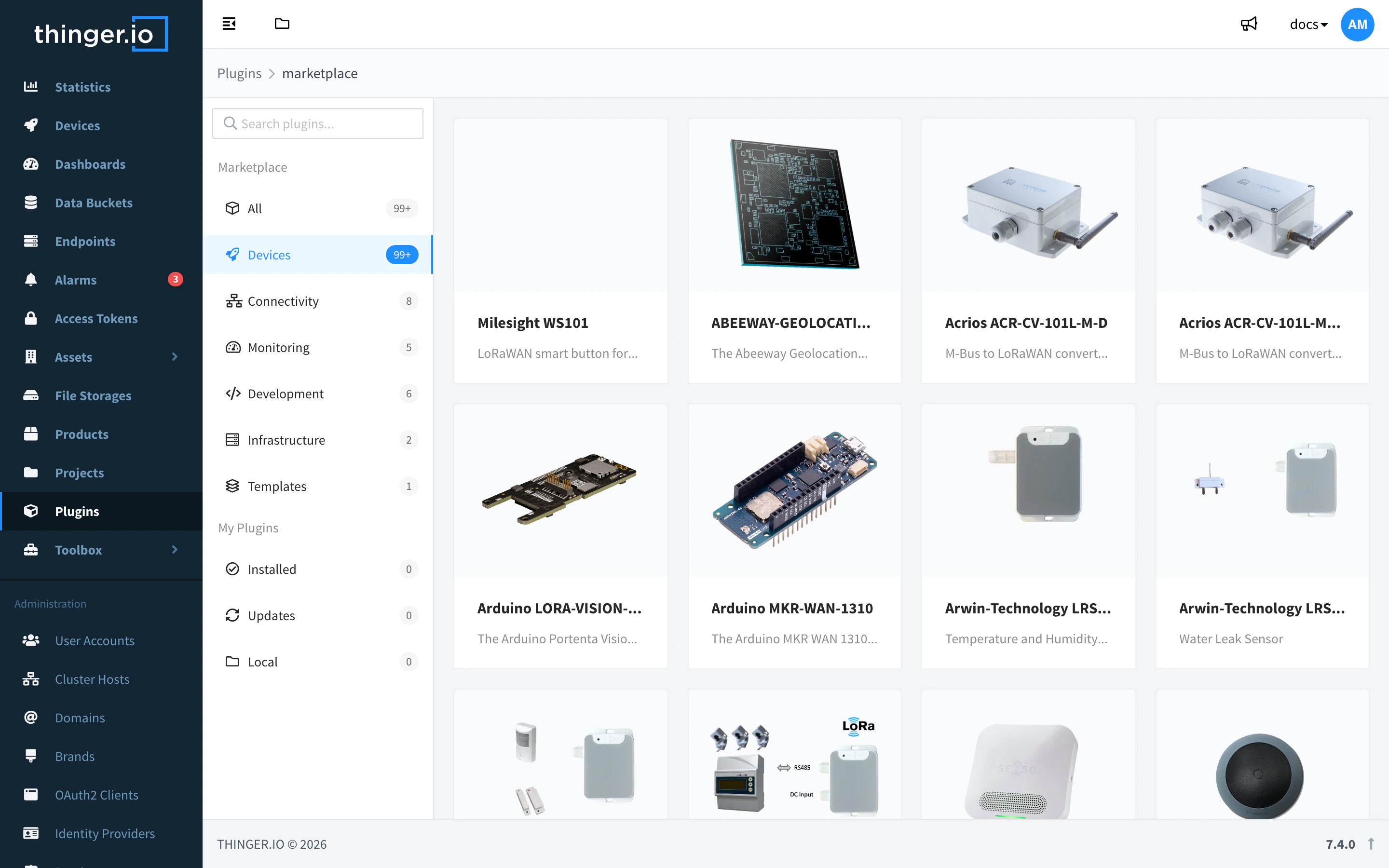
Under My Plugins you find the plugins of your account: Installed, Updates (installed plugins with a newer version) and Local.
Install a plugin
- Click the plugin card. The plugin page shows its Readme and ChangeLog, the Latest Version and a link to the Plugin Repository.
- Click Install.
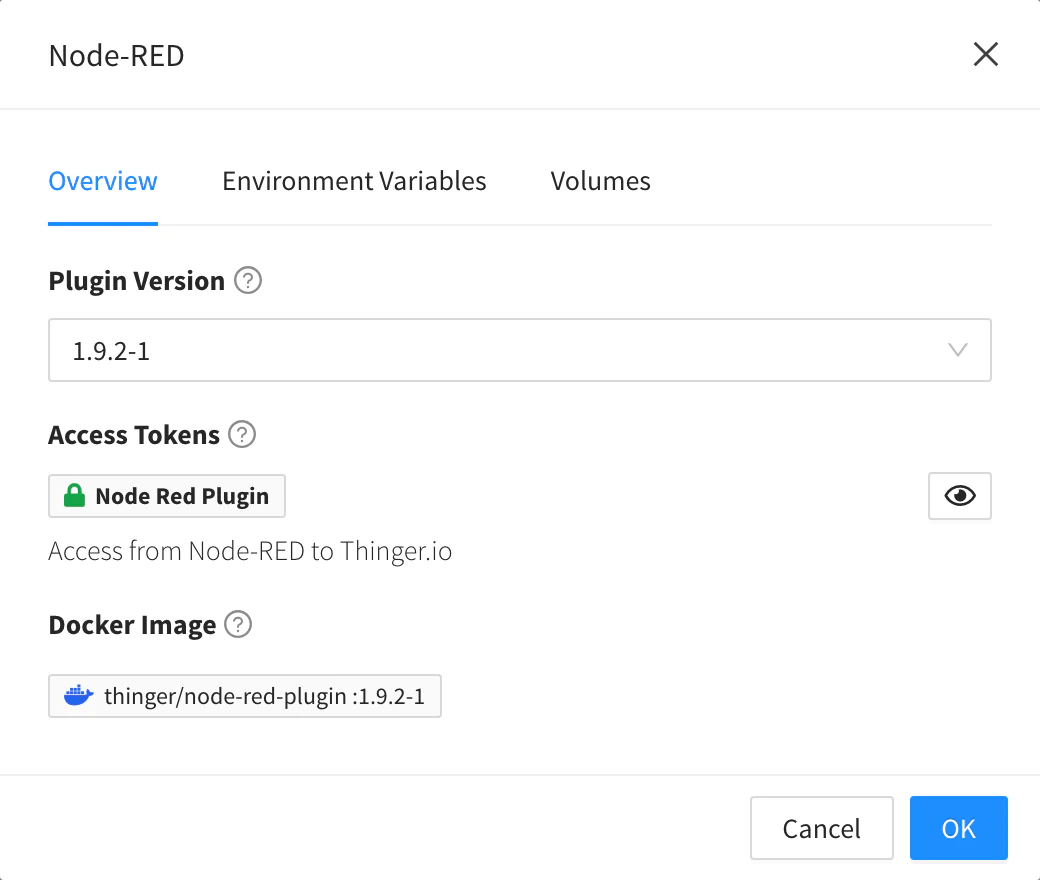
- In the dialog, choose the Plugin Version. Latest Releases are the published versions; Development Versions are for testing.
- Review the Access Tokens and Resources the plugin creates in your account. Under Options you can set a prefix and a suffix for the identifiers of those resources, for example to install a second copy for testing.
- Confirm the dialog.
The plugin is installed in your account. Its page now shows the Installed Version and the actions to manage it.
To list the plugins of your account from the REST API, see List plugins in the API reference.
Deprecated plugins
A deprecated plugin shows a warning on its page with the reason and, when there is one, the plugin that replaces it. Prefer the replacement for new installations.