

The ClimaStick is a Wi-Fi development board with environmental and motion sensors on board, designed by Thinger.io for teaching and prototyping. It is programmed from the Arduino IDE with its own library, which connects it to Thinger.io and reads every sensor in one line.
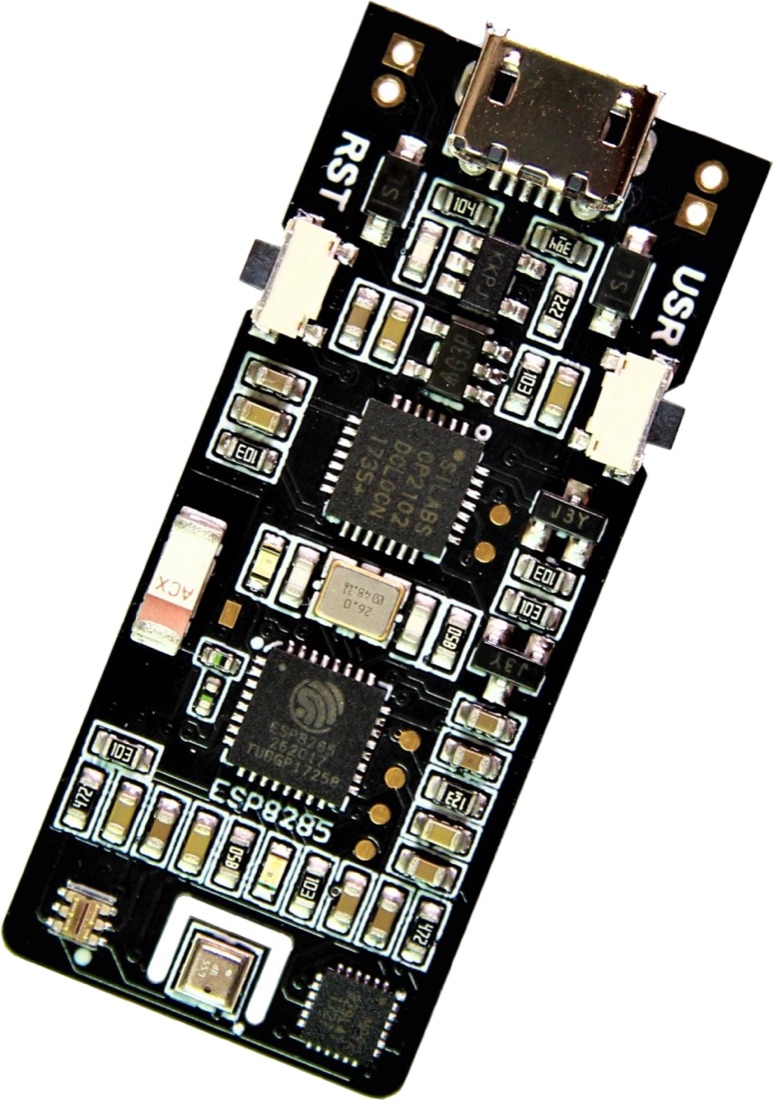
Legacy board
The ClimaStick library (last version 1.3.2) is no longer maintained and has not been checked against the current versions of the ESP8266 board package or the Thinger.io Arduino library. The instructions on this page are those of the original kit. For new projects, use one of the current boards or a supported board.
Features
- Temperature, relative humidity, barometric pressure and light (lux) sensors.
- Inertial measurement unit: accelerometer, gyroscope and compass.
- Li-Po charger: it charges a battery from the USB port or from the VIN header, for example from a solar panel.
- User button (USR) and reset button (RST).
- RGB LED, on ClimaStick V1 only.
- Programmed from the Arduino IDE through a CP2102 USB-to-UART bridge, with automatic reset for uploads.
It is used in classrooms, where students build connected projects without wiring sensors, as a micro weather station powered by a battery and a solar panel, and to measure vibration and temperature of machines.
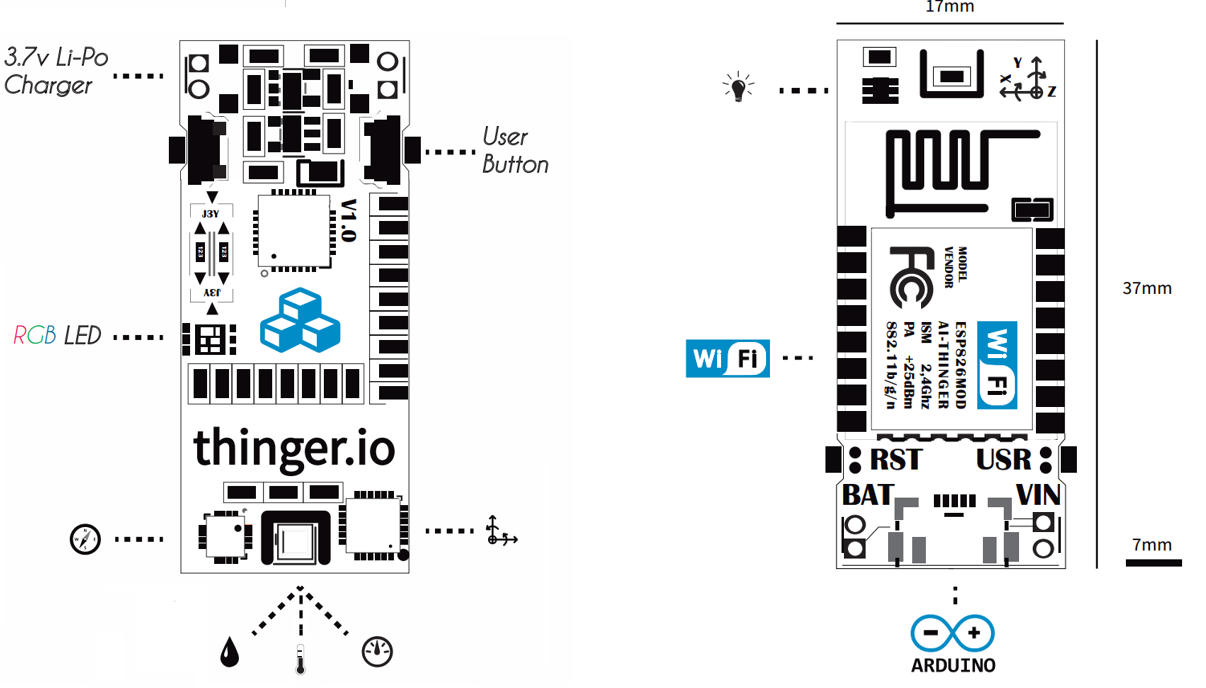
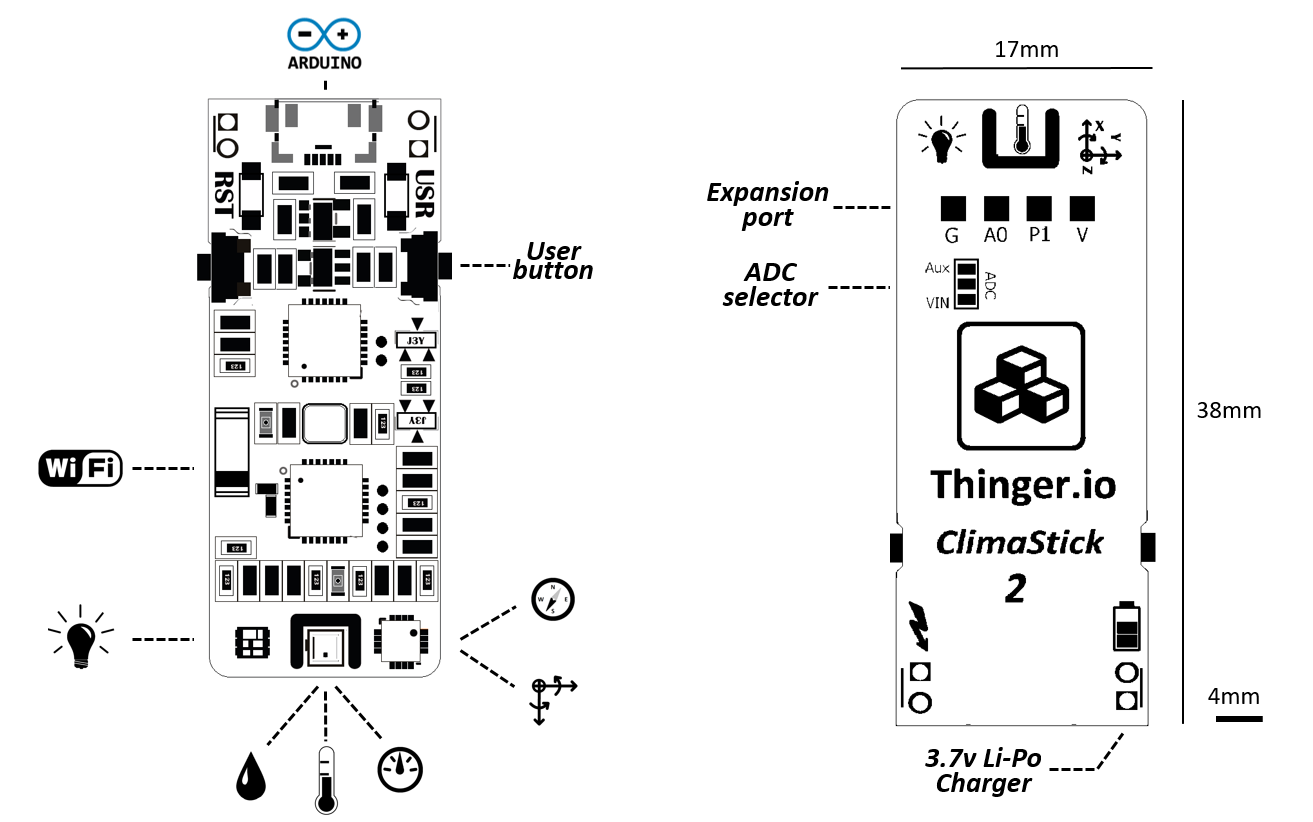
Board layout
Set up the Arduino IDE
Install the USB driver
If your computer does not detect the board, install the CP2102 USB driver from Silicon Labs.
Install the ESP8266 boards
In File > Preferences, add this URL to Additional boards manager URLs:
texthttp://arduino.esp8266.com/stable/package_esp8266com_index.jsonThen open Tools > Board > Boards Manager, search for esp8266 and install it.
Select the board
In Tools > Board, select NodeMCU 1.0 (ESP-12E Module) for the ClimaStick V1, or LOLIN(WEMOS) D1 mini Lite for the ClimaStick V2. The library uses the board you select to pick the V1 or V2 sensors.
Install the libraries
In Sketch > Include Library > Manage Libraries, install thinger.io and ClimaStick. The Library Manager has ClimaStick up to version 1.3.1; version 1.3.2 is in the Downloads below.
Select the port
Connect the board with a USB data cable and select its port in Tools > Port: a COM port on Windows, or
/dev/cu.SLAB_USBtoUARTon macOS.
The library examples are in File > Examples > ClimaStick.
Connect it to Thinger.io
Create a device in Thinger.io as in Arduino. You need your username (YOUR_USER), the device ID (YOUR_DEVICE) and the device credentials (YOUR_TOKEN).
This sketch, the ClimaStick_Auto example, connects the board and defines a device resource for every sensor:
#include <ClimaStick.h>

ClimaStick thing("YOUR_USER", "YOUR_DEVICE", "YOUR_TOKEN");

void setup() {
  // Wi-Fi network
  thing.add_wifi("wifi-network", "wifi-password");
  // start the sensors
  thing.init_sensors();
  // define a device resource for each sensor
  thing.init_resources();
}

void loop() {
  thing.handle();
}
Replace wifi-network and wifi-password with the name and password of your Wi-Fi network (2.4 GHz). Once uploaded, the device shows as connected in Devices with these device resources:
| Device resource | Values | Board |
|---|---|---|
environment | temperature, humidity, pressure, altitude, lux; dew_point on V2 | V1 and V2 |
accelerometer | ax, ay, az | V1 and V2 |
gyroscope | gx, gy, gz | V1 and V2 |
compass | heading, degHeading | V1 and V2 |
magnetometer | x, y, z on V1; mx, my, mz on V2 | V1 and V2 |
button | State of the user button. | V1 and V2 |
battery | voltage, load | V1 |
led_rgb | Input: r, g, b of the RGB LED. | V1 |
led_color | Input: ColorName, a color name such as blue. | V1 |
Led | Input: turns the LED on or off. | V2 |
To define only some of them, call the init_*_resource() function of each one instead of init_resources(): init_environment_resource(), init_accelerometger_resource() (spelled like this in the library), init_gyroscope_resource(), init_compass_resource(), init_magnetometer_resource(), init_button_resource() and init_battery_resource(); on V1, init_rgb_resources() defines both LED resources, and on V2, init_led_resource() defines Led.
Record data and sleep
On battery, the board can wake up, store a reading in a Data Bucket and go back to sleep. Create a Data Bucket with the From Device Write Call data source with the ID climastick_data, or change the ID in write_bucket():
#include <ClimaStick.h>

ClimaStick thing("YOUR_USER", "YOUR_DEVICE", "YOUR_TOKEN");

void setup() {
  thing.add_wifi("wifi-network", "wifi-password");
  thing.init_sensors();
  // define the "environment" resource
  thing.init_environment_resource();
}

void loop() {
  thing.handle();
  // write the "environment" resource to the Data Bucket
  thing.write_bucket("climastick_data", "environment");
  // sleep 60 seconds; the board then restarts
  thing.sleep(60);
}
sleep(seconds) turns off the sensors and the Wi-Fi and puts the processor in deep sleep. When it wakes up, the board restarts from setup(), and variables lose their values.
To chart the stored readings, add a chart widget to a dashboard with the Data Bucket climastick_data as its source.
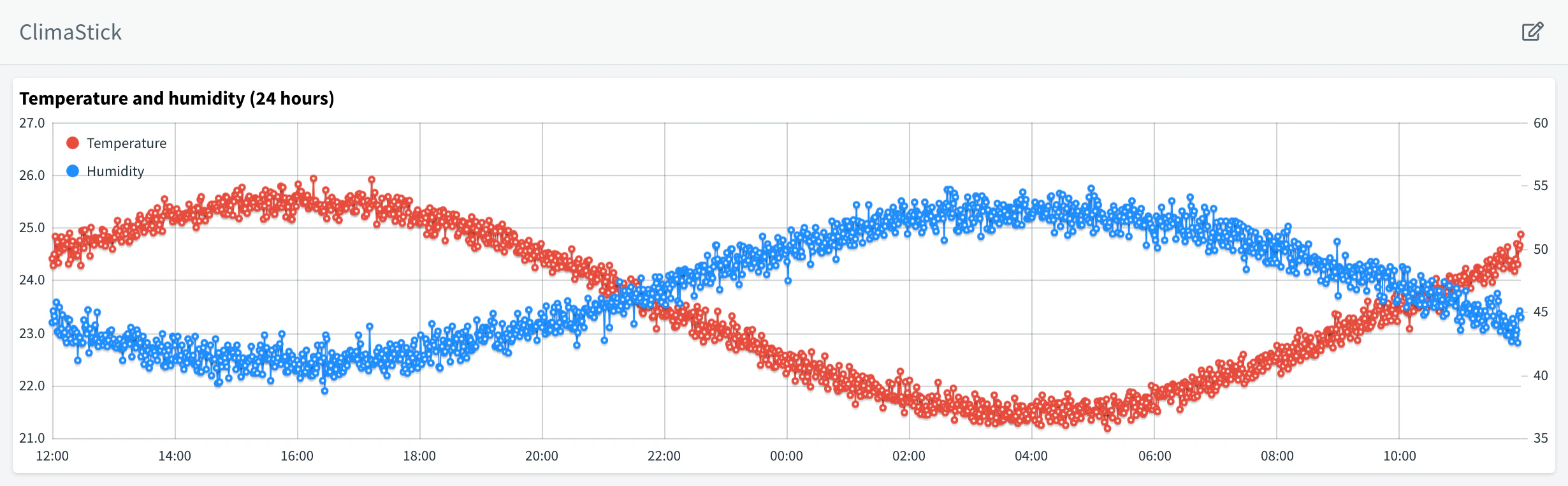
The board warms up after a few seconds of Wi-Fi activity, which raises the temperature reading. Readings taken right after waking up from a long sleep are more accurate.
Before you use deep sleep
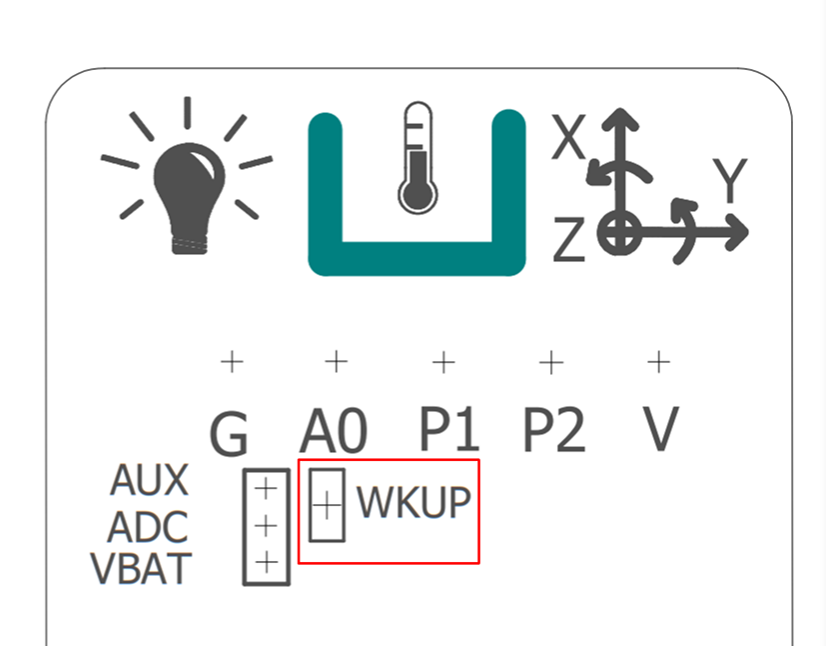
To wake up by itself, the board needs the WKUP pads on the back soldered together (see Wake-up pads). While the board sleeps it cannot receive a sketch: force the flash mode as in Troubleshoot uploads.
Library functions
Call thing.init_sensors() in setup() before you read any sensor.
| Function | Returns |
|---|---|
get_temperature() | Temperature, float. |
get_humidity() | Relative humidity, float. |
get_pressure() | Barometric pressure, float. |
get_altitude() | Altitude estimated from the pressure, float. |
get_lux() | Light, uint16_t. |
get_acceleration() | Accelerometer with ax, ay, az. |
get_gyroscope() | Gyroscope with gx, gy, gz. |
get_compass() | Compass with heading and headingDegrees. |
get_magnetometer() | Magnetometer, normalized. get_raw_magnetometer() returns the raw values. Its fields are x, y, z on V1 and mx, my, mz on V2. |
get_battery_voltage() | Battery voltage, float. |
set_rgb(r, g, b) or set_rgb("blue") | Sets the RGB LED. V1 only. |
float temperature = thing.get_temperature();
Accelerometer accel = thing.get_acceleration();
Serial.println(temperature);
Serial.println(accel.ax);
Troubleshoot uploads
The board enters the upload mode by itself when you click Upload. If the upload fails:
- Use a USB cable that carries data, not a charge-only cable.
- Check that the computer detects the CP2102 serial port, and that it is the port selected in Tools > Port.
- Force the flash mode: hold USR, press and release RST, then release USR, and upload again.
To see the state of the processor, open the serial monitor at 74880 baud and press RST. The boot message ends with mode(3,6) in normal mode and with mode(1,6) in flash mode, ready to receive a sketch.
Power
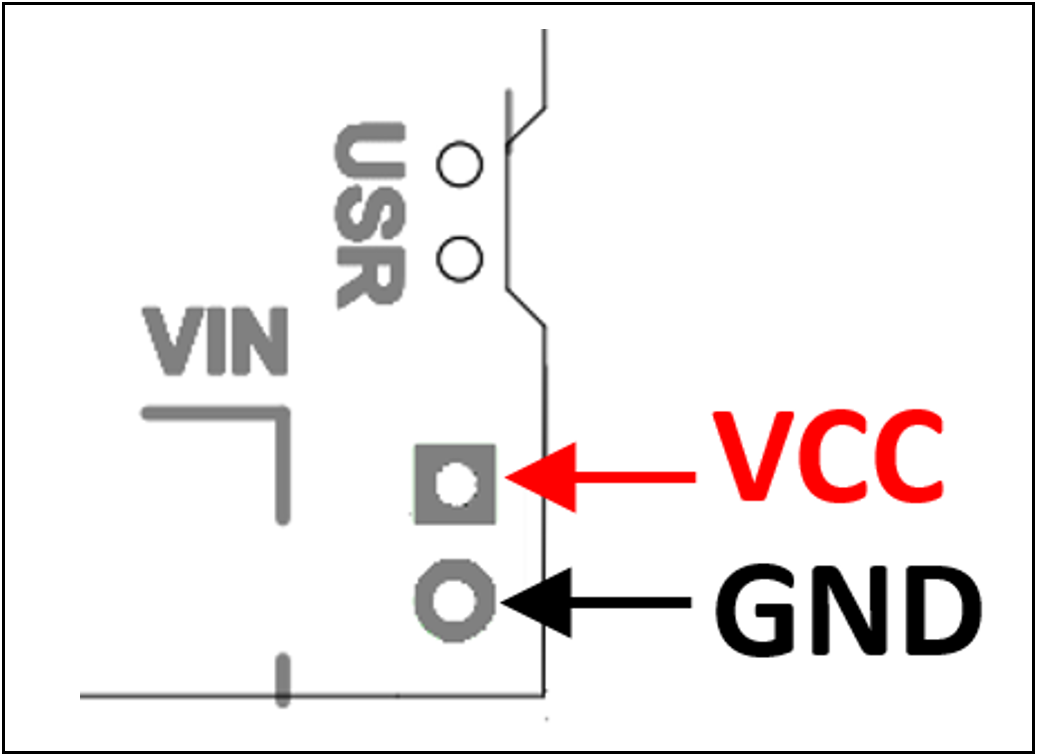
- Power the board from a 5 V USB supply that gives 250 mA to 1 A.
- Do not use the VIN header and the USB port at the same time: it can damage the board.
- Check the polarity before you connect the VIN header: a reversed connection can damage its protection diode.
Battery
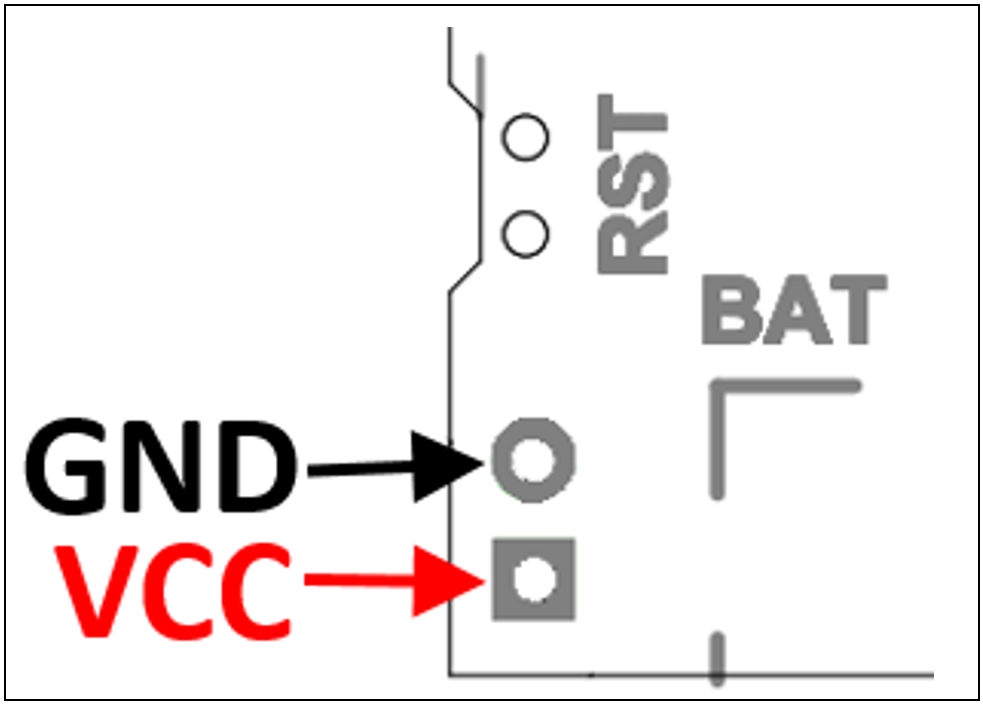
Connect a 3.7 V Li-Po or Li-ion battery to the BAT header, minding the polarity. The board charges it while it is powered from USB or VIN and stops at 4.2 V. If the cell drops under 3.6 V, a protection circuit turns the board off. Connect other kinds of batteries to VIN, not to BAT.
Wake-up pads
To wake up from deep sleep, solder the two WKUP pads together (they join GPIO16 and RESET). They come open because closing them makes uploads less reliable: with the pads closed, you may have to force the flash mode before every upload.
Handling
- The board is a prototyping kit: it is not protected against rain or harsh conditions without an enclosure.
- Hold it by the edges; electrostatic discharge on the components can damage them.
- Clean it with isopropyl alcohol and a soft brush, and store it in a cool, dry place away from dust.
Downloads
ClimaStick library 1.3.2 (ZIP)climastick-library-1.3.2.zipClimaStick V1 datasheet (PDF)climastick-v1-datasheet.pdfClimaStick V2 datasheet (PDF)climastick-v2-datasheet.pdfClimaStick V2 design files: schematic, Gerber files, bill of materials and assembly drawings (ZIP)climastick-v2-design-files.zipThe design files are those of the V2 board, revision 2.7.1: the schematic and the assembly drawings of both sides in PDF, the Gerber files, the bill of materials and the component placement file. The design files of the V1 board are not available.
The library source is in github.com/thinger-io/ClimaStick.
Disclaimer
INTERNET OF THINGER S.L. sells this board as a development kit, so it is not subject to the usual commercial homologation rules. The owner of the device is liable for any injury to third parties or damage to their property.